
Listen to this Post
Introduction:
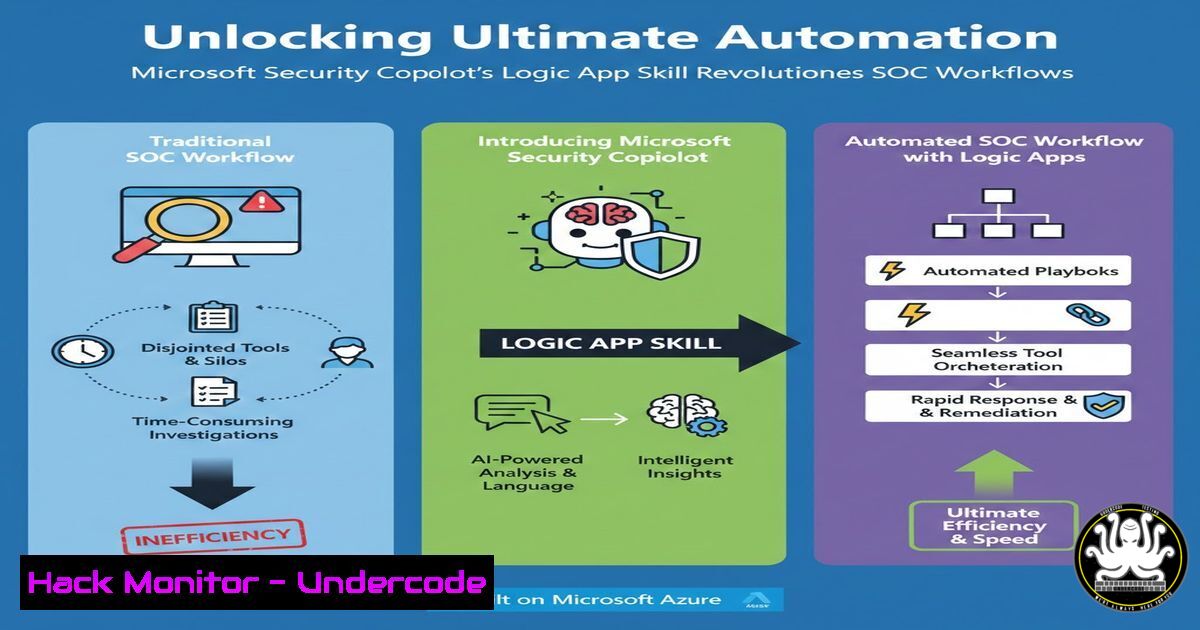
Microsoft Security Copilot has integrated a powerful new capability: the Azure Logic Apps plugin. This feature bridges AI-driven security analysis with automated workflow execution, enabling security teams to trigger complex remediation and data enrichment tasks directly from a natural language chat interface. While this represents a significant leap in Security Orchestration, Automation, and Response (SOAR), its current asynchronous nature presents both opportunities and challenges for security operations centers (SOCs).
Learning Objectives:
- Understand how to configure and deploy the Azure Logic Apps plugin for Microsoft Security Copilot.
- Learn to construct secure and effective Logic App workflows that can be triggered by Security Copilot.
- Identify the operational implications of asynchronous plugin execution and strategies for monitoring and error handling.
You Should Know:
1. Plugin Configuration and Prerequisites
Before a Logic App can interact with Security Copilot, it must be correctly configured as a plugin. This involves creating a specific type of Logic App and registering it within the Security Copilot ecosystem.
Step-by-step guide:
- Step 1: Create a Standard Logic App Resource. Navigate to the Azure Portal, search for “Logic Apps,” and create a new resource. Select the “Consumption” plan for a serverless, pay-per-use model or “Standard” for more predictable pricing and networking control.
- Step 2: Define the Trigger. The Logic App must use a When an HTTP request is received trigger. This endpoint will be the target for Security Copilot’s webhook.
- Step 3: Obtain the Callback URL. After saving the Logic App with the HTTP trigger, the HTTP POST URL is generated. Copy this URL; it is the critical link that Security Copilot will use to invoke your workflow.
- Step 4: Register the Plugin in Security Copilot. Within the Security Copilot portal, navigate to the plugin management section. Provide a name, description, and the copied HTTP URL to register your new custom skill.
- Step 5: Authenticate the Connection. Security Copilot requires a Microsoft Entra ID (formerly Azure AD) app registration for secure communication. Use PowerShell to create a service principal and assign it the necessary permissions to run the Logic App.
Connect to Azure AD
Connect-AzureAD

Create a new Azure AD Application (Service Principal)
$app = New-AzureADApplication -DisplayName "SecurityCopilot-LogicApp-Connector"
$sp = New-AzureADServicePrincipal -AppId $app.AppId

Assign the 'Logic App Operator' role to the service principal (Scope is the specific Logic App's resource ID)
New-AzRoleAssignment -ObjectId $sp.ObjectId -RoleDefinitionName "Logic App Operator" -Scope "/subscriptions/<YourSubscriptionID>/resourceGroups/<YourRG>/providers/Microsoft.Logic/workflows/<YourLogicAppName>"
2. Crafting a Security-Focused Logic App Workflow
A simple trigger is useless without a powerful and secure workflow behind it. The Logic App should be designed to perform a specific, valuable security task.
Step-by-step guide:
- Step 1: Parse the Incoming Data. Add a new step after the HTTP trigger and select the Parse JSON action. Security Copilot sends a specific JSON schema. Use the following sample schema to define the body content, which allows your workflow to dynamically use inputs from the AI chat.
{ "type": "object", "properties": { "responseUrl": { "type": "string" }, "parameters": { "type": "object", "properties": { "incidentId": { "type": "string" }, "ipAddress": { "type": "string" } } } } } - Step 2: Enrich Threat Data. Use the parsed data (e.g., an IP address) to query external or internal threat intelligence sources. Add an HTTP action to call a REST API like VirusTotal or your internal threat database.
- Step 3: Take Remedial Action. Based on the enrichment results, add conditional steps to perform actions. For example, if the IP is malicious, you could use the Azure Sentinel (now Microsoft Sentinel) connector to add a block indicator or the Microsoft Graph Security API connector to update an incident.
- Step 4: Implement a Response Action (Critical). To provide data back to the Security Copilot chat, you MUST conclude your Logic App with a Response action. This is a common point of failure. The response must be sent to the `responseUrl` provided in the initial trigger payload. The body of this response will appear in the Copilot chat.
3. The Asynchronous Operation: A Double-Edged Sword
As highlighted in the community discussion, the plugin currently operates asynchronously. This means Security Copilot triggers the Logic App and immediately reports “the logic app was successfully triggered” without waiting for it to complete or checking its output.
Step-by-step guide to managing asynchronicity:
- What It Means: Your chat session receives immediate confirmation of trigger, not of task completion. The Logic App runs independently in the background.
- Mitigation 1: Robust Error Handling Inside Logic App. Design your Logic App with built-in reliability. Use the `Run after` configuration to define what happens when an action fails (e.g., retry, send an email alert, write to a log).
- Mitigation 2: External Logging and Monitoring. Since Copilot doesn’t show failures, you must monitor the Logic App itself. Enable Azure Monitor diagnostics settings for your Logic App to stream logs to a Log Analytics workspace. Create an alert for run failures.
Enable Diagnostic Settings for a Logic App via Azure CLI
az monitor diagnostic-settings create --resource "/subscriptions/<SubID>/resourceGroups/<RG>/providers/Microsoft.Logic/workflows/<LA-Name>" --name "SentToLogAnalytics" --workspace "<LogAnalyticsWorkspaceID>" --logs '[{"category": "WorkflowRuntime", "enabled": true}]' --metrics '[{"category": "AllMetrics", "enabled": true}]'
4. Building a Synchronous-Like Experience
While native synchronous support is on the roadmap, you can architect a workaround to make the Logic App wait for a long-running process and report back.
Step-by-step guide:
- Step 1: The Initial Trigger. Security Copilot calls your Logic App (Orchestrator 1) with the
responseUrl. - Step 2: Immediate Acknowledgment. Orchestrator 1 immediately sends a “Task started…” message to the
responseUrl. This is the last action Copilot sees. - Step 3: Delegation. Orchestrator 1 then uses an HTTP action or Azure Service Bus to trigger a second, separate Logic App (Worker 2) that will perform the time-consuming task (e.g., running a complex query).
- Step 4: The Final Callback. Once Worker 2 completes its task, it uses its own HTTP action to send the final results back to the original
responseUrl. This update will appear in the original Copilot chat, effectively providing a synchronous-like result.
5. Security Hardening of the Plugin Endpoint
Exposing a HTTP trigger presents an attack surface that must be secured.
Step-by-step guide:
- Step 1: Implement IP Allow Listing. In the Logic App’s workflow settings, restrict inbound calls to the known IP ranges of the Microsoft Security Copilot service. Consult the official Microsoft documentation for these IPs.
- Step 2: Leverage Microsoft Entra ID Authentication. Beyond the service principal, you can require the HTTP trigger to validate a Microsoft Entra ID token. This adds a layer of security to ensure only authorized services, including Security Copilot, can invoke the workflow.
- Step 3: Secret Management. Never store API keys or passwords in the Logic App definition. Always use Azure Key Vault. Use the Managed Identity of the Logic App to grant it access to the Key Vault.
Grant the Logic App's system-assigned identity access to Key Vault
$LogicAppIdentity = Get-AzResource -ResourceGroupName "<RG>" -Name "<LA-Name>" -ResourceType "Microsoft.Logic/workflows"
Set-AzKeyVaultAccessPolicy -VaultName "<YourKeyVault>" -ObjectId $LogicAppIdentity.Identity.PrincipalId -PermissionsToSecrets get,list
What Undercode Say:
- The integration of Logic Apps into Security Copilot is a foundational step towards truly intelligent and automated SOCs, moving beyond simple query generation.
- The current asynchronous model is a significant operational blind spot, requiring SOCs to build redundant monitoring and error-handling infrastructure to prevent “silent failures.”
Analysis:
The release of the Logic Apps plugin marks a pivotal moment, transforming Security Copilot from an analytical assistant into an action-oriented command center. It effectively democratizes SOAR, allowing analysts to execute complex playbooks through natural language. However, the asynchronous design is a critical caveat. It prioritizes user experience (no waiting) over operational certainty. This forces security teams to adopt a “trust but verify” model, where the success of a critical remediation task (like isolating a device) cannot be confirmed within the Copilot session itself. Until Microsoft implements synchronous support and built-in failure feedback, the burden of reliability falls entirely on the Logic App design and external monitoring, potentially increasing complexity rather than reducing it for many organizations.
Prediction:
Within the next 12-18 months, we predict Microsoft will evolve this integration to be fully synchronous and bi-directional, allowing Logic Apps to not only receive tasks but also stream real-time status updates and final outcomes directly into the Copilot chat interface. This will be part of a broader trend of “Conversational SOAR,” where AI assistants become the primary cockpit for security operations, managing a dynamic fabric of automated workflows with full transactional integrity and visibility. This evolution will further blur the lines between human-driven investigation and autonomous response, fundamentally reshaping the SOC analyst’s role.
🎯Let’s Practice For Free:
IT/Security Reporter URL:
Reported By: Mariocuomo Azure – Hackers Feeds
Extra Hub: Undercode MoN
Basic Verification: Pass ✅


