
Listen to this Post
Introduction:
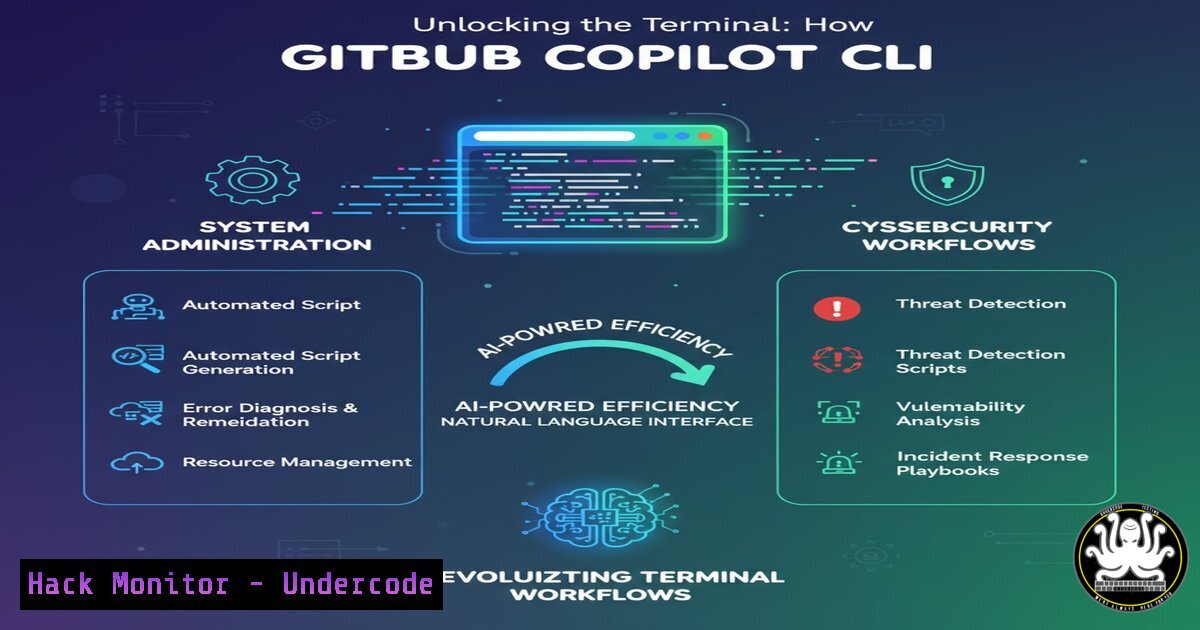
The command line has long been the bastion of expert sysadmins and security professionals, a place where precision meets power. However, the barrier to entry—memorizing syntax, flags, and piping logic—remains high. Microsoft and GitHub have just released a free, open-source course aimed at dismantling this barrier by integrating AI directly into the terminal. The “GitHub Copilot CLI for Beginners” course teaches users how to leverage AI to generate commands, explain complex scripts, and even simulate network and file system operations, fundamentally changing how we approach system administration, cloud hardening, and even penetration testing reconnaissance.
Learning Objectives:
- Understand the installation and authentication process for GitHub Copilot in the CLI across different operating systems.
- Learn to generate complex system commands (Linux/Windows) using natural language prompts for security audits and server management.
- Master the use of contextual commands, custom agents, and MCP servers to automate security workflows.
- Apply AI-assisted techniques to interpret log files, debug code, and simulate attack vectors for educational purposes.
You Should Know:
1. Installing and Authenticating GitHub Copilot CLI
Before you can harness AI in your terminal, you must integrate the Copilot agent. The CLI tool acts as a bridge between your shell and GitHub’s AI models.
Step‑by‑step guide:
- Prerequisites: Ensure you have Node.js (version 16 or higher) and npm installed. You also need an active GitHub Copilot subscription (Individual, Business, or Enterprise).
- Installation Command (Cross-Platform):
npm install -g @githubnext/github-copilot-cli
- Authentication: After installation, you must authenticate the CLI with your GitHub account.
github-copilot-cli auth
This command will provide a device code and a URL (https://github.com/login/device). Enter the code to link the CLI to your account.
- Alias Setup (Optional but Recommended): To make the experience seamless, alias the copilot commands.
For bash/zsh
eval "$(github-copilot-cli alias -- "$0")"

For Fish shell
github-copilot-cli alias -- "$0" | source
This creates shortcuts like `??` for general queries and `git?` for Git-specific commands.
2. Generating System Commands for Recon and Management
One of the most powerful features is the ability to describe what you want to do in plain English and have the AI output the correct terminal command. This is invaluable for cybersecurity professionals who need to run quick reconnaissance or system checks but may not recall the exact syntax.
Step‑by‑step guide:
- Linux Reconnaissance Example: Suppose you want to find all files with SUID permissions to check for privilege escalation vectors.
?? find all files with suid bit set in the current directory and its subdirectories
Copilot will likely suggest:
find . -type f -perm -4000 -ls
– Windows PowerShell Example: If you need to list all running network connections on a Windows machine.
?? show all active tcp connections in windows with their process ids
The AI might return:
Get-NetTCPConnection -State Established | Select-Object LocalAddress, LocalPort, RemoteAddress, RemotePort, OwningProcess
– Explanation Feature: If you see a command in a blog post but don’t understand it, use Copilot to explain it.
?? explain this: grep -r "password" /etc/ 2>/dev/null
3. Analyzing Logs and Debugging with Context
The course highlights how to use the CLI tool to interact with data streams. You can pipe output directly into Copilot to get real-time analysis, a technique crucial for incident response.
Step‑by‑step guide:
- Log Analysis: Imagine you have an Apache access log and you want to find potential SQL injection attempts.
cat access.log | github-copilot-cli what "show me all requests containing 'SELECT' or 'UNION' and sort by IP address"
This allows the AI to process the raw data and provide a synthesized report or a more refined `grep` command to run.
- Debugging Compilation Errors: If a C program fails to compile, you can pipe the error to Copilot.
gcc mytool.c 2>&1 | github-copilot-cli what "why did this compile fail and how do I fix the missing library?"
4. Creating Custom Agents for Security Automation
The new course material dives into creating “custom agents.” These are specialized AI instructions that tailor Copilot’s responses to specific domains, such as “Cloud Security” or “Network Hardening.”
Step‑by‑step guide:
- Concept: You define a “persona” for the AI. For example, a “Security Auditor” agent would always prioritize commands that check for compliance (CIS Benchmarks).
- Implementation (Conceptual): While the CLI tool itself doesn’t store persistent personas via flags, the course teaches you how to structure your prompts to achieve this. You might use environment variables or scripts to prefix your queries.
export AUDITOR_PROMPT="You are a Linux security auditor. Only suggest commands that are non-intrusive and check for security misconfigurations."
echo $AUDITOR_PROMPT "Check for world-writable files in /etc" | github-copilot-cli what
5. Leveraging MCP Servers and External Skills
Model Context Protocol (MCP) servers are a highlight of the course. These allow the CLI agent to interact with external tools and APIs, potentially pulling in live threat intelligence or cloud configurations.
Step‑by‑step guide:
- Use Case: You need to check if a specific IP address is listed in any known threat feeds.
- Workflow: The course demonstrates setting up an MCP server that can query VirusTotal or AlienVault OTX. You then ask Copilot:
?? use the threatintel server to check if 45.33.22.11 is malicious
The AI agent delegates the query to the MCP server, retrieves the data, and formats the response in your terminal, blending real-time data with AI interpretation.
What Undercode Say:
- The Democratization of the CLI: This tool lowers the barrier to entry for junior security analysts and sysadmins, allowing them to perform complex tasks without deep syntax knowledge. However, it also requires a new skill: the ability to critically evaluate the AI’s output to ensure it doesn’t introduce security risks (e.g., a command that accidentally `rm -rf` the wrong directory).
- Force Multiplier for Red and Blue Teams: For penetration testers, the ability to rapidly generate one-liners for enumeration saves time. For defenders, using AI to parse massive log files and suggest mitigation commands accelerates incident response. The introduction of MCP servers turns the terminal into a smart hub, capable of querying live threat intelligence and cloud APIs simultaneously.
Prediction:
Within the next 18 months, AI-assisted terminals will become the standard operating procedure in security operations centers (SOCs). We will see a shift from “knowing the command” to “knowing the question to ask the command-line AI.” This will lead to the development of specialized, hardened “AI-Secure Shells” that validate AI-generated commands against a security policy before execution, preventing accidental damage while maintaining the speed benefits of AI automation.
▶️ Related Video (78% Match):
🎯Let’s Practice For Free:
IT/Security Reporter URL:
Reported By: Danwahlin We – Hackers Feeds
Extra Hub: Undercode MoN
Basic Verification: Pass ✅


