Listen to this Post
Introduction:
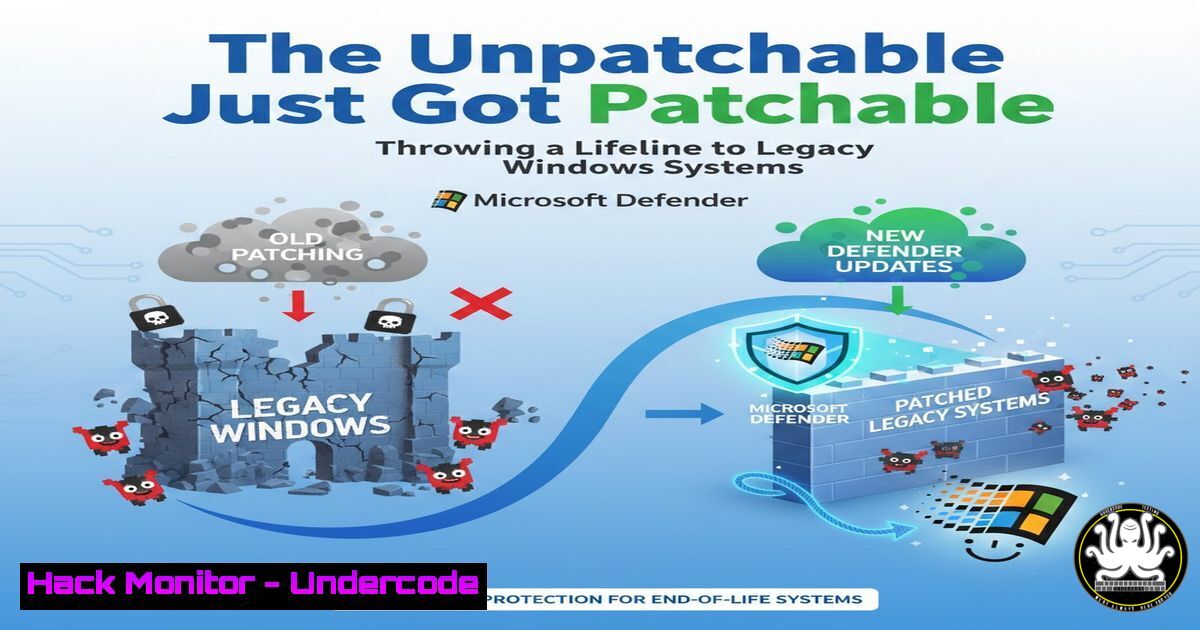
The perennial challenge in cybersecurity is the persistent existence of end-of-life (EOL) operating systems within enterprise environments. These systems, no longer receiving security patches, represent massive vulnerabilities. Microsoft’s recent enhancement of Defender for Endpoint support for retired Windows OS is a strategic acknowledgment of this operational reality, offering a critical layer of defense for what was previously considered indefensible.
Learning Objectives:
- Understand the significant risks posed by end-of-life Windows operating systems and why they remain in enterprise networks.
- Learn how to deploy and configure Microsoft Defender for Endpoint on retired systems like Windows 7 and Windows Server 2008 R2.
- Master the operational procedures for monitoring, investigating, and responding to threats on these legacy platforms using the modern Defender security stack.
You Should Know:
- The Invisible Attack Surface: Why Legacy Systems Persist
The first step in managing risk is understanding its origin. Despite well-known security advisories, legacy Windows systems remain operational for several critical reasons. Often, they run legacy business applications (LOB) that are expensive or impossible to migrate, are embedded in Industrial Control Systems (ICS) or medical equipment with long lifecycles, or are simply overlooked in sprawling, complex networks. The reality is that “switch it off” is not always a feasible immediate action, creating a security gap that attackers are all too willing to exploit. These systems are vulnerable to a wide array of attacks, from ransomware like WannaCry to credential-harvesting tools, as they lack patches for known CVEs.
- Deployment and Configuration: Getting Defender on the Retired OS
Microsoft has provided a supported path to install the modern Defender for Endpoint agent on Windows 7 SP1, Windows 8.1, and Windows Server 2008 R2 SP1. The process is not the default Windows Update path and requires a manual or scripted installation.
Step-by-step guide:
- Prerequisites: Ensure the system has the Extended Security Updates (ESU) program license if applicable, and the latest Service Packs and SHA-2 code signing support updates are installed.
- Download the Package: Obtain the unified Microsoft Defender for Endpoint onboarding package from the Microsoft 365 Defender portal. Navigate to Settings > Endpoints > Onboarding, select Windows 10 and 11 as the operating system, and download the package.
3. Installation via Command Line (Run as Administrator):
 Extract the downloaded .zip file to a location, e.g., C:\DefenderOnboarding
 Navigate to the extracted folder and run the installer:
MDECmd.exe -o
4. Verification: Check the Windows Event Log for Event ID 5 from the source “Microsoft-Windows-Windows Defender/Operational” to confirm successful onboarding. The device should now appear in the Devices list in the Microsoft 365 Defender portal.
3. Leveraging Advanced Hunting for Legacy System Threats
With the agent deployed, these legacy systems feed their sensor data into the same Advanced Hunting repository as your modern Windows 11 endpoints. This allows you to proactively hunt for malicious activity using Kusto Query Language (KQL).
Step-by-step guide:
This query looks for suspicious processes spawning from common legacy system locations, which is a common indicator of exploitation.
DeviceProcessEvents
| where Timestamp > ago(7d)
| where OSVersion startswith "6.1" // Windows 7 / Server 2008 R2
| where FolderPath startswith @"C:\Users\Public\" or FolderPath startswith @"C:\Windows\Temp\"
| where FileName in~ ("cmd.exe", "powershell.exe", "rundll32.exe", "mshta.exe")
| project Timestamp, DeviceName, FileName, FolderPath, ProcessCommandLine
This query will return a list of processes executed from public or temp folders on your legacy systems, helping you identify potential payload execution.
4. Implementing Compensating Controls with Network Security
Since the underlying OS is unpatched, you must bolster your defenses with network-level controls. Isolate these systems as much as possible and use firewall rules to restrict traffic.
Step-by-step guide for Windows Firewall (Advanced Security):
- Open `WF.msc` to access the Windows Firewall with Advanced Security console.
- Create a new Outbound Rule. Select Custom and scope it to All programs.
- In the Protocol and Ports section, set Protocol to Any.
- In the Scope section, under Which remote IP addresses does this rule apply to?, add the IP ranges of your approved management servers (e.g., WSUS, SIEM, Defender for Endpoint sensors) and block all other outbound traffic by creating a separate, higher-priority block rule.
- Enforce this configuration via Group Policy Object (GPO) if possible, pushing it to all identified legacy assets.
5. Integrating with a SIEM for Centralized Monitoring
To maintain visibility, configure the legacy system to forward its Windows Event Logs, particularly the Security and Defender logs, to a central SIEM.
Step-by-step guide using Windows Command Prompt (for testing):
 To check if the Windows Event Collector service is configured, you can push an event from a source (legacy system) to a collector (SIEM server).
 On the legacy source machine, you can use `wevtutil` to query a specific log.
wevtutil qe "Microsoft-Windows-Windows Defender/Operational" /f:text /rd:true /c:1
For production, use a SIEM agent or configure the native Windows Event Forwarding (WEF) subscription to push events from the legacy device to a central collector, which then forwards them to the SIEM for correlation with events from other systems.
6. The Role of Application Control Policies
A powerful mitigation for unpatched systems is to prevent unauthorized code from running in the first place. Using Windows Defender Application Control (WDAC) or a legacy AppLocker policy can lock down the system.
Step-by-step guide for a basic AppLocker policy:
- Open the Local Security Policy (
secpol.msc) on a test legacy machine.
2. Navigate to Application Control Policies > AppLocker.
- Create a default rule that allows only executables and scripts from
%PROGRAMFILES%,%WINDIR%, and a specific directory for your approved legacy application. Create a path rule that explicitly denies execution from `C:\Users\Public\` andC:\Windows\Temp\. - Enforce the rules and test thoroughly before deploying via GPO to production legacy systems. This creates a whitelist, a highly effective strategy on static systems.
What Undercode Say:
- Pragmatism Over Perfection: Microsoft’s move is a masterclass in security realism. It accepts that ideal-world scenarios don’t exist and provides a tangible tool to manage unacceptable, yet unavoidable, risk.
- A Stopgap, Not a Solution: This enhanced support is a strategic compensating control, not an endorsement of using EOL software. It buys CISOs crucial time to plan and execute migrations without leaving the crown jewels completely exposed.
This analysis underscores a critical shift in vendor responsibility. By extending its advanced, cloud-powered EDR to platforms it no longer patches, Microsoft is providing a “shield” where the “sword” of patching is no longer available. It effectively outsources part of the defense from the vulnerable OS kernel to a behavioral and heuristic-based monitoring layer. This model could set a precedent for how other vendors handle the long tail of their product lifecycles, offering managed detection and response as a service for aging but critical infrastructure. It elevates the security posture from “completely vulnerable” to “actively monitored and defensible,” which is a monumental improvement for risk management.
Prediction:
This pragmatic approach by Microsoft will force a industry-wide conversation about the lifecycle responsibility of software vendors, particularly for embedded and OT systems. We predict that within three years, offering extended EDR/MTDR (Managed Threat Detection and Response) services for EOL products will become a standard offering from major security vendors. This will create a new market segment focused exclusively on securing “digital legacy assets,” integrating more deeply with network micro-segmentation and Zero Trust policies to create immutable, defensible enclaves for systems that cannot be upgraded. The hack of the future will increasingly target the configuration and integrity of these defense-in-depth controls themselves, rather than the underlying OS vulnerability.
🎯Let’s Practice For Free:
IT/Security Reporter URL:
Reported By: Philip Security – Hackers Feeds
Extra Hub: Undercode MoN
Basic Verification: Pass ✅


