Listen to this Post
Introduction:
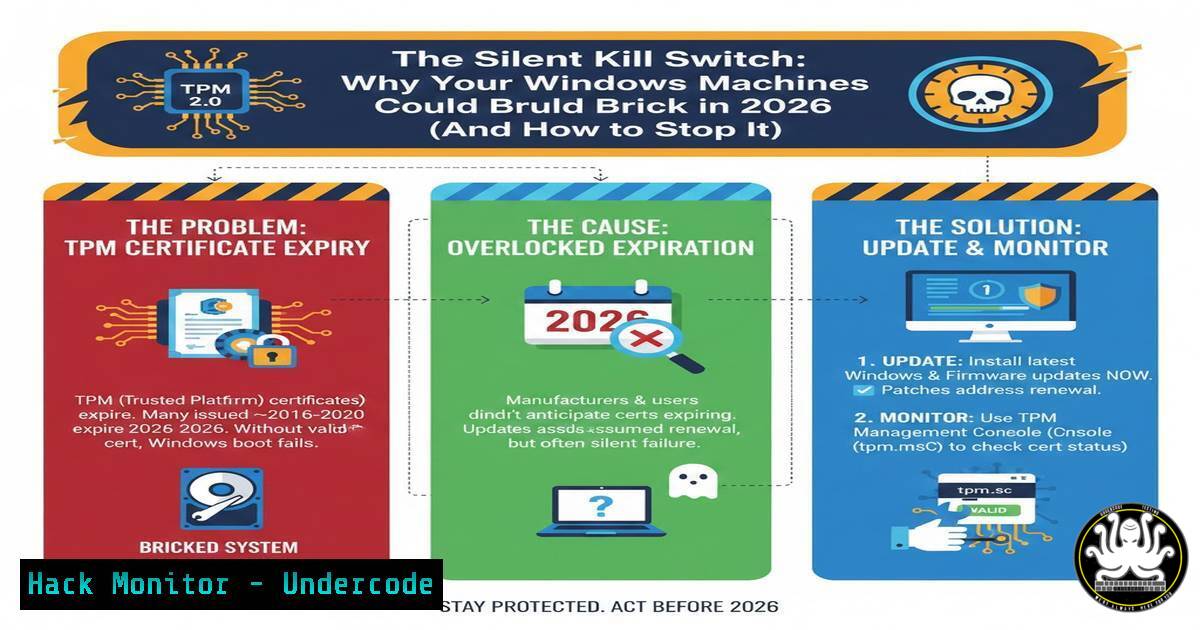
A critical but under-the-radar deadline is looming for every organization running Windows. The foundational Secure Boot certificates that validate your system’s firmware and operating system during startup are set to begin expiring in June 2026. Failure to update these certificates could result in systems failing to boot, being unable to install security updates, and becoming critically vulnerable. This isn’t just a patch; it’s a necessary refresh of the digital trust chain that protects your entire boot process.
Learning Objectives:
- Understand the role of Secure Boot and the impending risk of certificate expiration.
- Learn how to audit your environment for devices using the expiring 2011 certificates.
- Master the steps to deploy the 2023 certificate update across managed and unmanaged endpoints.
You Should Know:
1. Understanding the Secure Boot Certificate Chain
Secure Boot is a UEFI security feature that prevents unauthorized (e.g., malicious) code from running during the boot process by checking the digital signature of each piece of boot software against trusted certificates stored in the firmware. The expiring “Microsoft Windows UEFI Driver Publisher 2011” certificate is the root of trust for most Windows devices shipped in the last decade. Its expiration doesn’t mean immediate failure, but it breaks the chain for validating new, securely signed boot components and updates.
Step-by-step guide explaining what this does and how to use it:
You can view the certificates in your firmware manually.
1. On a Windows machine, open the Microsoft Management Console (MMC) by pressing Win + R, typing mmc, and hitting Enter.
2. Go to File > Add/Remove Snap-in.
- Select Certificates and click “Add.” Choose Computer account, then Local computer, and finish.
- In the console, navigate to Certificates (Local Computer) > Trusted Publishers > Certificates.
- Look for the “Microsoft Windows UEFI Driver Publisher 2011” and “Microsoft Windows UEFI Driver Publisher 2023” certificates. The presence of the 2023 certificate indicates your system is likely prepared.
2. Auditing Your Fleet for Expiring Certificates
Proactive discovery is key. Microsoft provides a PowerShell module to assess the Secure Boot state. The primary tool is Get-SecureBootPolicy. You can also use firmware-related commands for a deeper dive.
Step-by-step guide explaining what this does and how to use it:
Use PowerShell with administrative privileges to run an audit.
 Check the Secure Boot state and certificate information
Get-SecureBootPolicy -OutputFilePath C:\Temp\SecureBoot_Info.json

This command exports a JSON file detailing the policy, including the CA certificates.
 Look for the "Microsoft Windows UEFI CA 2011" in the output.

Alternatively, to check UEFI variables directly (requires admin):
Get-FirmwareEnvironmentVariable -Name 'PK' -Namespace 00000000-0000-0000-0000-000000000000
For Linux systems checking their own Secure Boot state (e.g., in a hybrid environment):
 Check if Secure Boot is enabled
sudo mokutil --sb-state

List the certificates in the DB (authorized signatures) variable
sudo efivar -l | grep -i db
3. Deploying the 2023 Certificate Update
The update is distributed as a firmware update from OEMs and, crucially, via Windows Update as a standalone security update (KB5012170). It must be applied before the old certificate expires.
Step-by-step guide explaining what this does and how to use it:
1. For Unmanaged/Walk-up Devices: Ensure systems are set to receive updates from Windows Update. The update will be offered automatically if diagnostics data is enabled (a common enterprise requirement). Manually check for updates.
2. For Managed Environments (WSUS/Intune/ConfigMgr):
Import and approve update `KB5012170` in your patch management system.
Create a dedicated deployment ring for pilot testing, targeting a diverse set of hardware models.
Monitor for successful installation. The update requires a reboot.
3. Post-Update Verification: Re-run the `Get-SecureBootPolicy` PowerShell command. The JSON output should now show the “Microsoft Windows UEFI CA 2023” certificate as present and active.
4. Handling Potential Update Failures and Boot Issues
The update process modifies UEFI variables. On some systems, especially those with custom or strict firmware settings, it may fail or require manual intervention. Error `0x800f0922` is common.
Step-by-step guide explaining what this does and how to use it:
1. Check Firmware Settings: Enter the UEFI/BIOS setup during boot. Ensure Secure Boot is enabled and is in “Standard” or “Microsoft” mode, not “Custom” or “Other OS.” Save and exit.
2. Reserve Sufficient Space: The update can fail if there’s insufficient space in the UEFI certificate store. Microsoft provides a troubleshooting script.
 Run the Security Update Troubleshooter for KB5012170
 Download from Microsoft Official Link (Hypothetical - use official guidance)
 .\SecureBootCertUpdateTroubleshooter.ps1 -Scan
3. Last Resort – Manual Registry Key (if update repeatedly fails and is not applicable): This does NOT install the certificate but prevents update checks from failing repeatedly.
reg add "HKEY_LOCAL_MACHINE\SYSTEM\CurrentControlSet\Control\SecureBoot" /v "AvailableUpdates" /t REG_DWORD /d 0 /f
Warning: This is a workaround, not a fix. It suppresses the update, leaving the system vulnerable post-expiration.
5. Integrating Certificate Health into Your Vulnerability Management
Treat the expiring Secure Boot certificate as a critical, time-based vulnerability. Use your existing tools to track compliance.
Step-by-step guide explaining what this does and how to use it:
1. Use the PowerShell audit script (Get-SecureBootPolicy) to generate a CSV output for all machines.
2. Parse this data with your configuration management database (CMDB) or IT asset management tool.
3. Create a dashboard that shows:
Percentage of devices with the 2023 certificate installed.
Devices still reporting only the 2011 certificate, broken down by OEM and model.
Devices where the Secure Boot state is “Off” or “Invalid.”
4. Schedule periodic (e.g., monthly) scans leading up to the June 2026 deadline to track progress.
What Undercode Say:
- This is an Infrastructure-Level Threat: Unlike a typical software patch, this issue sits in the firmware/trust layer. A widespread failure could render machines unbootable, a recovery scenario far more severe than cleaning malware.
- The Time Bomb is Real, But the Fuse is Long: The expiry starts in June 2026, but the operational disruption from ignoring it will be absolute. The slow rollout of firmware updates, especially for older but still-in-use hardware, makes starting now a non-negotiable.
Prediction:
The June 2026 deadline will create a clear bifurcation in organizational security postures. Proactive enterprises that complete this certificate migration will maintain seamless security update pathways and boot integrity. Those that delay will face a costly, frantic scramble in late 2025/early 2026, competing for scarce OEM support resources for legacy hardware. This event will likely accelerate the retirement of Windows 10 devices that are incompatible with the new certificate, acting as a forced modernization catalyst. Furthermore, it underscores the growing criticality of managing the “firmware supply chain” and cryptographic trust agility as core IT security competencies.
▶️ Related Video (74% Match):
🎯Let’s Practice For Free:
IT/Security Reporter URL:
Reported By: Darwish Alhelo – Hackers Feeds
Extra Hub: Undercode MoN
Basic Verification: Pass ✅


