Listen to this Post
Introduction:
The rapid adoption of cloud identity systems like Microsoft Entra ID (formerly Azure AD) has unlocked unprecedented productivity, but it has also opened a new front for cyber attackers. Malicious OAuth applications represent a sophisticated and often overlooked threat vector, allowing adversaries to bypass multi-factor authentication, maintain persistent access, and exfiltrate sensitive data directly from your cloud environment. Understanding and mitigating this risk is no longer optional for any organization operating in the cloud.
Learning Objectives:
- Understand the critical risks and attack methodologies associated with malicious OAuth applications in Entra ID.
- Learn to identify, investigate, and eradicate malicious OAuth apps using native Microsoft tools and command-line utilities.
- Implement proactive hardening strategies and leverage new tools like Entra App Watch to improve your cloud security posture.
You Should Know:
1. The Anatomy of an OAuth App Attack
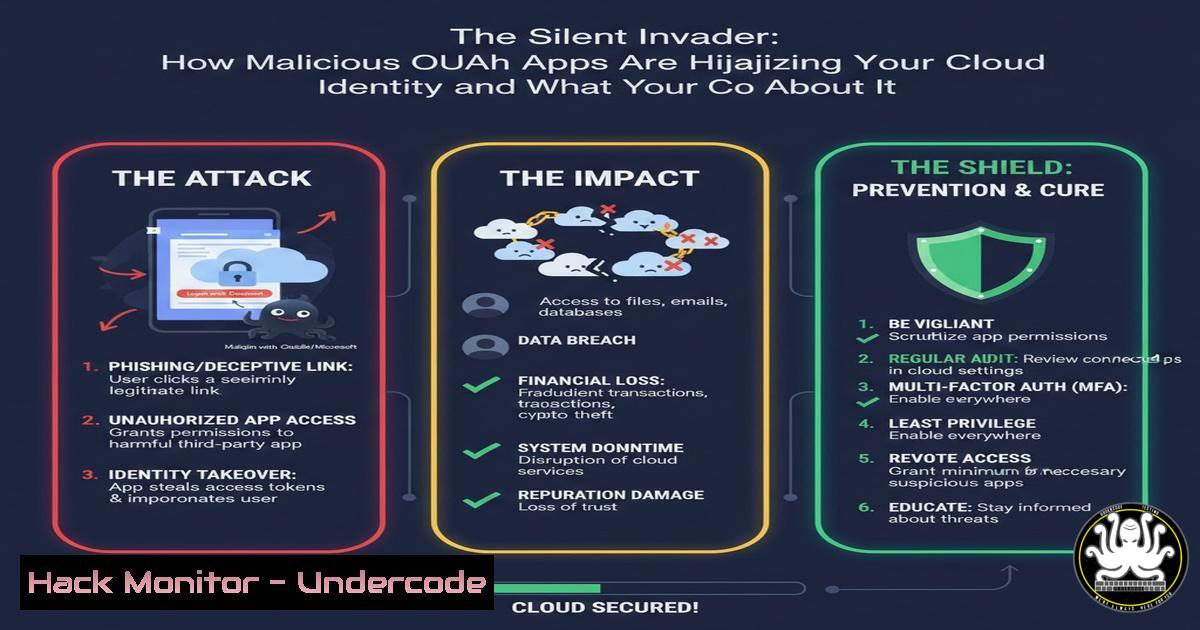
OAuth app attacks exploit the trust model between a user, an identity provider (like Entra ID), and a third-party application. When a user grants consent, they are often giving the application permissions to access data like email, contacts, user profiles, and files. A malicious actor creates an app designed to mimic a legitimate service. Through a phishing campaign, they trick an administrator or end-user into granting this app high-privilege permissions. Once consented, the app possesses a valid OAuth token, allowing it to act on behalf of the user, often completely bypassing security controls like MFA.
Step‑by‑step guide explaining what this does and how to use it.
1. Phishing Lure: An employee receives a convincing email prompting them to “update their settings” or “access a new document,” containing a link to authenticate via Entra ID.
2. Consent Grant: The link redirects to a legitimate Microsoft login page. After successful authentication (and MFA), the user is presented with a permissions consent screen requesting access to Mail.Read, User.Read.All, and Files.Read.All.
3. Token Grant: The user, not recognizing the app as malicious, clicks “Accept.” Entra ID issues an access token to the malicious application.
4. Silent Attack: The attacker’s application can now use this token via Microsoft Graph API to read all user email, download OneDrive files, and list directory users, all without needing the user’s password again.
- Detecting Malicious OAuth Apps with PowerShell and Microsoft Graph
The first line of defense is visibility. You must regularly audit the applications that have been granted permissions in your tenant. Microsoft Graph API and the associated PowerShell modules are the most powerful tools for this task.
Step‑by‑step guide explaining what this does and how to use it.
1. Connect to Microsoft Graph:
Open PowerShell and install the necessary module if you haven’t already.
 Install the Microsoft Graph PowerShell module
Install-Module Microsoft.Graph -Force
 Connect with the required scopes
Connect-MgGraph -Scopes "Application.Read.All", "Directory.Read.All"
2. List All Service Principals (Enterprise Applications):
Service principals are the representation of OAuth apps within your tenant.
 Get all service principals and display key properties
Get-MgServicePrincipal -All | Select-Object DisplayName, AppId, PublisherName, ServicePrincipalType | Format-Table
3. Identify High-Risk Permissions:
Focus on apps with high-privilege permissions like Directory.ReadWrite.All, Mail.ReadWrite, or Sites.FullControl.All.
Get-MgServicePrincipal -All | ForEach-Object {
$sp = $_
$perms = $sp.OAuth2PermissionScopes | Where-Object { $_.IsEnabled -eq $true }
if ($perms) {
[bash]@{
DisplayName = $sp.DisplayName
AppId = $sp.AppId
Permissions = ($perms.Value -join ", ")
}
}
} | Format-Table
3. Investigating and Analyzing a Suspicious Application
Once a potentially malicious app is identified, a deeper investigation is required. This involves checking its sign-in activity, the users who have consented to it, and the specific resources it has accessed.
Step‑by‑step guide explaining what this does and how to use it.
1. Review Sign-in Logs: Use the Azure AD Sign-in logs in the Entra Admin Center. Filter by “Application” using the suspicious app’s name or ID to see all authentication attempts and their success/failure status.
2. Check Granted Permissions vs. Admin Consent: In the Entra Admin Center, navigate to “Identity” -> “Applications” -> “Enterprise applications”. Select the app and review the “Permissions” section. Determine if permissions were granted by a user (“User Consent”) or an administrator (“Admin Consent”). Widespread admin consent is a major red flag.
3. Identify Impacted Users:
 This requires the AuditLog.Read.All permission
Connect-MgGraph -Scopes "AuditLog.Read.All"
 Get sign-ins for a specific application ID
Get-MgAuditLogSignIn -Filter "appId eq 'YOUR_SUSPECT_APP_ID'" -All
4. Eradication and Mitigation: Removing the Threat
When a malicious app is confirmed, immediate action is required to revoke its access and contain the potential breach.
Step‑by‑by‑step guide explaining what this does and how to use it.
1. Revoke App Permissions: This is the most critical step, invalidating all tokens held by the application.
Via Admin Center: In the Enterprise Application blade, select the app and click “Delete”.
Via PowerShell:
 Get the Service Principal Object ID
$sp = Get-MgServicePrincipal -Filter "appId eq 'YOUR_SUSPECT_APP_ID'"
 Remove the service principal (app) from the tenant
Remove-MgServicePrincipal -ServicePrincipalId $sp.Id
2. Revoke Sessions: In the Entra Admin Center, navigate to “Users” -> “All users”, select impacted users, and click “Sign out all sessions”. This invalidates existing refresh tokens.
3. Reset Passwords: As a precaution, reset passwords for any highly privileged user accounts that granted consent to the application.
5. Proactive Hardening: Building a Defense-in-Depth Strategy
Prevention is always superior to reaction. Configure your Entra ID tenant to reduce the attack surface for OAuth app-based attacks.
Step‑by‑step guide explaining what this does and how to use it.
1. Restrict User Consent: In the Entra Admin Center, go to “Identity” -> “Applications” -> “Consent and permissions” -> “User consent settings”. Disable user consent for all applications or limit it to apps from verified publishers only.
2. Configure Admin Consent Workflow: Enable the “Admin consent workflow” (in the same menu). This requires an administrator to approve any application before users can consent to it, creating a critical control point.
3. Implement Permission and App Management Policies: Use tools like Entra App Watch (mentioned in the source post) to maintain a collaborative, up-to-date catalog of approved and risky applications, integrating this data into your Continuous Threat Intelligence (CTI).
What Undercode Say:
- The threat from malicious OAuth apps is a fundamental flaw in the “trust-by-consent” model, not a mere software vulnerability. It requires a shift in defensive strategy from just protecting credentials to actively managing application trust.
- Proactive, continuous monitoring and auditing of the application landscape within your identity provider is as critical as any other security control in your cloud environment. Automation and collaboration are key to scaling this defense.
Analysis: The post by Hamza Kondah highlights a critical gap in modern cloud security operations. While organizations have invested heavily in endpoint detection and network security, the identity layer—specifically the trust granted to third-party applications—is often poorly monitored. Kondah’s Entra App Watch project is a direct response to this operational blind spot. By providing a dedicated platform for mapping and tracking these risky applications, it moves the practice from an ad-hoc, reactive investigation to a structured, continuous monitoring process. The promise of a future API for CTI ingestion is particularly significant, as it will allow organizations to correlate OAuth app data with other security signals, enabling a more holistic and automated threat response. This represents the future of cloud identity defense: integrated, intelligent, and focused on the abuse of legitimate business features.
Prediction:
The sophistication and prevalence of malicious OAuth app attacks will increase dramatically. We will see the emergence of “OAuth worms” that can self-propagate by using initial app permissions to create additional malicious apps and grant them consent within a compromised organization. Defensively, the market will see a rapid maturation of Cloud Identity Threat Detection and Response (CITDR) tools, with platforms like Entra App Watch becoming essential components of the enterprise security stack. AI will be leveraged to baseline normal application behavior and flag anomalies in permission usage, moving defenses from static lists to dynamic, behavior-based risk assessment.
🎯Let’s Practice For Free:
IT/Security Reporter URL:
Reported By: Kondah Apr%C3%A8s – Hackers Feeds
Extra Hub: Undercode MoN
Basic Verification: Pass ✅


