
Listen to this Post
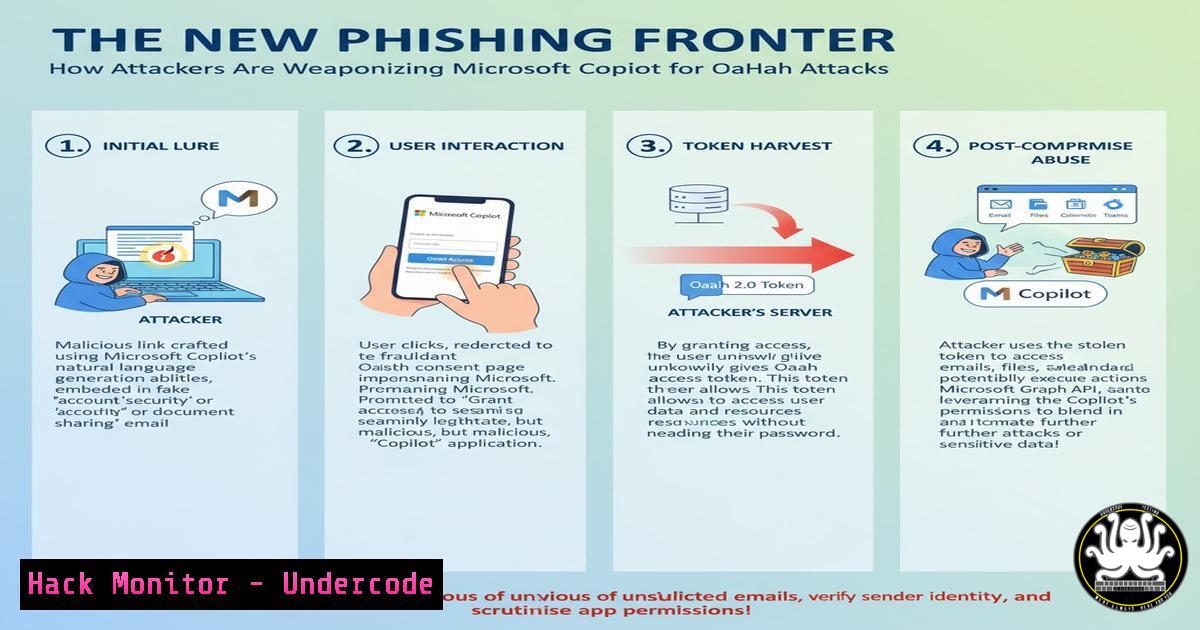
Introduction:
The digital threat landscape is continuously evolving, with OAuth phishing emerging as a dominant tactic for sophisticated attackers. A groundbreaking technique demonstrates how malicious actors can repurpose Microsoft Copilot Studio, a legitimate AI tool, to create convincing phishing wrappers that bypass traditional security measures. This method represents a significant shift in social engineering, leveraging trusted platforms to steal sensitive credentials and permissions.
Learning Objectives:
- Understand the mechanics of how Microsoft Copilot Studio can be abused for OAuth phishing campaigns.
- Learn to identify the key indicators of a malicious Copilot-powered application.
- Acquire the technical skills to audit OAuth applications and mitigate these specific threats within your environment.
You Should Know:
1. Identifying Malicious OAuth Application Consent Prompts
The first line of defense is recognizing a fraudulent consent screen. Attackers using a Copilot wrapper will often have a legitimate-looking, but slightly off, application name and publisher.
` Check the OAuth consent screen details for discrepancies.`
` Look for:`
` 1. Application Name: “Microsoft Copilot” vs. a custom name.`
` 2. Publisher Verification: An unverified publisher.`
` 3. Permissions Requested: Overly broad permissions (e.g., Mail.Read, Mail.Write, Files.ReadWrite.All).`
Step-by-step guide: When prompted to grant permissions to an application, always scrutinize the consent screen. A genuine Microsoft application will have a verified publisher badge. Hover over the application name to see the full URL; a malicious one will not be from the core `microsoft.com` or `microsoftonline.com` domains. Do not proceed if the publisher is unverified or the permissions requested exceed what is necessary for the application’s stated function.
- Investigating OAuth Applications in Azure/Microsoft 365 Admin Center
Administrators must proactively hunt for and investigate OAuth applications that have been granted permissions within their tenant.` PowerShell command to list all service principals (enterprise applications) in Azure AD`
`Get-AzureADServicePrincipal | Select-Object DisplayName, AppId, PublisherName, Oauth2Permissions`
Step-by-step guide: Connect to your Azure AD tenant using the `Connect-AzureAD` cmdlet in PowerShell. Run the command above to list all enterprise applications. Look for applications with suspicious display names that mimic “Copilot” or other trusted services, and note the `AppId` (Application ID) for any that seem anomalous. Cross-reference the PublisherName; it should be “Microsoft Corporation” for genuine services.
3. Revoking Suspicious OAuth Grants via PowerShell
Once a malicious application is identified, you must immediately revoke the permissions granted to it by users.
` PowerShell command to revoke all grants for a specific service principal`
`$Sp = Get-AzureADServicePrincipal -Filter “AppId eq ‘SUSPICIOUS-APP-ID'”`
`Get-AzureADServiceAppRoleAssignedTo -ObjectId $Sp.ObjectId | Remove-AzureADServiceAppRoleAssignment -ObjectId $Sp.ObjectId`
Step-by-step guide: Replace `’SUSPICIOUS-APP-ID’` with the actual Application ID found in the previous step. The `Get-AzureADServiceAppRoleAssignedTo` cmdlet retrieves all user and admin consents granted to this application. Piping it to `Remove-AzureADServiceAppRoleAssignment` will revoke these permissions, neutralizing the threat.
- Implementing Conditional Access Policies to Restrict OAuth Apps
Prevent future incidents by creating Conditional Access policies that block access for unapproved or risky applications.` This is configured in the Azure Portal. Navigate to:`
` Azure Active Directory > Security > Conditional Access > New policy`
` Under Cloud apps or actions, select “All cloud apps”.`
` Under Conditions > Client apps, select “Modern authentication clients” and “Browser”.`
` Under Grant, select “Block access”.`
Step-by-step guide: In the Azure Portal, create a new Conditional Access policy. Assign it to “All users” or specific test groups. Under “Cloud apps or actions,” include “All cloud apps.” In “Conditions,” go to “Client apps” and select “Browser” and “Mobile apps and desktop clients.” This ensures the policy covers OAuth flows. Finally, under “Access controls,” choose “Block” to prevent the use of non-compliant applications. Use filters for “Device platform” or “Location” to refine this rule.
5. Auditing User-Consented OAuth Applications
Regular auditing is crucial. Use Microsoft’s audit logs and PowerShell to track which applications users have granted permissions.
` PowerShell to get OAuth2 permission grants (delegated permissions)`
`Get-AzureADOAuth2PermissionGrant | Select-Object ResourceDisplayName, Scope, ConsentType, PrincipalDisplayName`
Step-by-step guide: Execute this PowerShell command to list all delegated permission grants. The `ConsentType` column is critical: “AllPrincipals” means an admin consented for the entire tenant, while “Principal” indicates user consent. Scrutinize user-consented applications (ConsentType -eq "Principal") for any with high-privilege scopes that were approved without proper vetting.
6. Disabling User Consent for OAuth Applications
To centralize control, administrators can disable the ability for users to consent to applications, forcing all permissions to go through an admin review process.
` Use MSOnline PowerShell module to disable user consent`
`Set-MsolCompanySettings -UsersPermissionToUserConsentToAppEnabled $false`
Step-by-step guide: First, connect to MSOnline with Connect-MsolService. Running this command will prevent users from granting permissions to multi-tenant applications. All consent requests will then require administrator approval, significantly reducing the attack surface for OAuth phishing. Alternatively, configure this in the Azure Portal under Enterprise Applications > Consent and permissions > User consent settings.
7. Analyzing Sign-In Logs for OAuth Application Activity
Microsoft 365 and Azure AD sign-in logs provide a forensic trail to identify compromised accounts that have interacted with a malicious OAuth app.
` KQL query for Azure Sentinel/Microsoft Defender for Cloud Apps to find sign-ins from a suspicious app`
`SigninLogs`
`| where AppDisplayName contains “Copilot”`
`| where ResultType == “0” Success`
`| project TimeGenerated, UserPrincipalName, AppDisplayName, IPAddress, Location`
Step-by-step guide: Navigate to Azure Active Directory > Sign-in logs. Use the filter and add “Application” as the filter field. Input the name of the suspicious application. Review all successful sign-ins (ResultType == 0), noting the user, time, and IP address. This information is vital for incident response to determine the scope of potential compromise.
What Undercode Say:
- The Blurring Line of Trust. The most insidious aspect of this attack is the weaponization of a trusted, Microsoft-branded AI tool. It conditions users to lower their guard, making technical controls like Conditional Access and admin-centric consent the only reliable safeguards.
- AI as a Double-Edged Sword. This technique is a harbinger of a new class of AI-powered threats. Defenders must now assume that any AI or automation platform with integration capabilities could be repurposed for malicious intent, requiring a fundamental shift in security postures toward zero-trust and application allow-listing.
The abuse of Microsoft Copilot Studio is not an isolated vulnerability but a template. It demonstrates a low-code, highly effective method for creating convincing phishing lures. The security community’s response must be architectural, not just reactive. Relying on user training to spot these fakes is a failing strategy. The focus must shift to enforcing strict application governance policies, routinely auditing OAuth grants, and leveraging advanced threat detection tools that can model normal application behavior and flag anomalies, regardless of the application’s namesake.
Prediction:
The success of this Copilot-based OAuth phishing technique will catalyze a wave of similar attacks targeting other low-code/no-code platforms and AI assistants integrated into major ecosystems like Google Workspace and Slack. We will see a rise in “AI-wrapped” attacks where the malicious infrastructure is entirely hosted within a legitimate, trusted service, rendering traditional IP and domain-based blocklists obsolete. This will force a rapid industry-wide adoption of more sophisticated identity threat detection and response (ITDR) solutions and push organizations to mandate phishing-resistant multi-factor authentication (MFA) like FIDO2/WebAuthn to mitigate the impact of stolen OAuth tokens.
🎯Let’s Practice For Free:
IT/Security Reporter URL:
Reported By: Nick Frichette – Hackers Feeds
Extra Hub: Undercode MoN
Basic Verification: Pass ✅


