Listen to this Post
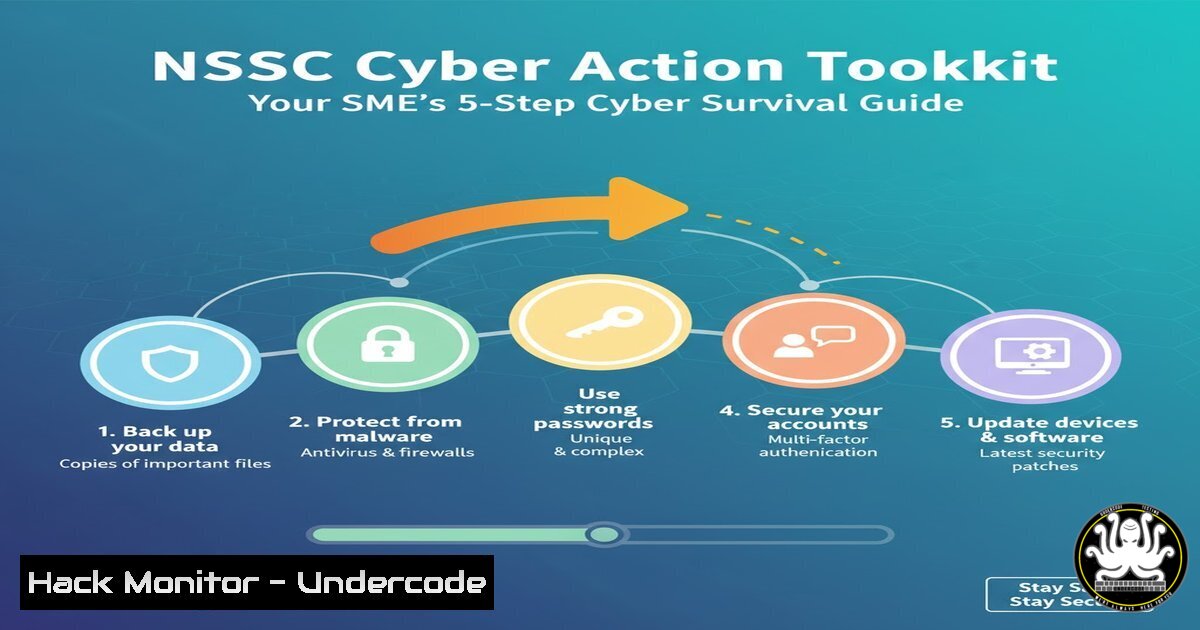
Introduction:
The UK’s National Cyber Security Centre (NCSC) has launched a definitive Cyber Action Toolkit, a clear call to arms for Small and Medium Enterprises (SMEs) drowning in the complexity of digital threats. This initiative reframes cybersecurity from an insurmountable technical burden into a manageable, step-by-step action plan, providing the essential tools and guidance to build a foundational defense.
Learning Objectives:
- Understand the core pillars of the NCSC’s Cyber Action Plan and how to implement them.
- Acquire practical, command-line and tool-based skills to assess and harden your SME’s security posture.
- Learn to verify security controls and monitor for emerging threats using free and built-in tools.
You Should Know:
1. The Board-Level Risk Assessment
Before deploying any technical controls, understanding your risk landscape is paramount. The NCSC emphasizes a top-down approach, starting with governance.
Verified Command/Tutorial:
 Using a tool like Lynis for a comprehensive system audit (Linux/macOS)
 1. Download and install Lynis
sudo apt-get update && sudo apt-get install lynis  For Debian/Ubuntu
 or
sudo yum install epel-release && sudo yum install lynis  For CentOS/RHEL

<ol>
<li>Run a system audit
sudo lynis audit system</p></li>
<li><p>Analyze the report, focusing on sections like:</p></li>
</ol>

<p>- Warnings (items needing immediate attention)
 - Suggestions (hardening opportunities)
grep -E "(Warning|Suggestion)" /var/log/lynis.log
Step-by-step guide: Lynis is an open-source security auditing tool. Running it with `sudo lynis audit system` performs hundreds of checks against your system’s configuration, file permissions, and running services. The `grep` command filters the extensive log file to show only the most critical warnings and actionable suggestions, giving you a prioritized list of issues to address, directly informing your risk assessment.
2. Fortifying Your Defenses with Strong Access Controls
Weak authentication is a primary attack vector. Enforcing strong, multi-factor authentication (MFA) and principle of least privilege is non-negotiable.
Verified Commands:
 Linux: Check for accounts with empty passwords
sudo awk -F: '($2 == "") {print $1}' /etc/shadow

Linux: Check password aging policy for a user (e.g., 'ubuntu')
sudo chage -l ubuntu

Windows (PowerShell): Check local user accounts and their group memberships
Get-LocalUser | Format-Table Name, Enabled, PasswordRequired
Get-LocalGroupMember Administrators | Format-Table Name
Step-by-step guide: The Linux command checks the `/etc/shadow` file for any user account without a password—a severe vulnerability. The `chage -l` command displays password expiration settings, helping enforce password rotation policies. In Windows PowerShell, `Get-LocalUser` reveals which accounts are active and if a password is set, while `Get-LocalGroupMember Administrators` shows who has privileged access, allowing you to audit and remove unnecessary administrative rights.
3. Patching: The Unsexy but Essential Shield
Unpatched software is low-hanging fruit for attackers. Automating this process is a core recommendation of the toolkit.
Verified Commands:
 Ubuntu/Debian: Update package lists and upgrade all packages
sudo apt update && sudo apt upgrade -y

CentOS/RHEL: Check for and apply updates
sudo yum check-update
sudo yum update -y

Windows (PowerShell): List all installed packages and their versions
Get-WmiObject -Class Win32_Product | Select-Object Name, Version

Windows (CMD): Check for and install updates via command line
usoclient ScanInstallWait
Step-by-step guide: The `apt` and `yum` commands are the backbone of patch management on Linux systems. `apt update` refreshes the list of available packages, and `apt upgrade` installs the newer versions. On Windows, `Get-WmiObject` helps you inventory software, while `usoclient` is a command-line interface for the Windows Update service, forcing an immediate check and install. Automating these commands via cron or Task Scheduler is the next logical step.
4. Building a Human Firewall with Phishing Defense
Your employees are the first line of defense. Training them to identify phishing attempts must be complemented by technical controls.
Verified Commands/Tutorials:
 PowerShell: Check SPF, DMARC, and DKIM DNS records for your domain (e.g., yourcompany.com)
Resolve-DnsName -Name "yourcompany.com" -Type TXT | Select-Object Strings

Using the 'dig' command (Linux/macOS) for the same purpose:
dig TXT yourcompany.com
Step-by-step guide: Email spoofing is a common phishing technique. Sender Policy Framework (SPF), DKIM, and DMARC are DNS records that help prevent it. By querying your domain’s TXT records with `Resolve-DnsName` or dig, you can verify if these records are published. A correct SPF record will list the IPs authorized to send email for your domain, while DMARC tells receiving servers what to do with emails that fail authentication (e.g., quarantine or reject).
- Securing Your Digital Front Door: The Network Perimeter
SMEs often expose services unnecessarily. The toolkit advises locking down access and using secure network architectures.
Verified Commands:
 Linux: Use netstat to see all listening ports and associated services
sudo netstat -tulpn

Linux: Use nmap to scan your own external IP from an external perspective (replace with your IP)
nmap -sT -p- 93.184.216.34

Windows: Use netstat equivalently
netstat -ano | findstr LISTENING

Windows: Check Windows Firewall status for a specific profile (e.g., Domain)
Get-NetFirewallProfile -Name Domain | Format-Table Name, Enabled
Step-by-step guide: `netstat -tulpn` shows all services listening for connections on your machine, helping you identify and shut down unnecessary services. Scanning your own public IP with `nmap` from an external network simulates an attacker’s view, revealing ports you may have unknowingly exposed. The Windows Firewall PowerShell command confirms that the host-based firewall is active, a critical last line of defense.
6. The Zero-Trust Mindset: Assume Breach, Verify Explicitly
The toolkit implicitly promotes a zero-trust approach, where no user or device is inherently trusted.
Verified Commands/Configurations:
 Linux: Check successful SSH logins
sudo grep "Accepted" /var/log/auth.log

Linux: Check failed SSH logins (indicates brute-force attempts)
sudo grep "Failed" /var/log/auth.log

Example SSH configuration snippet to harden access (/etc/ssh/sshd_config)
 PasswordAuthentication no  Disable password logins, use keys only
 PermitRootLogin no  Disable direct root login
 MaxAuthTries 3  Limit password attempts
Step-by-step guide: Monitoring authentication logs is key to detecting intrusion attempts. The `grep` commands filter the log for successful and failed entries. The SSH configuration snippet demonstrates explicit verification: by disabling password authentication, you force the use of more secure cryptographic keys; by disabling root login, you prevent a major attack target. After making these changes, restart the SSH service with sudo systemctl restart sshd.
7. The Final Frontier: Backup and Recovery
The NCSC treats backups not as an afterthought but as a primary mitigation for ransomware and data corruption.
Verified Commands/Tutorial:
 Linux: Create a compressed, encrypted archive of a critical directory
tar -czf - /path/to/important/data | openssl enc -e -aes256 -out backup_$(date +%Y%m%d).tar.gz.enc

Linux: Schedule a backup with cron
 Edit the cron table: crontab -e
 Add line to run every day at 2 AM:
 0 2    /path/to/your/backup_script.sh
Step-by-step guide: This command creates a `tar` archive, pipes it to OpenSSL for encryption with AES-256, and outputs an encrypted file. The `$(date +%Y%m%d)` adds a timestamp. Storing the encryption key separately from the backup is crucial. Automating this process with `cron` ensures it happens consistently. A robust strategy follows the 3-2-1 rule: three copies, on two different media, with one copy off-site.
What Undercode Say:
- Key Takeaway 1: The NCSC Toolkit’s greatest strength is its operationalization of cybersecurity. It demystifies a vast domain into a finite set of actionable tasks, making it a practical starting point for any resource-constrained SME.
- Key Takeaway 2: The commentary highlighting “More Fire Fighting – Rarely Fire Prevention” is a critical caveat. While the toolkit provides excellent preventative measures, SMEs must use it as a foundation upon which to build continuous monitoring, incident response, and disaster recovery plans—the essential components for when prevention fails.
The toolkit is a powerful catalyst, but it is not a silver bullet. Its success hinges on SME leadership treating it as a living process, not a one-time checklist. The provided commands and steps are the technical translation of its advice, allowing IT personnel or managed service providers to move from abstract concepts to concrete implementation. The real test will be in the sustained commitment to these practices, evolving them as the threat landscape, exemplified by AI-powered phishing and ransomware-as-a-service, continues to advance.
Prediction:
The proactive and widespread adoption of frameworks like the NCSC Cyber Action Toolkit by SMEs will create a significant shift in the cyber criminal economy. As basic hygiene becomes commonplace, attackers will be forced to innovate, leading to a rise in more sophisticated, targeted social engineering attacks and AI-driven vulnerability discovery. This will, in turn, push the next generation of SME security tools towards integrated AI-powered defense systems, automated security validation, and more accessible managed detection and response (MDR) services, making advanced security a standard utility for businesses of all sizes.
🎯Let’s Practice For Free:
IT/Security Reporter URL:
Reported By: Iainfraserjournalist Smecyberinsights – Hackers Feeds
Extra Hub: Undercode MoN
Basic Verification: Pass ✅


