
Listen to this Post
Introduction:
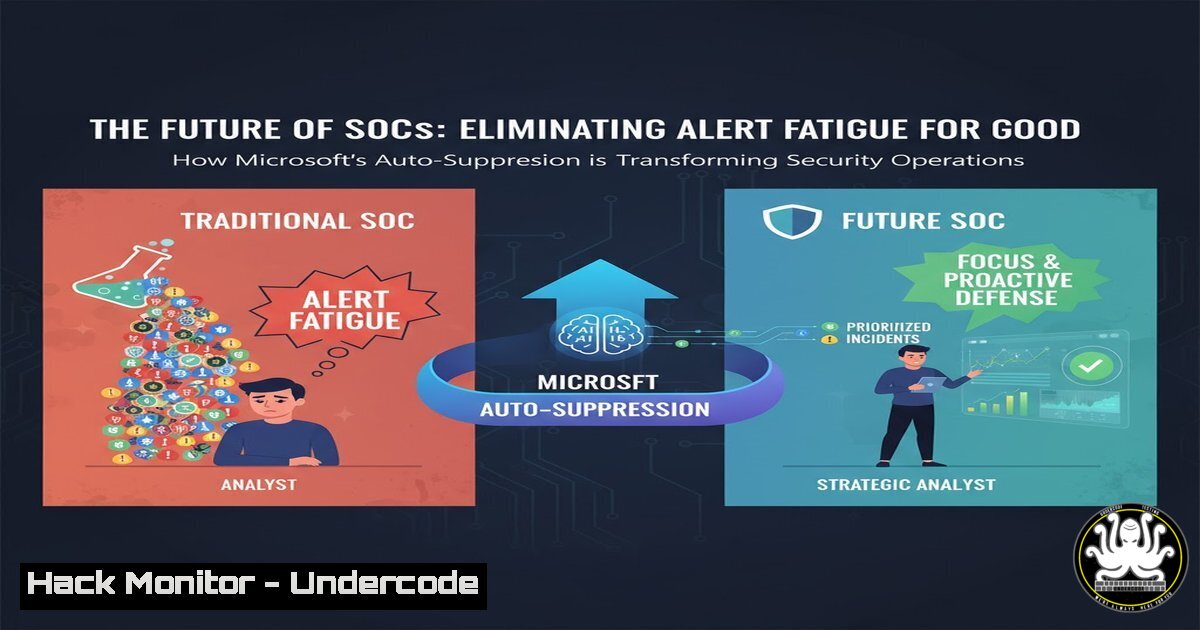
Microsoft Defender XDR is introducing a paradigm shift in Security Operations Center (SOC) workflows with its new built-in alert tuning rules. This feature leverages Automated Investigation and Response (AIR) to automatically suppress low-priority alerts, fundamentally changing how analysts interact with their incident queues. By reducing noise and allowing SOCs to focus exclusively on actionable threats, this update promises a significant boost in operational efficiency and analyst well-being.
Learning Objectives:
- Understand the operational mechanics and timeline of Microsoft Defender XDR’s new built-in alert tuning rules.
- Learn how to validate, configure, and opt-out of the auto-suppression feature to align with your SOC’s workflow.
- Master the PowerShell and KQL commands necessary to audit alert suppression rules and investigate AIR playbook outcomes.
You Should Know:
1. Navigating the Alert Tuning Interface
Before the October 30, 2025, rollout, security administrators must familiarize themselves with the Alert Tuning dashboard. This is where you will manage the new built-in rules.
Step-by-step guide:
To access the Alert Tuning interface, you need to navigate through the Microsoft 365 Defender portal. The primary method is via the web UI, but you can also preemptively check for the new rules using PowerShell.
1. Open the Microsoft 365 Defender portal: `https://security.microsoft.com`.
2. Navigate to Settings > Endpoints > Rules > Alert tuning.
3. Here, you will see a list of all suppression rules, including the new built-in ones starting October 19, 2025. You can filter by “Source” to identify “Built-in” rules.
4. To disable a rule, select it and click Disable. To opt-out of the feature entirely, you would disable the global auto-suppression setting, which is expected to be located in this area.
PowerShell Commands for Proactive Discovery:
While the GUI is the primary tool, you can use the Security & Compliance Center PowerShell module to interact with related settings. First, ensure you are connected.
 Connect to the Security & Compliance Center
Connect-IPPSSession -UserPrincipalName "[email protected]"

Command to list alert policies (related to tuning)
Get-AttackSimulationAutoLogonUser | Out-Null  Placeholder - Specific cmdlets for alert tuning are often updated post-feature release. Monitor Microsoft Docs for new cmdlets like `Get-ProtectionRule` or <code>Get-SecuritySuppressionRule</code>.
Always refer to the official Microsoft message center (MC1166863) for the most current PowerShell module and cmdlet information as the feature release date approaches.
2. Understanding the AIR Playbook Investigation Process
The core of this feature is the Automated Investigation and Response (AIR) engine. Understanding what happens during an investigation is crucial for trusting the auto-suppression process.
Step-by-step guide:
When a new alert is generated that matches a built-in tuning rule, it is created in a “Resolved” state and assigned to the suppression rule. AIR immediately investigates it.
1. AIR Investigation Trigger: The alert is automatically passed to an AIR playbook based on the alert type.
2. Remediation Check: The playbook executes its logic, which may include checking for known malicious artifacts, running antivirus scans, or isolating devices.
3. Outcome Determination:
Success: If the playbook confirms successful remediation, the alert remains “Resolved” and suppressed from the main queue.
Action Required: If the playbook finds pending actions or determines manual review is necessary, the alert is automatically reopened with a status of “New” and “Unassigned,” making it visible to SOC analysts.
KQL Query to Investigate AIR Actions:
Use Advanced Hunting in Defender XDR to track the investigations triggered by these rules.
// Hunt for AIR actions related to recently resolved alerts
DeviceAlertEvents
| where Timestamp > ago(24h)
| where AlertTitle has "Suppression"
| join (DeviceEvents | where ActionType startswith "AirInvestigation") on DeviceId
| project Timestamp, DeviceName, AlertTitle, ActionType, AdditionalFields
This query helps you audit the system’s decisions, ensuring that only truly benign alerts are being suppressed.
3. Auditing Suppressed Alerts with Advanced Hunting
A critical responsibility for SOC leads is to periodically audit suppressed alerts to ensure no true positives are being missed. This creates a feedback loop for tuning the tuner.
Step-by-step guide:
Regular audits validate the effectiveness of the built-in rules. You should create a scheduled hunt to review all resolved alerts.
1. In Microsoft 365 Defender, go to Hunting > Advanced Hunting.
2. Run a query that focuses on alerts resolved by suppression rules over the past week.
3. Pay special attention to alerts that were reopened by AIR, as they indicate edge cases where automation was not sufficient.
KQL Query for Audit:
// Audit suppressed and reopened alerts
AlertInfo
| where Timestamp > ago(7d)
| where Status == "Resolved" and Category == "SuppressionRule"
| join (AlertInfo | where Status == "New") on AlertId
| project AlertId, , Status, LastActivityTime, ServiceSource
| order by LastActivityTime desc
This query will show you a history of alerts that were suppressed and then subsequently reopened, requiring analyst attention.
4. Bulk Configuration with PowerShell
For organizations with complex, multi-tenant environments, managing alert tuning rules via the GUI is not scalable. PowerShell scripting is essential for centralized management.
Step-by-step guide:
After the feature is fully released, Microsoft will provide specific cmdlets. The following is a conceptual script based on current patterns for similar rules.
1. Install the required `Microsoft.Online.SharePoint.PowerShell` and `ExchangeOnlineManagement` modules.
- Connect to all necessary services (Security & Compliance, Defender for Endpoint).
- Use a script to iterate through a list of rules and disable them, or to export the current configuration for backup.
Conceptual PowerShell Script for Management:
 Conceptual script - await official cmdlets post-release
 Connect to Services
Connect-ExchangeOnline -ShowProgress $true
Connect-MsolService

Hypothetical function to get and disable built-in suppression rules
$BuiltInRules = Get-SecuritySuppressionRule -Source BuiltIn | Where-Object {$_.IsEnabled -eq $true}

foreach ($Rule in $BuiltInRules) {
Write-Output "Disabling rule: $($Rule.Name)"
 Disable-SecuritySuppressionRule -Identity $Rule.Id
}
Warning: Always test scripts in a non-production environment first. The actual cmdlet names and syntax will be confirmed by Microsoft upon feature release.
5. Integrating with SIEM and SOAR Platforms
For SOCs that use a SIEM (like Splunk or Sentinel) or a SOAR platform, it’s vital to ensure that the suppression logic is reflected there to avoid confusion.
Step-by-step guide:
You must adjust your SIEM ingestion and SOAR playbooks to account for the new “Resolved” state triggered by suppression rules.
1. SIEM Filtering: Create a filter in your SIEM to exclude alerts where the `status` field is “Resolved” and the `resolutionReason` contains “SuppressionRule”.
2. SOAR Logic: Modify incident creation playbooks in your SOAR platform to skip creating tickets for alerts matching the above criteria. Instead, create a separate logging mechanism for audit purposes.
Example Splunk SPL Query for Filtering:
 In your Splunk search, exclude auto-suppressed Microsoft alerts
index=defender source="alerts" NOT status="Resolved" NOT resolutionReason="SuppressionRule"
This ensures your primary SIEM dashboard remains focused on open, actionable incidents.
6. Creating Custom Exceptions as a Safety Net
The built-in rules are designed by Microsoft, but your environment may have unique nuances. Creating custom alert suppression rules for known, pervasive false positives in your environment complements the built-in feature.
Step-by-step guide:
If you observe a specific, benign alert that is not being suppressed by the built-in rules but is causing noise, you can create a custom rule.
1. In the Microsoft 365 Defender portal, go to Settings > Endpoints > Rules > Alert tuning.
2. Click Add rule.
- Define the conditions for the alert you want to suppress (e.g., Alert contains “Potentially Unwanted Application” and File Path contains “C:\Program Files\LegitimateApp\”).
4. Set the action to “Resolve alert”.
PowerShell Command to Create a Custom Rule (Conceptual):
 Conceptual command to create a new suppression rule
New-SecuritySuppressionRule -Name "Suppress LegitimateApp PUA" -Condition "AlertTitle='Potentially Unwanted Application' AND FilePath='LegitimateApp'" -Action Resolve
By creating precise, custom rules, you further reduce noise while the built-in rules handle the broad, common cases.
What Undercode Say:
- The Era of Proactive SOC Tuning is Here. This move by Microsoft signifies a major industry shift from purely reactive security tools to intelligent, self-optimizing platforms. It forces SOC teams to trust and manage automated systems, a critical skill for the future.
- Analyst Role Evolution from Triage to Hunter. The primary value of a SOC analyst will no longer be sifting through thousands of alerts. Instead, their focus will shift to threat hunting, developing detection logic, and auditing the AI systems that handle the initial triage. This feature doesn’t replace analysts; it elevates their role.
This update is a double-edged sword. For mature SOCs drowning in alert fatigue, it’s a lifeline that will drastically improve mean time to response (MTTR) for genuine threats by clearing the cognitive load of analysts. However, for less mature teams, there is a inherent risk in “setting and forgetting.” Without a robust audit process, a misconfigured or overly aggressive built-in rule could potentially allow a low-and-slow attack to be suppressed. The key to success lies in a SOC’s willingness to partner with the AI—to continuously monitor, question, and refine its decisions, transforming the analyst’s job from a manual laborer to an automated system supervisor.
Prediction:
The auto-suppression of alerts by AI is the first step towards fully autonomous security operations centers. Within five years, we predict that not only will alert triage be fully automated, but the subsequent investigation and over 80% of remediation actions will also be handled by AI agents. SOC teams will transform into oversight committees and threat-hunting units, focusing exclusively on novel attack vectors and strategic security posture, while AI manages the tactical, daily bombardment of threats. This will create a new market for AI-auditing tools and specialized skills in machine learning model validation for cybersecurity.
🎯Let’s Practice For Free:
IT/Security Reporter URL:
Reported By: Markolauren Defenderxdr – Hackers Feeds
Extra Hub: Undercode MoN
Basic Verification: Pass ✅


