
Listen to this Post
Introduction:
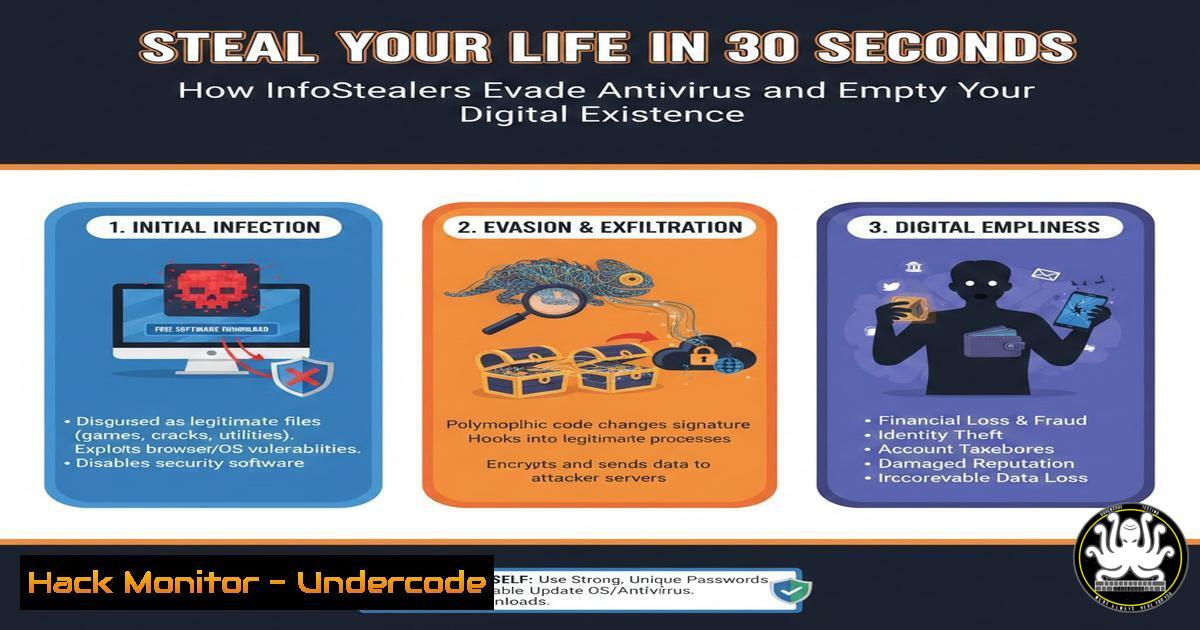
A new animation vividly demonstrates how Information Stealer malware, or “InfoStealers,” can systematically plunder your personal and professional digital life in under half a minute. Unlike traditional viruses, these threats operate stealthily by mimicking legitimate software behavior—simply reading files like your web browser does—which allows them to bypass standard antivirus detection. The stolen data, from Netflix passwords to corporate login credentials, is then exfiltrated to a remote server, often ending up for sale on cybercriminal platforms like Telegram.
Learning Objectives:
- Understand the operational mechanics of modern InfoStealer malware and why traditional antivirus struggles to detect it.
- Learn to identify critical system locations and data types targeted by these stealers.
- Implement proactive defense strategies, including configuration hardening and behavioral monitoring, to protect against data theft.
You Should Know:
1. The Anatomy of a Stealthy Data Heist
The core innovation of modern InfoStealers is their focus on “living off the land.” They avoid destructive actions and instead perform operations that appear benign to signature-based security tools.
Step‑by‑step guide explaining what this does and how to use it.
Step 1: Initial Execution & Persistence. The malware typically arrives via a phishing email or a compromised website. It establishes persistence on the system, often by creating a scheduled task or a registry run key.
Windows Registry Persistence Example:
reg add HKCU\Software\Microsoft\Windows\CurrentVersion\Run /v "UpdateClient" /t REG_SZ /d "C:\Users\%USERNAME%\AppData\Local\Temp\client_update.exe"
Step 2: Data Harvesting. The stealer enumerates and copies specific files and data from predictable locations.
Targets include:
Browser Data: SQLite databases containing cookies, login credentials, and browsing history. Paths like `%LocalAppData%\Google\Chrome\User Data\Default\Login Data` are prime targets.
Cryptocurrency Wallets: Files from directories for wallets like Exodus or MetaMask.
FTP Clients & Messengers: Configuration files for FileZilla (sitemanager.xml) and Telegram (tdata directory).
Step 3: Exfiltration. The collected data is compressed, often encrypted, and sent to a Command & Control (C2) server controlled by the attacker via HTTPS or FTP, blending with normal web traffic.
- Why Your Antivirus is Blind to the Theft
Conventional antivirus software relies heavily on signature databases—digital fingerprints of known malicious code. InfoStealers use polymorphism (changing their code slightly) and avoid malware hallmarks like file corruption.
Step‑by‑step guide explaining what this does and how to use it.
Step 1: Understand the Limitation. Antivirus may flag the initial dropper but often misses the stealer payload if it uses fileless techniques or code obfuscation.
Step 2: Simulate a Detection Gap. You can safely demonstrate this by creating a simple Python script that only reads files. Most antivirus programs will not block it.
Example Script (`harmless_reader.py`):
import os, json
 Simulate reading browser history paths (does not actually access them)
target_paths = [
os.path.expanduser('~') + '/AppData/Local/Google/Chrome/User Data/Default/History',
os.path.expanduser('~') + '/AppData/Roaming/Mozilla/Firefox/Profiles/'
]
for path in target_paths:
if os.path.exists(path):
print(f"[bash] Path exists: {path}")
else:
print(f"[bash] Path not found: {path}")
print("Script finished. No malicious action performed.")
Step 3: The EDR/AV Divide. Run this script. Your antivirus will likely remain silent, highlighting the behavioral gap that Endpoint Detection and Response (EDR) tools are designed to fill by monitoring for sequences of suspicious actions.
3. Hardening Your Browser Against Credential Theft
Since browsers are the primary target, reducing their attack surface is crucial. Disabling features that stealers abuse can significantly increase your security.
Step‑by‑step guide explaining what this does and how to use it.
Step 1: Disable Password Saving. While inconvenient, this removes the primary cache of stealable credentials from your browser. Use a dedicated, master-password-protected password manager instead.
Step 2: Harden Chrome/Edge via Policy or Flags. Launch your browser with specific flags to make data extraction harder.
Command to launch Google Chrome with heightened process isolation:
"C:\Program Files\Google\Chrome\Application\chrome.exe" --site-per-process --disable-features=PasswordImport
Step 3: Regular Profile Cleaning. Automate the clearing of sensitive browser data on exit for high-risk profiles.
Firefox can be configured to do this automatically: Navigate to `Options > Privacy & Security > History` and select “Firefox will: Use custom settings for history,” then check “Clear history when Firefox closes.”
4. Deploying Sysmon for Advanced Behavioral Logging
System Monitor (Sysmon) is a free Microsoft tool that logs detailed system activity to Windows Event Log. It helps detect the precise behaviors of an InfoStealer, such as process creation accessing specific files.
Step‑by‑step guide explaining what this does and how to use it.
Step 1: Download and Install Sysmon. Download Sysmon from the official Microsoft Sysinternals page. Install it with a standard configuration.
Installation Command:
sysmon64 -accepteula -i
Step 2: Apply a Specialized Configuration. Use a community-driven config file like SwiftOnSecurity’s Sysmon config to fine-tune what events are logged. This config is tuned to catch malicious activity.
Command to install with a custom config:
sysmon64 -c C:\Tools\sysmon-config.xml
Step 3: Analyze Events. Open Event Viewer and navigate to Applications and Services Logs > Microsoft > Windows > Sysmon > Operational. Look for Event ID 10 (ProcessAccess) targeting browser processes or Event ID 11 (FileCreate) in sensitive directories.
- Implementing Application Whitelisting with Windows Defender Application Control
Application whitelisting is a powerful defense that prevents any unauthorized executable, including an unknown InfoStealer, from running.
Step‑by‑step guide explaining what this does and how to use it.
Step 1: Plan Your Policy. Decide which applications are allowed to run (e.g., programs in C:\Program Files\, C:\Windows\). Test in “Audit Mode” first.
Step 2: Deploy a Simple Policy with PowerShell. On a test machine, create a default policy that trusts Microsoft-signed software.
PowerShell Commands:
 Initialize the WDAC policy
$Policy = New-CIPolicy -Level FilePublisher -Fallback Hash -FilePath C:\WDAC_Policy.xml
 Convert the policy to binary format
ConvertFrom-CIPolicy -XmlFilePath C:\WDAC_Policy.xml -BinaryFilePath C:\WDAC_Policy.bin
Step 3: Deploy and Enforce. Copy the `.bin` file to `C:\Windows\System32\CodeIntegrity\SiPolicy.pkl` and restart. The system will now block unapproved executables. Caution: This requires careful testing in a business environment to avoid blocking legitimate software.
6. Configuring Cloud-Based Alerting for Data Exfiltration
Detecting the outbound “call home” traffic is critical. You can use firewall logs or cloud services to trigger alerts on suspicious data uploads.
Step‑by‑step guide explaining what this does and how to use it.
Step 1: Identify Normal Baselines. Use your router’s admin panel or a tool like Wireshark to understand normal outbound traffic patterns from your network.
Step 2: Set Up a Canary Token. A canary token is a trap. Create a fake file that looks valuable (e.g., passwords_backup.txt) and place it among your sensitive data. Services like CanaryTokens.org will generate a unique URL embedded in the file. If the file is opened by the stealer and the URL is called, you will receive an immediate alert.
Step 3: Monitor DNS Requests. Many stealers call home to domain names. Tools like Pi-hole or enterprise firewalls can log all DNS queries and alert on connections to known malicious or newly registered domains (high-risk indicator).
7. Forensic Triaging: Has Your System Been Compromised?
If you suspect an infection, a quick forensic triage can help confirm it without specialized tools.
Step‑by‑step guide explaining what this does and how to use it.
Step 1: Check for Unusual Processes. Use PowerShell to list running processes and their command lines, looking for odd locations like Temp folders.
PowerShell Command:
Get-WmiObject Win32_Process | Select-Object Name, ProcessId, CommandLine | Format-List
Step 2: Check for Unusual Network Connections. Cross-reference network connections with running processes.
Command:
netstat -ano | findstr ESTABLISHED
Step 3: Examine Recent File Operations. Use the built-in Windows File System Auditor tool or PowerShell to check for recent modifications to key directories.
PowerShell Command to check Chrome Login Data recent access:
Get-Item "$env:LOCALAPPDATA\Google\Chrome\User Data\Default\Login Data" | Select-Object FullName, LastAccessTime
What Undercode Say:
- The Endpoint is the New Battlefield: The attack surface has decisively shifted from network perimeters to individual endpoints. Security strategies must evolve accordingly, prioritizing tools that understand legitimate behavior rather than just scanning for known bad files.
- Security Requires a Stack, Not a Single Product: As highlighted in the LinkedIn discussion, no single tool is sufficient. A resilient defense requires a layered approach combining EDR for behavior, application control to limit execution, network monitoring for exfiltration, and, fundamentally, user education to reduce initial infection risk.
Analysis: The technical simplicity of InfoStealers is their greatest strength. By weaponizing trust in common software, they exploit a fundamental gap in perimeter-focused security models. The conversation around “affordable EDR for personal use” signifies a growing public awareness of this advanced threat landscape. However, technology alone is not a panacea. The ultimate vulnerability remains the human element—clicking a malicious link. Therefore, the most effective defense integrates continuous technical controls with ongoing security awareness training, creating a human firewall that complements the digital one.
Prediction:
InfoStealers will evolve from standalone threats into the initial reconnaissance phase of more complex, human-operated ransomware attacks. We will see deeper integration with AI to perform real-time, contextual analysis of stolen data—automatically identifying high-value corporate targets from a batch of personal credentials and escalating attacks without human intervention. Furthermore, the rise of “Stealer-as-a-Service” platforms will commoditize these capabilities, lowering the entry barrier for cybercriminals and leading to a dramatic increase in volume and targeting precision of these attacks, making robust personal and enterprise cybersecurity hygiene non-negotiable.
▶️ Related Video (78% Match):
🎯Let’s Practice For Free:
IT/Security Reporter URL:
Reported By: Yann Pilpre – Hackers Feeds
Extra Hub: Undercode MoN
Basic Verification: Pass ✅


