
Listen to this Post
Introduction
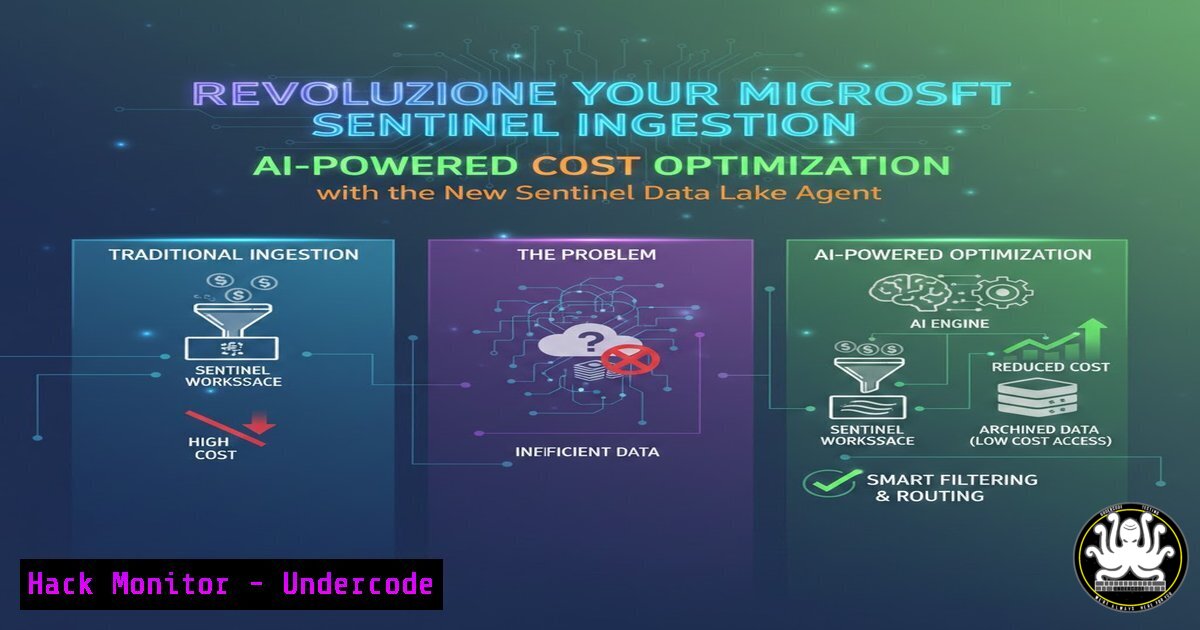
Microsoft Sentinel’s Data Lake offers a simplified pricing model, but many organizations struggle to manage ingestion costs, understand table coverage, and identify safe migration candidates. A new open‑source agent, built on PowerShell and integrated with GitHub Copilot, now automates the generation of comprehensive ingestion reports, providing actionable insights without expensive KQL queries. This article explores how this tool can transform your Sentinel cost optimization strategy.
Learning Objectives
- Understand the key factors driving Sentinel ingestion costs and Data Lake transition decisions.
- Learn to deploy and use the Sentinel Ingestion Report Agent with GitHub Copilot and PowerShell.
- Gain hands‑on skills to analyze ingestion data, identify cost‑saving opportunities, and improve detection coverage.
- The Sentinel Ingestion Dilemma: Costs, Coverage, and Data Lake
Azure Sentinel’s ingestion costs can spiral out of control when teams lack visibility into which tables generate the most data, which events have analytic rules, and how to leverage the Data Lake tier. Common pain points include:
– High‑volume tables (e.g., SecurityEvent, Syslog) that dominate costs.
– Unknown detection coverage – many tables are ingested but never used in analytics.
– Connector health issues – silent drops or spikes in data flow.
– Underutilized benefits – free data from E5 licenses or Defender for Office 365 not being applied.
Step‑by‑step: Manual Ingestion Investigation
Before automating, understand what you’re looking for. Use the following KQL query in the Sentinel Logs blade to see top tables by data volume over the last 7 days:
Usage
| where TimeGenerated > ago(7d)
| where IsBillable == true
| summarize TotalVolumeGB = sum(Quantity) / 1000. by DataType
| top 10 by TotalVolumeGB desc
This query highlights your costliest tables, but it doesn’t reveal which of them have associated analytic rules or custom detections – that requires cross‑referencing with Logic Apps, API calls, or the tool we’ll introduce.
- Meet the Sentinel Ingestion Report Agent: An AI‑Powered Solution
Chris S., a Senior Solution Engineer at Microsoft, developed an Agent skill for VSCode that automates ingestion analysis. The tool, available on GitHub, uses PowerShell to call Sentinel APIs directly – eliminating query costs – and then leverages an LLM (like Opus) to generate a detailed, human‑readable report.
Capabilities include:
- Ranking tables by volume, cost tier, and analytic rule coverage.
- Deep‑dives into
SecurityEvent,Syslog, and `CommonSecurityLog` (top EventIDs, ProcessNames, Facilities, DeviceProducts). - Connector health monitoring (drops, spikes, anomalies).
- Identifying safe Data Lake candidates: high‑volume tables with few or no detections.
- Tips on split ingestion, ASIM dependencies, KQL Jobs, and free ingest benefits.
Step‑by‑step: Cloning and Exploring the Repository
git clone https://github.com/SCStelz/security-investigator.git
cd security-investigator
Review the `README` and the `ExampleReport.md` (linked in the post: https://lnkd.in/gyF3X4kC) to understand the output structure.
3. Setting Up Your Environment for the Agent
The agent relies on PowerShell 7+, the Azure Az module, and optionally GitHub Copilot for the natural‑language prompt interface.
Prerequisites
- Azure Subscription with a Sentinel workspace.
- PowerShell 7+ (cross‑platform: Windows, Linux, macOS).
- Azure Az module:
Install-Module -Name Az -Repository PSGallery -Force
- VS Code with the GitHub Copilot extension (if you want the prompt‑driven experience).
- MCP (Model Context Protocol) – the agent uses MCP to bridge the LLM with the data‑gathering scripts. The repo includes a synthetic data generator for testing without a live environment.
Authentication
Connect to Azure:
Connect-AzAccount
Set-AzContext -Subscription "Your-Subscription-ID"
Running the Synthetic Data Generator (Optional)
To simulate a larger environment:
.\synthetic-data-generator.ps1 -WorkspaceName "yourWorkspace" -ResourceGroupName "yourRG"
4. Generating Your First Ingestion Report
Once the environment is ready, you can trigger the report in two ways:
Option A: Using GitHub Copilot Prompt
Open the project in VS Code, ensure Copilot is active, and type:
Generate a Sentinel ingestion report
The agent will execute 23 actions (API calls) and compile a full report.
Option B: Run the PowerShell Script Manually
.\Generate-IngestionReport.ps1 -WorkspaceName "yourWorkspace" -ResourceGroupName "yourRG"
What Happens Under the Hood
- The script calls the Azure Resource Graph and Sentinel APIs to retrieve table metadata, ingestion volumes, and detection rule associations.
- No KQL queries are run, so there are no query costs.
- The data is then passed to the LLM (configured in the script) to generate a narrative report with findings and recommendations.
Example Output Snippet
Top 5 Tables by Billable Ingestion (Last 30 Days):
1. SecurityEvent: 1.2 TB – Tier: Analytics – Detections: 12 (8 custom, 4 built‑in)
2. SigninLogs: 850 GB – Tier: Analytics – Detections: 5 (3 custom)
3. CommonSecurityLog: 600 GB – Tier: Analytics – Detections: 2 (both built‑in)
...
- Deciphering the Report: Top Tables, Costs, and Detection Coverage
The report is divided into several sections. Here’s how to interpret them:
Top Tables Ranked
- Volume – shows which tables consume the most storage.
- Tier – indicates whether the table is in Analytics (billable) or Data Lake (low‑cost).
- Coverage – lists the number of analytic rules (built‑in and custom) that reference each table.
Deep Dives
For high‑impact tables like SecurityEvent, the report breaks down the top EventIDs:
SecurityEvent
| where TimeGenerated > ago(30d)
| summarize count() by EventID
| top 10 by count_
This helps you understand which events drive the volume and whether they are needed for your use cases.
Connector Health
The report flags anomalies, such as a sudden drop in Syslog events, which could indicate a connector failure.
Step‑by‑step: Validate a Finding
Suppose the report suggests that 80% of `CommonSecurityLog` volume comes from a single device product. You can confirm with KQL:
CommonSecurityLog
| where TimeGenerated > ago(7d)
| summarize sum(<em>BilledSize) by DeviceProduct
| top 5 by sum</em>
- Identifying Safe Data Lake Candidates and Optimizing Ingestion
The most valuable part of the report is the Data Lake Candidate list: tables with high volume but zero or very few detections. Moving these tables to the Data Lake tier can slash costs.
Step‑by‑step: Move a Table to Data Lake
- In the Azure portal, navigate to your Sentinel workspace.
- Under Settings > Tables, select the table (e.g.,
MyHighVolumeTable). - Change the Table plan from Analytics to Basic Logs or Archive (Data Lake equivalent).
- Adjust retention as needed (Data Lake may have different retention rules).
Leverage Free Ingest Benefits
If you have E5 licenses or Defender for Office 365 P2, some data is ingested for free. The report highlights which tables are covered, so you can ensure you’re not over‑allocating costs.
Split Ingestion and KQL Jobs
For tables that must stay in Analytics but have high‑volume noise, consider splitting ingestion: route low‑value events to a separate table or use KQL Jobs to pre‑aggregate data.
- Beyond Ingestion: Continuous Monitoring and Tuning with AI
The agent isn’t a one‑time tool. You can schedule it to run weekly and compare reports to catch trends early. The repo also includes a synthetic data generator to test changes before applying them to production.
Future Enhancements
The author notes that retention analysis isn’t yet included – but community contributions are welcome. As the tool evolves, it may integrate with Azure Cost Management APIs to provide a complete cost picture.
Customizing the Agent
You can modify the PowerShell scripts to add your own metrics, or adjust the LLM prompt to focus on specific use cases (e.g., compliance, threat hunting).
What Undercode Say
- Key Takeaway 1: The Sentinel Ingestion Report Agent automates complex data gathering and provides actionable insights, drastically reducing manual analysis effort.
- Key Takeaway 2: AI‑driven tools like this bridge the gap between raw telemetry and strategic decision‑making, enabling SOC teams to focus on high‑value tasks.
Analysis
This open‑source tool exemplifies the shift toward “Agentic AI” in security operations – where AI assists analysts without replacing them. By using API calls instead of expensive KQL queries, it offers a cost‑effective way to optimize Sentinel spending. However, users must validate recommendations against Azure billing data and consider retention policies. The tool’s extensibility and community support will drive further innovation in SOC optimization, turning raw data into a strategic asset.
Prediction
As cloud costs continue to rise, AI‑powered cost optimization agents will become standard in security operations. We’ll see tighter integration with cloud provider APIs, real‑time ingestion tuning, and predictive analytics to prevent cost overruns. This agent is a harbinger of autonomous SOC management where AI handles routine optimization tasks, allowing human analysts to concentrate on threat hunting and incident response.
▶️ Related Video (78% Match):
🎯Let’s Practice For Free:
IT/Security Reporter URL:
Reported By: Scstelz Github – Hackers Feeds
Extra Hub: Undercode MoN
Basic Verification: Pass ✅


