Listen to this Post
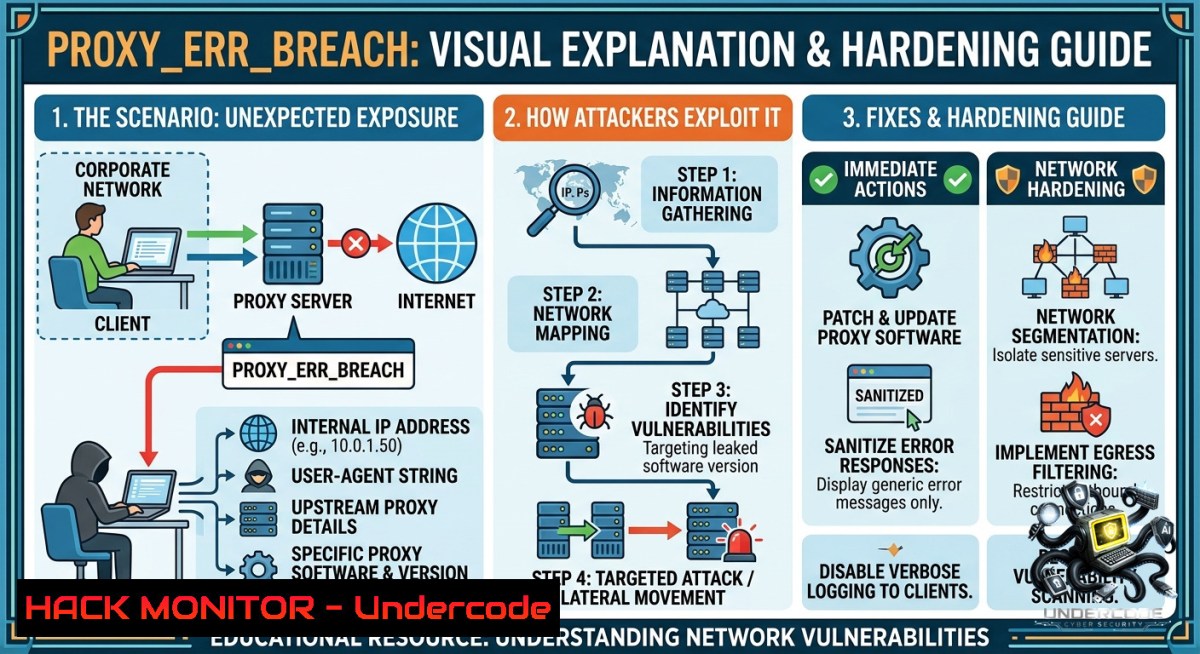
Introduction:
The `ERR_PROXY_CONNECTION_FAILED` error (or “No internet – proxy server problem”) is often dismissed as a minor connectivity glitch, but in enterprise and security contexts, it can signal misconfigured proxy settings, malicious traffic interception, or even a breach attempt. Attackers frequently manipulate proxy configurations to redirect traffic through rogue servers, enabling man‑in‑the‑middle (MITM) attacks, credential harvesting, or bypassing security controls. Understanding how to diagnose, fix, and harden proxy settings is essential for both system administrators and security analysts.
Learning Objectives:
– Diagnose proxy connection failures using native OS tools and command‑line utilities.
– Identify security risks associated with improper proxy configurations (e.g., open proxies, unexpected PAC files).
– Implement hardening measures on Linux and Windows to prevent proxy‑based attacks and ensure resilient internet access.
You Should Know:
1. Diagnosing the Proxy Failure – Commands & Step‑by‑Step Guide
Extended context: The `ERR_PROXY_CONNECTION_FAILED` error appears when your browser or system tries to reach a proxy server but the proxy is unreachable (wrong IP/port, down, or firewalled), or the proxy address is malformed. This can also be caused by malware that injects fake proxy settings. Below are verified commands to inspect and test proxy connectivity.
Step‑by‑step guide:
Step 1: Check system‑wide proxy settings (Windows)
– Open PowerShell as Administrator and run:
netsh winhttp show proxy
– To view current user proxy (Internet Explorer/Chrome):
Get-ItemProperty -Path 'HKCU:\Software\Microsoft\Windows\CurrentVersion\Internet Settings' | Select-Object ProxyEnable, ProxyServer, ProxyOverride
Step 2: Check system‑wide proxy settings (Linux)
– View environment variables:
echo $http_proxy
echo $https_proxy
echo $no_proxy
– Check GNOME desktop proxy:
gsettings get org.gnome.system.proxy mode
gsettings get org.gnome.system.proxy http host
Step 3: Test proxy connectivity manually
– Use `curl` to attempt a connection through the proxy (replace `192.168.1.100:8080` with your suspected proxy):
curl -v -x http://192.168.1.100:8080 https://google.com
– On Windows (PowerShell):
$proxy = [System.Net.WebRequest]::GetSystemWebProxy()
$proxy.GetProxy("https://google.com")
Step 4: Bypass proxy to confirm the proxy is the issue
– Temporarily disable proxy (Linux):
unset http_proxy https_proxy
– Temporarily disable proxy (Windows PowerShell):
netsh winhttp reset proxy
(Then test internet in a browser without proxy.)
Step 5: Check for malicious PAC (Proxy Auto‑Config) files
– Windows: Look for suspicious `wpad.dat` or PAC URLs in registry:
Get-ItemProperty -Path 'HKCU:\Software\Microsoft\Windows\CurrentVersion\Internet Settings\Connections' | Select-Object -ExpandProperty DefaultConnectionSettings
– Linux: Review network manager PAC settings:
nmcli connection show --active
nmcli connection show "YourSSID" | grep pac
2. Hardening Proxy Configurations Against MITM and Hijacking
Extended context: A misconfigured or compromised proxy can decrypt TLS traffic, inject malicious scripts, or reroute users to phishing sites. Corporate environments often use transparent proxies or WPAD, which can be abused via DHCP/DNS spoofing (e.g., responder.py attacks). Below are hardening steps for both Linux and Windows.
Step‑by‑step guide:
Step 1: Disable WPAD (Web Proxy Auto‑Discovery) if not required
– Windows Group Policy: `Computer Configuration → Administrative Templates → Windows Components → Internet Explorer → Disable automatic detection of proxy settings` → Set to Enabled.
– Linux (disable via network manager):
sudo nmcli connection modify "YourConnection" ipv4.ignore-auto-proxy yes
Step 2: Enforce static proxy configuration with authentication
– Linux (environment variables with credentials – avoid in scripts; use netrc instead):
export http_proxy="http://user:[email protected]:8080"
export https_proxy="https://user:[email protected]:8080"
– Windows (using netsh with autoconfig script):
netsh winhttp set proxy proxy.corp.local:8080 "<local>;.corp.local"
netsh winhttp set autoproxy url=http://internal.pac.corp.local/wpad.dat
Step 3: Validate proxy TLS certificates
– Force `curl` to verify proxy certificate (if using HTTPS proxy):
curl -x https://proxy.corp.local:8443 --proxy-cacert /etc/ssl/certs/ca-certificates.crt https://internal.site
– On Windows, use `certlm.msc` to inspect the proxy’s certificate chain. Reject proxies that present self‑signed or untrusted certs.
Step 4: Monitor for proxy‑related attacks with firewall rules
– Block outbound traffic that bypasses the corporate proxy (except explicit exceptions):
 Linux iptables example: allow only traffic from authenticated proxy user
sudo iptables -A OUTPUT -p tcp --dport 80,443 -m owner --uid-owner proxyuser -j ACCEPT
sudo iptables -A OUTPUT -p tcp --dport 80,443 -j REJECT
– Windows advanced firewall: create rule to block all outbound HTTP/HTTPS except to the proxy server’s IP.
Step 5: Detect rogue proxy servers on the network
– Use `nmap` to scan for open proxy ports (8080, 3128, 1080) and test anonymity:
nmap -p 8080,3128,1080 --open 192.168.1.0/24
– For a quick test of an open proxy, use `nmap`’s http-proxy script:
nmap -p 8080 --script http-proxy 192.168.1.100
3. Exploitation & Mitigation – Simulating a Proxy‑Based MITM Attack
Extended context: Attackers can abuse proxy settings to perform SSL stripping, session hijacking, or credential theft. Below is a controlled demonstration using `mitmproxy` (educational purposes only) and corresponding mitigations.
Step‑by‑step guide (lab environment only):
Step 1: Attacker sets up a rogue transparent proxy
– Install mitmproxy on Kali Linux:
sudo apt install mitmproxy
– Run transparent proxy mode on port 8080, redirecting traffic:
sudo mitmproxy --mode transparent --listen-port 8080
– Use `iptables` to redirect all HTTP/HTTPS traffic to mitmproxy (requires IP forwarding):
sudo sysctl -w net.ipv4.ip_forward=1
sudo iptables -t nat -A PREROUTING -i eth0 -p tcp --dport 80 -j REDIRECT --to-port 8080
sudo iptables -t nat -A PREROUTING -i eth0 -p tcp --dport 443 -j REDIRECT --to-port 8080
Step 2: Victim machine’s proxy setting is forced via DHCP WPAD or GPO
– Or manually set proxy to attacker IP: 192.168.1.10:8080.
Step 3: Attacker captures and modifies traffic
– In mitmproxy interface, view live requests, intercept login forms, and steal session cookies.
Mitigation:
– Enforce certificate pinning and HSTS (HTTP Strict Transport Security) on all internal web apps.
– Use proxy with client certificate authentication (mTLS) to prevent rogue proxies.
– Monitor for unexpected WPAD responses – deploy network intrusion detection rules:
 Snort rule example to detect rogue WPAD
alert tcp any 80 -> any any (msg:"Potential Rogue WPAD"; content:"wpad.dat"; http_uri; sid:1000001;)
4. Cloud & API Security – Proxy Misconfigurations in IaaS/PaaS
Extended context: Cloud environments like AWS, Azure, and GCP often use forward proxies for egress control. An `ERR_PROXY_CONNECTION_FAILED` inside a container or VM could indicate a service mesh misconfiguration (e.g., Envoy, Istio) or a security group blocking the proxy port.
Step‑by‑step guide:
Step 1: Test proxy connectivity inside a Kubernetes pod
– Run a temporary pod and use `curl` with proxy environment variables:
kubectl run test-pod --rm -it --image=alpine/curl -- sh
export https_proxy=http://10.96.0.1:3128
curl -v https://kubernetes.default.svc
Step 2: Fix common cloud proxy errors
– AWS EC2 instances using NAT gateway with proxy: Ensure security group allows egress to proxy port (e.g., TCP 8080) and instance IAM role has permissions for `ec2:Describe` if using dynamic proxy config.
– Azure Virtual Desktop (AVD) proxy failures: Run from PowerShell:
Test-1etConnection -ComputerName proxy.contoso.com -Port 8080
– GCP Cloud NAT + proxy: Verify that the proxy VM has IP forwarding enabled and firewall rules allow traffic from VPC subnet.
Step 3: Hardening cloud proxy with API security
– For AWS Lambda using VPC proxy, never hardcode proxy credentials. Use Secrets Manager and attach as environment variable:
import os
import requests
proxies = {"http": os.environ['PROXY_URL'], "https": os.environ['PROXY_URL']}
requests.get('https://api.internal', proxies=proxies)
– Rotate proxy credentials weekly and audit CloudTrail for `GetSecretValue` events.
What Undercode Say:
– Key Takeaway 1: The `ERR_PROXY_CONNECTION_FAILED` error is not just a connectivity hiccup – it often reveals underlying security gaps such as outdated proxy configurations, lack of monitoring for WPAD spoofing, or missing authentication on forward proxies. Always treat proxy errors as potential indicators of compromise (IOC).
– Key Takeaway 2: Hardening proxy settings across Linux, Windows, and cloud environments requires a layered approach: disable unnecessary auto‑discovery protocols, enforce certificate validation, and implement egress filtering. Regular scanning for open or rogue proxies is as critical as patching vulnerabilities.
Analysis (10 lines):
This error occurs when a client cannot reach the configured proxy server, but the real danger lies in why that proxy was set. Many users unknowingly have proxy settings from old corporate VPNs, malicious browser extensions, or lingering malware. Attackers exploit this by setting a rogue proxy that logs all traffic. The absence of TLS validation on proxy connections enables SSL decryption without user awareness. On enterprise networks, WPAD via DHCP option 252 is a classic attack vector – tools like `Responder` can poison WPAD responses. The commands provided (netsh, gsettings, mitmproxy) help both defenders and attackers; thus, monitoring proxy logs and enforcing group policy are mandatory. Cloud environments amplify risk because misconfigured container proxies can leak API tokens. Ultimately, the solution is not merely fixing the error but implementing zero‑trust proxy architecture where every connection is authenticated and encrypted end‑to‑end.
Prediction:
– -1 Increasing reliance on cloud‑native service meshes (Istio, Linkerd) will reduce traditional proxy errors but introduce new failure modes like sidecar injection delays, leading to more complex `connection failed` errors that require deep Kubernetes networking knowledge.
– +1 AI‑driven proxy configuration management tools will emerge, automatically detecting and remediating `ERR_PROXY_CONNECTION_FAILED` errors by analyzing traffic patterns and rolling back malicious changes within seconds.
– -1 Attackers will shift from static proxy hijacking to dynamic, per‑session proxy injection via browser extensions or drive‑by downloads, making the error intermittent and harder to trace.
– +1 Windows and Linux will adopt hardware‑enforced proxy attestation (similar to TPM‑based remote attestation) that prevents any unverified proxy from being set at the kernel level, eliminating entire classes of MITM.
▶️ Related Video (74% Match):
🎯Let’s Practice For Free:
🎓 Live Courses & Certifications:
[Join Undercode Academy for Verified Certifications](https://undercode.co.uk/certifications/)
🚀 Request a Custom Project:
Secure, high-velocity infrastructure and disruptive technological engineering. Contact our engineering team for high-tier development and proprietary systems:
[[email protected]](mailto:[email protected])
💎 Smart Architecture | 🛡️ Secure by Design | ⭐ Trusted by Thousands
IT/Security Reporter URL:
Reported By: [Remoteabrpatientabrmonitor Hospitalabrmanagementabrsystem](https://www.linkedin.com/posts/remoteabrpatientabrmonitor-hospitalabrmanagementabrsystem-share-7459598506559709185-bPrm/) – Hackers Feeds
Extra Hub: Undercode MoN
Basic Verification: Pass ✅
🔐JOIN OUR CYBER WORLD [ CVE News • HackMonitor • UndercodeNews ]
[💬 Whatsapp](https://undercode.help/whatsapp) | [💬 Telegram](https://t.me/UndercodeCommunity)
📢 Follow UndercodeTesting & Stay Tuned:
[𝕏 formerly Twitter 🐦](https://x.com/undercodeupdate) | [@ Threads](https://www.threads.net/@undercodetesting) | [🔗 Linkedin](https://www.linkedin.com/company/undercodetesting/) | [🦋BlueSky](https://bsky.app/profile/undercode.bsky.social)


