Listen to this Post
Introduction
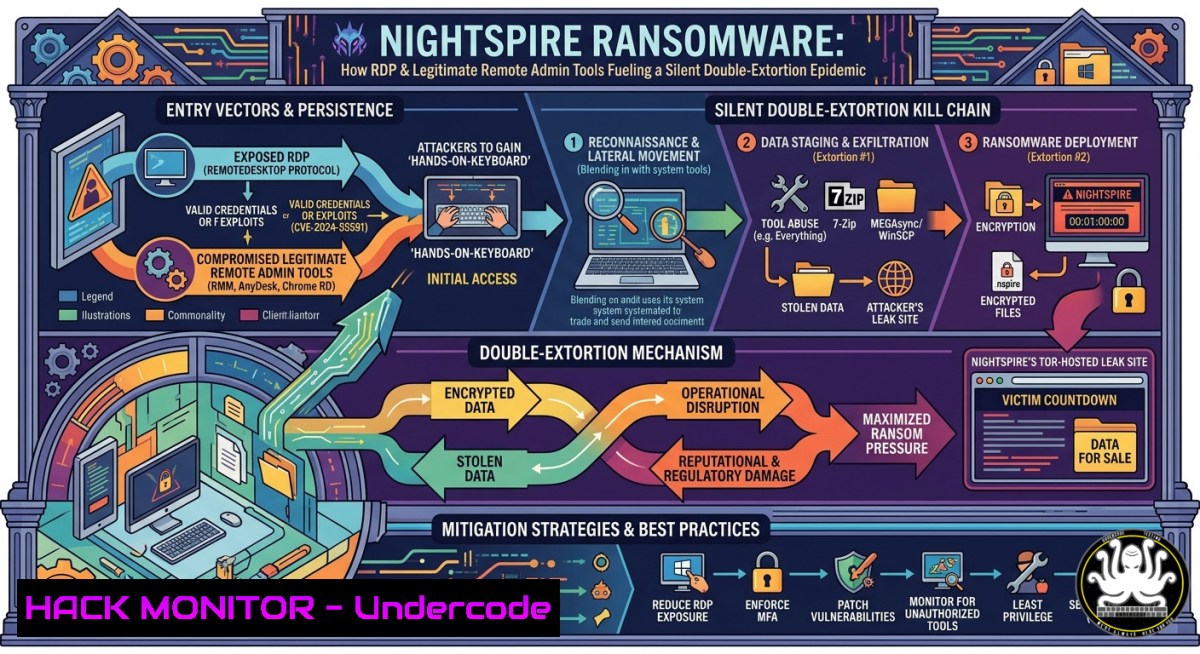
A newly observed ransomware threat known as NightSpire is rapidly compromising organizations by exploiting a surprisingly simple yet highly effective attack vector: exposed Remote Desktop Protocol (RDP) access. Once inside, attackers leverage widely trusted remote administration tools, such as Chrome Remote Desktop and AnyDesk, to maintain stealthy persistence, making them nearly invisible to traditional security monitoring. This article dissects the complete NightSpire attack chain and provides actionable steps to detect, block, and simulate this emerging threat.
Learning Objectives
- Understand the NightSpire ransomware attack chain, including initial access via RDP, stealthy persistence using legitimate tools, and double-extortion tactics.
- Implement technical controls, including commands and Group Policies, to harden RDP and block unauthorized remote administration tools.
- Develop detection and response strategies using Windows Event Logs, Sysmon, and adversary emulation frameworks.
You Should Know
1. Harden RDP Access to Prevent Initial Compromise
The NightSpire attack begins with a successful RDP connection, often obtained through credential brute-forcing or purchasing compromised credentials from initial access brokers. Removing direct RDP exposure is the single most effective deterrent.
Step-by-step hardening guide:
- Disable RDP entirely if not required. Navigate to `System Properties > Remote` and uncheck “Allow Remote Desktop connections to this computer.”
- If RDP is necessary, restrict access to a VPN or a Remote Desktop Gateway (RDG). Never expose port 3389 directly to the internet.
- Enforce strong authentication:
- Enable Network Level Authentication (NLA) by setting the DWORD value `HKLM\SYSTEM\CurrentControlSet\Control\Terminal Server\WinStations\fAllowSecProtocolNegotiation` to
1. - Enforce Multi-Factor Authentication (MFA) for all RDP sessions using solutions like Duo, Microsoft Authenticator, or Azure AD Application Proxy.
- Apply account lockout policies to thwart brute-force attacks. Via Group Policy, navigate to
Computer Configuration > Windows Settings > Security Settings > Account Policies > Account Lockout Policy. Set: Account lockout threshold: `5` invalid attemptsAccount lockout duration: `30` minutesReset account lockout counter after: `30` minutes- Limit RDP users to specific groups. In Group Policy, go to `Computer Configuration > Administrative Templates > Windows Components > Remote Desktop Services > Remote Desktop Session Host > Connections` and set “Restrict Remote Desktop Services users to a single session.”
- Use Windows Firewall to create an allowlist for RDP. Replace `192.168.1.0/24` with your trusted subnet:
New-NetFirewallRule -DisplayName "Allow RDP from Trusted Subnet" -Direction Inbound -Protocol TCP -LocalPort 3389 -RemoteAddress 192.168.1.0/24 -Action Allow
- Monitor for RDP brute-force attempts by using PowerShell to query the Security Event Log for Event ID 4625:
Get-WinEvent -FilterHashtable @{LogName='Security'; ID=4625} | Where-Object {$_.Message -match "Logon Type:\s+10"} | Format-ListRepeated failures from a single IP address indicate a brute-force attack.
2. Detect and Block Unauthorized Remote Administration Tools
After gaining RDP access, NightSpire installs legitimate remote administration tools like Chrome Remote Desktop and AnyDesk to establish persistent access. Because these tools are signed and trusted, they often evade signature-based antivirus and application control solutions.
Step-by-step detection and blocking guide:
- Create application allowlisting rules using AppLocker or Windows Defender Application Control (WDAC) to block execution of unauthorized remote admin tools. For AppLocker, navigate to `Computer Configuration > Windows Settings > Security Settings > Application Control Policies > AppLocker` and create a Deny rule for the file hash or publisher of Chrome Remote Desktop and AnyDesk.
- Use Group Policy to block specific executables. Navigate to
Computer Configuration > Windows Settings > Security Settings > Software Restriction Policies. Create a new policy, then under “Additional Rules,” right-click to create a “New Path Rule” for `%ProgramFiles%\Google\Chrome Remote Desktop\` and%ProgramFiles%\AnyDesk\. - Monitor for the creation of persistent services associated with these tools. Query the Service Control Manager:
Get-Service | Where-Object {$<em>.DisplayName -like "Chrome Remote Desktop" -or $</em>.DisplayName -like "AnyDesk"} - Detect installation events via Sysmon. Configure Sysmon with Event ID 13 (RegistryValueSet) to monitor for the creation of the Chrome Remote Desktop service key:
HKLM\SYSTEM\CurrentControlSet\Services\chromoting. - Create a Windows Defender Firewall outbound rule to block these tools from communicating out. Open
wf.msc, navigate to “Outbound Rules,” and create a new rule. Select “Program” and specify the path to the AnyDesk executable (%ProgramFiles%\AnyDesk\AnyDesk.exe), then choose “Block the connection”.
3. Disrupt the Data Exfiltration and Encryption Process
After establishing persistence, NightSpire deploys a suite of living-off-the-land binaries (LOLBins) to locate, archive, and exfiltrate sensitive data before launching the final encryption routine.
Understanding the data staging phase:
Attackers first use `Everything.exe` (voidtools) to rapidly index every file on the system. They then compress targeted folders using `7z.exe` (7-Zip) into password-protected archives. Finally, they upload these archives to cloud storage (often MEGA) using MEGAsync.exe.
Step-by-step disruption guide:
- Block or restrict the use of `Everything.exe` in your environment.
- Use AppLocker to block its execution entirely.
- Monitor for its command-line usage with Event Tracing for Windows (ETW) or Sysmon Event ID 1 (Process Creation). Look for:
Get-SysmonEvent | Where-Object {$_.ProcessName -like "Everything.exe"} - Prevent the use of 7-Zip and other compression tools from being used in sensitive directories.
- Use Windows Defender Firewall to block outbound connections from `7z.exe` and
MEGAsync.exe. - Deploy a custom detection rule in your EDR or SIEM for processes that create a 7-Zip archive (
.7zor.zip) and then immediately launch a browser or sync client. - Monitor for suspicious MEGAsync installations and activity. Check for the creation of the MEGAsync scheduled task:
Get-ScheduledTask | Where-Object {$_.TaskName -like "MEGAsync"} - Detect the ransomware encryption behavior.
- Use Sysmon to monitor for the creation of files with the `.nspire` extension: `Sysmon Event ID 11 (FileCreate)` where `TargetFilename` ends with
.nspire. - Simulate the encryption process in a sandbox to test your detection capabilities. The following PowerShell command mimics the behavior of creating a ransom note:
New-Item -Path "C:\Users\Public\Desktop\README_NightSpire.txt" -ItemType File -Force
- Simulate the NightSpire Attack Chain for Proactive Defense
Adversary emulation allows security teams to safely reproduce the NightSpire TTPs (Tactics, Techniques, and Procedures) within a controlled environment to validate detection coverage and incident response procedures.
Step-by-step emulation using Atomic Red Team and CALDERA:
- Set up an isolated lab environment with a target Windows machine (running an EDR agent or logging tools) and an attack machine (Kali Linux or a dedicated Windows box).
- Use Atomic Red Team (ART) to execute specific TTPs observed in NightSpire attacks, such as:
- T1021.001 – Remote Desktop Protocol: `Invoke-AtomicTest T1021.001`
– T1098 – Account Manipulation: `Invoke-AtomicTest T1098` (for creating local admin accounts) - T1560.001 – Archive via Utility: `Invoke-AtomicTest T1560.001 -TestNumbers 1` (simulates 7-Zip archiving)
- T1048.001 – Exfiltration Over C2 Channel: `Invoke-AtomicTest T1048.001`
– T1486 – Data Encrypted for Impact: `Invoke-AtomicTest T1486` (simulates file encryption) - Automate the entire attack chain using MITRE CALDERA. Build a custom adversary profile that chains together the above Atomic Red Team tests. Deploy CALDERA agents on your test machine and run the profile to simulate the entire NightSpire intrusion from initial RDP access to final encryption.
- Collect and analyze logs from your SIEM or EDR. Create detection rules that trigger on:
- The combination of `7z.exe` creation followed by `MEGAsync.exe` outbound traffic.
- The execution of `Everything.exe` from a temporary directory (
%temp%). - A high volume of file renames ending with `.nspire` or similar extensions.
What Undercode Say
- RDP exposure remains a critical weakness, but the abuse of legitimate remote admin tools is the stealthy twist. Even if you patch RDP vulnerabilities, attackers will pivot to trusted software like Chrome Remote Desktop and AnyDesk, which are rarely monitored. You must have detection in place for the unexpected deployment of any remote access tool.
- The use of “Everything” and “MEGAsync” highlights the need to monitor normal binaries for malicious intent. Your IR team must treat the execution of file search utilities, archive tools, and cloud sync clients in sensitive contexts as an IOC, not just as normal user activity.
Prediction
The NightSpire playbook will likely become the standard for RaaS (Ransomware-as-a-Service) affiliates due to its high success rate and low detection overhead. As more groups adopt this model, we will see a surge in attacks that forego custom malware entirely, instead weaponizing a rotating set of legitimate remote access and file management tools. Future variants may automate the installation of remote admin tools via scripts and leverage legitimate RMM (Remote Monitoring and Management) software to disable EDR agents. Defenders must shift from signature-based detection to a behavior-based “living off the land” mindset.
▶️ Related Video (78% Match):
🎯Let’s Practice For Free:
IT/Security Reporter URL:
Reported By: Cybersecuritynews Share – Hackers Feeds
Extra Hub: Undercode MoN
Basic Verification: Pass ✅
🎓 Live Courses & Certifications:
Join Undercode Academy for Verified Certifications
🚀 Request a Custom Project:
Secure, high-velocity infrastructure and disruptive technological engineering. Contact our engineering team for high-tier development and proprietary systems:
[email protected]


