
Listen to this Post
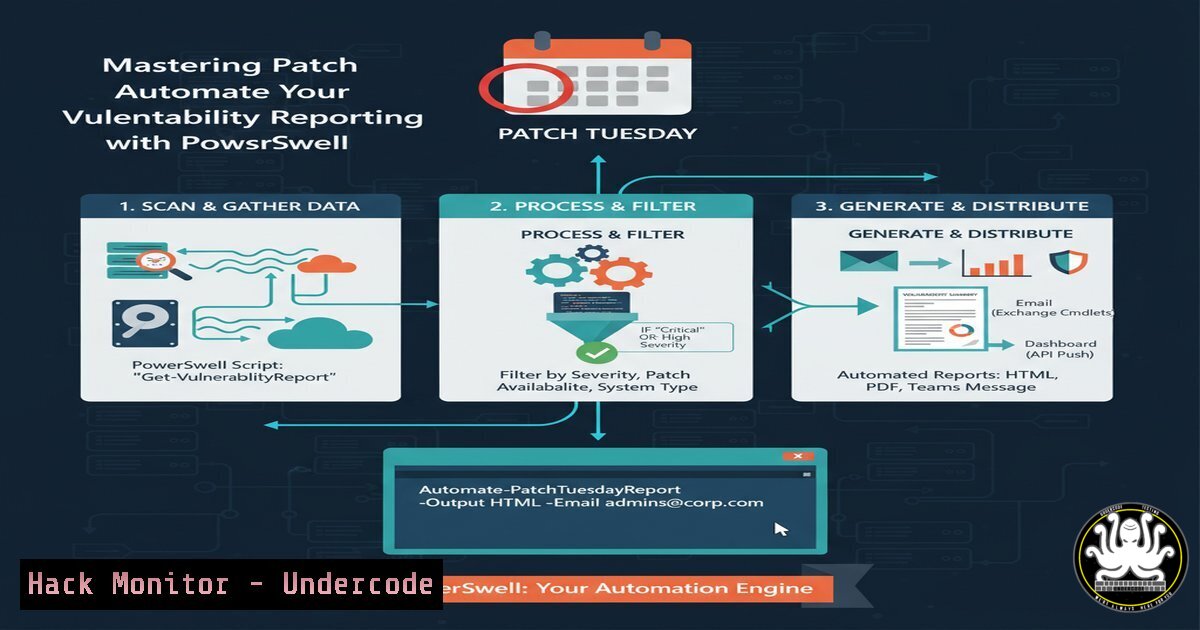
Introduction:
Patch Tuesday, Microsoft’s monthly security update release, is a critical event for IT and cybersecurity teams worldwide. Manually sifting through dozens of patches to identify the most critical vulnerabilities is a time-consuming and error-prone process. Automation is key to efficiency and accuracy, and a newly released PowerShell script is transforming how professionals handle this essential task by converting a popular Python tool into a versatile PowerShell module.
Learning Objectives:
- Understand how to leverage the MSRC-PatchReview PowerShell script for automated patch reporting.
- Learn to customize script output to filter and prioritize the most critical vulnerabilities.
- Master the integration of this tool into your existing security patch management workflow.
You Should Know:
1. Script Acquisition and Initial Setup
Before automation can begin, you must acquire the tool. The script is hosted on a public GitHub repository.
Verified Commands & Guide:
 Clone the repository to your local machine
git clone https://github.com/f-bader/MSRC-PatchReview.git

Change directory into the cloned repository
Set-Location .\MSRC-PatchReview\

View the script's help information to understand its parameters
Get-Help .\Get-MSRCPatchReview.ps1 -Full
Step-by-step guide: The first step is to download the script onto a system with internet access and PowerShell. Using the `git clone` command ensures you get the entire script and its supporting files. Once downloaded, navigate into the directory using Set-Location. Before running the script, always use `Get-Help` to review the available parameters and understand its functionality, which is a crucial security best practice before executing any external script.
2. Generating a Basic Patch Report
The script’s default behavior is to fetch and display the patches for the current month, providing an immediate overview.
Verified Commands & Guide:
 Execute the script with default parameters (uses the current month)
.\Get-MSRCPatchReview.ps1

Save the default output to a text file for record-keeping
.\Get-MSRCPatchReview.ps1 | Out-File -FilePath "C:\Reports\PatchReview_$(Get-Date -Format 'yyyyMM').txt"
Step-by-step guide: Running the script without any parameters is the simplest way to get started. It will connect to the Microsoft API and retrieve all security updates for the current month. Piping the output to `Out-File` creates a permanent record of the report. The `$(Get-Date -Format ‘yyyyMM’)` part automatically inserts the current year and month into the filename, making it easy to organize monthly reports.
3. Leveraging JSON for Automated Data Processing
Structured data output is essential for integrating with other tools like SIEMs, dashboards, or ticketing systems. The script’s JSON output feature enables this.
Verified Commands & Guide:
 Generate a report in JSON format
$JsonReport = .\Get-MSRCPatchReview.ps1 -OutputFormat Json | ConvertFrom-Json

Filter the JSON report to show only CVEs with a severity of "Critical"
$JsonReport | Where-Object { $_.Severity -eq 'Critical' } | Select-Object ID, , Severity

Export the filtered Critical vulnerabilities to a separate JSON file
$JsonReport | Where-Object { $_.Severity -eq 'Critical' } | ConvertTo-Json | Out-File "C:\Reports\Critical_CVEs_ThisMonth.json"
Step-by-step guide: Using the `-OutputFormat Json` parameter transforms the output into a structured JSON string. The `ConvertFrom-Json` cmdlet then parses this string into a customizable PowerShell object. Once it’s an object, you can use PowerShell cmdlets like `Where-Object` to filter for specific criteria, such as “Critical” severity vulnerabilities, allowing you to focus efforts on the most pressing threats.
4. Prioritizing by Highest Rated CVEs
Not all vulnerabilities are created equal. The script allows you to change the base CVE for sorting, helping you instantly identify the most severe threats.
Verified Commands & Guide:
 Generate a report sorted to show the highest-rated CVEs first
.\Get-MSRCPatchReview.ps1 -BaseCVE "highest"

Combine sorting with severity filtering for a highly targeted report
.\Get-MSRCPatchReview.ps1 -BaseCVE "highest" -OutputFormat Json | ConvertFrom-Json | Where-Object { $_.Severity -in @('Critical', 'Important') }
Step-by-step guide: The `-BaseCVE “highest”` parameter is a powerful feature for prioritization. It instructs the script to sort the list of vulnerabilities, placing those with the highest CVSS scores or most significant impact at the top of the report. This, combined with filtering, enables security architects to create a “must-patch-first” list, drastically reducing the mean time to remediation (MTTR) for critical flaws.
5. Customizing CVE Information Links
Different team members may require different levels of detail. The script offers a choice between the general CVE.org database and the more specific Microsoft Security Response Center (MSRC) portal.
Verified Commands & Guide:
 Generate a report with links to the general CVE.org database
.\Get-MSRCPatchReview.ps1 -CveLinkType CveOrg

Generate a report with links to the vendor-specific MSRC portal (often more detailed)
.\Get-MSRCPatchReview.ps1 -CveLinkType MSRC

Use a PowerShell command to open the MSRC page for the first CVE in the report for quick research
$Report = .\Get-MSRCPatchReview.ps1 -CveLinkType MSRC | ConvertFrom-Json
Start-Process $Report[bash].Link
Step-by-step guide: The `-CveLinkType` parameter tailors the output for different audiences. Security analysts might prefer `CveOrg` for a vendor-agnostic view, while system administrators might prefer `MSRC` for Microsoft-specific mitigation and workaround information. The example of using `Start-Process` to open a link demonstrates how the output can be integrated into an interactive research workflow.
6. Integrating with Patch Management Systems
The true power of automation is realized when tools are chained together. The script’s object output can feed directly into patch management or orchestration systems.
Verified Commands & Guide:
 1. Generate a list of KB (Knowledge Base) numbers for Critical vulnerabilities
$CriticalKBs = .\Get-MSRCPatchReview.ps1 -OutputFormat Json | ConvertFrom-Json | Where-Object { $_.Severity -eq 'Critical' } | Select-Object -ExpandProperty KBs

<ol>
<li>Use the list with a deployment tool like PsExec for a test group (example)
This example shows how you might structure a command for a third-party tool.
$CriticalKBs | ForEach-Object { & PsExec \TestServer -s "wusa.exe C:\Patches\$_ /quiet /norestart" }</p></li>
<li><p>Create a CSV import file for your ticketing system (e.g., Jira, ServiceNow)
.\Get-MSRCPatchReview.ps1 -OutputFormat Json | ConvertFrom-Json | Select-Object ID, , Severity, Product, Link | Export-Csv -Path "C:\Reports\PatchTicketsThisMonth.csv" -NoTypeInformation
Step-by-step guide: This advanced workflow showcases the script’s integration potential. First, it extracts the KB numbers for all Critical patches. These KBs could then be used by deployment tools like SCCM, Intune, or even command-line utilities to initiate the installation process on target machines. Finally, exporting a filtered list to a CSV provides a perfect import file for creating tickets in an IT Service Management (ITSM) platform, ensuring every patch is tracked to completion.
7. Scheduling Automated Monthly Reports
To fully automate the Patch Tuesday process, the script can be scheduled to run automatically using the Windows Task Scheduler.
Verified Commands & Guide:
 Create a scheduled task that runs the script on the Wednesday after Patch Tuesday at 9 AM and saves a JSON report.
$Action = New-ScheduledTaskAction -Execute "PowerShell.exe" -Argument "-NoProfile -WindowStyle Hidden -Command <code>"& 'C:\Scripts\MSRC-PatchReview\Get-MSRCPatchReview.ps1' -OutputFormat Json | Out-File 'C:\Reports\PatchReview_$(Get-Date -Format 'yyyyMM').json'</code>""
$Trigger = New-ScheduledTaskTrigger -Weekly -DaysOfWeek Wednesday -At 9am
Register-ScheduledTask -TaskName "Monthly MSRC Patch Review" -Action $Action -Trigger $Trigger -User "SYSTEM"
Step-by-step guide: This set of commands creates a “set-and-forget” automated reporting system. The task is configured to run weekly, but only on Wednesdays, which is the day after Patch Tuesday. It executes the script with the `-WindowStyle Hidden` and `-NoProfile` parameters for clean, silent operation, and outputs the results directly to a time-stamped JSON file. Running under the “SYSTEM” user account ensures it has the necessary permissions.
What Undercode Say:
- Democratization of Security Automation: The porting of a specialized Python script to PowerShell significantly lowers the barrier to entry. PowerShell’s deep integration into the Windows ecosystem makes this high-level patch analysis accessible to a vast number of system administrators, not just security engineers who are proficient in Python.
- The Shift from Manual Triage to Strategic Analysis: This tool represents a fundamental shift in the security workflow. It automates the tedious data collection and initial sorting phase, freeing up valuable human analyst time. This time is better spent on strategic tasks like impact analysis, testing mitigation strategies, and managing the deployment orchestration rather than on manual data gathering.
The evolution from a Python to a PowerShell codebase for a tool like this is more than a simple language translation; it’s a strategic alignment with the core skill set of its primary user base—Windows-focused IT professionals. By incorporating quality-of-life features such as flexible output formats and intelligent default parameters, the script moves beyond a mere utility and becomes a robust platform for building a more mature and responsive patch management program. This reflects a broader trend in cybersecurity: the move towards intelligent, integrated tooling that embeds security processes directly into the operational workflows of IT teams.
Prediction:
The automation of vulnerability assessment and reporting, as exemplified by this PowerShell script, will become the baseline standard for organizational cybersecurity hygiene within the next two years. We will see these tools become deeply integrated into Cloud Security Posture Management (CSPM) and Extended Detection and Response (XDR) platforms, providing not just reports but also automated, risk-prioritized remediation tickets. Furthermore, the core functionality will expand beyond Microsoft to encompass third-party applications and major cloud providers, creating a unified, automated patch intelligence system. This will force a recalibration of the “assumed breach” model, as organizations that fail to adopt such automation will find their manual processes are no longer capable of keeping pace with the volume and velocity of modern software vulnerabilities, leaving them persistently vulnerable to known exploits.
🎯Let’s Practice For Free:
IT/Security Reporter URL:
Reported By: Fabianbader Powershell – Hackers Feeds
Extra Hub: Undercode MoN
Basic Verification: Pass ✅


