Listen to this Post
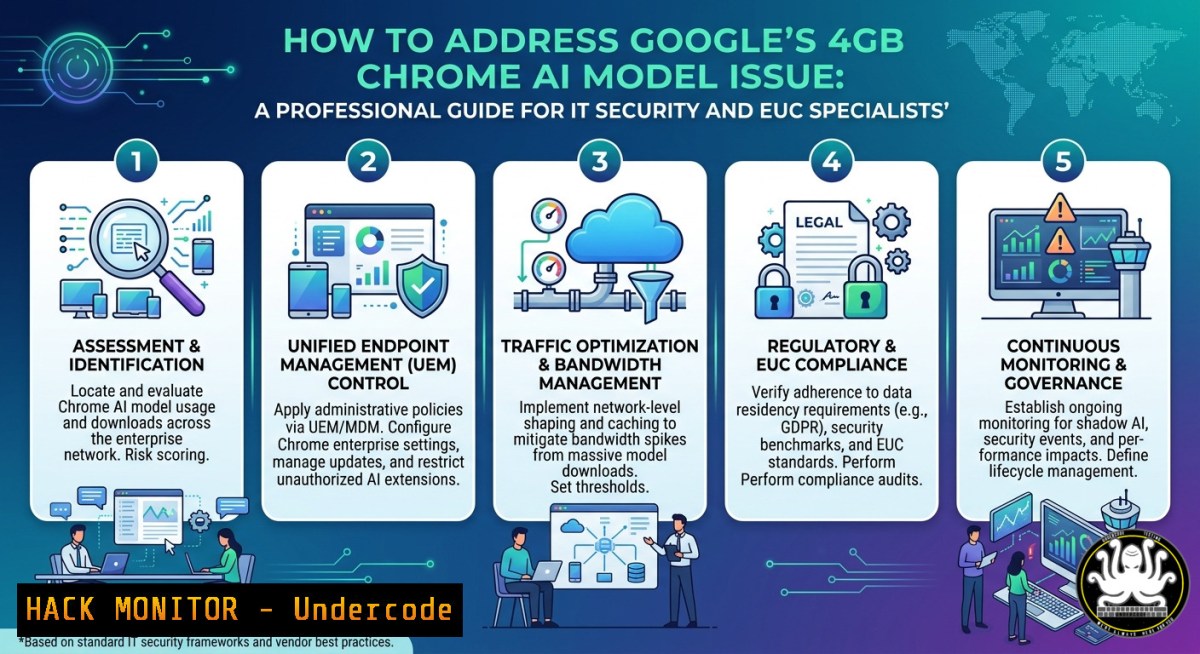
Introduction:
Recent versions of Google Chrome (from v122 onward) have introduced an on‑device AI model – specifically a variant of Gemini Nano – designed to power features like “Help me write,” tab organization, and real‑time language translation. While the model runs locally, its initial download consumes approximately 4GB of disk space per user profile and generates significant network activity during deployment. For IT security and End‑User Computing (EUC) specialists, this poses immediate concerns: unexpected storage exhaustion, bandwidth congestion, and potential data leakage if model artifacts are improperly handled or exfiltrated.
Learning Objectives:
- Identify the exact storage locations and network indicators of Chrome’s 4GB AI model across Windows and Linux endpoints.
- Enforce enterprise policies to disable, block, or limit the AI model download and execution.
- Deploy automated removal scripts and monitoring procedures to maintain endpoint hygiene.
You Should Know:
- Locating and Assessing the Chrome AI Model Footprint
The AI model resides inside each Chrome user profile under a subdirectory named optimization_guide_prediction_model_downloads. Its size varies but typically reaches 3.8–4.2 GB after full download. Use the following commands to audit existing deployments.
Linux (bash):
 Find all Chrome profiles and sum model sizes
find ~/.config/google-chrome/ -type d -name "optimization_guide_prediction_model_downloads" -exec du -sh {} \;
 Global scan for all users
sudo find /home -type d -path "/google-chrome//optimization_guide_prediction_model_downloads" -exec du -sh {} \;
Windows (PowerShell as Admin):
 Check current user's model folder
$modelPath = "$env:LOCALAPPDATA\Google\Chrome\User Data\Default\optimization_guide_prediction_model_downloads"
if (Test-Path $modelPath) { Get-ChildItem $modelPath -Recurse | Measure-Object -Property Length -Sum }
 Scan all user profiles on the system
Get-ChildItem "C:\Users" -Directory | ForEach-Object {
$profilePath = Join-Path $<em>.FullName "AppData\Local\Google\Chrome\User Data"
if (Test-Path $profilePath) {
Get-ChildItem "$profilePath\optimization_guide_prediction_model_downloads" -ErrorAction SilentlyContinue |
ForEach-Object { Write-Host "$($</em>.FullName) : $([bash]::Round((Get-ChildItem $_.FullName -Recurse | Measure-Object Length -Sum).Sum / 1MB, 2)) MB" }
}
}
Step‑by‑step guide:
Run these commands as part of a monthly storage hygiene audit. For enterprises, push the PowerShell script via SCCM or Intune to all Windows workstations, outputting results to a central log. On Linux, integrate the `find` command into a cron‑weekly script that alerts if any user’s model folder exceeds 3 GB.
- Disabling the AI Model Using Chrome Enterprise Policies
Google provides group policy templates (ADMX) to control AI‑related features. The most effective flag is OptimizationGuideFetchingEnabled, which prevents the browser from downloading any optimization guide components – including the 4 GB model.
Windows (Registry / GPO):
Create a registry key under:
HKEY_LOCAL_MACHINE\SOFTWARE\Policies\Google\Chrome
Add DWORD: `OptimizationGuideFetchingEnabled` = `0`
Also disable component updates: DWORD `ComponentUpdatesEnabled` = `0` (optional but recommended).
Apply via Group Policy Management Console (GPMC): import Chrome ADMX, then navigate to Computer Configuration → Administrative Templates → Google Chrome → Enable optimization guide fetching → set to Disabled.
Linux (JSON policy file):
Create `/etc/opt/chrome/policies/managed/ai_disable.json`:
{
"OptimizationGuideFetchingEnabled": false,
"ComponentUpdatesEnabled": false
}
Set permissions: `sudo chmod 644 /etc/opt/chrome/policies/managed/ai_disable.json`. Restart Chrome.
Step‑by‑step guide:
- Download Chrome policy templates from Google’s enterprise help.
2. Extract ADMX files to `C:\Windows\PolicyDefinitions` and `C:\Windows\PolicyDefinitions\en-US`.
- Open GPMC, edit an existing GPO linked to your target OUs.
- Locate policies under “Google Chrome” → “Content settings” → “Optimization guide fetching”.
5. Enable the policy and set to Disabled.
- Run `gpupdate /force` on test workstations and verify with `chrome://policy` – the policy should appear as “mandatory” with value
false.
3. Network‑Level Blocking and Traffic Inspection
Even with policies enabled, some older Chrome versions may ignore them temporarily. Implement network controls to block the model’s download domains and monitor for any bypass attempts.
Identified domains (observed in Chrome v124+):
– `optimizationguide-pa.googleapis.com`
– `chromeoptimizationguide.googleapis.com`
– `.dl.google.com/edgedl/optimization_guide/`
Linux (iptables):
sudo iptables -A OUTPUT -d optimizationguide-pa.googleapis.com -j DROP
sudo iptables -A OUTPUT -d chromeoptimizationguide.googleapis.com -j DROP
 Save rules
sudo iptables-save > /etc/iptables/rules.v4
Windows Defender Firewall (PowerShell as Admin):
New-NetFirewallRule -DisplayName "Block Chrome AI Model Download" -Direction Outbound -RemoteAddress "142.250.0.0/15" -Protocol TCP -Action Block
 Note: Google's IP ranges are broad; a more precise method is FQDN filtering using Windows Defender Firewall with Advanced Security and custom IPSec policies.
Wireshark filter to detect ongoing model downloads:
`http.host contains “optimizationguide” or dns.qry.name contains “optimizationguide”`
Step‑by‑step guide:
Use a next‑gen firewall (Palo Alto, Fortinet) with SSL inspection to filter by SNI. Create a custom URL category for `.optimizationguide-pa.googleapis.com` and apply a block action. For testing, deploy `nslookup optimizationguide-pa.googleapis.com` to resolve current IPs, then create ACLs on core switches.
4. Automated Cleanup and Removal Scripts
After disabling further downloads, remove any already‑downloaded 4 GB models to reclaim disk space. Deploy these scripts via your endpoint management solution.
Windows cleanup PowerShell script (removes for all users):
$modelFolders = Get-ChildItem "C:\Users\AppData\Local\Google\Chrome\User Data\optimization_guide_prediction_model_downloads" -Directory -ErrorAction SilentlyContinue
foreach ($folder in $modelFolders) {
Write-Host "Removing $($folder.FullName) ..."
Remove-Item -Path $folder.FullName -Recurse -Force -ErrorAction Continue
}
Write-Host "Cleanup completed."
Linux cleanup bash script (cron‑ready):
!/bin/bash
for user_home in /home/; do
model_dir="$user_home/.config/google-chrome/Default/optimization_guide_prediction_model_downloads"
if [ -d "$model_dir" ]; then
echo "Removing $model_dir"
rm -rf "$model_dir"
fi
done
 Also handle root and non‑standard profiles
find /home -type d -name "optimization_guide_prediction_model_downloads" -exec rm -rf {} + 2>/dev/null
Step‑by‑step guide:
Schedule the script weekly using Task Scheduler (Windows) or cron (Linux). For Windows, create a scheduled task that runs as SYSTEM to ensure all user profiles are cleaned. On Linux, add to /etc/cron.weekly/clean_chrome_ai. After removal, verify with the audit commands from Section 1.
5. Alternative Mitigations: Sandboxing and Quotas
If business requirements force AI model retention (e.g., for specific users), limit its impact via storage quotas and sandboxing.
Windows (NTFS quotas per user):
 Enable quotas on D: drive (assuming Chrome profiles on D:)
fsutil quota track D:
fsutil quota modify D: 5000000000 6000000000 DOMAIN\username
Linux (disk quota for `/home`):
 Install quota tools, then edit /etc/fstab to add 'usrquota' to /home
mount -o remount,usrquota /home
quotacheck -cug /home
quotaon /home
edquota -u username  Set soft/hard limit in blocks (1 block = 1KB)
Using AppLocker or SELinux to restrict Chrome’s model execution:
The downloaded model is a binary blob that Chrome loads via mmap. Prevent execution from the model directory with SELinux (Linux):
semanage fcontext -a -t chrome_sandbox_t "/home/[^/]+/.config/google-chrome/./optimization_guide_prediction_model_downloads(/.)?"
restorecon -R /home
(Adjust type based on your distribution’s Chrome policy.)
Step‑by‑step guide:
For EUC teams with Windows Enterprise, deploy AppLocker rules that block execution of `.bin` or `.model` files from %LOCALAPPDATA%\Google\Chrome\User Data\\optimization_guide_prediction_model_downloads\. On Linux, enforce strict `noexec` mount for user home directories – add `noexec` to `/etc/fstab` for /home.
6. Verification and Ongoing Auditing
Continuously verify that the AI model does not reappear after Chrome updates or profile resets.
Windows audit script (outputs to event log):
$exists = Test-Path "$env:LOCALAPPDATA\Google\Chrome\User Data\Default\optimization_guide_prediction_model_downloads"
if ($exists) {
$size = (Get-ChildItem $modelPath -Recurse | Measure-Object Length -Sum).Sum / 1GB
Write-EventLog -LogName Application -Source "ChromeAIAudit" -EntryType Warning -EventId 5001 -Message "Chrome AI model detected: $size GB"
}
Linux monitoring with inotify:
inotifywait -m -r -e create "/home" --format '%w%f' | while read file; do
if [[ "$file" == "optimization_guide_prediction_model_downloads" ]]; then
logger -t ChromeAI "Model folder created at $file"
fi
done
Step‑by‑step guide:
Integrate audit results into your SIEM (Splunk, Sentinel). For each endpoint, generate a hash of the model folder’s contents and compare against a known‑good baseline. Any change triggers an alert.
7. Edge Cases: Managed Google Accounts and ChromeOS
For organizations using Chrome Enterprise Upgrade or Google Workspace, the AI download behaviour can be controlled via the Admin console.
Step‑by‑step guide for Google Admin:
- Sign in to admin.google.com with super administrator privileges.
- Navigate to Devices → Chrome → Settings → User & browser settings.
3. Search for “Optimization Guide” or “AI features”.
- Set “Enable optimization guide fetching” to Disabled for the target OU.
- For ChromeOS devices, also disable “Experimental AI” under Device settings → Security.
- Push changes; they apply within 15 minutes. Verify on a test Chromebook by checking `chrome://policy` and looking for
OptimizationGuideFetchingEnabled.
What Undercode Say:
- The 4 GB model is a stealth resource bomb – Without proactive policies, each user profile wastes up to 4 GB of precious SSD space, often in VDI environments where storage is pooled and costly.
- Policy beats cleanup – Relying on post‑deployment scripts invites inconsistent states; group policy or MDM enforcement is the only reliable method to prevent the download entirely.
- Network controls provide defense in depth – Even if a workstation falls out of policy (e.g., off‑VPN), blocking the download domains at perimeter firewalls stops the model from being retrieved.
Analysis: This issue mirrors past “Chrome‑as‑bloatware” problems (e.g., Software Reporter Tool), but the AI model’s size and lack of user notification make it uniquely dangerous. For IT security, the real risk is data leakage: the model files contain proprietary Google binaries, but an attacker who replaces them with a malicious model could achieve code execution inside the browser’s privileged context. Proactive blocking also reduces bandwidth consumption on remote work VPNs by several gigabytes per user per update cycle.
Prediction:
Within 24 months, major browsers (Edge, Brave, Firefox) will embed similar on‑device LLMs of 10 GB or more. This will force a paradigm shift: endpoint security suites will need “AI‑asset management” modules akin to patch management, including the ability to centrally quarantine, update, or roll back AI models. Organisations that fail to adapt will face cascading storage crashes and unexpected cloud egress costs as models redownload repeatedly. Early adoption of policy‑based AI model control – as outlined here – will become a standard benchmark in CIS benchmarks and STIGs by 2027.
▶️ Related Video (72% Match):
🎯Let’s Practice For Free:
IT/Security Reporter URL:
Reported By: Mil Williams – Hackers Feeds
Extra Hub: Undercode MoN
Basic Verification: Pass ✅


