Listen to this Post
Introduction
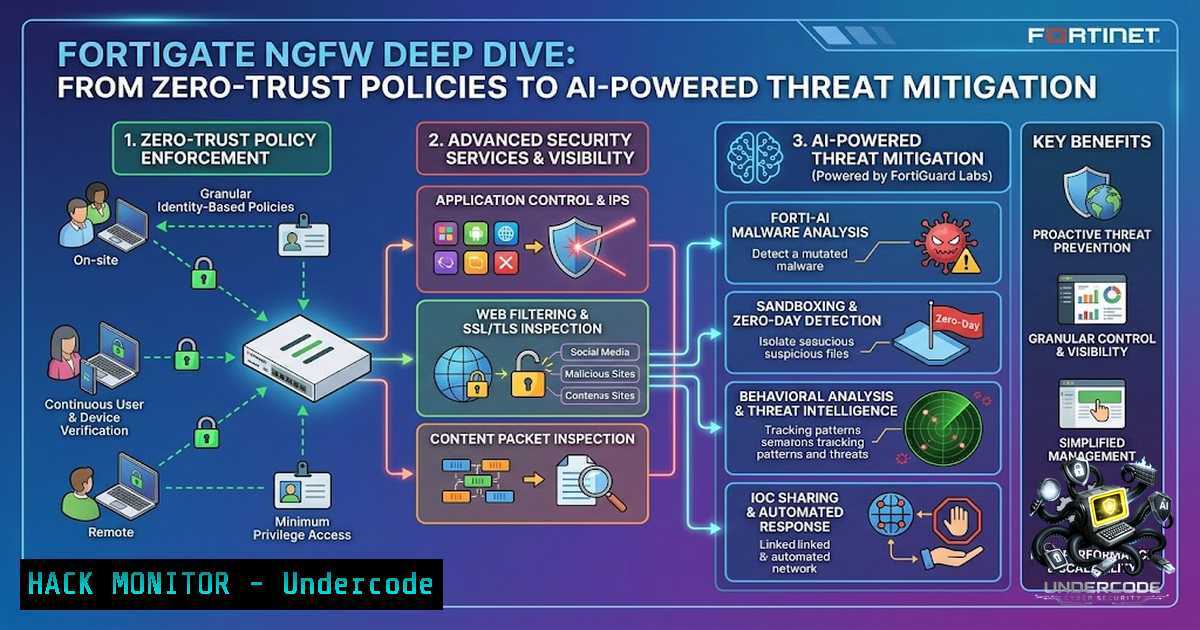
The perimeter is dead—but the firewall isn’t. In today’s threat landscape, where ransomware gangs operate like multinational corporations and AI-generated attacks flood vectors in milliseconds, traditional stateful inspection is obsolete. The Fortinet FortiGate Next-Generation Firewall (NGFW) addresses this reality through a unified architecture that combines AI-driven threat prevention, deep packet inspection, and granular application control. This article provides a technical deep-dive into FortiGate’s core capabilities—from initial CLI hardening and zero-trust policy construction to AI/ML-based IPS configuration, SSL VPN deployment, high-availability clustering, and API security—delivering actionable commands for security engineers defending modern enterprise networks.
Learning Objectives
- Master FortiOS CLI Fundamentals – Navigate the hierarchical configuration structure, execute essential diagnostic commands, and differentiate `show` from `show full-configuration` for configuration audits.
- Deploy Zero-Trust Firewall Policies – Construct least-privilege access rules with address objects, application control, and security profiles.
- Enable AI/ML-Powered Threat Prevention – Activate machine-learning-based IPS detection and integrate FortiGuard threat intelligence.
- Implement Secure Remote Access – Configure SSL VPN with TLS 1.3, split tunneling, and MFA integration.
- Build High-Availability Clusters – Deploy Active-Passive and Active-Active FGCP clusters with session pickup.
- Harden API and Administrative Access – Enforce API token-based authentication, trusted host restrictions, and certificate-based SSH access.
1. Initial Access and Interface Hardening
Every FortiGate deployment begins with securing the management plane. Default credentials and open administrative interfaces are the leading entry points for attackers—ThaiCERT recently documented AI-driven campaigns scanning for FortiGate management ports (443, 8443, 10443, and 4443).
Step-by-Step CLI Hardening:
Connect via SSH to the default management IP (typically 192.168.1.99):
ssh [email protected]
 Default password: [bash] — reset immediately
1. Configure Management Interface Access Restrictions
config system interface
edit "port1"
set ip 192.168.1.99/24
set allowaccess ping https ssh
set role wan
next
end
Restrict administrative access to trusted management subnets only—never expose the management GUI to the internet:
config system admin
edit "admin"
set trusthost1 192.168.0.0/24
set trusthost2 10.0.0.0/8
next
end
2. Enforce Strong Password Policies
config system global
set admin-password-policy enable
set admin-password-min-length 12
set admin-lockout-threshold 5
set admin-lockout-duration 300
end
3. Disable Unused Services
config system global
set admin-sport 443
set admin-https-redirect enable
set admin-restrict-local disable  Disable local admin access from non-trusted IPs
end
4. Verify Configuration
get system status  Version, serial, uptime, IPS-MLDB version
show system interface port1  Verify interface settings
show full-configuration  Complete running config (use with caution—output is extensive)
Key Insight: The `show` command displays only settings changed from defaults, while `show full-configuration` reveals every parameter—critical for compliance audits and disaster recovery. Always backup configurations regularly:
execute backup config tftp <filename> <tftp-server>
2. Zero-Trust Firewall Policy Construction
Modern NGFW policies should follow the principle of least privilege: define explicit address objects, restrict services, enable logging, and attach security profiles. Raw IP addresses in policies create unmanageable rulebases.
Step 1: Create Address Objects
config firewall address
edit "LAN_Subnet"
set subnet 192.168.10.0/255.255.255.0
next
edit "WebServer_Internal"
set subnet 192.168.10.50/255.255.255.255
next
edit "Updates_FQDN"
set type fqdn
set fqdn "updates.example.com"
next
end
Step 2: Build a Least-Privilege Outbound Policy with NAT
config firewall policy
edit 0
set name "LAN_to_Internet"
set srcintf "port2"
set dstintf "port1"
set srcaddr "LAN_Subnet"
set dstaddr "all"
set action accept
set schedule "always"
set service "HTTP" "HTTPS" "DNS"
set nat enable
set utm-status enable
set ssl-ssh-profile "certificate-inspection"
set av-profile "default"
set ips-sensor "default"
set application-list "default"
set logtraffic all
next
end
Critical Note: Avoid `set srcaddr “all”` combined with `set dstaddr “all”` and
set service "ALL"—this effectively disables the firewall. Always narrow scope.
Step 3: Publish Internal Services via DNAT (Virtual IP)
To expose an internal web server to the internet securely:
config firewall vip
edit "VIP_WebServer"
set extip 203.0.113.10
set mappedip "192.168.10.50"
set extintf "port1"
set portforward enable
set protocol tcp
set extport 443
set mappedport 443
next
end

config firewall policy
edit 0
set name "Inbound_HTTPS"
set srcintf "port1"
set dstintf "port2"
set srcaddr "all"
set dstaddr "VIP_WebServer"
set action accept
set schedule "always"
set service "HTTPS"
set ips-sensor "default"
set logtraffic all
next
end
Step 4: Verify Policy Operation
diagnose firewall policy list  Display all policies with hit counts
diagnose session list  View active sessions traversing the firewall
get firewall policy <id>  Verify specific policy parameters
3. AI and Machine Learning-Powered IPS Detection
Traditional signature-based IPS struggles with zero-day and polymorphic threats. FortiGate addresses this with AI/ML-based detection models trained on protocol-decoding features—HTTP traffic classification through supervised learning. The hybrid approach applies signatures for preliminary filtering, then ML models for targeted, efficient detection, reducing false positives while maintaining performance.
Enable AI/ML IPS Detection (Enabled by Default):
config ips global
set machine-learning-detection enable
end
Verify AI/ML Definitions Are Installed:
diagnose autoupdate versions | grep -A 7 AI
 Output shows AI/Machine Learning IPS Definitions Version and expiry
The IPS machine learning database version also appears in get system status:
get system status | grep IPS-MLDB
 IPS-MLDB: 2503.00100(2025-03-13 03:43)
Create Custom IPS Sensor with ML Signatures:
config ips sensor
edit "MI-test"
config entries
edit 1
set rule 57293  Backdoor.Cobalt.Strike ML signature
set status enable
set action block
next
end
next
end
Apply to Firewall Policy:
config firewall policy
edit 1
set name "test"
set srcintf "port2"
set dstintf "port1"
set action accept
set srcaddr "all"
set dstaddr "all"
set schedule "always"
set service "ALL"
set utm-status enable
set ssl-ssh-profile "certificate-inspection"
set ips-sensor "MI-test"
next
end
Monitor IPS Events:
execute log filter category 4
execute log display
 Review IPS events with severity, source/destination IPs, and signature details
Real-World Context: Fortinet’s partnership with Rampart-AI enables API-based webhook integration for adversarial AI threat detection and zero-day behavior identification in production environments.
4. SSL VPN Secure Remote Access
SSL VPN remains a primary remote access vector—and a primary attack surface. Proper configuration requires TLS 1.3 enforcement, split tunneling, MFA, and source-address restrictions.
Step 1: Configure SSL VPN Settings
config vpn ssl settings
set status enable
set port 10443  Non-default port reduces automated scanning
set servercert "Fortinet_Factory"  Replace with your CA-signed certificate
set tunnel-ip-pools "SSL_VPN_Pool"
set dns-server1 10.200.20.50
set dns-server2 10.200.5.22
set dtls-tunnel enable  Enable DTLS for performance optimization
set ssl-min-proto-ver tls1-2  Enforce TLS 1.2 minimum (TLS 1.3 recommended)
set source-address "Trusted_Subnets"  Restrict VPN access to specific source IPs
end
Step 2: Configure VPN Portal
config vpn ssl web portal
edit "full-access"
set tunnel-mode enable
set web-mode enable
set split-tunneling disable  Force all traffic through VPN for inspection
set dns-server1 10.200.20.50
set dns-server2 10.200.5.22
set dns-suffix "internal.company.com"
next
end
Step 3: Create Authentication Rule
config vpn ssl settings
config authentication-rule
edit 1
set groups "SSL-Users"
set portal "full-access"
next
end
end
Step 4: Create Firewall Policy for SSL VPN Traffic
config firewall policy
edit 0
set name "SSL_VPN_to_Internal"
set srcintf "ssl.root"
set dstintf "any"
set srcaddr "all"
set dstaddr "all"
set action accept
set schedule "always"
set service "ALL"
set utm-status enable
set ips-sensor "default"
set av-profile "default"
set logtraffic all
next
end
Troubleshooting SSL VPN:
diagnose sys process pidof sslvpnd  Verify SSL VPN daemon is running
diagnose vpn ssl info  Display SSL VPN status and connected users
diagnose debug application sslvpn -1  Enable SSL VPN debug (disable after troubleshooting)
diagnose debug enable
 ... reproduce issue ...
diagnose debug disable
Critical: Applying SSL VPN settings disconnects all existing SSL VPN connections. Schedule changes during maintenance windows.
5. High Availability (FGCP) Clustering
Business continuity demands firewall redundancy. FortiGate Clustering Protocol (FGCP) supports Active-Passive (A-P) for failover and Active-Active (A-A) for load-balancing proxy-based NGFW/UTM processing across cluster members.
Active-Passive Cluster Configuration (CLI):
Primary FortiGate:
config system ha
set group-1ame "Example_cluster"
set mode a-p
set password
set hbdev "ha2" 0 "ha1" 0
set session-pickup enable
set override disable
set monitor "port5" "port6"
end
Secondary FortiGate:
config system ha
set group-1ame "Example_cluster"
set mode a-p
set password
set hbdev "ha2" 0 "ha1" 0
set session-pickup enable
set override disable
set priority 127  Lower priority than primary (128 default)
set monitor "port5" "port6"
end
Active-Active Cluster Configuration:
config system ha
set mode a-a
set group-1ame "Example_cluster"
set hbdev ha1 10 ha2 20
end
Verify Cluster Status:
get system ha status
 Output shows cluster health, primary selection reason, and synchronization status

execute ha synchronize  Manually sync configuration from secondary
execute ha manage <serial>  Switch to secondary CLI for management
Architectural Note: HA clusters support mixed power supplies (AC/DC) for grid redundancy, provided units share the same model and firmware.
6. API Security and Automation Hardening
Modern security operations increasingly rely on API automation—but poorly secured API keys are a common compromise vector.
Create a Dedicated API Administrator:
config system api-user
edit "api-automation"
set api-key <generated-key>
set accprofile "api-read-write"
config trusthost
edit 1
set ipv4-trusthost 192.168.100.0/24
next
end
next
end
API Security Best Practices:
- Use API tokens instead of username/password authentication
- Enable trusted host restrictions for API access
- Implement two-factor authentication for administrative access
- Certificate matching can be enforced as an extra layer—both client certificate and token must match
- For SSH-based automation, authenticate using certificates rather than storing passwords in scripts
- Regularly audit API accounts and rotate tokens
Example API Call (REST):
curl -k -X GET "https://192.168.1.99/api/v2/monitor/system/status" \
-H "Authorization: Bearer <api-key>"
What Undercode Say
- AI/ML is not a silver bullet—it’s a force multiplier. Machine learning enhances IPS detection, but it must be paired with FortiGuard threat intelligence, regular signature updates, and human-led threat hunting. The hybrid signature-ML approach reduces false positives but requires active monitoring.
-
The CLI is the source of truth. GUI configuration is convenient, but CLI scripting enables infrastructure-as-code, version-controlled configurations, and rapid disaster recovery. Organizations relying solely on GUI management expose themselves to configuration drift and audit failures.
-
Remote access is the new perimeter. SSL VPN configurations must enforce TLS 1.2+, MFA, source-IP restrictions, and full-tunnel mode for sensitive environments. The 2026 ThaiCERT alert on AI-driven FortiGate scanning underscores the importance of moving management ports off defaults.
-
High availability is non-1egotiable. Ransomware gangs increasingly target firewall appliances themselves. HA clustering with session pickup ensures business continuity during patching, upgrades, and unexpected failures.
-
API security requires zero-trust thinking. Automation tokens are privileged credentials—treat them as such. Restrict by IP, enforce certificate validation, rotate regularly, and audit usage logs.
Prediction
-
+1 AI-driven IPS will evolve from supervised learning to real-time behavioral analysis, enabling zero-day exploit prevention without signatures within 18–24 months. Fortinet’s partnership with Rampart-AI signals this trajectory.
-
+1 SASE and SD-WAN integration will blur traditional NGFW boundaries, with FortiGate becoming a unified policy enforcement point across on-premise, cloud, and edge environments.
-
-1 Attackers will increasingly target API endpoints and administrative interfaces using AI-generated payloads—organizations failing to implement API token rotation and trusted host restrictions will face elevated breach risks.
-
+1 CLI-as-Code adoption will accelerate, with FortiOS configuration management integrated into CI/CD pipelines, reducing misconfigurations—the leading cause of firewall breaches.
-
-1 The complexity of NGFW rulebases will continue to grow; without automated policy optimization and regular audits, organizations will experience performance degradation and security gaps. Regular use of `show full-configuration` and compliance benchmarking against CIS standards is essential.
-
+1 FortiGate’s hardware-accelerated AI/ML processing (CP9 and SPU processors) will enable line-rate deep inspection of encrypted traffic, neutralizing the “encryption hides threats” problem that plagues software-only NGFW solutions.
Fortinet, FortiGate, and FortiOS are registered trademarks of Fortinet, Inc. All commands verified against FortiOS 7.x documentation. Always test configurations in a lab environment before production deployment.
▶️ Related Video (86% Match):
🎯Let’s Practice For Free:
🎓 Live Courses & Certifications:
Join Undercode Academy for Verified Certifications
🚀 Request a Custom Project:
Secure, high-velocity infrastructure and disruptive technological engineering. Contact our engineering team for high-tier development and proprietary systems:
[email protected]
💎 Smart Architecture | 🛡️ Secure by Design | ⭐ Trusted by Thousands
IT/Security Reporter URL:
Reported By: Fortinet Fortigate – Hackers Feeds
Extra Hub: Undercode MoN
Basic Verification: Pass ✅


