
Listen to this Post
Introduction:
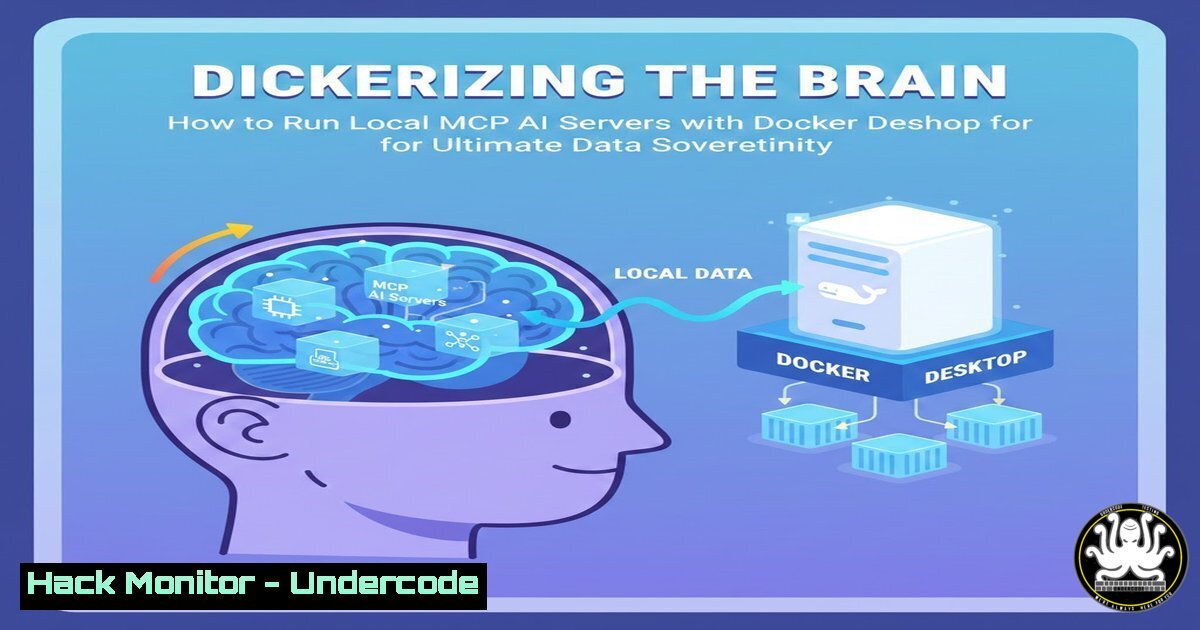
In an era where artificial intelligence agents are increasingly handling sensitive tasks, the push for privacy-preserving architectures has never been stronger. The Model Context Protocol (MCP) represents a paradigm shift in how AI models interact with data and tools, acting as a universal “plug-in” standard for Large Language Models (LLMs). By running these MCP servers locally within Docker containers, security professionals and developers can maintain absolute control over data pipelines, ensuring that sensitive information never leaves the host machine. This approach combines the scalability of containerization with the confidentiality requirements of modern AI operations, effectively creating an air-gapped cognitive architecture.
Learning Objectives:
- Understand the architecture of Model Context Protocol (MCP) servers and their role in AI tooling.
- Learn to deploy and manage Docker containers for local MCP instances using Docker Desktop.
- Implement network isolation and volume persistence to secure data flows between AI models and local resources.
- Master command-line utilities for debugging and interacting with local MCP endpoints.
- Apply security hardening techniques to containerized AI workloads.
You Should Know:
1. Understanding the MCP Architecture and Docker Prerequisites
The Model Context Protocol functions as a standardized interface between AI models (like local LLMs) and the tools or data sources they need to access. Instead of an AI sending data to a cloud-based plugin, MCP allows the AI to call a local server that can read your files, query your databases, or run system commands. Running this inside Docker adds a layer of resource isolation and dependency management.
Before starting, ensure Docker Desktop is installed and running. Verify the installation using the terminal:
For Linux/macOS:
docker --version
docker ps
For Windows (PowerShell):
docker --version
docker ps
If the daemon is not running, you may see an error. Ensure Docker Desktop is launched from your applications folder.
- Pulling and Running a Base MCP Server Image
While MCP servers can be custom-built, many pre-configured images exist for specific tasks (e.g., filesystem access, GitHub integration, or database queries). For this guide, we will simulate a generic MCP server setup.
First, pull a lightweight image suitable for a Python-based MCP server:
docker pull python:3.11-slim
Create a project directory and a simple MCP server script. On your host machine, create a file named mcp_server.py:
 mcp_server.py - A stub MCP server example
import json
import sys

print("MCP Server Started: Ready to process context requests.", file=sys.stderr)

Simulate reading input from the AI model (via stdin in a real implementation)
for line in sys.stdin:
try:
request = json.loads(line)
 Simulate a tool call, e.g., reading a file
if request.get("tool") == "read_file":
response = {"result": "Simulated content from /data/notes.txt"}
else:
response = {"error": "Tool not found"}
print(json.dumps(response))
sys.stdout.flush()
except Exception as e:
print(json.dumps({"error": str(e)}))
sys.stdout.flush()
3. Dockerizing the MCP Server with a Dockerfile
To containerize this server, create a `Dockerfile` in the same directory:
FROM python:3.11-slim
WORKDIR /app
COPY mcp_server.py .
 Expose a port for potential HTTP-based MCP, but typically MCP uses stdio
EXPOSE 8080
CMD ["python", "-u", "mcp_server.py"]
Build the Docker image:
docker build -t local-mcp-server .
- Running the Container with Host Filesystem Access (The “You Should Know” Trick)
The power of a local MCP server is its ability to access your local files securely. To allow the container to read/write to a specific directory on your host without compromising the entire system, use volume mounts.
Run the container interactively to see the stderr output (where our server prints its status):
docker run -it --rm \
-v /host/path/to/your/data:/data:ro \
-v /host/path/to/your/config:/config \
--name mcp-instance \
local-mcp-server
Note on Windows: Use PowerShell paths, e.g., -v C:\Users\Tony\Documents:/data:ro.
The `:ro` flag mounts the volume as read-only for security, preventing the AI from modifying critical data.
- Connecting a Local AI Client to the Dockerized MCP Server
To simulate an AI client (like a local Llama instance or a custom script) connecting to this server, you need to handle Inter-Process Communication. Since MCP often uses stdio, you can pipe data directly. Create a client script `mcp_client.py` on your host:mcp_client.py import subprocess import json Run the Docker container and connect to its stdin/stdout This is equivalent to how an LLM would spawn the process proc = subprocess.Popen( ['docker', 'run', '-i', '--rm', '-v', '/host/path/to/your/data:/data:ro', 'local-mcp-server'], stdin=subprocess.PIPE, stdout=subprocess.PIPE, stderr=subprocess.PIPE, text=True ) Send a request to the MCP server request = json.dumps({"tool": "read_file", "params": {"path": "notes.txt"}}) stdout, stderr = proc.communicate(input=request + "\n")</p></li> </ol> <p>print("Server Response:", stdout) print("Server Logs:", stderr)Run the client:
python mcp_client.py
This demonstrates the secure pipeline: the AI tool (client) never directly accesses the file; it asks the isolated container to do it.
6. Security Hardening: Network Isolation and Resource Limits
When running MCP servers, restrict their network access to prevent data exfiltration if the AI agent is compromised.
Run the container with the `–network none` flag to disable all networking:docker run -it --rm --network none -v /data:/data:ro local-mcp-server
For scenarios requiring outbound API calls (e.g., a GitHub MCP server), use Docker’s network policies or a proxy container. Additionally, set resource limits to prevent fork bombs or memory exhaustion:
docker run -it --rm --memory="512m" --cpus="0.5" local-mcp-server
- Debugging MCP Communication with tcpdump and Docker Logs
If your MCP server uses HTTP (over a port), you can inspect traffic. First, expose the port in your Dockerfile and rebuild. Then run the container mapping the port:docker run -d -p 8080:8080 --name mcp-http local-mcp-server
To capture traffic, get the container ID and use `nsenter` or `tcpdump` inside the container (if installed). Alternatively, capture from the host interface on port 8080:
sudo tcpdump -i any -A -s 0 port 8080
View the container logs for debugging:
docker logs mcp-http
What Undercode Say:
- Key Takeaway 1: Running MCP servers in Docker provides a robust security boundary, ensuring that AI models interact with sensitive data through controlled, ephemeral containers rather than direct system access.
- Key Takeaway 2: The combination of read-only volume mounts and network isolation (
--network none) creates a zero-trust execution environment for AI agents, effectively mitigating risks of data leakage or prompt injection attacks.
The shift toward local, containerized AI tooling represents a critical evolution in enterprise security architecture. By decoupling the AI’s cognitive processing from its tool execution environment, organizations can enforce the principle of least privilege at the hardware level. This method not only prevents data exfiltration but also allows for granular auditing of every “action” an AI takes. As MCP adoption grows, expect to see standardized, signed container images for common tools, making local AI deployments as secure and manageable as cloud-native microservices.
Prediction:
Within the next 18 months, the Model Context Protocol will become the de facto standard for enterprise AI integration, leading to the rise of “MCP Firewalls”—specialized security appliances that monitor, log, and validate all context exchanges between LLMs and Dockerized tools. This will commoditize AI security, turning it from a custom development task into a managed container orchestration challenge.
▶️ Related Video (74% Match):
🎯Let’s Practice For Free:
IT/Security Reporter URL:
Reported By: Jamesagombar I – Hackers Feeds
Extra Hub: Undercode MoN
Basic Verification: Pass ✅🔐JOIN OUR CYBER WORLD [ CVE News • HackMonitor • UndercodeNews ]
📢 Follow UndercodeTesting & Stay Tuned:
- Debugging MCP Communication with tcpdump and Docker Logs


