
Listen to this Post
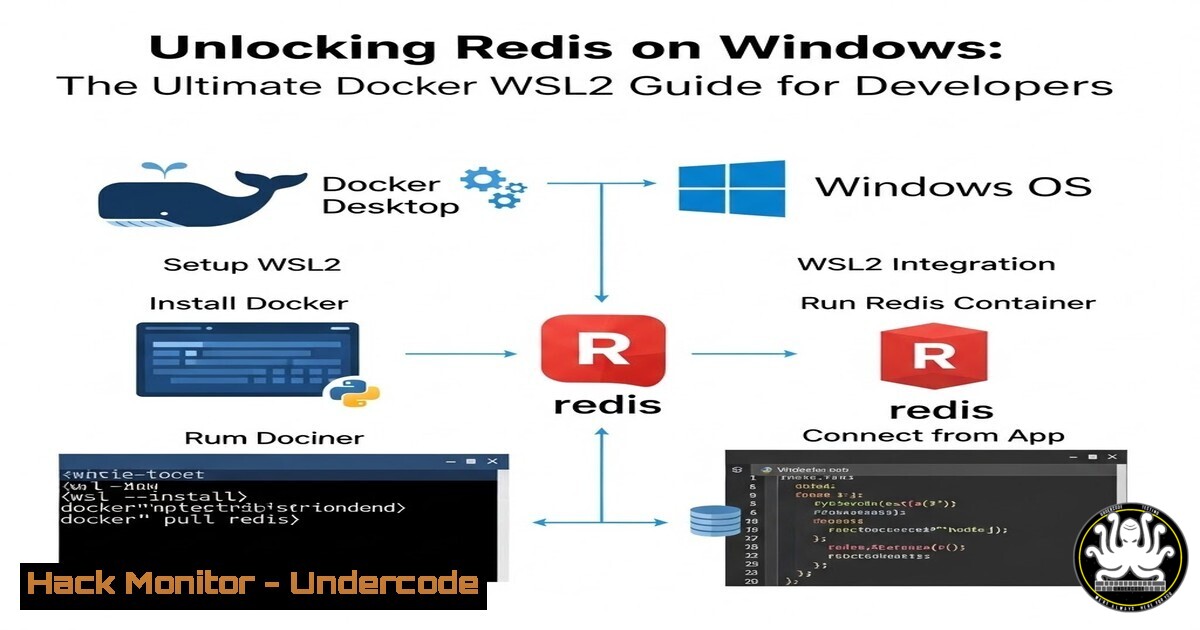
Introduction:
For developers and system administrators entrenched in the Windows ecosystem, the inability to natively run Redis—the premier in-memory data structure store—has long been a point of friction. Originally engineered for Linux-based systems, Redis requires a POSIX environment to function efficiently. This article dissects the two primary pathways for Windows users to deploy Redis: leveraging Docker containers and enabling the Windows Subsystem for Linux (WSL). Beyond simple setup, we will explore the security implications, configuration hardening, and operational commands necessary to run Redis like a production-grade professional.
Learning Objectives:
- Differentiate between the architectural approaches of Docker and WSL for running Linux-based services on Windows.
- Execute hands-on deployment of a Redis container with persistent storage and network configurations.
- Install and configure a Linux distribution via WSL2 to host a native Redis server.
- Apply essential Redis security hardening commands and firewall rules.
- Utilize command-line tools to monitor and benchmark Redis performance across both environments.
You Should Know:
1. Deploying Redis via Docker on Windows
Docker provides an isolated, ephemeral environment that packages Redis with its dependencies. This method is ideal for clean, repeatable deployments and microservice architectures. To begin, ensure Docker Desktop is installed with WSL2 backend integration enabled.
Step‑by‑step guide:
- Pull the Official Image: Open PowerShell or Command Prompt and execute:
docker pull redis:alpine
(Using the Alpine variant reduces the image size and attack surface.)
- Run the Container with Persistence: To ensure data survives container restarts, mount a host volume.
docker run -d --name redis-server -p 6379:6379 -v redis-data:/data redis:alpine redis-server --appendonly yes
-d: Runs in detached mode.-p 6379:6379: Maps the host port to the container port.-v redis-data:/data: Creates a named volume for persistence.--appendonly yes: Enables AOF persistence within the container.- Verify the Running Container:
docker ps
- Connect to Redis via CLI:
docker exec -it redis-server redis-cli
Once inside, run
PING; you should receive a `PONG` response.
- Enabling WSL2 and Installing a Native Linux Environment
For developers who need tighter system integration or want to run Redis as a native service, WSL2 offers a full Linux kernel. This method consumes fewer resources than a full VM and allows direct interaction with the Redis process.
Step‑by‑step guide:
- Enable WSL2 Feature (Admin PowerShell):
dism.exe /online /enable-feature /featurename:Microsoft-Windows-Subsystem-Linux /all /norestart
dism.exe /online /enable-feature /featurename:VirtualMachinePlatform /all /norestart
Restart your machine after these commands.
- Set WSL2 as Default:
wsl --set-default-version 2
- Install a Distribution: Open the Microsoft Store and install “Ubuntu 22.04 LTS”. Launch it and complete the initial user setup.
- Update and Install Redis: Inside the Ubuntu terminal, run:
sudo apt update && sudo apt upgrade -y
sudo apt install redis-server -y
- Configure Redis for External Access (Optional): By default, Redis binds to 127.0.0.1. To access it from Windows, edit the config:
sudo nano /etc/redis/redis.conf
Find the line `bind 127.0.0.1 ::1` and change it to `bind 0.0.0.0 ::1` (or your specific WSL IP). Also, set a password by uncommenting `requirepass` and adding a strong passphrase.
- Start the Redis Server:
sudo service redis-server start
- Test from Windows: From PowerShell, use:
redis-cli -h <WSL_IP> ping
(Find the WSL IP via `ip addr show eth0` inside Ubuntu.)
3. Securing Your Redis Instance
Redis is designed for fast internal access, not public exposure. Unsecured instances are frequently hijacked for cryptojacking. Implement these security measures regardless of your deployment method.
Step‑by‑step guide:
- Set a Strong Password: Access the Redis CLI and run:
CONFIG SET requirepass "YourStrongPasswordHere"
To make this permanent, update the `redis.conf` file or the Docker run command.
- Rename Dangerous Commands: Commands like
FLUSHALL,CONFIG, and `EVAL` can be destructive. Rename or disable them:CONFIG SET rename-command FLUSHALL "" CONFIG SET rename-command CONFIG "e5f9e8a7d6c5b4a3"
- Firewall Configuration: On Windows, restrict inbound traffic to port 6379.
New-NetFirewallRule -DisplayName "Block_Redis_Public" -Direction Inbound -LocalPort 6379 -Protocol TCP -Action Block -RemoteAddress Any
4. Benchmarking and Performance Monitoring
Understanding the performance characteristics of Redis under Windows (via these emulation layers) is critical for capacity planning.
Step‑by‑step guide:
- Use
redis-benchmark: Inside your WSL or Docker container, run:redis-benchmark -h 127.0.0.1 -p 6379 -n 100000 -c 50
This simulates 50 parallel connections and 100,000 requests to gauge throughput.
- Monitor with `INFO` Command: Connect via Redis CLI and type:
INFO stats
INFO memory
Pay attention to `total_commands_processed` and `used_memory_human` to track resource usage.
- Real-time Monitoring with
redis-cli --stat:redis-cli --stat
This provides a live, rolling update of keys, memory, and connected clients.
5. Troubleshooting Common Connection Issues
When bridging the gap between Windows and Linux subsystems, network hiccups are common.
Step‑by‑step guide:
- Check WSL Network Configuration: WSL2 uses a NAT-based virtualized network. If Windows cannot connect, try using `localhost` instead of the WSL IP after a recent Windows update (newer builds support `localhost` forwarding).
- Inspect Docker Container Logs:
docker logs redis-server
Look for “Ready to accept connections” or any binding errors.
- Validate Port Binding: From Windows, use `netstat` to see if the port is listening.
netstat -an | findstr 6379
- Increase Memory Limits: WSL2 can sometimes cap memory usage. Create a `.wslconfig` file in your `C:\Users\
` directory to allocate more resources: [bash] memory=4GB processors=2
What Undercode Say:
- Key Takeaway 1: Running Linux-native services like Redis on Windows is no longer a barrier, thanks to the robust integration of Docker and WSL2. However, these are not “native” Windows services; they operate within a virtualization layer, meaning performance tuning and network configurations require a hybrid skillset.
- Key Takeaway 2: Security cannot be an afterthought. Whether deployed in a container or WSL, a default Redis installation is akin to leaving your database door unlocked. Password protection, command renaming, and strict firewall rules are mandatory, not optional, especially when the service is accessible from the Windows host network.
Analysis: The developer community is increasingly moving toward cross-platform workflows. Shailesh Thorat’s concise tip highlights a common pain point, but the deeper lesson lies in understanding the underlying architecture. While Docker offers portability and ease of teardown, WSL provides a more traditional Linux environment for those who need to simulate a production server. Both methods, however, shift the responsibility of maintenance and security onto the developer, who must now navigate the nuances of Windows filesystem performance (slow I/O across the WSL mount point) and Docker’s network isolation.
Prediction:
As Windows continues to blur the lines with native Linux kernel integration (via WSLg and systemd support), we predict that the need for separate Dockerized Redis instances for local development will diminish. Microsoft is likely to push for even tighter integration, potentially allowing Windows services to interact with WSL daemons as if they were native Windows services. However, this convenience will bring a surge in hybrid-targeted attacks; threat actors will increasingly exploit misconfigured Redis instances running on developer workstations to pivot into corporate networks. The future of local development infrastructure hinges on treating local VMs and containers with the same security rigor as cloud assets.
▶️ Related Video (84% Match):
🎯Let’s Practice For Free:
IT/Security Reporter URL:
Reported By: Shaileshthorat2003 Redis – Hackers Feeds
Extra Hub: Undercode MoN
Basic Verification: Pass ✅


