Listen to this Post
Introduction:
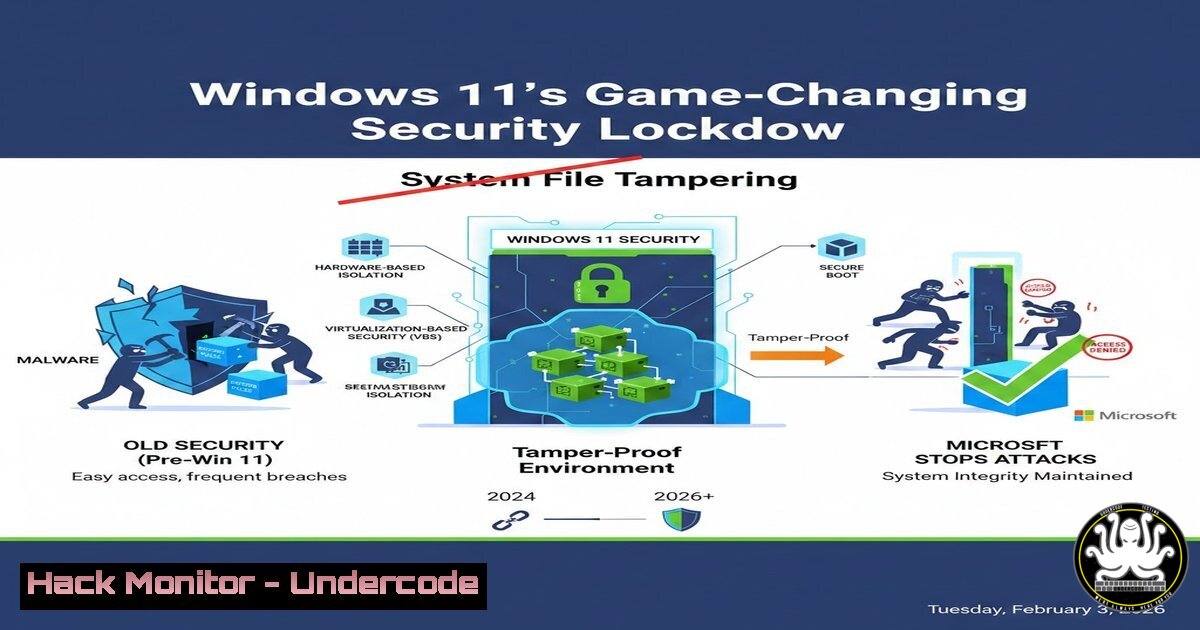
Microsoft has escalated the built-in security of Windows 11 by introducing a critical hardening control that blocks unauthorized user and application access to core system files. This move represents a strategic shift from mere detection to proactive prevention, directly mitigating a common post-exploitation technique used by malware and attackers. By locking down the system’s own storage analysis tools, Microsoft is closing a subtle but significant visibility and interaction gap that could be leveraged for malicious purposes.
Learning Objectives:
- Understand the technical mechanism behind Windows 11’s new system file access denial feature.
- Learn how to configure, verify, and potentially bypass this security control for authorized troubleshooting.
- Analyze the broader implications for IT administration, malware persistence, and the evolving Windows security model.
You Should Know:
- The Anatomy of the Security Change: From Visibility to Enforcement
This update fundamentally alters the behavior of the built-in Storage Sense feature (ms-settings:storagesense). Previously, any user or process with standard user privileges in an active session could navigate to `Settings > System > Storage > Show more categories` and view a detailed breakdown of system files. More critically, they could click into categories like “Temporary files” and “System files” to view and, in some cases, delete contents. The new change enforces an access control check, denying this granular view and interaction to all non-administrative contexts, effectively treating sensitive system file metadata as a protected resource.
Step-by-Step Guide to Observe the Change:
Pre-Update Behavior (If Still Accessible):
1. Press `Win + I` to open Settings.
2. Navigate to `System > Storage`.
- Click on “Show more categories” under the local disk (e.g., C:).
- Click on categories like “System & reserved” or “Temporary files”. You would see file lists and options to delete.
Post-Update Behavior (Expected):
1. Follow the same steps 1-3 above.
- Upon clicking sensitive categories, the interface will now show an access denied message, a blank list, or simply not respond to the click, depending on the implementation.
-
Technical Mechanisms: Understanding Access Control Lists (ACLs) and Tokens
The feature is almost certainly implemented via enhanced Mandatory Integrity Control (MIC) and Access Control Lists (ACLs) on key file system locations and the COM objects or APIs that power the Storage settings page. Windows uses integrity levels (Low, Medium, High, System) to restrict access. The Settings app likely runs at “Medium” integrity, while the system files and the diagnostic data are tagged with “System” or “High” integrity labels, blocking the cross-integrity read operation.
Step-by-Step Guide to Check Integrity Levels Manually:
1. Open PowerShell as Administrator.
- Use `Get-Process` to find the PID of the Settings app (usually
SystemSettings.exe).Get-Process SystemSettings
- Use the `icacls` command to view the integrity level of a protected directory.
icacls C:\Windows\System32 /setintegritylevel
(Note: This may only display if the directory has an explicit MIC label). A more direct test is attempting access from a low-privilege context:
-
Run PowerShell as a standard user (non-admin) and try to list protected system temp files.
Get-ChildItem -Path $env:windir\Temp -ErrorAction SilentlyContinue | Measure-Object
The command will likely return access errors or a count of zero, demonstrating the enforced restriction.
-
Configuration and Management: Group Policy and Registry Controls
For enterprise environments, this setting will likely be manageable via Group Policy or Registry edits, allowing admins to tailor the restriction for specific user groups (e.g., IT helpdesk) if necessary. This aligns with the principle of least privilege.
Step-by-Step Guide for Registry Inspection (Hypothetical):
Warning: Modifying the registry can destabilize your system. Only inspect keys.
1. Press Win + R, type regedit, and press Enter.
2. Navigate to a likely policy path:
`HKEY_LOCAL_MACHINE\SOFTWARE\Policies\Microsoft\Windows\StorageSense`
- Look for new DWORD values created after the update, such as `BlockSystemFileAccess` or
AllowStorageDiagnostics. The existence and value (0 or 1) would control the feature. - In an enterprise, the analogous Group Policy path would likely be under
Computer Configuration > Administrative Templates > System > Storage Sense.
4. Security Implications: Thwarting Post-Exploitation and Persistence
This control mitigates specific attack vectors. For instance, malware that gains user-level execution could previously scout for valuable data in system logs, dump files, or version information stored in temporary system directories via this GUI. It also complicates an attacker’s ability to clumsily delete critical files to destabilize the system under a standard user context. This is a containment strategy, raising the bar for lateral movement and intelligence gathering post-initial breach.
- Integration with the Broader Security Stack: WDAG and Core Isolation
This change does not exist in a vacuum. It complements features like Windows Defender Application Guard (WDAG) for browser isolation and Memory Integrity within Core Isolation. Think of it as a microcosm of the “zero trust” principle applied to the OS’s own components: just because a user is logged in does not mean their session’s processes are trusted to interact with all system resources. This layered approach is crucial for defense-in-depth.
6. Potential Bypasses and the AI Assistant Conundrum
As a comment on the source post humorously noted, “Copilot probably still has access though.” This highlights a critical consideration: AI assistants like Copilot, which may run with higher privileges or have access to different APIs, could become privileged bypass channels if not properly sandboxed. Furthermore, determined attackers could bypass the GUI restriction by directly calling the underlying PowerShell cmdlets or WMI classes if they are not similarly protected.
Step-by-Step Guide to Check Alternative Access Paths:
- As a standard user, try to get storage info via PowerShell.
Get-WmiObject -Class Win32_OperatingSystem | Select-Object FreePhysicalMemory, TotalVisibleMemorySize
(This provides memory info, not storage). The specific `Get-Volume` or `Get-PSDrive` cmdlets might be restricted for system file details.
- The security of this feature hinges on Microsoft applying the same ACLs consistently across all query interfaces, not just the Settings GUI.
7. Broader IT and Cloud Hardening Parallels
This Windows change mirrors cloud security practices. In AWS S3 or Azure Blob Storage, you don’t allow authenticated users to list all buckets/containers; you restrict `List` and `Read` permissions with IAM policies or SAS tokens. Similarly, in Linux, protecting /etc, /var/log, and `/root` with strict `chmod` settings (e.g., `700` for /root) and using `sudo` rather than direct root login is standard hardening.
Linux Command Analogy for File Protection:
 View current permissions on sensitive directories
ls -ld /etc /var/log /root

Restrict access to a diagnostic data folder (example)
sudo chmod 750 /var/log/audit  Only root and audit group can read/execute
sudo chown root:audit /var/log/audit
What Undercode Say:
- Key Takeaway 1: Microsoft is proactively reducing the attack surface by implementing mandatory access controls on its own administrative interfaces, signaling a move towards a more “self-defending” operating system that adheres to least-privilege principles even internally.
- Key Takeaway 2: The effectiveness of this control is contingent on its consistent application across all system data access channels, including emerging AI-powered assistants, which could otherwise become privileged backdoors undermining the new policy.
Analysis: This update, while seemingly a minor UI change, reflects a mature and nuanced approach to endpoint security. It addresses the “assumed breach” mindset by limiting what can be done after an initial compromise under a standard user account. However, it also introduces potential usability friction for legitimate troubleshooting. The ultimate success of such features depends on Microsoft’s ability to enforce them uniformly across the complex Windows API landscape and to provide clear management tools for enterprise admins. It’s a positive step in the relentless grind of security hardening, making the attacker’s job incrementally more difficult without overly impacting the legitimate user experience.
Prediction:
This hardening measure foreshadows a future where user-mode access to core OS components becomes increasingly virtualized and mediated by explicit policy. We can expect similar lockdowns on other diagnostic and management consoles within Windows. Furthermore, as AI assistants become ubiquitous, a new frontier of security configuration will emerge focused on governing their implicit permissions and API access to prevent them from becoming a systemic vulnerability. This trend will force malware authors to rely more on sophisticated kernel-level exploits or social engineering to gain the necessary privileges, raising the overall cost of attacks but also potentially concentrating risk on more complex, high-value vulnerabilities.
▶️ Related Video (82% Match):
🎯Let’s Practice For Free:
IT/Security Reporter URL:
Reported By: Gurubaran Cybersecuritynews – Hackers Feeds
Extra Hub: Undercode MoN
Basic Verification: Pass ✅


