Listen to this Post
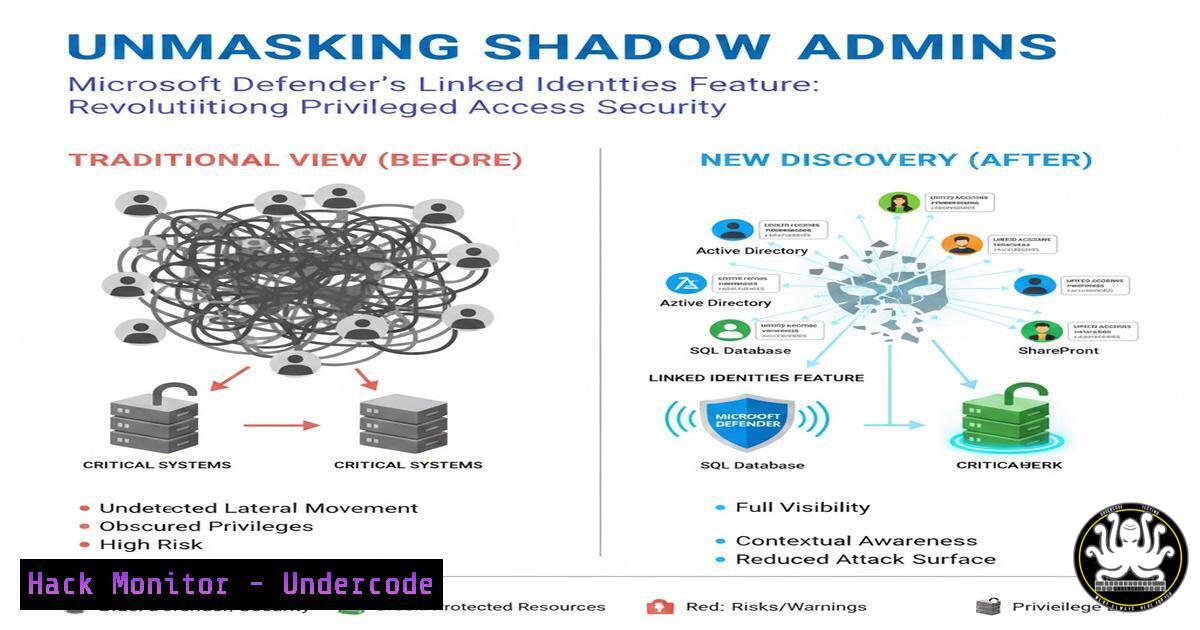
Introduction:
In the complex identity landscapes of modern enterprises, privileged users often operate across multiple accounts—separating their high-privilege “admin” identities from their daily “work” accounts. This common practice, while sound for security hygiene, creates visibility blind spots for Security Operations Centers (SOCs). Microsoft Defender’s emerging Linked Identities feature directly attacks this problem by correlating these separate personas, unlocking unprecedented visibility for threat hunting, incident response, and privileged access management. This article dives into the technical implementation and community-driven tools that are turning this feature into a operational powerhouse.
Learning Objectives:
- Understand the security blind spot created by separated privileged accounts and how Linked Identities closes it.
- Learn to deploy and utilize community KQL functions and tools to visualize and audit linked identity relationships.
- Implement proactive security checks to identify risky configurations, such as enabled privileged accounts linked to disabled user accounts.
You Should Know:
- Understanding the Core Concept: Identity Linking in Microsoft 365
The foundational step is enabling and comprehending the data provided by Linked Identities. This feature, part of the Microsoft Defender XDR suite, establishes a logical link between a user’s regular work account (e.g.,[email protected]) and their separate, privileged account (e.g.,[email protected]). This link is not a change in authentication but a metadata relationship visible within security telemetry.
Step‑by‑step guide:
- Prerequisite: Ensure your tenant has the appropriate Microsoft Defender licenses (e.g., Defender for Endpoint P2, Defender for Identity).
- Data Source: Linked identity information surfaces in Defender’s Advanced Hunting tables, primarily within the `IdentityInfo` and `AlertEvidence` tables under the `AccountObjectId` and `LinkedAccountObjectId` fields.
- Initial Query: Run a basic KQL query in Microsoft Defender’s Advanced Hunting to see linked pairs:
// Basic query to view linked identities from IdentityInfo table
IdentityInfo
| where isnotempty(LinkedAccountObjectId)
| project AccountName, AccountObjectId, LinkedAccountName, LinkedAccountObjectId, AccountDomain
| take 100
This returns a list of accounts and their directly linked counterparts, providing the raw data for all subsequent security analysis.
2. Deploying the UnifiedIdentityInfoXdr KQL Function
Thomas Naunheim’s custom KQL function, UnifiedIdentityInfoXdr, enriches linked identity data by pulling in role assignments (e.g., Global Administrator) and account criticality tags. This transforms a simple list into a actionable security asset inventory.
Step‑by‑step guide:
- Access the Function: Navigate to the GitHub repository: https://lnkd.in/evBay2CH.
- Deploy in Defender: In the Microsoft Defender portal, go to Advanced Hunting > Query. Paste the entire function definition script and run it to validate syntax.
- Save as Function: Click “Save” and select “Save as function.” Name it
UnifiedIdentityInfoXdr. This permanently adds it to your workspace. - Utilize the Function: Now you can call it in any query. For example, to find all linked privileged accounts with the Global Admin role:
// Using the custom function to find linked Global Admins
UnifiedIdentityInfoXdr
| where AccountRoles contains "Global Administrator"
| where isnotempty(LinkedAccountObjectId)
| project AccountName, AccountUPN, AccountRoles, LinkedAccountName, LinkedAccountUPN
This provides immediate visibility into which everyday identities are tied to the most powerful roles in your tenant.
3. Auditing with EntraOps Privileged EAM Workbook
The EntraOps community project provides a comprehensive Power BI workbook designed for managing the Enterprise Access Model. Its integration of linked identities allows security architects to pivot views between all accounts associated with a single person.
Step‑by‑step guide:
- Access EntraOps: Visit the project site at https://www.entraops.com to understand the deployment prerequisites, which include granting the application specific Graph API permissions.
- Deploy and Connect: Follow the deployment guide to install the Power BI template and connect it to your tenant’s data via the provided instructions and scripts.
- Analyze by Work Account: Within the deployed workbook, use the “Filter by Work Account” feature. Input a standard user UPN to instantly surface all privileged (e.g., Break Glass, Privileged) accounts linked to it, along with their classification and security attributes. This is invaluable for access reviews and incident triage, quickly answering “What else can this compromised user account access?”
4. Proactive Hunting: Identifying Risky Linked Identity States
The true power of linked identities is realized in proactive security monitoring. One critical check, as hinted in the Maester project, is identifying privileged accounts that remain active while their associated primary work account is disabled—a potential orphaned backdoor.
Step‑by‑step guide:
- Construct the Hunt Query: You can build a query without waiting for the Maester module. This query joins identity info with sign-in logs to find active linked accounts.
// Hunt for enabled privileged accounts linked to a disabled work account let PrivilegedAccounts = materialize( IdentityInfo | where isnotempty(LinkedAccountObjectId) | where AccountDomain in ("domain.com") // Specify your privileged account domain | project PrivilegedAccountObjectId = AccountObjectId, PrivilegedAccountName = AccountName, WorkAccountObjectId = LinkedAccountObjectId ); let DisabledWorkAccounts = materialize( IdentityInfo | where AccountType == "User" | where isempty(LinkedAccountObjectId) // This is the work account | where AccountSensitivityLabel == "Disabled" // Or use IsAccountEnabled == false based on your schema | project WorkAccountObjectId = AccountObjectId, WorkAccountName = AccountName, WorkAccountStatus = AccountSensitivityLabel ); PrivilegedAccounts | join kind=inner DisabledWorkAccounts on WorkAccountObjectId | join kind=leftouter IdentityLogonEvents on $left.PrivilegedAccountObjectId == $right.AccountObjectId | summarize LastLogon = max(Timestamp) by PrivilegedAccountName, WorkAccountName, WorkAccountStatus | where LastLogon > ago(90d) // The privileged account has been used recently - Schedule as Custom Detection: In Microsoft Defender, navigate to “Custom detection rules.” Create a new rule using this query. Schedule it to run daily and generate a medium-severity alert for the SOC. This automates the hunt for this specific risk pattern.
5. Operationalizing Linked Identities for Incident Response
During a security incident involving a standard user account, responders must immediately understand lateral movement potential to privileged systems.
Step‑by‑step guide:
- Create a SOAR Playbook: In Microsoft Sentinel or your SOAR platform, build an incident automation playbook triggered by a high-severity user account compromise alert.
- Integrate the KQL Query: The playbook’s first critical step should be an Azure Logic Apps “Run Query and List Results” action that executes a version of the `UnifiedIdentityInfoXdr` query, passing in the compromised account’s Object ID.
- Automated Enrichment: The output—list of linked privileged accounts—should be automatically appended to the incident. A subsequent action can trigger an automated response, such as requiring step-up authentication for the linked privileged accounts or temporarily disabling their interactive sign-in capabilities via a Graph API call, while preserving their use for break-glass scenarios.
- Command Example (Graph API – Conditional Access): While direct account disablement via API is possible, a more nuanced approach is to update a Conditional Access policy targeting those specific privileged accounts.
Example PowerShell using Microsoft Graph to add a risky user to a CA policy (conceptual)
Connect-MgGraph -Scopes "Policy.ReadWrite.ConditionalAccess"
Retrieve the specific CA policy designed for emergency lockdown
$policy = Get-MgIdentityConditionalAccessPolicy -Filter "displayName eq 'EMERGENCY: Require MFA for All Linked Admins'"
Update the policy to include the new compromised user's linked admin account(s)
... (Graph API call to update policy users/groups) ...
This demonstrates how linked identity data can feed into dynamic, automated policy enforcement.
What Undercode Say:
Key Takeaway 1: Linked Identities transforms a common administrative convenience—separate privileged accounts—from a security liability into a traceable asset. It fundamentally shifts the paradigm from managing isolated accounts to monitoring holistic user personas.
Key Takeaway 2: The community tooling ecosystem (KQL functions, EntraOps, Maester) is essential to operationalizing this native feature. Microsoft provides the plumbing, but security teams need these purpose-built dashboards and queries to extract immediate value and harden their posture.
The analysis reveals a strategic move towards identity-centric security in complex environments. By formally linking accounts, Microsoft is enabling a new class of detection rules that understand user intent across personas. For example, detecting a single user interacting with a sensitive resource sequentially from two different linked accounts within a short timeframe could indicate staged lateral movement. The feature also forces a reevaluation of privileged access lifecycle management, ensuring deprovisioning workflows disable all linked personas. The most immediate impact is on incident response speed, drastically reducing the time to understand an attacker’s potential privilege escalation paths after an initial account breach.
Prediction:
Within the next 18-24 months, Linked Identities will become the foundational data source for AI-driven Identity Threat Detection and Response (ITDR). Security AI models will consume this linked graph to establish more accurate behavioral baselines per person, not per account, dramatically improving anomaly detection for insider threats and compromised credential attacks. Furthermore, we predict regulatory frameworks will begin to recommend or mandate such identity correlation for critical infrastructure organizations, making features like this not just a best practice but a compliance necessity. The feature will also see expansion beyond Microsoft accounts, potentially introducing standards-based linking to third-party (e.g., AWS IAM, GCP) privileged identities, creating a truly unified cross-platform privileged access management view.
🎯Let’s Practice For Free:
IT/Security Reporter URL:
Reported By: Thomasnaunheim Use – Hackers Feeds
Extra Hub: Undercode MoN
Basic Verification: Pass ✅


