Listen to this Post
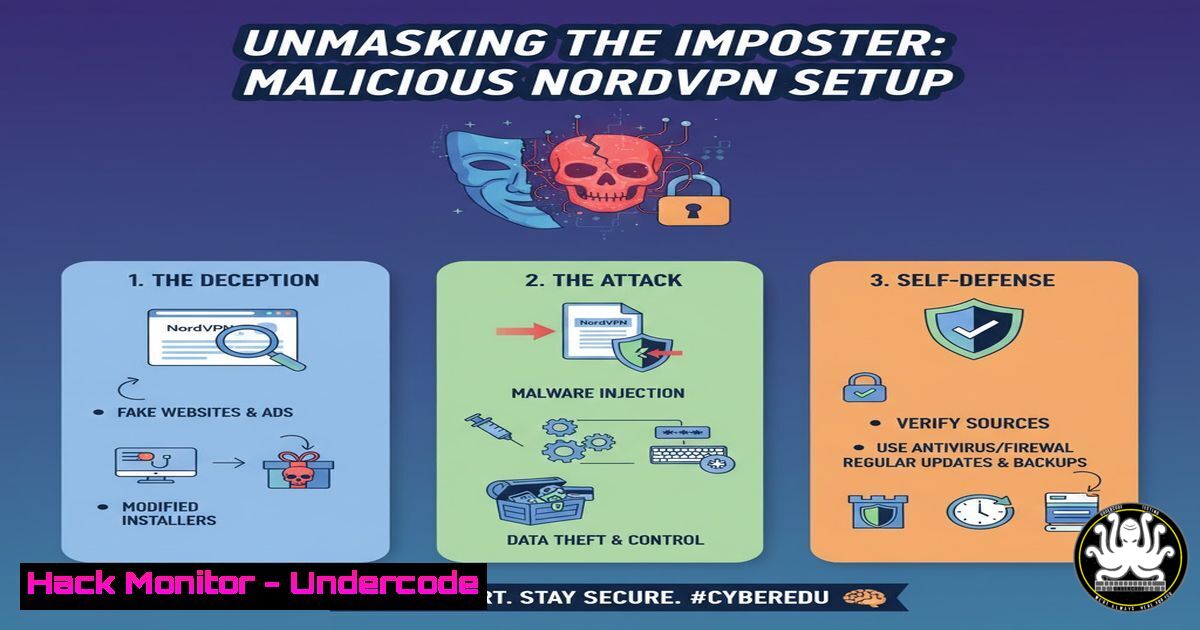
Introduction:
A sophisticated malware campaign is leveraging the trusted brand of NordVPN to distribute malicious payloads. This analysis dissects the attack chain, where a seemingly legitimate installer deploys a scheduled task to execute `mstha` for malware retrieval, providing a critical case study in supply-chain compromise and defense evasion.
Learning Objectives:
- Identify the key indicators of compromise (IoCs) in fake installer campaigns.
- Understand the technical execution of scheduled task-based persistence mechanisms.
- Develop practical skills to analyze and mitigate similar threats using common IT tools.
You Should Know:
1. Initial Artifact Analysis with File Integrity Checks
Before executing any suspicious file, verifying its integrity and digital signature is paramount. This can quickly reveal tampering.
Verified Commands:
 Linux: Check file type and hashes
file suspicious_setup.exe
sha256sum suspicious_setup.exe
md5sum suspicious_setup.exe

Windows: Check Authenticode signature
Get-AuthenticodeSignature "C:\Path\To\suspicious_setup.exe"
 Windows: Calculate file hash via PowerShell
Get-FileHash -Path "C:\Path\To\suspicious_setup.exe" -Algorithm SHA256
Step-by-step guide:
The `file` command helps identify the actual file type, regardless of its extension. Calculating hashes (SHA256, MD5) allows you to check these against VirusTotal or other threat intelligence platforms to see if the file is known to be malicious. On Windows, `Get-AuthenticodeSignature` is crucial; a “NotSigned” status or an invalid signature from an untrusted publisher for a piece of software like NordVPN is a massive red flag.
2. Detecting Scheduled Task Persistence
The primary malware mechanism involves creating a scheduled task for persistence. Attackers use this to re-establish contact with their infrastructure or to download secondary payloads after the initial infection.
Verified Commands:
:: Windows CMD: List all scheduled tasks
schtasks /query /fo LIST /v

:: Windows PowerShell: Query tasks via PowerShell
Get-ScheduledTask | Where-Object {$<em>.TaskName -like "Nord" -or $</em>.TaskName -like "Update"}
Get-ScheduledTaskInfo -TaskName "SuspiciousTaskName"
Step-by-step guide:
Using schtasks /query, you can get a comprehensive list of all tasks. Look for tasks with suspicious names that might mimic legitimate software (e.g., “NordVPNUpdate”). The PowerShell `Get-ScheduledTask` cmdlet offers more granular filtering; pipe it to `Where-Object` to search for tasks containing keywords related to the campaign. Once a suspicious task is identified, `Get-ScheduledTaskInfo` can reveal its last run time and next run time.
3. In-depth Scheduled Task Forensic Analysis
Simply finding a task isn’t enough. You must analyze its properties, triggers, and actions to understand its full impact.
Verified Commands:
 Windows PowerShell: Export a specific task's XML definition for detailed analysis
Export-ScheduledTask -TaskName "SuspiciousTaskName" | Out-File -FilePath C:\temp\task_analysis.xml
 View the action (the command the task executes)
(Get-ScheduledTask -TaskName "SuspiciousTaskName").Actions
Step-by-step guide:
The true nature of a scheduled task is contained in its XML definition. `Export-ScheduledTask` saves this data to a file. Open this XML and scrutinize the `
4. Network IoC Hunting with Command-Line Tools
The downloaded payloads originate from specific URLs. Blocking and hunting for these IoCs on your network is critical.
Verified Commands:
 Linux: Use curl to probe a suspected malicious URL safely (without executing content)
curl -I https://malicious-domain.com/payload.exe  Fetch only headers
whois malicious-domain.com  Check domain registration

Windows: Use PowerShell for similar reconnaissance
Invoke-WebRequest -Uri "https://malicious-domain.com/payload.exe" -Method Head
Step-by-step guide:
These commands allow for safe investigation of network-based IoCs. The `-I` flag in `curl` and the `-Method Head` in `Invoke-WebRequest` only retrieve the HTTP headers, not the file itself, minimizing risk. You can check the server type, file size, and last modified date. The `whois` command can reveal if the domain was recently created, a common tactic for malicious sites.
5. Process Monitoring for Malicious Activity
If the task executes, you need to see what it spawns. Process monitoring tools are essential for behavioral analysis.
Verified Commands:
:: Windows CMD: Use built-in tools like tasklist and wmic
tasklist /v | findstr /i "mstha"
wmic process where name="mstha.exe" get processid,commandline

:: Use Sysinternals Process Explorer (GUI) for advanced analysis.
Step-by-step guide:
`tasklist` provides a snapshot of running processes; filter it with `findstr` to look for the malicious process name. `wmic` is more powerful, allowing you to query the specific command-line arguments used to launch the process, which can reveal the exact URL or method of the malware download. For deep analysis, Sysinternals Process Explorer shows the process tree, highlighting any child processes spawned by the malicious task.
6. Containment and Eradication Procedures
Once identified, the malicious artifacts must be removed completely to prevent re-infection.
Verified Commands:
 Windows PowerShell: Stop and delete the malicious scheduled task
Stop-ScheduledTask -TaskName "SuspiciousTaskName"
Unregister-ScheduledTask -TaskName "SuspiciousTaskName" -Confirm:$false

Delete the downloaded malicious file
Remove-Item -Path "C:\Users\Public\payload.exe" -Force
Step-by-step guide:
Eradication is a two-step process. First, use `Stop-ScheduledTask` to halt the task if it is currently running. Then, permanently remove it from the system with Unregister-ScheduledTask. Finally, track down and delete the payload that was downloaded, which is often found in temporary folders or public directories. The `-Force` flag ensures deletion even if the file is read-only.
7. Proactive Defense: Blocking Malicious Infrastructure
The final step is to prevent any communication with the attacker’s infrastructure at the network level.
Verified Commands:
 Linux iptables: Block outbound traffic to a known malicious IP
iptables -A OUTPUT -d 192.0.2.100 -j DROP

Windows: Using Netsh (Windows Firewall) to block an IP
netsh advfirewall firewall add rule name="Block Malicious IP" dir=out action=block remoteip=192.0.2.100
Step-by-step guide:
This is a host-based containment tactic. On Linux, the `iptables` command adds a rule to the OUTPUT chain, dropping all packets destined for the malicious IP. On Windows, `netsh` interfaces with the Windows Firewall to create a new outbound rule that blocks the specified IP address. This should be done in conjunction with adding these domains and IPs to your network’s blocklists.
What Undercode Say:
- Supply-Chain Attacks are the New Normal. This campaign exemplifies a trend where attackers inject themselves into trusted software distribution channels, bypassing traditional security assumptions. Vigilance can no longer be reserved for obscure sources; even “official” installers from reputable brands must be verified.
- Persistence is Simple and Effective. The use of a basic scheduled task demonstrates that advanced techniques are not always necessary for a successful attack. Defenders must master the fundamentals of the Windows task scheduler and other common persistence mechanisms, as these are consistently abused due to their effectiveness and simplicity.
The analysis of this NordVPN installer reveals a carefully constructed attack that exploits user trust. The malware authors did not employ sophisticated code obfuscation or zero-day exploits. Instead, they relied on social engineering and a fundamental understanding of Windows administration to achieve persistence. This makes the campaign highly effective against average users and a valuable training case for new analysts. The simplicity is its strength; by mimicking a legitimate process name and using a built-in, trusted system tool (schtasks), the malware flies under the radar of many heuristic detection systems. Defending against such threats requires a shift from purely signature-based detection to a more behavioral and telemetry-focused approach, where the creation of unauthorized scheduled tasks is flagged as a high-severity event.
Prediction:
This attack vector will rapidly evolve, with future campaigns leveraging AI-generated code to create even more convincing fake installers that can dynamically bypass hash-based detection. We predict a rise in “living-off-the-land” (LotL) techniques, where malware will exclusively use legitimate system tools like mshta, powershell, and `schtasks` for its entire execution chain, making fileless threats the dominant paradigm. This will force a consolidation of defense strategies around application whitelisting, strict macro policies, and advanced endpoint detection and response (EDR) systems capable of interpreting the malicious intent behind seemingly legitimate command sequences.
🎯Let’s Practice For Free:
IT/Security Reporter URL:
Reported By: Karsten Hahn – Hackers Feeds
Extra Hub: Undercode MoN
Basic Verification: Pass ✅


