Listen to this Post
Introduction:
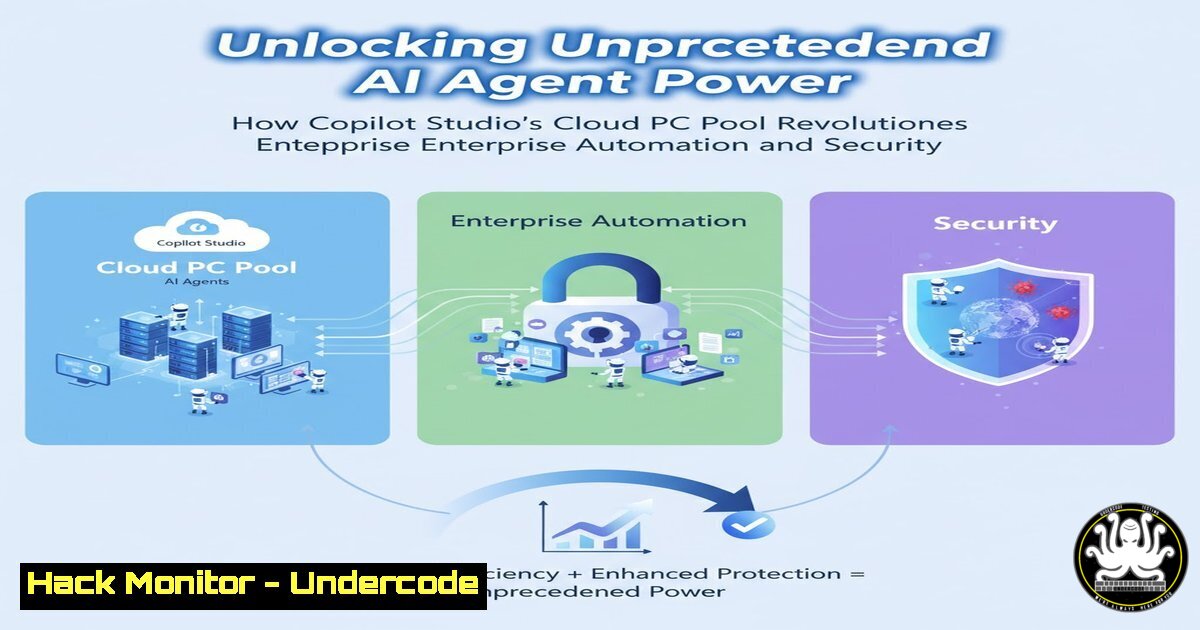
The integration of Cloud PC Pools within Microsoft’s Copilot Studio marks a pivotal evolution in enterprise AI, transitioning agents from constrained conversational interfaces into powerful autonomous actors with dedicated, secure computing resources. This breakthrough fundamentally alters the security and scalability paradigm for business process automation, allowing organizations to deploy AI agents that can seamlessly interact with internal systems, applications, and data repositories under a full governance umbrella. By providing a managed pool of cloud-hosted virtual machines, Microsoft is addressing the core infrastructure challenges that have historically limited the operational scope of AI-driven automation.
Learning Objectives:
- Understand the architecture and security model of Cloud PC Pools for AI agents.
- Learn how to implement and govern a Cloud PC Pool within your Copilot Studio environment.
- Master the integration techniques for allowing agents to securely access organizational resources.
You Should Know:
1. Architecting Your First Cloud PC Pool
The Cloud PC Pool is not a single virtual machine but a scalable collection of Microsoft Entra ID-joined and Intune-enrolled Windows virtual machines. This architecture is crucial for enterprise-grade deployment as it ensures every compute node running your agent’s tasks is born into a state of compliance. The pool automatically scales based on the workload demands of your agents, preventing resource contention during peak automation periods and minimizing costs during lulls.
Step-by-step guide explaining what this does and how to use it.
Step 1: Access the Feature. Navigate to your Copilot Studio admin center. The Cloud PC Pool feature is located under the “Computer Use” section, currently in preview. Ensure your licensing and tenant permissions are configured for this capability.
Step 2: Create a New Pool. Click “Create new pool.” You will be prompted to define the pool’s core specifications:
Name and Description: Use a clear naming convention (e.g., Finance-Agents-Pool-01).
Region: Select the Azure geography closest to your primary data sources to minimize latency.
Image: Choose a base Windows 11/10 image. Future configurations may allow for custom images pre-loaded with specific line-of-business applications.
Pool Size: Define the minimum and maximum number of instances to control autoscaling boundaries.
Step 3: Entra ID & Intune Integration. This step is automatic. Upon creation, each VM in the pool is automatically hybrid-joined to Microsoft Entra ID (formerly Azure AD) and enrolled in Microsoft Intune. This is the foundation for the “zero-trust” security posture, enabling identity-centric access and unified endpoint management.
2. Implementing Granular Security and Compliance Controls
The true power of this system lies in its integrability with Microsoft’s security stack. By leveraging Intune compliance policies and configuration profiles, you can enforce a hardened security baseline across every node in your AI agent pool. This mitigates the risk of a compromised agent node being used as a pivot point into the corporate network.
Step-by-step guide explaining what this does and how to use it.
Step 1: Define Intune Configuration Profiles. In the Microsoft Intune admin center, create a new “Settings catalog” profile specifically for your AI Agent Cloud PC Pools.
Step 2: Harden the OS.
Enable Windows Defender Antivirus: Ensure real-time protection is active.
Configure Firewall Rules: Use Intune to push firewall rules that block all inbound traffic by default, only allowing outbound communication to required service endpoints like SharePoint Online and the Copilot Studio runtime.
Disable Local Storage (Optional): For high-security scenarios, create a policy to prevent the use of local disk storage, forcing all data interaction through secure cloud services.
Step 3: Deploy Compliance Policies. Create a compliance policy that requires BitLocker drive encryption, a minimum OS version, and a healthy Defender status. Agents running on non-compliant nodes can be automatically prevented from accessing sensitive resources via Conditional Access policies.
3. Enabling Secure Access to Organizational Resources
An agent’s value is derived from its ability to act on data. The Cloud PC, being Entra ID-joined, operates as a managed corporate device. This allows for seamless and auditable access to resources protected by Entra ID, such as SharePoint Online, SQL Managed Instances, and internal APIs.
Step-by-step guide explaining what this does and how to use it.
Step 1: Configure Resource Permissions. Within the Entra ID admin center, locate the Managed Identity or specific service principal associated with your Copilot Studio environment and Cloud PC Pool.
Step 2: Assign API Permissions. For accessing Microsoft Graph API to read SharePoint data or user information, grant the necessary application permissions (e.g., Sites.Read.All, User.Read.All) to this identity.
Step 3: Utilize Managed Identity for Authentication. In your agent’s flows, when connecting to supported Azure services (e.g., Azure SQL Database with Entra ID authentication), configure the connection to use the system-assigned managed identity. This eliminates the need to manage and rotate sensitive connection strings or passwords within your agent’s code. A connection string would simply use Authentication=Active Directory Managed Identity.
- Integrating the Pool with Your Copilot Studio Agent
Linking the scalable compute power to the agent’s logic is the final step. This connection is made within the Copilot Studio authoring canvas, specifically when designing a flow that requires “computer use.”
Step-by-step guide explaining what this does and how to use it.
Step 1: Design Your Agent Flow. In Copilot Studio, create a new topic or flow that requires desktop-level interaction, such as generating a complex Excel report, filling a legacy desktop application form, or processing a batch of images.
Step 2: Add the “Computer Use” Node. Drag the “Computer Use” action into your flow. You will be prompted to select the Cloud PC Pool you provisioned earlier.
Step 3: Script the Agent’s Actions. Within the node, you can author a script (using PowerShell or other supported languages) that the agent will execute on a node from the pool. For example, a script to open a specific Excel file from a SharePoint library, refresh the data connections, and save a PDF report back to a different library.
 Example Pseudo-Code for Agent Script on Cloud PC
$SiteURL = "https://yourtenant.sharepoint.com/sites/Reports"
$FileRelativeURL = "/Shared Documents/InputData.xlsx"
Connect-PnPOnline -Url $SiteURL -ManagedIdentity
Get-PnPFile -Url $FileRelativeURL -Path "C:\Temp\" -Filename "InputData.xlsx" -AsFile
 ... Open Excel, process data, save as PDF ...
Add-PnPFile -Path "C:\Temp\OutputReport.pdf" -Folder "Shared Documents"
5. Monitoring, Logging, and Cost Management
With great power comes the need for great oversight. Proactive monitoring of agent activity and pool utilization is critical for operational excellence and financial control. All activities performed by the agent on the Cloud PC are logged and traceable.
Step-by-step guide explaining what this does and how to use it.
Step 1: Leverage Azure Monitor. Navigate to Azure Monitor and create a Log Analytics workspace. Configure diagnostic settings for the Cloud PC Pool resource to stream logs (system, security, application) and performance metrics to this workspace.
Step 2: Create Key Queries. Use Kusto Query Language (KQL) to track important events.
Agent Session Tracking: `WVDHostManagement | where TimeGenerated > ago(24h) | summarize count() by UserName` (adjusted for Cloud PC tables).
Performance Monitoring: Perf | where ObjectName == "Processor" and CounterName == "% Processor Time" | summarize AvgCPU = avg(CounterValue) by Computer.
Step 3: Set Up Cost Alerts. In Azure Cost Management + Billing, create a budget for the resource group containing your Cloud PC Pools. Configure alerts to trigger when spending reaches 75% and 100% of your allocated budget to prevent unexpected overages.
What Undercode Say:
- The fusion of autonomous AI agents with fully governed, ephemeral compute environments represents the most significant step towards practical “digital employees” since the advent of RPA.
- Security is no longer an afterthought but is embedded directly into the agent’s operational fabric, setting a new standard for secure and compliant enterprise automation.
This move by Microsoft strategically blurs the line between traditional virtual desktop infrastructure (VDI) and advanced AI. It effectively creates a new product category: Automation-Infrastructure-as-a-Service. While the immediate use case is for Copilot Studio agents, the underlying architecture hints at a future where any cloud service can provision a transient, secure Windows environment for complex tasks. The primary challenge for organizations will be adapting their governance models to manage these non-human “users” and their access rights at scale. The potential for cost savings in automated back-office functions is enormous, but it must be weighed against the operational complexity of managing this new hybrid workforce of humans and agents.
Prediction:
The preview of Cloud PC Pools for AI agents will catalyze a industry-wide shift towards “embodied AI” in the enterprise, where agents are granted privileged, but heavily audited and constrained, access to core systems. Within two years, we predict that the majority of enterprise-grade AI automation platforms will offer a similar managed compute substrate, making the ability to securely execute tasks on a virtual desktop a standard expectation, not a premium feature. This will force a convergence of IAM (Identity and Access Management) and endpoint management teams, as managing machine identities and their associated compliance states becomes as critical as managing human employees.
🎯Let’s Practice For Free:
IT/Security Reporter URL:
Reported By: Stephen Zeng – Hackers Feeds
Extra Hub: Undercode MoN
Basic Verification: Pass ✅


