
Listen to this Post
Introduction:
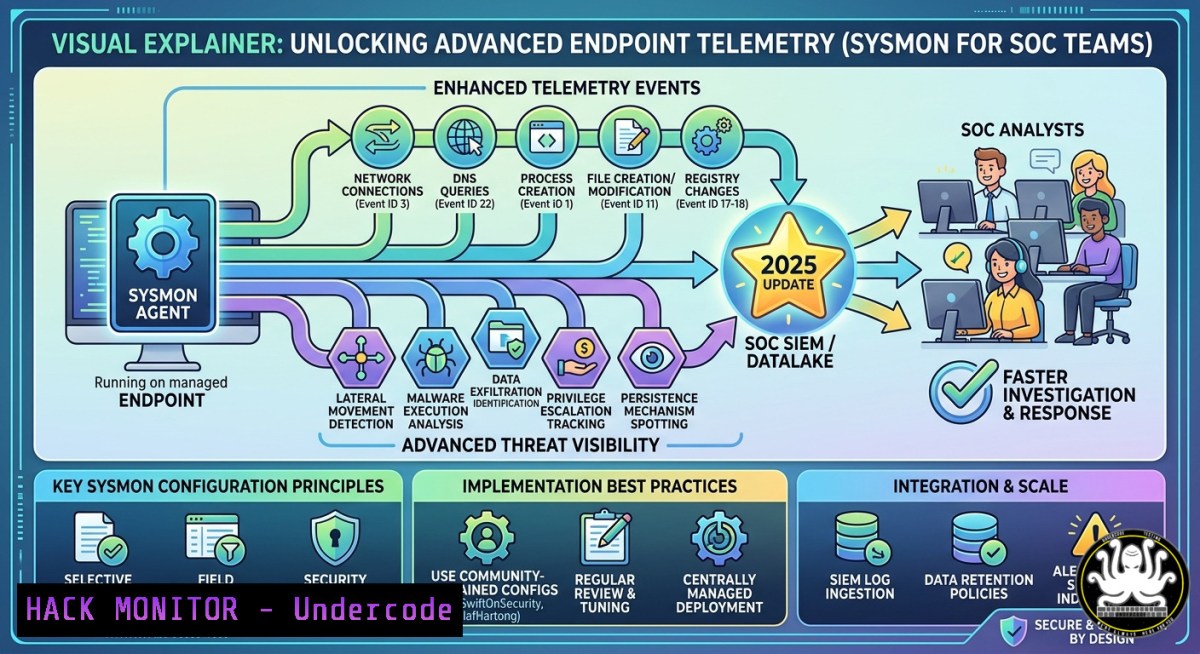
System Monitor (Sysmon) is a Windows system service and device driver that logs critical system activity—process creation, network connections, file changes, and registry modifications—to the Windows event log. While many organizations rely solely on antivirus or EDR solutions, adding a well-tuned Sysmon configuration provides deep forensic visibility that often captures stealthy behaviors missed by default tools. The recently updated public Sysmon configuration repository from THEVER1TAS, building on community work from SwiftOnSecurity and Neo23x0, delivers advanced event tracing and blocking rules specifically targeting malicious and vulnerable driver activity (LOLDrivers/MagicSword hash coverage), helping blue teams close telemetry gaps.
Learning Objectives:
- Deploy and validate a production-ready Sysmon configuration with enhanced detection logic for process injection, driver load events, and DNS queries
- Build custom threat hunting queries using Windows Event Viewer and PowerShell to identify suspicious LOLDrivers and registry persistence
- Integrate Sysmon telemetry with SIEM platforms (Elastic, Splunk, Sentinel) and automate incident response workflows
You Should Know:
1. Deploying and Tuning the Advanced Sysmon Configuration
The core of the updated repository is an XML configuration file that defines which events to capture and at what verbosity. Unlike the default Sysmon install, this configuration enables event IDs 1 (process creation), 3 (network connections), 6 (driver load), 7 (image loaded), 10 (process access), 12–14 (registry changes), 16 (Sysmon configuration change), 22 (DNS query), and 27 (file block execution).
Step‑by‑step guide to deployment:
- Download Sysmon from Microsoft Sysinternals (https://learn.microsoft.com/en-us/sysinternals/downloads/sysmon).
- Clone or download the configuration from the GitHub repository:
`git clone https://github.com/THEVER1TAS/sysmon-config.git` - Install Sysmon with the advanced configuration (run as Administrator):
sysmon64.exe -accepteula -i sysmon-config.xml
For a blocking configuration (caution: may break some applications), use the blocking variant:
sysmon64.exe -accepteula -i sysmon-blocking-config.xml
4. Verify installation by checking the event log:
Get-WinEvent -LogName "Microsoft-Windows-Sysmon/Operational" -MaxEvents 10 | Format-List
5. Update an existing configuration without uninstalling:
sysmon64.exe -c sysmon-updated-config.xml
6. Uninstall Sysmon if needed:
sysmon64.exe -u
Testing and tuning:
Run Atomic Red Team tests (https://github.com/redcanaryco/atomic-red-team) to validate detection coverage. For example, to test process creation logging:
Invoke-AtomicTest -TestName "T1059.001 - PowerShell" -ExecutionTimeout 60
Check Sysmon event ID 1 for the spawned process. If you experience false positives (e.g., legitimate software triggering driver load alerts), add hashes or publisher names to the `RuleGroup` exclusion list in the XML.
- Detecting Malicious Driver Activity with LOLDrivers and MagicSword
LOLDrivers (Living Off the Land Drivers) are legitimate but vulnerable drivers that attackers use to bypass kernel protections. The updated configuration includes hash-based detection for known vulnerable drivers (e.g., from the MagicSword project), generating event ID 6 (Driver Load) and, when blocking mode is active, event ID 27 (Blocked File).
Step‑by‑step guide to monitor and block malicious drivers:
- Extract current driver inventory on a Windows endpoint:
Get-WindowsDriver -Online | Select-Object Driver, ProviderName, Version
- Manually query Sysmon for driver load events (event ID 6) over the last 24 hours:
$startTime = (Get-Date).AddHours(-24) Get-WinEvent -FilterHashtable @{LogName='Microsoft-Windows-Sysmon/Operational'; ID=6; StartTime=$startTime} | ` Where-Object { $_.Message -match "DriverName" } | ` Format-Table TimeCreated, Message -AutoSize - Compare loaded drivers against the repository’s known-bad hashes list (located in the `MagicSword/` folder of the repo). Use PowerShell to compute hashes:
Get-FileHash -Algorithm SHA256 C:\Windows\System32\drivers\suspicious.sys
- Enable blocking by deploying the blocking configuration. When a known vulnerable driver attempts to load, Sysmon will log event ID 27 and block the load. Monitor for event 27 in your SIEM:
“`kql (Kusto Query for Microsoft Sentinel)
Event
| where EventLog == “Microsoft-Windows-Sysmon/Operational” and EventID == 27
| extend BlockedFile = tostring(parse_xml(EventData).DataItem.Data.
)</h2>

<h2 style="color: yellow;">| project TimeGenerated, Computer, BlockedFile</h2>

[bash]
5. Test blocking using a safe vulnerable driver (e.g., from the Sysmon Test Driver repository in a controlled lab). Attempt to install the driver and verify event 27 appears.

<ol>
<li>Integrating Sysmon with SIEM for Proactive Threat Hunting</li>
</ol>

Raw Sysmon logs are useless without aggregation. Forward events to a SIEM (Splunk, Elastic, QRadar, or Azure Sentinel) using Windows Event Forwarding (WEF) or a lightweight forwarder like Winlogbeat.

Step‑by‑step guide for Elastic Stack integration:

<ol>
<li>Install Winlogbeat on the Windows endpoint (https://www.elastic.co/downloads/beats/winlogbeat). </li>
<li>Configure `winlogbeat.yml` to include Sysmon channel:
```bash
winlogbeat.event_logs:</li>
</ol>

- name: Microsoft-Windows-Sysmon/Operational
ignore_older: 72h
3. Start the service and verify connectivity:
.\install-service-winlogbeat.ps1
Start-Service winlogbeat
4. Build detection rules in Elastic SIEM. Example rule for detecting LSASS process access (event ID 10) by non‑system binaries:
event.code:10 and winlog.event_data.TargetImage:lsass.exe and not winlog.event_data.SourceImage:(C:\Windows\System32\ or C:\Windows\SysWOW64\)
5. Create a threat hunting dashboard with event ID 22 (DNS queries) to spot DNS tunnelling: aggregate high‑volume DNS requests to rare domains.
Windows Event Forwarding alternative:
Configure a collector server using wecutil. On the endpoint, enable WinRM:
Enable-PSRemoting -Force
winrm set winrm/config/service/auth '@{Kerberos="true"}'
Then use Group Policy to subscribe to the Sysmon event channel from the collector.
4. Advanced Registry and File Monitoring for Persistence
Registry run keys and file creation in sensitive directories are common persistence mechanisms. The configuration captures event ID 13 (registry value set) and event ID 11 (file creation).
Step‑by‑step guide to detect persistence changes:
- Monitor for AutoRun registry modifications using a scheduled PowerShell script that outputs to Sysmon:
$regPath = "HKLM:\SOFTWARE\Microsoft\Windows\CurrentVersion\Run"
$original = Get-ItemProperty -Path $regPath
while ($true) {
Start-Sleep -Seconds 60
$current = Get-ItemProperty -Path $regPath
if ($original -ne $current) {
Write-EventLog -LogName "Application" -Source "SysmonPersistenceMonitor" -EventId 1001 -Message "Registry change detected"
$original = $current
}
}
(Note: This is an example; in production, rely on Sysmon’s built‑in registry logging.)
- Query Sysmon for new .exe files written to Startup folders:
Get-WinEvent -FilterHashtable @{LogName='Microsoft-Windows-Sysmon/Operational'; ID=11} | ` Where-Object { $_.Message -match "TargetFilename.Startup.\.exe" } | ` Select-Object TimeCreated, Message - Correlate with process creation (event ID 1) for the same file to detect execution after write.
5. Performance Tuning and Avoiding Common Pitfalls
A poorly configured Sysmon can cause high CPU usage, disk I/O, and event log bloat. The repository includes performance‑optimized filters.
Step‑by‑step guide to monitor and reduce overhead:
- Check current Sysmon event rate over one hour:
$start = (Get-Date).AddHours(-1) (Get-WinEvent -FilterHashtable @{LogName='Microsoft-Windows-Sysmon/Operational'; StartTime=$start}).Count - Identify noisy event types by grouping event IDs:
Get-WinEvent -FilterHashtable @{LogName='Microsoft-Windows-Sysmon/Operational'; StartTime=$start} | ` Group-Object Id -NoElement | Sort-Object Count -Descending - Edit the XML configuration to exclude benign processes. For example, to stop logging network connections from the browser:
<ProcessCreate onmatch="exclude">
<Image condition="contains">chrome.exe</Image>
</ProcessCreate>
- Set maximum event log size to 1 GB to avoid rotation loss:
wevtutil set-log "Microsoft-Windows-Sysmon/Operational" /MaxSize:1073741824 /Retention:false
- Restart Sysmon with the optimized config: `sysmon64.exe -c optimized-sysmon.xml`
What Undercode Say:
- Key Takeaway 1: Sysmon is not a set‑and‑forget tool; it requires constant tuning and validation against your environment. The community‑driven configuration provides an excellent baseline, but organizations must test for performance and false positives before broad deployment.
- Key Takeaway 2: Driver‑based attacks (e.g., using vulnerable signed drivers to disable EDR) are increasingly common. Hash‑based blocking from projects like MagicSword, integrated into Sysmon, offers a lightweight, free mitigation layer that complements kernel‑level EDRs.
Organizations that deploy Sysmon alongside a SIEM gain visibility into lateral movement, persistence, and privilege escalation that would otherwise remain in the noise. The updated configuration’s focus on LOLDrivers highlights a growing attack surface that many commercial products miss. Blue teams should treat Sysmon as a mandatory baseline—not an optional add‑on. While EDR vendors offer similar telemetry, Sysmon’s transparency, low cost, and community support make it invaluable for incident response and threat hunting. However, without a SIEM to correlate events across the enterprise, Sysmon logs become forensic artifacts rather than active detection alerts. Invest in automation to turn Sysmon’s rich data into real‑time alerts.
Prediction:
As attack techniques increasingly target kernel-mode drivers and abuse signed yet vulnerable components (e.g., in the Bring Your Own Vulnerable Driver trend), Sysmon configurations will evolve to include automated hash feeds and cloud‑driven rule updates. Within 18 months, we expect Microsoft to integrate Sysmon‑like driver blocking natively into Defender for Endpoint, but the open‑source community will continue leading in customization for air‑gapped and legacy environments. The line between Sysmon and EDR will blur, with SIEM vendors embedding Sysmon configuration managers directly into their platforms. Organizations that fail to adopt advanced Sysmon telemetry will face a widening detection gap for post‑exploitation activities.
▶️ Related Video (82% Match):
🎯Let’s Practice For Free:
IT/Security Reporter URL:
Reported By: Andrewkenny Github – Hackers Feeds
Extra Hub: Undercode MoN
Basic Verification: Pass ✅


