Listen to this Post
Introduction:
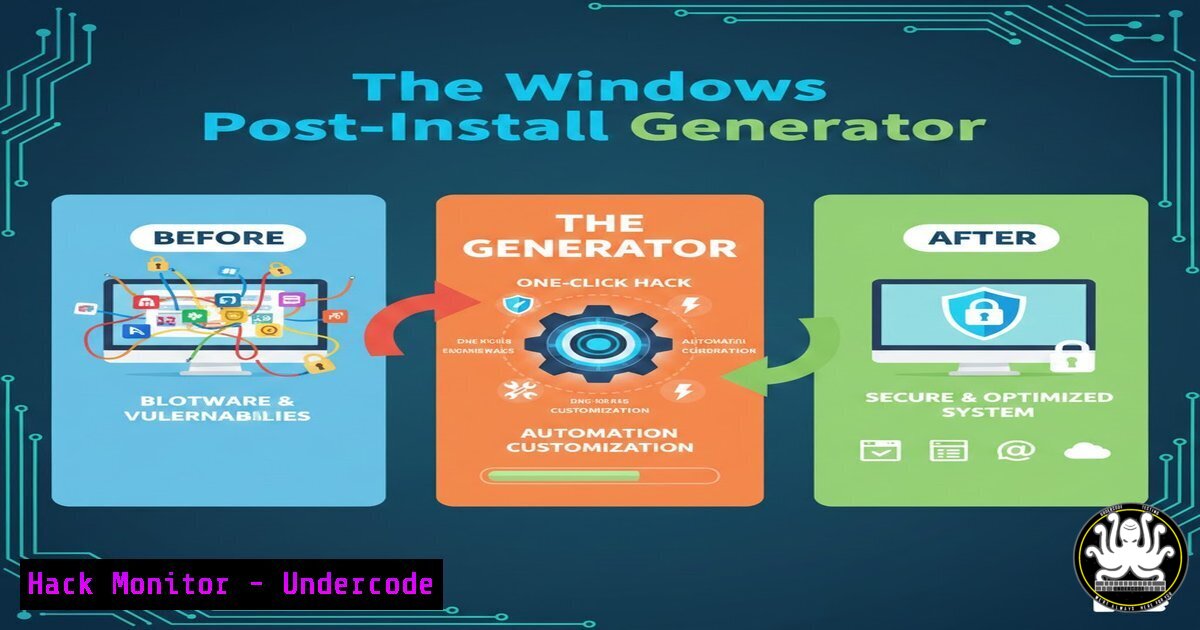
The open-source Windows Post-Install Generator revolutionizes system setup by automating the installation of over 100 applications and the configuration of 80+ system settings through a single batch script. For cybersecurity and IT professionals, this tool transforms the vulnerable, time-consuming post-deployment phase into a consistent, repeatable, and secure hardening process, significantly reducing attack surfaces and human error.
Learning Objectives:
- Understand how to use `winget` and PowerShell for secure, automated software deployment.
- Learn to automate critical Windows security and privacy hardening configurations.
- Master the creation, customization, and secure execution of post-installation batch scripts.
You Should Know:
- Automating Software Installation with Windows Package Manager (winget)
The core of the tool leverages Microsoft’s official `winget` command-line package manager. This ensures software is fetched from verified sources, mitigating the risk of installing compromised binaries from unofficial websites. You can generate a script via the online tool or craft your own.
Step-by-step guide:
- Check for
winget: Open PowerShell as Administrator and runwinget --version. If not installed, get it from the Microsoft Store. - Build an Installation Command: For each application, the basic command is
winget install --id <Publisher.Application> --silent --accept-package-agreements. The `–silent` flag enables unattended installation. - Create a Batch Script: Combine multiple commands into a `.bat` file. For example:
@echo off
echo Installing essential security and productivity tools...
winget install --id Microsoft.PowerShell --silent --accept-package-agreements
winget install --id Bitdefender.BitdefenderSecurity --silent --accept-package-agreements
winget install --id Git.Git --silent --accept-package-agreements
winget install --id Mozilla.Firefox --silent --accept-package-agreements
echo Installation batch completed.
pause
- Execute: Run the batch file as Administrator to install all selected software silently.
2. Hardening Windows Security and Privacy Settings
Post-installation is the critical moment to disable data collection features and enforce security policies. The generator can automate configurations typically found deep in Windows settings. Manual application via PowerShell provides immediate insight and control.
Step-by-step guide:
1. Open PowerShell as Administrator.
2. Disable Telemetry: Limit data sent to Microsoft.
Set-ItemProperty -Path "HKLM:\SOFTWARE\Policies\Microsoft\Windows\DataCollection" -Name "AllowTelemetry" -Value 0
3. Enable Windows Defender Firewall for all profiles: A fundamental security baseline.
Set-NetFirewallProfile -Profile Domain,Public,Private -Enabled True
4. Disable Cortana: Reduce background processes and data collection.
Set-ItemProperty -Path "HKLM:\SOFTWARE\Policies\Microsoft\Windows\Windows Search" -Name "AllowCortana" -Value 0
5. Create a System Restore Point (Reversibility): Before making bulk changes, enable recovery. Checkpoint-Computer -Description "Pre-Hardening Setup" -RestorePointType "MODIFY_SETTINGS".
3. Scripted Bloatware Removal for a Cleaner System
Pre-installed OEM or Windows “bloatware” can contain vulnerabilities and unnecessary services. The generator includes cleanup functions, which you can replicate precisely with PowerShell.
Step-by-step guide:
- Identify Packages to Remove: List all provisioned appx packages.
Get-AppxProvisionedPackage -Online | Select-Object DisplayName, PackageName
- Remove Specific Bloatware: Target non-essential apps. Use caution; some apps are system-critical.
Example: Remove the default Xbox apps Get-AppxProvisionedPackage -Online | Where-Object {$_.DisplayName -like "Xbox"} | Remove-AppxProvisionedPackage -Online Get-AppxPackage -AllUsers xbox | Remove-AppxPackage - Remove for All Users: The commands above target the system image and current user. To remove for all existing users, loop through user profiles.
4. Building and Deploying Your Master Batch Script
The true power lies in combining software installs, hardening, and cleanup into one automated workflow. This is what the generator produces.
Step-by-step guide:
- Structure Your Script: Plan the order: System tweaks first, then bloatware removal, followed by software installation.
- Create the Batch File: Use a text editor like Notepad++ or VS Code. Start by forcing Administrator privileges and logging.
@echo off :: BatchGotAdmin (checks for admin rights) >nul 2>&1 "%SYSTEMROOT%\system32\cacls.exe" "%SYSTEMROOT%\system32\config\system" if '%errorlevel%' NEQ '0' ( echo Requesting administrative privileges... goto UACPrompt ) else ( goto gotAdmin ) :UACPrompt echo Set UAC = CreateObject^("Shell.Application"^) > "%temp%\getadmin.vbs" echo UAC.ShellExecute "%~s0", "", "", "runas", 1 >> "%temp%\getadmin.vbs" "%temp%\getadmin.vbs" exit /B :gotAdmin if exist "%temp%\getadmin.vbs" ( del "%temp%\getadmin.vbs" ) set LOGFILE="%TEMP%\PostInstall_%DATE%.log" call :LOG >> %LOGFILE% exit /B :LOG ...(your winget and PowerShell commands here)... - Integrate PowerShell Commands in Batch: Call PowerShell from your batch script.
echo Applying security hardening policies...
powershell.exe -ExecutionPolicy Bypass -Command "Set-NetFirewallProfile -All -Enabled True"
- Test in a Virtual Machine: Always validate the full script in a sandboxed environment (e.g., Hyper-V, VMware) before deploying to production hardware.
5. Security Auditing and Verification of Generated Scripts
Trust but verify. Any automated script, especially from an online source, must be reviewed to prevent supply-chain attacks or unwanted configurations.
Step-by-step guide:
- Review the Source Code: Examine the generated batch file in a text editor before running it. Look for any obfuscated commands or calls to external URLs.
- Understand the Actions: The tool’s GitHub repository is public. Review the source to understand what each configuration option does.
- Use PowerShell’s Transcription for Auditing: When running scripts, enable transcription to log all commands and outputs.
Start-Transcript -Path "C:\AuditLog\ScriptAudit_%DATE%.txt" -Append
Execute your batch script or commands here
Stop-Transcript
- Implement Code Signing (Advanced): For enterprise deployment, sign your approved scripts with a digital certificate and configure Windows to execute only signed scripts via
Set-ExecutionPolicy AllSigned.
What Undercode Say:
- Key Takeaway 1: This tool epitomizes the shift-left principle in IT operations, baking security and optimal configuration into the initial system state. It eliminates configuration drift and ensures every deployment starts from a known, secure baseline.
- Key Takeaway 2: The reliance on Microsoft’s `winget` and native PowerShell commands is its greatest security strength, avoiding the risks of third-party installers. However, the power to make mass changes also demands rigorous review of the generated scripts to avoid disabling critical functionality or introducing logic errors.
Analysis: The Windows Post-Install Generator sits at the intersection of DevOps automation and cybersecurity hardening. It reduces the “fresh Windows install” from a hours-long manual process prone to oversights to a minutes-long, repeatable procedure. For organizations, this consistency is a force multiplier for security. The potential pitfall is over-reliance on convenience; the generated scripts must be treated as living documents, reviewed and updated as software versions and threat landscapes evolve. Its open-source nature allows for community auditing and customization, making it a more transparent alternative to closed-source equivalents.
Prediction:
The automation of post-install workflows will become deeply integrated with Infrastructure as Code (IaC) platforms and cloud provisioning services. We will see the emergence of AI-assisted script generators that analyze a user’s role (e.g., developer, data analyst) and threat profile to dynamically recommend optimal software suites and hardening settings. This will further reduce the skill gap for secure system setup. Conversely, attack research will increasingly focus on poisoning such popular open-source automation templates (a software supply chain attack), making script verification and signature enforcement critical security controls in the near future.
▶️ Related Video (82% Match):
🎯Let’s Practice For Free:
IT/Security Reporter URL:
Reported By: Laurent Minne – Hackers Feeds
Extra Hub: Undercode MoN
Basic Verification: Pass ✅


