
Listen to this Post
Introduction:
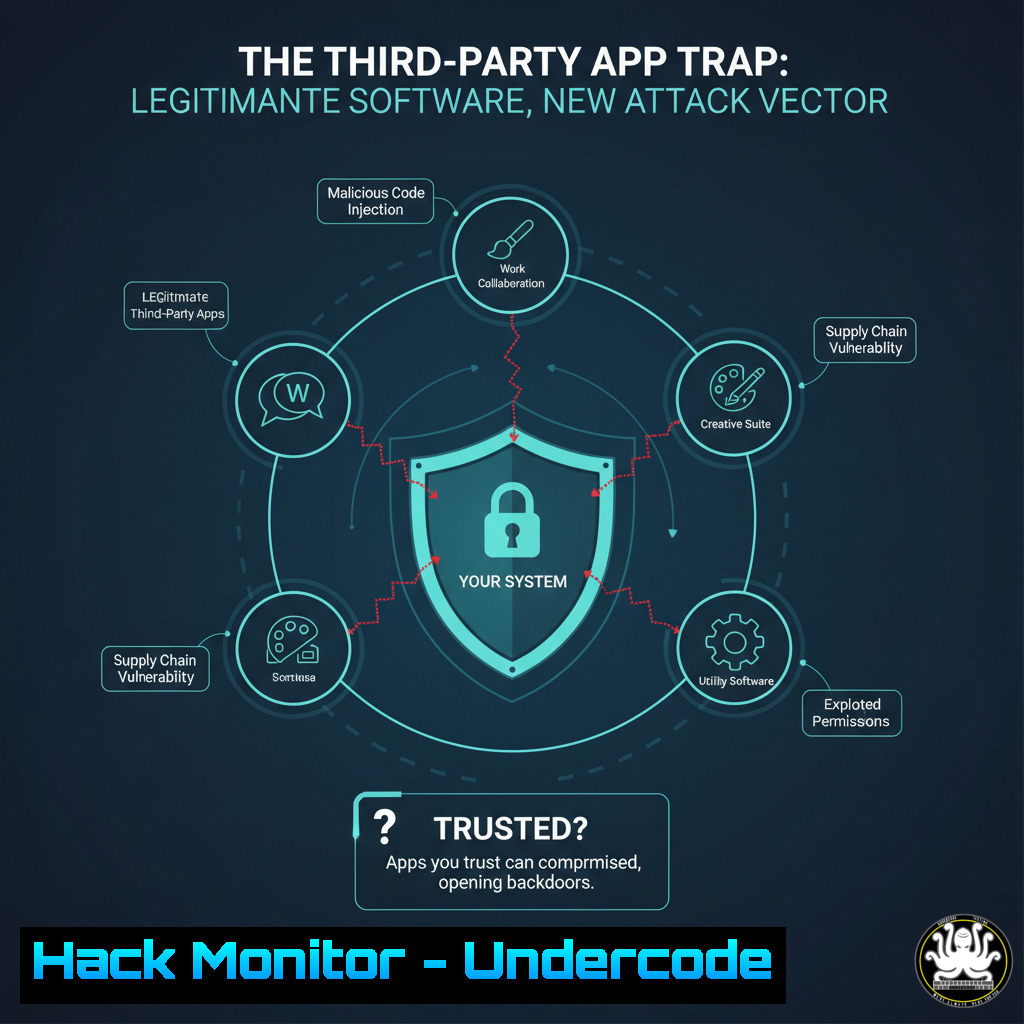
The traditional cybersecurity model often distinguishes between “malicious” and “legitimate” software, a dangerous oversimplification in today’s interconnected ecosystem. This article explores how attackers are increasingly co-opting trusted, third-party applications to deliver payloads, bypassing user skepticism and security controls. We will dissect the technical mechanisms behind these attacks and provide actionable hardening strategies.
Learning Objectives:
- Understand the attack surface presented by legitimate third-party applications.
- Learn to detect and mitigate indirect execution and supply chain attack vectors.
- Implement system and network-level controls to minimize the risk of trusted software being weaponized.
You Should Know:
1. Analyzing Application Permissions on Android
Understanding what permissions a legitimate app possesses is the first step in assessing its potential for abuse.
adb shell pm list permissions -d -g
adb shell dumpsys package [package.name] | grep -A 20 "requested permissions"
Step-by-step guide:
The `adb` (Android Debug Bridge) tool is used to interact with an Android device. The first command lists all dangerous permission groups, helping you understand the scope of what an app could potentially access if compromised. The second command dumps all information about a specific application, and we grep for the “requested permissions” section to see exactly which permissions a given app (replace `[package.name]` with e.g., com.android.chrome) has been granted. This reveals if a benign app like a browser has permissions that could be leveraged for data exfiltration or system manipulation.
2. Monitoring Process Ancestry in Windows
Detecting when a legitimate process is spawned by an unexpected parent, a common technique in living-off-the-land attacks.
Get-WmiObject -Class Win32_Process | Select-Object Name, ProcessId, ParentProcessId
 Or using PowerShell Cmdlets:
Get-CimInstance Win32_Process | select ProcessName, ProcessId, ParentProcessId
Step-by-step guide:
This PowerShell command queries the Windows Management Instrumentation (WMI) for a list of all running processes. It displays the process name, its unique Process ID (PID), and the Parent Process ID (PPID). By analyzing the parent-child relationships, you can identify anomalies—for instance, if `notepad.exe` is spawned by a script interpreter like `powershell.exe` or `cscript.exe` instead of explorer.exe, it is a significant red flag indicating potential abuse of a trusted binary.
3. Linux System Call Auditing with `auditd`
Monitor for specific, suspicious actions performed by any process, regardless of its legitimacy.
sudo auditctl -a always,exit -S execve -k PROCESS_EXEC
sudo auditctl -a always,exit -S open,openat,truncate,ftruncate -k FILE_TAMPER
sudo ausearch -k [bash] | aureport -f -i
Step-by-step guide:
The `auditd` framework is the Linux kernel’s comprehensive auditing tool. The first `auditctl` command adds a rule (-a) to always monitor exits (always,exit) from the `execve` system call (which executes programs), logging them with the key PROCESS_EXEC. The second rule monitors for file opening and truncation calls. The `ausearch` command is then used to query the logs for a specific key, and the output is piped to `aureport` to generate a human-readable file activity report. This allows you to trace which programs, including trusted ones like `curl` or tar, are performing sensitive actions.
4. Network Egress Filtering with Windows Firewall
Restrict outbound traffic for specific applications, preventing a compromised legitimate app from communicating with a C2 server.
New-NetFirewallRule -DisplayName "Block Chrome Outbound" -Program "C:\Program Files\Google\Chrome\Application\chrome.exe" -Direction Outbound -Action Block
 To list all rules:
Get-NetFirewallRule | Where-Object {$_.Enabled -eq 'True'} | Format-Table Name, DisplayName, Direction, Action
Step-by-step guide:
This PowerShell command uses the `NetSecurity` module to create a new Windows Firewall rule. The `-Program` parameter specifies the exact path to the application executable. The `-Direction Outbound` and `-Action Block` parameters ensure the application is prevented from initiating any connections to the internet. This is a critical containment strategy for applications that do not strictly require network access for their primary function, thereby neutralizing their utility as a potential payload delivery mechanism.
5. Detecting Anomalous API Usage with `strace`
Trace the system calls a Linux application makes to understand its behavior and identify malicious activity.
strace -f -e trace=network,file -o /tmp/chrome_trace.txt google-chrome
 Analyze the output for suspicious activity:
grep -e "connect" -e "openat" /tmp/chrome_trace.txt | head -20
Step-by-step guide:
The `strace` command is a powerful diagnostic and debugging utility. The `-f` option follows forked processes, crucial for modern multi-process applications like browsers. `-e trace=network,file` filters the output to show only network and file-related system calls. The output is redirected to a file for analysis. After running the application for a short period, you can use `grep` to search the trace log for suspicious patterns, such as connections to unknown IP addresses or attempts to open sensitive files outside the application’s normal profile.
6. Application Whitelisting with AppLocker
Enforce a policy that allows only authorized, signed applications to run, preventing unknown or tampered software from executing.
 Get AppLocker policy (PowerShell as Administrator):
Get-AppLockerPolicy -Effective | Export-AppLockerPolicy -Xml -FilePath C:\EffectivePolicy.xml
 Create a new rule to allow executables from %PROGRAMFILES% only:
New-AppLockerRule -Path %PROGRAMFILES% -User Everyone -Action Allow -RuleType Path
Step-by-step guide:
AppLocker is a Windows feature that provides application control policies. The first command exports the currently effective policy to an XML file for review. The second command creates a new rule that allows (-Action Allow) everyone (-User Everyone) to execute applications located within the `%PROGRAMFILES%` directory, which typically houses correctly installed software. This “default-deny” approach, when configured comprehensively, can prevent an attacker from running their own tools or from exploiting a legitimate app that has been maliciously modified on disk.
- Intercepting and Decrypting HTTPS Traffic from Mobile Apps
Analyze the network traffic of mobile applications to identify data exfiltration or communication with suspicious endpoints.Configure Burp Suite as a proxy for your device. Install Burp's CA certificate on the mobile device. Use adb to push the certificate to the system trust store (requires root): adb root adb remount adb push burp-ca-cert.cer /system/etc/security/cacerts/ adb shell chmod 644 /system/etc/security/cacerts/$(openssl x509 -inform DER -in burp-ca-cert.cer -subject_hash_old | head -1).0
Step-by-step guide:
This technique allows for deep inspection of an app’s encrypted traffic. You configure your Burp Suite proxy to listen on your network interface and set your mobile device to use your computer as its HTTP proxy. To intercept HTTPS traffic, you must install Burp’s Certificate Authority (CA) certificate on the device. The `adb` commands are used to push the certificate into the system’s trusted certificate store, which is required for many apps to respect the proxy settings and allow traffic to be decrypted. This reveals what data a legitimate app is actually transmitting.
What Undercode Say:
- The Maliciousness is in the Action, Not the Application: The binary classification of software as “good” or “evil” is obsolete. Modern defense must focus on behavior, context, and intent. A trusted app performing an unexpected action (e.g., Chrome writing a script to the temp directory) is a more critical signal than an unknown file existing on disk.
- Supply Chain is the New Front Line: The attack surface has shifted from convincing users to install blatantly malicious software to exploiting the trust already placed in ubiquitous applications. Security teams must pressure vendors to fix issues that can be triggered by other legitimate apps and must themselves implement controls that assume any software component can be turned into an attack gadget.
The core analysis revolves around the erosion of implicit trust. Security models that warn users about “unverified” apps while blindly trusting signed or popular software create a massive blind spot. The future of exploitation lies not in creating new malware, but in finding the cheapest, most reliable way to achieve a goal—often by chaining together the capabilities of already-installed, trusted applications. This makes attribution harder and detection more complex, demanding a shift from blacklisting to robust application control and behavioral monitoring.
Prediction:
The line between malicious and legitimate software will continue to blur, leading to a paradigm where “Least Privilege” evolves into “Least Functionality.” We will see a rise in security tools that focus on micro-segmentation of application capabilities at the kernel level, dynamically revoking permissions like network access or file write abilities after an app’s initial setup phase. Furthermore, vendors who dismiss vulnerabilities requiring “a malicious app” will face increasing regulatory and market pressure as these “non-malicious” supply chain attacks become the primary initial access vector for large-scale breaches.
🎯Let’s Practice For Free:
IT/Security Reporter URL:
Reported By: Valsamaras Android – Hackers Feeds
Extra Hub: Undercode MoN
Basic Verification: Pass ✅


