Listen to this Post
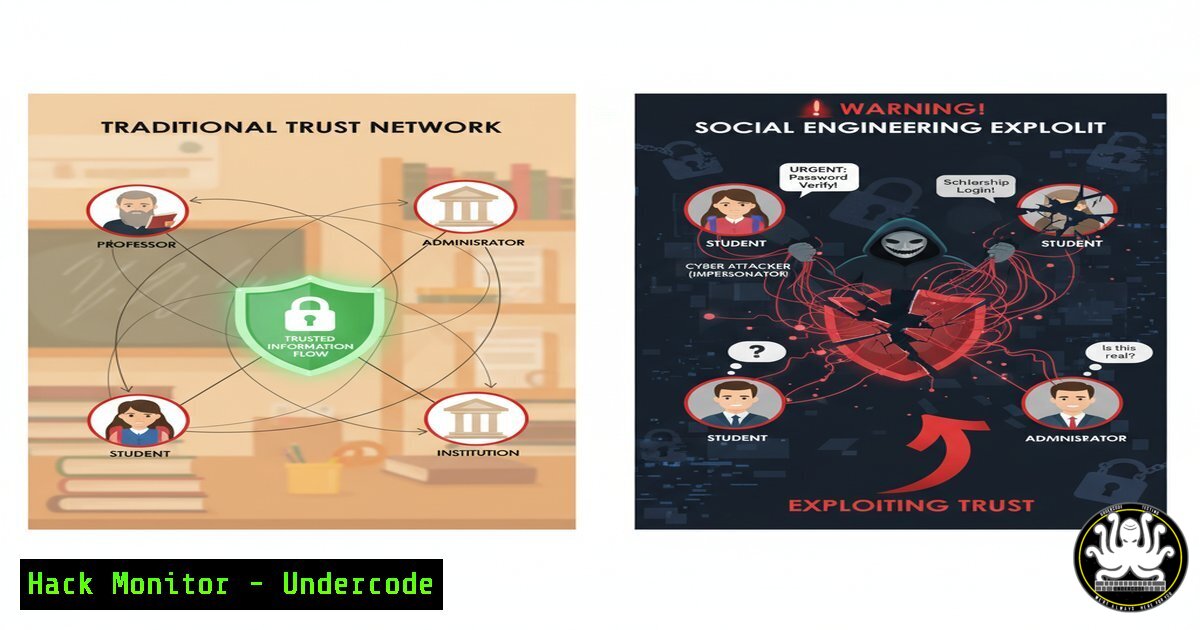
Introduction:
The digital transformation of education has created a new attack vector for cybercriminals: social engineering. By exploiting the inherent trust and humanitarian focus within the education sector, attackers deploy sophisticated phishing and impersonation campaigns. This article dissects the technical countermeasures necessary to fortify educational institutions against these manipulative threats.
Learning Objectives:
- Understand the technical mechanisms behind common social engineering attacks targeting educational staff.
- Learn to implement and verify advanced email security controls like DMARC, SPF, and DKIM.
- Develop a practical incident response plan for credential compromise and ransomware attacks.
You Should Know:
- Advanced Email Security with DMARC, SPF, and DKIM
To prevent email spoofing and domain impersonation—common in phishing attacks that mimic official communications from a school or government body.
Commands & Configurations:
View DNS TXT Record for SPF:
`dig TXT example-school.org`
Step-by-step: This Linux/macOS command queries the Domain Name System (DNS) for the Sender Policy Framework (SPF) record. The record should list all authorized IP addresses and services permitted to send email on behalf of example-school.org. A result of `v=spf1 -all` indicates no servers are authorized, while `v=spf1 include:_spf.google.com ~all` authorizes Google’s mail servers.
Analyze a DMARC Record:
`dig TXT _dmarc.example-school.org`
Step-by-step: This command retrieves the Domain-based Message Authentication, Reporting & Conformance (DMARC) policy. Look for `p=quarantine` or p=reject. A policy of `p=none` only monitors traffic, offering no active protection. The `rua` tag specifies the email address for receiving aggregate reports on email authentication results.
DKIM Record Verification:
`dig TXT selector._domainkey.example-school.org`
Step-by-step: DomainKeys Identified Mail (DKIM) uses a public key published in DNS. Replace `selector` with your mail provider’s specific selector (e.g., google). The returned record will contain the public key used to verify that an email’s content was not tampered with in transit.
2. PowerShell for Phishing Email Header Analysis
Suspicious emails require deep inspection. PowerShell can parse headers to trace an email’s origin.
Commands & Configurations:
Extract and Analyze Headers from an EML File:
`Get-Content “suspicious_email.eml” | Select-String -Pattern “Received:”`
Step-by-step: This PowerShell command reads a saved email (.eml file) and filters the output to show only the “Received” headers. Analyze these from bottom to top to trace the email’s path from origin to your inbox. Look for mismatches in the “from” domain and the originating IP’s reverse DNS.
Resolve Sender IP Reputation:
`nslookup 192.0.2.45`
Step-by-step: After identifying a suspicious sender IP from the headers, use this command to perform a reverse DNS lookup. A result from a known spammer IP block or a generic ISP can be a red flag. Cross-reference the IP with threat intelligence feeds.
3. Linux Server Hardening for Educational Portals
Web portals hosting student data or learning materials are prime targets. Harden the underlying OS.
Commands & Configurations:
Audit Open Ports with `netstat`:
`netstat -tuln`
Step-by-step: This command lists all listening ports (-l), displaying TCP (-t) and UDP (-u) ports numerically (-n). Investigate any unknown services listening on ports like 22 (SSH), 80 (HTTP), or 443 (HTTPS). Unnecessary services should be disabled.
Check for Unattended Upgrades:
`cat /etc/apt/apt.conf.d/20auto-upgrades`
Step-by-step: On Debian/Ubuntu systems, this checks if automatic security updates are enabled. The output should confirm that unattended-upgrades are active. Consistently patched systems are resilient against known vulnerabilities.
Configure UFW (Uncomplicated Firewall):
`sudo ufw allow 22/tcp && sudo ufw allow 443/tcp && sudo ufw enable`
Step-by-step: This series of commands configures the firewall to only allow SSH (port 22) and HTTPS (port 443) traffic, then enables the firewall. This minimizes the server’s attack surface.
- Active Directory Security for Faculty & Admin Accounts
Compromised faculty credentials can lead to massive data breaches. Secure the identity provider.
Commands & Configurations:
PowerShell: Find Users with Password Never Expiring:
`Get-ADUser -Filter -Properties PasswordNeverExpires | Where-Object {$_.PasswordNeverExpires -eq $true} | Select-Object Name, SamAccountName`
Step-by-step: This Active Directory PowerShell module command finds all user accounts with non-expiring passwords—a significant security risk. These accounts should be reviewed and have a password expiration policy applied.
PowerShell: Audit Domain Admins:
`Get-ADGroupMember “Domain Admins” | Select-Object name, objectClass`
Step-by-step: Regularly run this command to audit membership in the highly privileged “Domain Admins” group. Membership should be extremely restricted. The principle of least privilege is critical.
Enable PowerShell Logging (Script Block Logging):
`New-Item -Path “HKLM:\SOFTWARE\Policies\Microsoft\Windows\PowerShell\ScriptBlockLogging” -Force; Set-ItemProperty -Path “HKLM:\SOFTWARE\Policies\Microsoft\Windows\PowerShell\ScriptBlockLogging” -Name “EnableScriptBlockLogging” -Value 1`
Step-by-step: This registry command enables deep logging of all PowerShell scripts, which is essential for detecting malicious payloads often delivered via phishing emails.
5. Incident Response: Containment and Eradication
When a phishing link is clicked or ransomware is detected, immediate action is required.
Commands & Configurations:
Isolate a Compromised Windows Host from Network:
`netsh advfirewall firewall set rule name=”all” new enable=yes action=block`
Step-by-step: This command immediately enables the Windows Firewall and blocks all traffic, effectively isolating the machine to prevent lateral movement or data exfiltration. This is a critical first step in containment.
Linux Process Analysis and Termination:
`ps aux | grep -i “suspicious_process”` then `kill -9
Step-by-step: The `ps aux` command lists all running processes. `grep` is used to filter for a known malicious process name. Once the Process ID (PID) is identified, the `kill -9` command forcefully terminates it.
Block Malicious IP at the Network Perimeter:
`iptables -A INPUT -s 203.0.113.100 -j DROP`
Step-by-step: This Linux command adds a rule to the `iptables` firewall to drop all incoming packets from a specific malicious IP address identified during the incident investigation.
6. Cloud Security Hardening for Collaboration Tools
With the rise of cloud-based email and collaboration (e.g., Microsoft 365, Google Workspace), configuration is key.
Commands & Configurations:
Microsoft 365: Enable Audit Log Search (PowerShell):
`Set-AdminAuditLogConfig -UnifiedAuditLogIngestionEnabled $true`
Step-by-step: This command from the Exchange Online PowerShell module enables organization-wide audit logging. This is non-negotiable for investigating security incidents and user activity.
Check for Multi-Factor Authentication (MFA) Enforcement:
`Get-MsolUser -UserPrincipalName [email protected] | Select-Object DisplayName, StrongAuthenticationRequirements`
Step-by-step: This MSOnline PowerShell command checks the MFA status for a specific user. The output should show an active requirement. MFA is the single most effective control against credential theft from phishing.
Google Workspace: Force SSL for All Services (Admin Console):
Step-by-step: Navigate to Admin Console > Security > SSL. Ensure that “Enforce SSL for all services” is enabled. This prevents data from being sent in cleartext.
What Undercode Say:
- The Human Firewall is the First and Last Line of Defense. While advanced technical controls are non-negotiable, the most critical vulnerability remains the user. Continuous, engaging cybersecurity awareness training for all staff—from teachers to administrators—is not an expense but a core infrastructure investment.
- Identity is the New Perimeter. The traditional network boundary has dissolved. A compromised teacher’s credential can grant access to sensitive student data, financial records, and intellectual property from anywhere in the world. Security strategies must pivot to a Zero-Trust model, rigorously enforcing least privilege and multi-factor authentication on all accounts, especially those with access to cloud-based educational platforms.
Prediction:
The convergence of AI and social engineering will create a new wave of hyper-personalized, low-cost phishing campaigns. AI-powered deepfakes could be used to create fraudulent audio or video messages from principals or superintendents, instructing staff to bypass security protocols or initiate wire transfers. Educational institutions, often resource-constrained, will be disproportionately targeted. The future of educational cybersecurity will depend on pre-emptively integrating AI-driven threat detection that can analyze communication patterns and identify these synthetic impersonations in real-time, making advanced security automation a mandatory component of any school district’s IT strategy.
🎯Let’s Practice For Free:
IT/Security Reporter URL:
Reported By: F%C3%A9mi %C3%A8san – Hackers Feeds
Extra Hub: Undercode MoN
Basic Verification: Pass ✅


