Listen to this Post
Introduction:
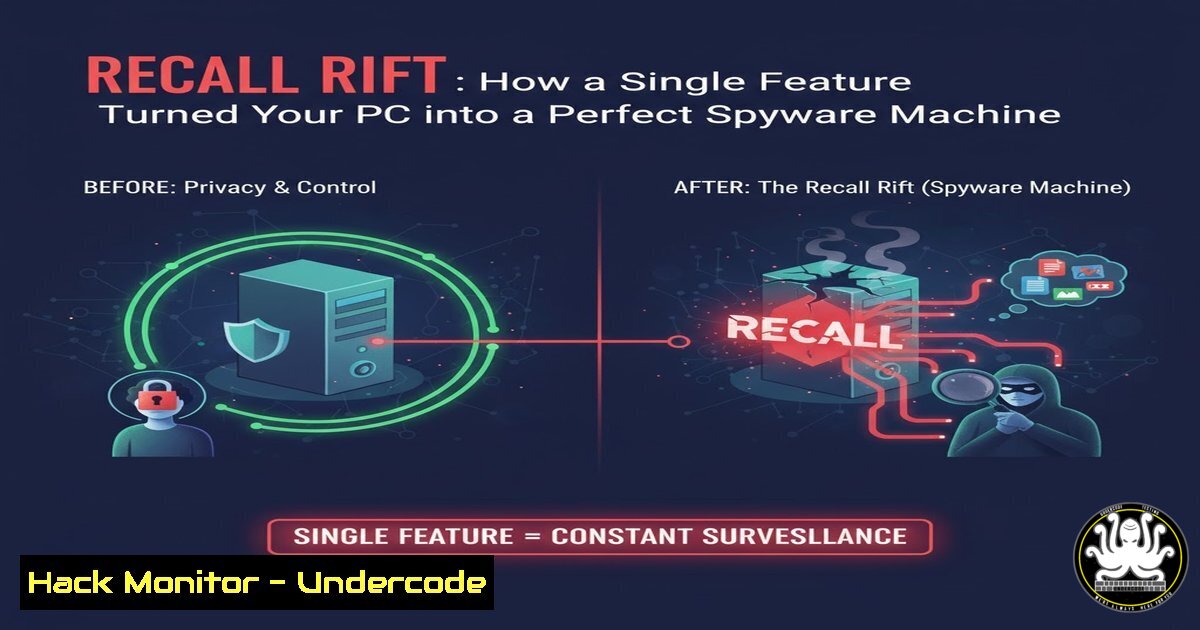
Microsoft’s Recall feature, touted as a revolutionary AI-powered photographic memory for your PC, has been exposed as a catastrophic privacy failure. Security researchers have demonstrated that the tool, which takes constant screenshots of user activity, stores this sensitive data in an unencrypted, easily accessible database. This vulnerability effectively creates a treasure trove of personal information for any malicious actor with local access, rendering standard Windows security measures null and void.
Learning Objectives:
- Understand the fundamental architecture of the Recall feature and its inherent security flaws.
- Learn how to exploit the vulnerability to extract sensitive data from a Recall database.
- Implement immediate mitigation strategies to disable Recall and secure compromised systems.
You Should Know:
- Recall’s Data Storage: The Unencrypted Vault on Your Drive
The core of the Recall vulnerability lies in its data storage mechanism. Unlike sensitive data protected by Windows Defender Credential Guard or BitLocker, Recall’s database is stored as a plaintext SQLite file. This database, named ActivityFeed.db, resides in the user’s AppData folder. The only “security” is Windows file permissions, which are trivial to bypass with local administrator access, a common prerequisite for many forms of malware.
Step-by-Step Guide to Locate the Recall Database:
- Gain Access: The attacker needs local access, either physically or via a remote shell with appropriate privileges.
- Navigate to the Directory: The Recall database is stored per user. The typical path is:
`C:\Users\
\AppData\Local\CoreAI\Databases`</h2>

<ol>
<li>Bypass Permissions (if needed): If accessing another user's folder, an admin can take ownership. This can be done via the GUI or command line:</li>
</ol>

<h2 style="color: yellow;"> Windows Command (as Administrator):</h2>

[bash]
takeown /f "C:\Users\TargetUser\AppData\Local\CoreAI" /r /d y
icacls "C:\Users\TargetUser\AppData\Local\CoreAI" /grant administrators:F /t
Linux Live USB: Booting from a Linux USB stick allows an attacker to mount the Windows drive and access the `C:\Users\
\AppData\Local\CoreAI\Databases` directory directly, completely bypassing Windows permissions.
4. Extract the Database: Copy the `ActivityFeed.db` file to a location of your choice for analysis.

<ol>
<li>Exploiting the SQLite Database: A Step-by-Step Data Heist</li>
</ol>

Once the database file is acquired, extracting the sensitive information is straightforward due to its unencrypted nature. SQLite is a lightweight, file-based database engine that can be read by numerous free tools.

<h2 style="color: yellow;">Step-by-Step Guide to Querying the Recall Database:</h2>

<ol>
<li>Acquire a SQLite Browser: Download and install a tool like DB Browser for SQLite (SQLiteBrowser) or use the command-line `sqlite3` utility, which is also available on Linux.</li>
<li>Open the Database: Launch your SQLite tool and open the `ActivityFeed.db` file.</li>
<li>Explore the Schema: Examine the database structure to identify relevant tables. The primary table of interest is often named `Activity` or similar.</li>
</ol>

<h2 style="color: yellow;"> SQL Command to List Tables:</h2>

[bash]
.tables
4. Query for Sensitive Data: Run a SQL query to extract the stored data, which includes screenshots (often stored as blobs) and text transcriptions from OCR.
SQL Command to Preview Data:
SELECT FROM Activity LIMIT 10;
To extract specific information, such as data from a particular website or application, you can use a `WHERE` clause:
SELECT FROM Activity WHERE content LIKE '%password%' OR content LIKE '%bank%';
3. The Illusion of DPAPI and Local Security
Microsoft has claimed that Recall data is encrypted using Windows Data Protection API (DPAPI). While technically true at rest, this protection is illusory. DPAPI encrypts data based on the user’s logon password. Any process running under the same user account (which includes most malware and any tool run by a local admin) can decrypt this data seamlessly. The operating system handles the decryption transparently, meaning the Recall feature, and any malicious code mimicking it, sees only plaintext.
Step-by-Step Guide to Understanding the DPAPI Bypass:
- The Context is Key: DPAPI protects data from other users on the same machine. It does not protect data from the current user or an administrator.
- Automatic Decryption: When the Recall service (or any application running in the user’s context) accesses the database, Windows automatically decrypts it using the user’s cached credentials.
- The Exploit: An attacker’s tool, run as the same user or as an admin, is granted the same automatic decryption privileges. There are no special commands needed; simply accessing the file as the user is enough. This is not a bug but a fundamental design flaw in how Recall was implemented.
-
Immediate Mitigation: How to Disable and Remove Recall
Given the severity of this flaw, the only prudent course of action is to disable the Recall feature entirely. This can be done through Group Policy, Registry Editor, or Windows PowerShell.
Step-by-Step Guide to Disabling Recall:
1. Via Windows Settings (Simplest Method):
Go to Settings > Privacy & Security > Recall & Snapshots.
Toggle “Save Snapshots” to the Off position.
Click “Delete all snapshots” to purge the existing database.
2. Via Group Policy (For Enterprise Environments):
Open the Group Policy Editor (`gpedit.msc`).
Navigate to: Computer Configuration > Administrative Templates > Windows Components > Recall.
Double-click the “Turn off Recall” policy and set it to Enabled.
3. Via Registry (For Windows Home or Scripted Deployment):
Open the Registry Editor (`regedit`).
Navigate to: `HKEY_LOCAL_MACHINE\SOFTWARE\Policies\Microsoft\Windows\CoreAI`
Create a new DWORD (32-bit) Value named TurnOffRecall.
Set its value data to `1`.
PowerShell Command to Apply Registry Change:
New-ItemProperty -Path "HKLM:\SOFTWARE\Policies\Microsoft\Windows\CoreAI" -Name "TurnOffRecall" -Value 1 -PropertyType DWORD -Force
4. Via Intune (For MDM-Managed Devices):
Create a new configuration profile using Settings Catalog.
Add the setting: Administrative Templates > Windows Components > Recall > Turn off Recall.
Set the policy to Enabled.
5. System Hardening: Beyond Disabling Recall
Disabling Recall is the first step. Organizations must also implement broader security measures to mitigate the risk of local privilege escalation and unauthorized access that would enable this exploit.
Step-by-Step Hardening Recommendations:
- Enforce the Principle of Least Privilege: Standard users should not have local administrator rights. This is the single most effective control against this class of vulnerability.
- Enable BitLocker with TPM: Full-disk encryption via BitLocker prevents an attacker from booting into a Linux Live USB to steal the database file from a powered-off machine.
- Implement Credential Guard: This makes it harder for attackers to steal and reuse credentials that would grant them access to user data stores.
- Monitor for Unusual File Access: Use Windows Defender ATP or a similar EDR solution to create alerts for processes accessing the `CoreAI\Databases` directory, especially those not signed by Microsoft.
What Undercode Say:
- A Design Flaw, Not a Bug: The Recall exploit is not a vulnerability in the traditional sense that can be patched away. It is the result of a fundamental architectural decision to prioritize functionality over security, creating a system-wide data leakage vector by design.
- The End of the “Trusted User” Model: This incident proves that features operating within the user’s context can no longer be trusted with bulk, sensitive data. Future OS-level features must be built on a Zero-Trust architecture, where access to such data is gated by explicit, continuous consent and additional authentication, even for processes running as the user.
The implications of Recall’s failure are profound. It demonstrates a catastrophic misjudgment by Microsoft regarding the modern threat landscape. By creating a centralized, searchable repository of every user action, protected only by trivial local permissions, they have effectively built a keylogger directly into the operating system. The security community’s response was swift and damning, forcing Microsoft to backtrack and announce that Recall will now be an opt-in feature with additional security checks. However, the underlying architectural flaw remains. This event will force a long-overdue industry-wide conversation about the privacy and security of AI features that require pervasive data collection at the operating system level.
Prediction:
The fallout from the Recall exploit will catalyze a significant shift in both offensive security and regulatory policy. Cybercriminals and advanced persistent threats (APTs) will rapidly incorporate tools to scrape Recall databases into their post-exploitation toolkits, making it a standard step in attacks against Windows 11 systems. This will lead to a new wave of data breaches and corporate espionage incidents. In response, regulatory bodies like the GDPR and CCPA will likely issue guidance or rulings classifying Recall data as a high-risk processing activity, placing strict consent and control requirements on its use. Microsoft and other OS vendors will be forced to abandon the “collect now, protect later” model for AI, leading to the development of new, privacy-preserving architectures like on-device federated learning and homomorphic encryption for future AI-powered features.
🎯Let’s Practice For Free:
IT/Security Reporter URL:
Reported By: Tolulopemichael Ever – Hackers Feeds
Extra Hub: Undercode MoN
Basic Verification: Pass ✅


