
Listen to this Post
Introduction:
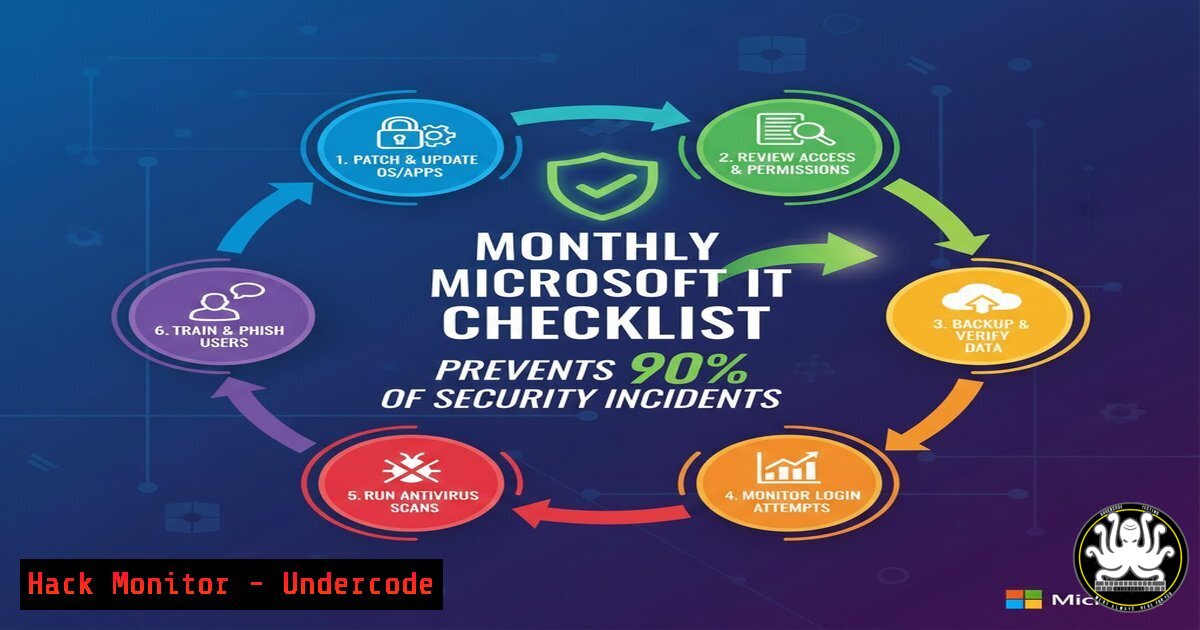
In the complex landscape of Microsoft-based IT environments, sophisticated zero-day attacks often grab headlines, but the overwhelming majority of operational disruptions and security breaches stem from neglected fundamentals. A disciplined, recurring review of core systems—from patch management to identity governance—is the most effective defense. This article deconstructs a comprehensive monthly checklist designed to institutionalize operational and security hygiene, transforming reactive firefighting into proactive stability.
Learning Objectives:
- Implement a systematic monthly review process for Microsoft infrastructure health and security.
- Execute critical validation checks for patches, Active Directory, Entra ID, and backups using native tools and commands.
- Identify and remediate common misconfigurations that lead to privilege escalation and lateral movement.
You Should Know:
1. Mastering Patch Tuesday & Update Vigilance
The monthly “Patch Tuesday” cycle is your first line of defense. Merely deploying updates is insufficient; validation is critical. You must differentiate between deployment success and actual installation, catching failures that leave systems exposed.
Step‑by‑step guide explaining what this does and how to use it.
Step 1: Review Critical & High CVEs. Visit the Microsoft Security Update Guide. Filter for products in your environment (e.g., Windows Server 2022, Windows 11) and prioritize patches rated Critical or High.
Step 2: Validate Update Installation. Use PowerShell to verify patch status. Do not rely solely on WSUS or MECM reports.
On a Windows target, run:
 Get last 20 hotfixes
Get-Hotfix | Sort-Object InstalledOn -Descending | Select-Object -First 20
 Check for a specific KB (e.g., KB5034441)
Get-Hotfix -Id KB5034441
Step 3: Identify Failed Updates. Check the Windows Update log for errors. Use the `Get-WindowsUpdateLog` PowerShell cmdlet to generate a log, or analyze the Event Log:
Get-WinEvent -FilterHashtable @{LogName='System'; ProviderName='Microsoft-Windows-WindowsUpdateClient'; ID=20,24,31} -MaxEvents 20 | Format-List TimeCreated, Message
Look for error codes 0x80070005 (access denied) or 0x800f0922 (disk space), which are common culprits.
2. Active Directory Health: The Crown Jewels
A compromised Active Directory means a compromised network. Monthly health checks focus on authentication, replication, and privilege—key attack vectors for persistence and lateral movement.
Step‑by‑step guide explaining what this does and how to use it.
Step 1: Check Domain Controller Event Logs. Look for critical errors in Kerberos, DNS, and Replication.
 Check for critical DNS errors
Get-WinEvent -FilterHashtable @{LogName='DNS Server'; Level=2} -MaxEvents 10 -ComputerName DC01
 Check for replication errors
repadmin /replsummary
Step 2: Review Privileged & Service Accounts. Identify accounts in privileged groups with non-expiring passwords or old passwords.
 Find service accounts (may be named 'svc_') in privileged groups
Get-ADGroupMember 'Domain Admins' | Get-ADUser -Properties PasswordLastSet, PasswordNeverExpires | Where-Object {$_.PasswordLastSet -lt (Get-Date).AddDays(-180)} | Select-Object Name, PasswordLastSet
Step 3: Verify GPO Application. Use `gpresult` or Group Policy Results Wizard (gpresult /h report.html) to ensure policies are applying consistently and not being overridden.
- Identity & Access: Securing Entra ID & M365
The cloud identity layer is now your primary perimeter. Monitoring sign-in logs and Conditional Access policies is non-negotiable for detecting credential-based attacks.
Step‑by‑step guide explaining what this does and how to use it.
Step 1: Analyze Sign-in Logs. In the Microsoft Entra admin center, review Sign-in logs for risky sign-ins (location anomalies, impossible travel, unfamiliar IPs). Focus on administrative accounts.
Step 2: Conditional Access Audit. Navigate to Protection > Conditional Access > Policies. Verify no policies are in “Report-only” mode indefinitely that should be enforcing MFA. Check for any policies applying to deprecated “All users” groups that include guest accounts.
Step 3: Block Legacy Authentication. Use the Azure AD Sign-ins log, filter by Client app, and select Other clients, IMAP, POP3, SMTP. Any successes here indicate legacy auth is still enabled and must be blocked via Conditional Access policy.
4. Security Baseline Hardening
This is about reducing the attack surface through consistent configuration and least-privilege principles, targeting common post-exploitation paths.
Step‑by‑step guide explaining what this does and how to use it.
Step 1: Hunt Local Admin Sprawl. Use PowerShell to inventory local administrators across endpoints (requires remoting enabled).
Invoke-Command -ComputerName (Get-ADComputer -Filter {OperatingSystem -like "Windows 10"}).Name -ScriptBlock {Get-LocalGroupMember -Group "Administrators"} -ErrorAction SilentlyContinue | Select-Object PSComputerName, Name
Step 2: Enforce MFA for Privileged Roles. In Entra ID > Roles and administrators, select each privileged role (Global Admin, SharePoint Admin, etc.). Under Assignments, verify all members have strong authentication methods registered. Flag any without MFA.
Step 3: Identify Dormant Accounts. Find accounts not used in the last 90 days but still enabled.
Search-ADAccount -AccountInactive -TimeSpan 90.00:00:00 -UsersOnly | Where-Object { $_.Enabled -eq $true }
5. Backup & Recovery Validation
A backup is only as good as its last successful restore. This process validates data integrity and recovery procedures.
Step‑by‑step guide explaining what this does and how to use it.
Step 1: Verify Backup Job Success. Go beyond the green checkmark. In your backup software (e.g., Veeam), review logs for warnings about skipped files, VSS errors, or throttling. Check for consistent backup sizes; a sudden drop may indicate corruption.
Step 2: Perform a Restore Test. Monthly, perform a granular file restore from a randomly selected server. For critical systems (like Domain Controllers), schedule a quarterly full VM recovery test to an isolated network. Document the recovery time objective (RTO) achieved.
6. Endpoint & Network Vigilance
This ensures your detective and preventive controls on endpoints and network perimeters are active and correctly configured.
Step‑by‑step guide explaining what this does and how to use it.
Step 1: Check Defender / AV Health. On a sample of endpoints, run:
 Check if Defender is enabled and definitions are updated
Get-MpComputerStatus | Select-Object AntivirusEnabled, AntivirusSignatureLastUpdated, LastFullScanTime
Step 2: Audit Firewall Rule Drift. Compare current firewall rules against a known-good baseline. On a critical server, export rules: netsh advfirewall firewall show rule name=all > firewall_baseline.txt. Diff against the previous month’s export to spot unauthorized changes.
Step 3: Review Device Inventory. In Intune or SCCM, identify devices that haven’t checked in for over 30 days. Investigate and remove stale records to maintain an accurate asset inventory.
What Undercode Say:
- Process Over Tools: The supreme value of this checklist is not in any single tool but in the institutionalization of a repeatable process. Automation can accelerate it, but human review and accountability are irreplaceable.
- Prevention is Cheaper Than Cure: The 80/20 rule applies overwhelmingly in IT operations. Investing time in these foundational checks prevents the vastly more costly and stressful all-hands-on-deck incident response scenarios.
- Analysis: This checklist represents a mature shift from reactive to proactive IT management. It systematically closes the gaps that real-world attackers—not Hollywood hackers—actually exploit: stale credentials, unpatched known vulnerabilities, misconfigured permissions, and untested recovery plans. By dedicating a focused day each month to these operational fundamentals, teams can dramatically reduce their “noise” and free up cycles for strategic work, while simultaneously elevating their security posture to defend against all but the most targeted advanced threats. It turns good IT theory into daily practice.
Prediction:
The future of such operational checklists lies in their integration with AI-driven IT operations (AIOps) platforms. Predictive analytics will proactively highlight the checklist items most likely to fail based on historical data and environmental changes (e.g., automatically flagging servers with a history of patch failures before Patch Tuesday). Furthermore, the principles will expand beyond Microsoft to hybrid cloud environments, with automated compliance checks for infrastructure-as-code templates and cloud identity configurations. The manual validation steps will evolve into human-in-the-loop approvals for AI-generated remediation actions, making the monthly review a strategic oversight function rather than a manual audit.
🎯Let’s Practice For Free:
IT/Security Reporter URL:
Reported By: Sami Khalil – Hackers Feeds
Extra Hub: Undercode MoN
Basic Verification: Pass ✅


