
Listen to this Post
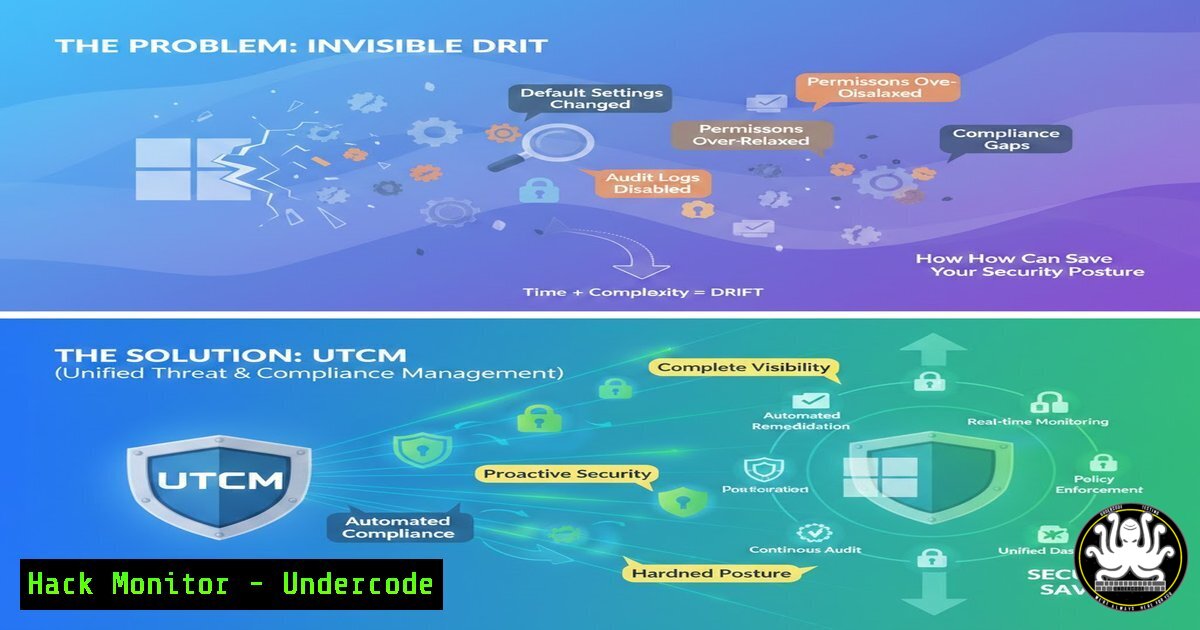
Introduction:
In the sprawling ecosystem of Microsoft 365, security is only as strong as its most misconfigured service. Unified Tenant Configuration Management (UTCM) emerges as a critical cybersecurity framework, leveraging Microsoft Graph to provide a declarative, centralized command center for detecting dangerous configuration drift across Entra ID, Defender, Intune, and Purview. This article deconstructs UTCM’s role in enforcing and auditing Zero Trust principles across the entire tenant.
Learning Objectives:
- Understand the core architecture of UTCM and its integration with Microsoft Graph for security posture management.
- Learn to implement automated configuration snapshots and drift detection for critical security policies.
- Develop scripts to remediate common high-risk configuration drifts in identity and endpoint security.
You Should Know:
- Architecting Your UTCM Foundation: Permissions and Initial Snapshot
The power of UTCM is unlocked through Microsoft Graph API. Before you can govern, you must establish the proper identity and capture your initial baseline. This process involves granting robust permissions and creating a declarative snapshot of your desired state.
Step‑by‑step guide explaining what this does and how to use it.
First, an Azure AD app registration with appropriate API permissions is required. The `Policy.ReadWrite.ConditionalAccess` and `DeviceManagementConfiguration.ReadWrite.All` are examples of high-privilege permissions needed. Use PowerShell with the Microsoft Graph module to authenticate and capture your first baseline.
 Connect to Microsoft Graph with necessary scopes
Connect-MgGraph -Scopes "Policy.Read.All", "DeviceManagementConfiguration.ReadWrite.All", "Directory.Read.All"

Use Microsoft Graph Beta endpoint to explore UTCM resources
 Example: List available configuration areas
Get-MgBetaDirectorySettingTemplate | Format-List Id, DisplayName
This script establishes the connection. The real work is in defining a JSON template that represents your secure baseline for a service, which can then be posted to the UTCM endpoint (`https://graph.microsoft.com/beta/tenant/conditionalAccess`).
- Hunting for Identity Drift: Conditional Access and MFA Policies
Configuration drift in Entra ID Conditional Access policies or weakening of Multi-Factor Authentication (MFA) settings is a primary attack vector. UTCM allows you to continuously compare the live state against your secured baseline to detect unauthorized changes.
Step‑by‑step guide explaining what this does and how to use it.
Create a PowerShell script that fetches the current Conditional Access policies and compares them to a stored golden configuration. Use the `Invoke-MgGraphRequest` cmdlet for direct API calls.
 Fetch current Conditional Access policies
$livePolicies = Invoke-MgGraphRequest -Method GET -Uri "https://graph.microsoft.com/v1.0/identity/conditionalAccess/policies"
 Load your baseline from a secure JSON file
$baseline = Get-Content -Path "./baseline_ca_policies.json" | ConvertFrom-Json
 Simple comparison logic (expand for production)
Compare-Object -ReferenceObject $baseline -DifferenceObject $livePolicies.value -Property displayName, state
Any difference in `state` (e.g., from `enabled` to disabled) or in included users/exclusions should trigger a high-severity alert.
- Securing the Endpoint: Monitoring Intune Compliance Policy Deviations
A device falling out of compliance due to a policy change or drift can introduce a vulnerable asset into your network. UTCM provides visibility into Intune’s device compliance and configuration policy state, enabling detection of weakened security controls like disabled BitLocker or firewall rules.
Step‑by‑step guide explaining what this does and how to use it.
Leverage the `deviceManagement/intents` Graph API to monitor the settings within your security baselines. The following command lists all managed device intents and their settings.
 Get device configuration intents (security baselines)
$intents = Invoke-MgGraphRequest -Method GET -Uri "https://graph.microsoft.com/beta/deviceManagement/intents"
 Drill into a specific intent's settings
$intentId = $intents.value[bash].id
$intentSettings = Invoke-MgGraphRequest -Method GET -Uri "https://graph.microsoft.com/beta/deviceManagement/intents/$intentId/settings"
Automate the validation that critical settings, like `requireFirewall` or bitLockerEncryption, have not been changed from their enforced values.
- Automating Detection and Alerting with Azure Logic Apps
Manual checks are insufficient. Building an automated pipeline using Azure Logic Apps or PowerShell runbooks is essential for continuous monitoring. This workflow fetches UTCM drift data and routes alerts to Microsoft Sentinel, Teams, or a SIEM.
Step‑by‑step guide explaining what this does and how to use it.
Create a Logic App with a recurring trigger (e.g., every 6 hours). Use the HTTP action to call the UTCM Graph API endpoint for a specific scenario, like checking admin role assignments. Parse the response and add a condition to check if the `hasDrift` property is true. If drift is detected, use the “Send an HTTP request to Sentinel” action (via Log Analytics Data Collector API) or the Teams “Post a message” action to fire an alert. This creates a closed-loop detection system without manual intervention.
- Hardening the Cloud: Tracking Defender for Endpoint ASR Rule Changes
Attack Surface Reduction (ASR) rules in Microsoft Defender for Endpoint are a last line of defense against script-based attacks and ransomware. An accidental or malicious rule change can have catastrophic consequences. UTCM allows you to monitor the configuration state of these critical rules.
Step‑by‑step guide explaining what this does and how to use it.
ASR configurations are part of the device management security baselines. Extend your monitoring scripts to specifically query and validate these rules. Use the Microsoft Graph security API or the device management intents to extract the current ASR rule set.
 Example: Query a specific security baseline template for ASR settings (Conceptual)
$securityBaseline = Invoke-MgGraphRequest -Method GET -Uri "https://graph.microsoft.com/beta/deviceManagement/templates?`$filter=displayName eq 'Windows 10 Security Baseline'"
 Further drill down into the template categories and settings to find ASR rules.
Maintain a list of critical ASR rules (e.g., “Block executable content from email client and webmail”) and verify their state is set to “Block” or “Audit” as per your policy.
- Remediation as Code: Restoring Drifted Configurations via Graph API
Detection is only half the battle. For predictable, high-risk drifts, automated remediation should be enacted. Using Graph API’s `PATCH` or `POST` methods, you can write scripts that restore a configuration to its compliant state.
Step‑by‑step guide explaining what this does and how to use it.
When drift is detected in a Conditional Access policy disabling MFA for a user group, a remediation script can automatically re-enable it. Caution: This requires careful testing in audit/log-only mode first.
 Example remediation: Ensure a specific CA policy is enabled (Pseudo-Code)
$problemPolicyId = "POLICY_ID_HERE"
$remediationBody = @{ "state" = "enabled" } | ConvertTo-Json
 Uncomment to execute remediation:
 Invoke-MgGraphRequest -Method PATCH -Uri "https://graph.microsoft.com/v1.0/identity/conditionalAccess/policies/$problemPolicyId" -Body $remediationBody
Implement a approval workflow or a mandatory audit log before enabling full automated remediation for production environments.
What Undercode Say:
- The Perimeter is Now Configurational: The most critical attack surface is no longer just your network boundary; it’s the mutable configuration of your SaaS services. UTCM provides the essential “version control” for your security posture.
- Automate or Be Breached: In environments of scale, manual reviews of policy settings are a fantasy. UTCM’s value is fully realized only when integrated into automated CI/CD pipelines for security policy, enabling continuous compliance.
+ analysis around 10 lines.
UTCM represents a paradigm shift from siloed, reactive security management to a unified, proactive, and declarative model. It treats security configurations as code, allowing for the same rigor of testing, deployment, and rollback as application code. However, its power necessitates strict access control to the underlying Graph API permissions, as they become a high-value target for attackers. The framework is not a silver bullet but a force multiplier for security teams willing to invest in the engineering effort to define secure baselines and build automated detection and response loops around them. Failing to implement such a system leaves organizations blind to insidious drift that inevitably weakens their defenses.
Prediction:
The adoption of frameworks like UTCM will become non-negotiable for compliance and cyber insurance in the cloud-first era. We will see its principles extend beyond Microsoft 365 into multi-cloud management platforms, giving rise to “Cross-Cloud Configuration Governance” as a standard security offering. Simultaneously, threat actors will increasingly develop techniques to manipulate or poison these configuration baselines directly, making the security of the Graph API itself and the integrity of the golden snapshot a new frontline in cyber defense. The future of enterprise security lies in the automated governance of configuration state.
▶️ Related Video (76% Match):
🎯Let’s Practice For Free:
IT/Security Reporter URL:
Reported By: Danieldukic Utcm – Hackers Feeds
Extra Hub: Undercode MoN
Basic Verification: Pass ✅


