
Listen to this Post
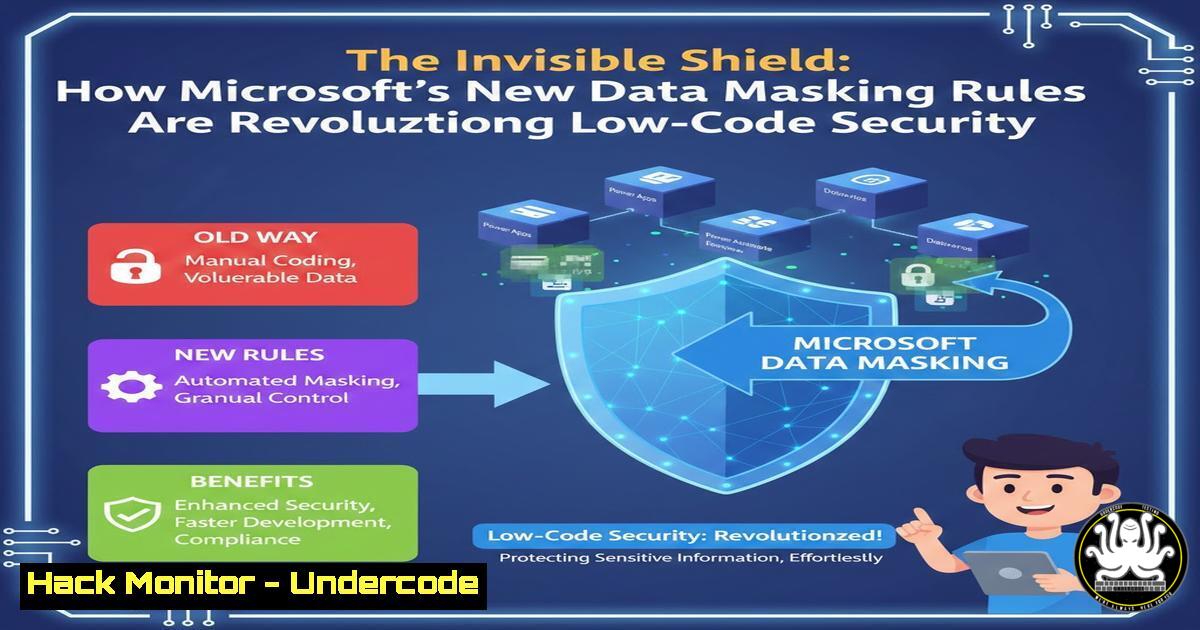
Introduction:
In the era of low-code democratization, securing sensitive data has become a paramount challenge. Microsoft Power Platform’s Dataverse now integrates granular masking rules, allowing developers to obfuscate information like emails and credit card numbers directly at the column level. This native capability bridges the critical gap between robust security and seamless user experience, ensuring that sensitive data is protected without disrupting business workflows.
Learning Objectives:
- Understand the core functionality and use cases for Dataverse masking rules.
- Learn how to integrate masking rules with existing column-level security for a defense-in-depth strategy.
- Master the step-by-step process to configure and apply masking rules to protect PII and financial data.
- What Are Masking Rules and Why Do They Matter?
Masking rules are a declarative security feature within Microsoft Dataverse that dynamically obfuscates sensitive data in real-time within model-driven and canvas apps, based on the user’s security role. Unlike static data encryption that requires decryption for viewing, masking provides a partial, readable hint of the data—such as “[email protected]”—while keeping the full value secure. This is crucial for compliance with regulations like GDPR and CCPA, where preventing unauthorized exposure of Personal Identifiable Information (PII) is mandatory, yet data usability for legitimate users must be maintained.
2. The Synergy: Masking Rules and Column-Level Security
Masking rules do not operate in isolation; they are designed to work in concert with Dataverse’s column-level security (CLS). CLS controls whether a user can read or write to a specific column. A masking rule adds a layer on top of read permission. For instance, a helpdesk agent might have read access to a “CreditCard_Number” column (necessary for some verification tasks), but a masking rule can be applied to their security role to display only the last four digits. This principle of least privilege is enforced by first checking CLS permissions, then applying the mask if read access is granted.
3. Step-by-Step Guide: Implementing a Basic Email Mask
Let’s walk through protecting an email column in a “Customer” table.
1. Environment: Navigate to the Power Platform Admin Center (https://admin.powerplatform.microsoft.com) and select your target environment.
2. Table & Column: Open the Tables hub, select your `Customer` table, and go to the `Schema` section. Choose the `Email` column (or create one of type “Email”).
3. Create Masking Rule: In the column properties, select “Masking rules” from the command bar.
4. Configure Rule: Click “+ New rule”. Provide a name (e.g., “Mask Email Except Last 3 Chars”).
5. Define Pattern: Select the masking type. For email, a custom pattern is often needed. You might use a format like @{first character of domain}. The UI provides a builder for this.
6. Assign Security Roles: The core step is to assign this rule to specific security roles (e.g., “Basic User”, “Sales Representative”). Users with these roles will see the masked data. Roles with higher privilege, like “System Administrator,” are excluded and will see the full email.
7. Publish: Save and publish the rule. The mask applies immediately in all Dataverse-connected UIs.
4. Advanced Configuration: Custom Masks for Financial Data
For complex data like credit card numbers, you need precise control. Dataverse allows for regular expression (regex)-based masking.
1. Create Rule for Credit Card Column: Follow steps 1-4 above for your `CreditCard_Number` column (which should be a text field with a format pattern).
2. Select Custom Mask Type: Choose “Custom” and use the Regex builder.
3. Apply Regex Pattern: To show only the last four digits, you could use a pattern like `(\d{4})$` to capture the last four digits and a masking format like $1. This would transform `4111111111111111` into 1111.
4. Role Assignment: Assign this rule to all non-financial roles. Ensure roles like “Accounts Manager” are excluded from the rule to see the full number for processing.
- API and Data Export Considerations: The Mask’s Limits
It is critical to understand that masking is a UI-layer protection within the Power Platform context. The mask is not applied to the underlying data in the database. If a user with a masking role queries the Dataverse table directly via the Web API (e.g., using a tool like Postman or in a custom plug-in), they will retrieve the full, unmasked data if their CLS grants read access. Similarly, exporting data via the “Export to Excel” feature from a view will export the raw data.
Mitigation: This reinforces the need for a layered strategy. Use CLS to strictly deny read access for users who should never see the raw data under any circumstance. Reserve masking for scenarios where a partial view is legitimate (e.g., verification). Always audit direct API access and data export permissions.
6. Monitoring and Governance of Masking Rules
As your application scales, managing masking rules becomes a governance task.
1. Audit Logs: Use the Microsoft Purview compliance portal or the Unified Audit Log to track configuration changes to masking rules (“New-MaskingRule” and “Update-MaskingRule” activities).
2. Solution Awareness: Always create and manage masking rules within a solution (e.g., “My App Security Components”). This allows for lifecycle management (development, test, production) and easy deployment across environments.
3. Testing Protocol: Establish a mandatory testing procedure where security roles are tested from a non-admin account to verify masks apply correctly before rolling out to production.
What Undercode Say:
- Security as a Feature, Not an Afterthought: This move embeds enterprise-grade data protection directly into the low-code fabric, shifting security left in the development lifecycle. It empowers citizen developers to build compliant apps by default.
- The Illusion of Full Protection: Teams must be rigorously trained that masking is not encryption or a substitute for core CLS. Its primary value is in mitigating incidental exposure in user interfaces, not securing data against determined programmatic extraction by authorized users.
Prediction:
The introduction of native masking rules signals Microsoft’s commitment to making low-code platforms viable for Tier-1 business applications handling sensitive data. We predict this will accelerate the adoption of Power Platform in highly regulated industries like finance and healthcare. The next logical evolution will be context-aware masking, where the applied mask dynamically changes based on user location, device, or a real-time risk score from Microsoft Entra ID. Furthermore, expect these declarative security models to begin influencing downstream data flows, such as applying masks automatically within Power BI reports or exported datasets, closing the current API and export gap and creating a truly end-to-end low-code security paradigm.
▶️ Related Video (82% Match):
🎯Let’s Practice For Free:
IT/Security Reporter URL:
Reported By: Arvind Khadye – Hackers Feeds
Extra Hub: Undercode MoN
Basic Verification: Pass ✅


