
Listen to this Post
Introduction:
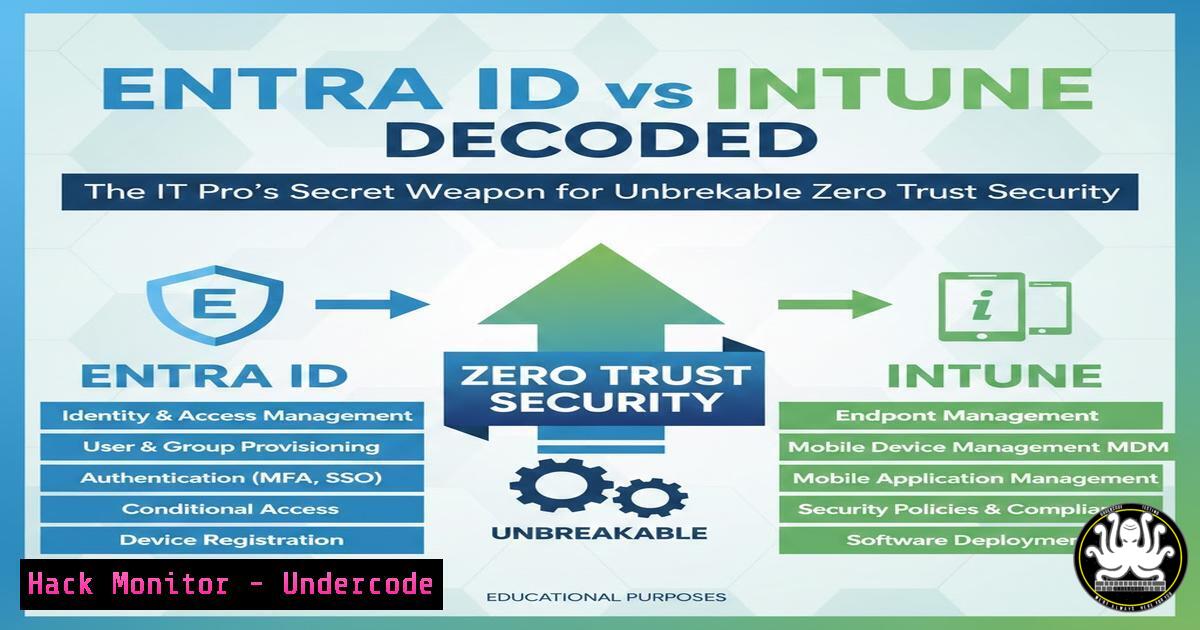
In the modern cloud-centric enterprise, security is no longer defined by a single perimeter but by the seamless integration of identity and device management. Microsoft’s Entra ID (formerly Azure AD) and Microsoft Intune form the critical backbone of this strategy, transforming how organizations authenticate users and secure endpoints. Understanding their distinct yet interconnected roles is essential for implementing robust frameworks like Zero Trust and achieving compliance with standards such as ISO 27001.
Learning Objectives:
- Differentiate the core functions of Microsoft Entra ID (Identity and Access Management) and Microsoft Intune (Unified Endpoint Management).
- Configure foundational Conditional Access policies using Entra ID P1 to enforce security based on user, device, and risk.
- Deploy basic compliance and application management policies via Intune to govern corporate and personal devices.
- Integrate Entra ID with an on-premises Active Directory to enable hybrid identity.
- Automate a simple security response by connecting Intune device compliance to Entra ID access controls.
You Should Know:
- Identity is the New Perimeter: Mastering Entra ID Fundamentals
Entra ID is your cloud identity authority. It authenticates users (who you are) and authorizes access (what you’re allowed to do). Beyond basic syncing, its power is unlocked with Entra ID P1 licensing, primarily through Conditional Access.
Step-by-step guide:
- Enable Password Hash Synchronization from On-Prem AD: This is the foundation of hybrid identity. Run this on your Azure AD Connect server:
In the Azure AD Connect configuration wizard, select "Customize synchronization options."
Ensure "Password Hash Synchronization" is selected. Alternatively, via PowerShell:
Set-ADSyncAADPasswordSyncConfiguration -Enable $true
- Enforce Multi-Factor Authentication (MFA) for Admins: Go to Microsoft Entra admin center > Protection > Conditional Access > Create new policy.
Name: `[Require MFA for Admins]`
Users: Select “Directory roles,” choose “Global Administrator.”
Cloud apps: Select “All cloud apps.”
Conditions: Typically left at defaults for this policy.
Grant: Select “Grant access,” check “Require multifactor authentication.” Set “Require all selected controls.”
Enable policy: Set to On. Click Create.
- Governing Devices with Intune: Compliance as a Gatekeeper
Intune manages the “device” half of the security equation. A device must prove it’s healthy (compliant) before being granted access to resources. Compliance policies define these health rules.
Step-by-step guide:
- Create a Device Compliance Policy (Windows): Navigate to Intune admin center > Devices > Compliance policies > Create policy.
Platform: Windows 10 and later
Profile Name: `[Win10 – Baseline Compliance]`
Settings: Configure key requirements:
System Security:
Require a password to unlock mobile devices: Yes
Minimum password length: `8`
Require BitLocker: Yes (for devices with fixed drives).
Device Health:
Require Windows Defender Antivirus: Yes
Require device to be at or under the machine risk score: Low
Click Create.
- The Magic of Integration: Conditional Access Based on Device Compliance
This is where Entra ID and Intune create a powerful security loop. You can block access from devices that Intune marks as non-compliant.
Step-by-step guide:
- Create a Conditional Access Policy for Compliant Devices: In Entra admin center > Conditional Access.
Name: `[Grant access only from Intune Compliant Devices]`
Users and groups: Include target users (e.g., “All users”).
Cloud apps or actions: Include critical apps like “Microsoft 365 Exchange Online” and “Microsoft SharePoint Online”.
Conditions > Device platforms: Include “Windows”.
Grant: Select “Grant access”, check “Require device to be marked as compliant”. Set “Require all selected controls.”
Enable policy: On. Click Create.
- Test: Register a Windows device in Intune. If it meets the compliance policy, access to Outlook is granted. If it fails (e.g., BitLocker off), access is blocked.
-
Securing Hybrid Environments: Entra ID Connect Health and P1 Features
For organizations with on-premises Active Directory, Entra ID P1 provides crucial hybrid identity features and monitoring.
Step-by-step guide:
- Monitor Hybrid Identity Infrastructure: In the Entra admin center, search for and open “Azure AD Connect Health.” It provides dashboards for AD FS, Sync, and AD DS, showing alerts, performance metrics, and usage analytics.
- Implement Hybrid Join with Conditional Access: Ensure devices are Azure AD Hybrid Joined. Then, create a CA policy that grants access only to these domain-joined, corporate-managed devices for sensitive applications.
5. Application Management and Protection with Intune
Intune goes beyond the OS to manage and protect the applications themselves, especially on mobile devices.
Step-by-step guide:
1. Deploy and Protect a Line-of-Business App (Android):
Upload your `.apk` file to Intune > Apps > All apps > Add.
App type: “Line-of-business.”
Assign the app to a user group.
Create an App Protection Policy (APP) (Apps > App protection policies > Create policy).
Target to: “Android.”
Data Protection Settings: Set “Cut, copy, and paste with other apps” to “Policy managed apps” to prevent data leakage.
Access Requirements: Set “PIN for access” to Required.
6. Automated Remediation: The Proactive Security Loop
Intune can automatically attempt to fix non-compliant settings, reducing helpdesk tickets.
Step-by-step guide:
- Create a Remediation Script (Windows): In Intune > Devices > Remediations > Create script package.
Upload a PowerShell detection script (e.g., checks if a specific security registry key is set correctly).
Upload a remediation script (e.g., sets the registry key to the secure value).
Assign it to the same group as your compliance policy. Intune will run these scripts periodically to enforce the desired state.
What Undercode Say:
- Convergence is Key: The true power lies not in Entra ID or Intune alone, but in their strategic integration. Conditional Access policies that evaluate device compliance create a dynamic, context-aware security boundary that is far more resilient than static firewall rules.
- P1 is Non-Negotiable for Modern Security: Attempting to implement a Zero Trust model without Entra ID P1’s Conditional Access is fundamentally limited. It is the engine that enables risk-based, granular access decisions.
The analysis provided correctly frames the core concepts but understates the operational complexity. While “Entra ID manages identities, Intune manages devices” is a perfect mantra, the devil is in the detailed configuration—misconfigured Conditional Access can lock out an entire department, and overly aggressive compliance policies can render user devices unusable. The future of this stack is increased automation (like Remediations) and deeper AI-driven risk detection feeding directly into access decisions, moving from “is the device compliant?” to “what is the real-time risk of this specific access request?” Mastery of these tools is less about knowing each console and more about architecting these intelligent, automated workflows that secure without hindering productivity.
▶️ Related Video (78% Match):
🎯Let’s Practice For Free:
IT/Security Reporter URL:
Reported By: Aashish Pandey – Hackers Feeds
Extra Hub: Undercode MoN
Basic Verification: Pass ✅


