Listen to this Post
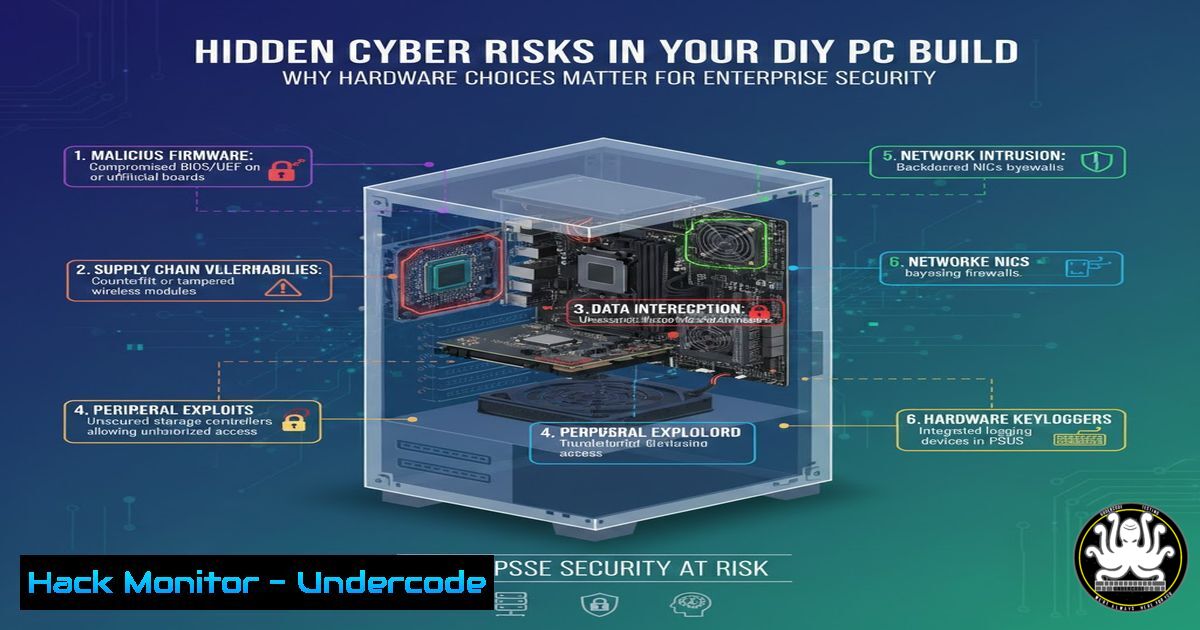
Introduction:
The personal journey of building a PC, as shared by IT professionals on LinkedIn, transcends a simple hobby and reveals critical, often overlooked, cybersecurity and IT management principles. From BIOS vulnerabilities introduced during assembly to supply chain risks in component selection, the hands-on process of creating a dual-boot system provides a powerful analogy for enterprise security hardening. This article deconstructs the common pitfalls of a DIY build into actionable lessons for securing modern IT infrastructure against hardware-level threats.
Learning Objectives:
- Identify and mitigate firmware-level vulnerabilities during system provisioning.
- Understand the supply chain and compatibility risks inherent in hardware selection.
- Implement secure configurations for complex system setups, such as dual-boot environments.
You Should Know:
- The BIOS/UEFI Firmware: Your First and Most Critical Attack Surface
The initial “victory” of a successful POST (Power-On Self-Test) is a major milestone in any PC build. However, this moment represents the activation of the system’s firmware—the foundational software that initializes hardware before the operating system loads. Outdated or vulnerable firmware (BIOS/UEFI) is a prime target for sophisticated attacks, such as rootkits and bootkits, which can persist even after an OS reinstall. As highlighted in the LinkedIn thread, compatibility issues (like a Ryzen 5500X requiring a BIOS update) are not just inconveniences; they are indicators of a critical security process that, if done incorrectly, can expose the system to exploitation.
Step‑by‑step guide for Secure BIOS/UEFI Management:
- Identify Current Firmware: Before updating, document the current version. In Windows, open `System Information` (
msinfo32.exe) and look for “BIOS Version/Date.” In Linux, use the terminal command:sudo dmidecode -t bios. - Source the Update Securely: Never download firmware from third-party or forum links. Go directly to the motherboard manufacturer’s official support website. Verify the file’s integrity using provided checksums (SHA-256).
- Prepare the Update: Most motherboards allow updating via a USB flash drive. Format the drive with FAT32. Place the downloaded CAP/ROM file on the root directory. Some systems support internet-based updates within the UEFI settings—prefer this method if available for authenticity.
- Execute the Update: Enter the UEFI/BIOS setup (usually by pressing Del or F2 during boot). Use the dedicated firmware update tool (often called “Q-Flash,” “EZ Flash,” or “M-Flash”). Select the file from your USB drive.
- Post-Update Hardening: After updating, navigate to the security settings within the UEFI. Enable Secure Boot to ensure only digitally signed operating system loaders can start. Set a supervisor/administrator password for the UEFI to prevent unauthorized configuration changes.
-
Motherboard Compatibility and the Hardware Supply Chain Attack Vector
Selecting a CPU and motherboard is about more than just socket compatibility (like AM4 or LGA1700). It involves trusting a complex, global supply chain. As the DomainTools article details, each component decision—from the chipset to the network adapter—introduces a potential risk. Motherboards with vulnerable firmware, backdoored network controllers, or compromised driver software can serve as a permanent foothold for an attacker. The recommendation to avoid “used,” “open box,” or “refurbished” components is a direct supply chain security control to prevent the introduction of tampered hardware.
Step‑by‑step guide for Vetting and Hardening Motherboard Components:
- Research Before Purchase: Before buying, search for the motherboard model number alongside keywords like “CVE,” “vulnerability,” and “security advisory.” Check the manufacturer’s website for a security advisories section.
- Isolate and Update: Upon first boot, before connecting to the internet, install the operating system. Then, download all latest drivers directly from the manufacturer’s website onto a trusted system and transfer them via USB. This prevents initial communication with potentially compromised update servers.
- Harden Onboard Peripherals: In the UEFI/BIOS, disable any onboard hardware you do not strictly need (e.g., legacy serial/parallel ports, unused SATA controllers). This reduces the attack surface.
- Audit Network Adapters: Identify your network interface. In Windows PowerShell, run:
Get-NetAdapter | Format-List Name, DriverDescription, DriverVersion. In Linux, use:lspci | grep -i network. Research the specific driver for known issues. -
Implement Network Segmentation: In a corporate environment, place newly built or provisioned systems on an isolated, monitored network segment until they can be fully validated and patched.
-
Thermal Management and System Stability: A Security Foundation
The DomainTools article emphasizes the non-negotiable need for thermal paste and a proper CPU cooler. From a security perspective, an overheated system is an unstable system. Thermal throttling can cause erratic behavior, while a full system crash can lead to data corruption or unexpected reboots—events that can be exploited during the restart process or that can interrupt critical security services like encryption, logging, or endpoint protection.
Step‑by‑step guide for Monitoring System Health as a Security Control:
1. Establish a Baseline: After assembly, use tools to record normal operating temperatures. In Linux, install and use lm-sensors: run sudo sensors-detect, then sensors. In Windows, use a tool like HWMonitor.
2. Enable Hardware Alerts: Configure the system BIOS/UEFI to alert or shut down if critical temperatures are exceeded (this setting is often found under “Hardware Monitor” or “PC Health”).
3. Integrate Monitoring: For enterprise systems, integrate hardware health metrics into your central monitoring (e.g., SNMP traps for system temperature, fan speed, and voltage). Anomalies can indicate cooling failure or a malicious workload.
4. Script a Response: Create a simple script to log and alert on thermal events. Example for Linux that logs a warning:
!/bin/bash
TEMP=$(sensors | grep 'Package id 0' | awk '{print $4}' | sed 's/[+°C]//g' | cut -d'.' -f1)
if [ $TEMP -gt 80 ]; then
logger -p syslog.warn "CPU temperature is critically high: $TEMP°C"
 Add additional actions like throttling a process or sending an alert
fi
- Electrostatic Discharge (ESD): The Physical Threat to Your Hardware Security
The warning about ESD in the DomainTools article is a direct lesson in physical security. A static discharge can cause latent damage to components like the CPU, RAM, or network controller. This damage may not cause immediate failure but can lead to intermittent faults, bit errors in memory, or corrupted firmware operations over time. These subtle faults can manifest as unexplained system crashes or data errors, complicating forensic investigations and undermining system integrity.
Step‑by‑step guide for Implementing an ESD-Safe Workspace:
- Prepare the Environment: Work on a clean, hard surface. Avoid carpets. Use an ESD mat connected to a proper ground point.
- Use Proper Equipment: Wear an ESD wrist strap. Clip it to the bare metal of the computer case or the ground point of the mat. Before touching any component, touch the case to equalize potential.
- Handle Components Safely: Always hold components like RAM, NVMe drives, and GPUs by their edges. Never touch the gold contacts or soldered components.
- Store Components Properly: Keep unused components in their anti-static bags until the moment they are installed.
-
Securing a Dual-Boot Environment: Partitioning and Bootloader Hardening
The LinkedIn post’s constraint of a dual-boot Windows/Linux system creates a unique security challenge. Two operating systems mean two sets of services, two potential entry points, and a shared bootloader that becomes a single point of failure. An unsecured bootloader can be manipulated to bypass authentication or to boot a malicious OS image.
Step‑by‑step guide for Hardening a Dual-Boot Setup:
- Plan Secure Partitioning: During installation, use separate partitions for each OS. Also, create a dedicated partition for shared data that is formatted in a universally readable format (e.g., exFAT), but do not make it automatically mount.
- Encrypt Each OS: Enable full-disk encryption for both operating systems (BitLocker for Windows, LUKS for Linux). Use strong, unique passwords for each.
- Secure the Bootloader (GRUB): If using GRUB, set a password to prevent editing boot entries at startup. First, generate a password hash:
grub-mkpasswd-pbkdf2
Then, add the following to `/etc/grub.d/40_custom`:
set superusers="admin"
password_pbkdf2 admin <generated-hash>
Finally, update GRUB: `sudo update-grub`.
- Disable Inter-OS Boot: In the system BIOS/UEFI, disable booting from other devices (USB, network) to prevent booting alternative OSes without authorization. Set a BIOS password as previously instructed.
- Isolate Networks: Consider using different network profiles or firewall rules for each OS to limit the lateral movement of threats if one system is compromised.
What Undercode Say:
Key Takeaway 1: The assembly process is a microcosm of enterprise system provisioning, where firmware integrity, supply chain trust, and physical security are not ancillary concerns but the bedrock of a secure system. Ignoring these “hardware-level” details creates exploitable gaps that no software firewall can close.
Key Takeaway 2: A dual-boot system doubles the administrative and security burden. It requires a deliberate strategy for encryption, bootloader security, and resource segmentation to prevent a compromise in one environment from jeopardizing the other. This mirrors the challenge of securing complex, multi-OS corporate networks.
Analysis: The discourse around DIY PC building, from the nerves of the first boot to the technical debates on parts, reveals a profound truth for cybersecurity: total system security is an end-to-end chain. A vulnerability at the lowest layer—the firmware, the hardware supply chain, or even the physical assembly process—invalidates protections at higher layers. The DomainTools article, while framed as a practical guide, implicitly argues for a “secure-by-design” and “secure-by-provenance” approach. For IT and security professionals, this translates to extending security policies and audits down to the hardware procurement and imaging process. The skills learned from meticulously building a PC—patience, research, attention to detail, and respect for foundational processes—are the exact skills required to harden an enterprise against today’s advanced, persistent threats that target these very layers.
Prediction:
The future of cybersecurity will see a significant rise in hardware and firmware-focused attacks, moving further down the stack as software defenses improve. Supply chain compromises targeting specific motherboard components or GPU firmware will become more commonplace. In response, enterprise security frameworks will evolve to mandate hardware bills of materials (HBOMs), cryptographic verification of firmware at boot (building on technologies like Intel PTT/AMD fTPM), and physically tamper-evident seals on critical infrastructure. The amateur PC builder’s ritual of carefully applying thermal paste and grounding themselves will find its professional parallel in certified secure hardware handling and provisioning procedures, making hardware hygiene as critical a discipline as network hygiene is today.
▶️ Related Video (76% Match):
🎯Let’s Practice For Free:
IT/Security Reporter URL:
Reported By: Paulmockapetris Dad – Hackers Feeds
Extra Hub: Undercode MoN
Basic Verification: Pass ✅


