
Listen to this Post
Introduction:
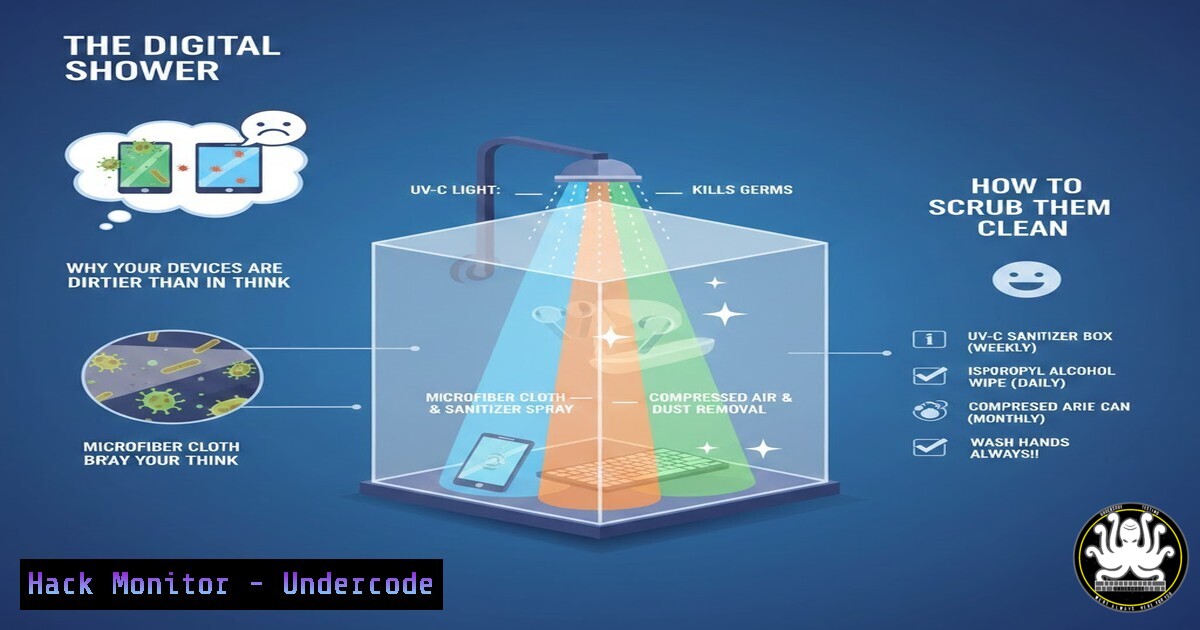
In the cybersecurity world, we often discuss sophisticated attacks, zero‑day exploits, and nation‑state hacking campaigns. Yet the vast majority of breaches stem from something far more mundane: poor digital hygiene. Just as neglecting to wash your hands can invite physical illness, neglecting your devices invites malware, data theft, and identity compromise. This article transforms the concept of “cyber hygiene” from a motivational metaphor into a technical, actionable routine—complete with commands, tools, and configurations to keep your digital body truly healthy.
Learning Objectives:
- Understand the technical components of a comprehensive cyber hygiene routine across Windows, Linux, and mobile platforms.
- Learn to execute specific command‑line and GUI‑based scans, updates, and permission audits.
- Implement automated scripts and scheduled tasks to maintain ongoing device health.
- Identify and remediate common misconfigurations that act as “digital bacteria.”
You Should Know:
- The Full System Scan: More Than Just an Antivirus Check
A proper hygiene routine begins with a deep inspection of your device’s vital signs. This means moving beyond simple antivirus scans to examine running processes, startup entries, and hidden persistence mechanisms.
Windows:
Open PowerShell as Administrator and run the following commands to uncover hidden threats and unnecessary services:
 List all running processes with their associated services and network connections
Get-Process | Where-Object { $_.CPU -gt 10 } | Format-Table -AutoSize
netstat -ano | findstr ESTABLISHED

Check for suspicious scheduled tasks that could be malware persistence
schtasks /query /fo LIST /v | findstr /i "virus malware suspicious"

Perform an offline Windows Defender scan for rootkits
Start-MpScan -ScanType CustomScan -ScanPath C:\ -DisableRemediation -Force
Linux (Ubuntu/Debian):
Use a combination of native tools and open‑source scanners:
 Check for rootkits with rkhunter
sudo apt update && sudo apt install rkhunter -y
sudo rkhunter --check --skip-keypress

List all listening ports and associated processes
sudo ss -tulpn | grep LISTEN

Examine systemd services for unauthorized entries
systemctl list-units --type=service --all | grep -E 'loaded|failed'
Step‑by‑step: Run these scans weekly. If you detect unknown processes, investigate their file paths and digital signatures. Use `Process Explorer` (Windows) or `lsof` (Linux) to dig deeper.
2. Patch Management: Closing the Doors to Infection
Unpatched software is the equivalent of leaving your front door wide open. Automate and verify your update status.
Windows:
 Check for missing updates and install them silently
Get-WindowsUpdate -MicrosoftUpdate -AcceptAll -Install -AutoReboot

Review update history for failed patches
Get-WUHistory | Where-Object { $_.Result -eq 'Failed' }
Linux:
 Automated update script for Debian-based systems
sudo apt update && sudo apt upgrade -y
sudo apt autoremove -y
sudo apt autoclean

For enterprise, use unattended-upgrades
sudo dpkg-reconfigure unattended-upgrades
Mobile (iOS/Android): Enable automatic updates and manually check monthly. On Android, verify Google Play Protect is active.
- Permission Auditing: The Apps That Shouldn’t Have Access
Many infections occur because apps request—and receive—far more permissions than they need.
Windows:
Check app permissions via Settings > Privacy & security. From PowerShell, list all apps with camera or microphone access:
Get-AppxPackage | Get-AppxPackageManifest | Select-Object -ExpandProperty Capabilities
Android (via ADB):
adb shell pm list packages -f
adb shell dumpsys package <package_name> | grep permission
Revoke unnecessary permissions manually or use tools like Bouncer.
iOS: Go to Settings > Privacy and review each category. Pay special attention to “Tracking” and “Location Services.”
- Network Hygiene: Scanning for Rogue Devices and Open Ports
Your home network is the bloodstream of your digital body. A rogue IoT device or open port is like an unattended wound.
Using Nmap (cross-platform):
 Scan your local network for unknown devices
nmap -sn 192.168.1.0/24

Perform a deep port scan on your own machine
nmap -sS -sV -p- 127.0.0.1
Windows PowerShell alternative:
Test-NetConnection -ComputerName 192.168.1.1 -Port 445
Router‑level: Log into your router and review the DHCP client list. Disable WPS, ensure WPA3 is enabled, and change default admin credentials.
5. Browser Cleanup: Wiping Digital Fingerprints
Browsers store cookies, cache, and extensions—many of which can be exploited or track you.
Manual cleanup:
- Clear browsing data (cookies, cache) weekly.
- Review extensions and remove any unused or suspicious ones.
Using command line (Chrome/Chromium):
 On Linux, delete the entire cache folder
rm -rf ~/.cache/google-chrome/
 On Windows, use PowerShell
Remove-Item -Path "$env:LOCALAPPDATA\Google\Chrome\User Data\Default\Cache" -Recurse -Force
For privacy‑hardened browsing, consider using uBlock Origin, Privacy Badger, and enable HTTPS‑Only mode.
- Password and Credential Hygiene: The First Line of Defense
Stale or reused passwords are digital cavities. Rotate them and audit your accounts.
Using PowerShell to check for exposed passwords (via HaveIBeenPwned API):
$hash = Get-FileHash -Path "C:\path\to\passwordfile.txt" -Algorithm SHA1
Invoke-RestMethod -Uri "https://api.pwnedpasswords.com/range/$($hash.Hash.Substring(0,5))"
Enable and enforce MFA wherever possible. Use a password manager and generate unique, complex passwords.
7. Backup Verification: Your Digital Immune System
Ransomware can strike at any time. A clean, verified backup is your recovery mechanism.
Windows:
 Create a system image backup
wbadmin start backup -backupTarget:E: -include:C: -allCritical -quiet
Linux (using rsync):
 Incremental backup to external drive
rsync -av --delete /home/user/ /mnt/backup/home/
Test your backups monthly by restoring a few critical files.
What Undercode Say:
- Cyber hygiene is not a one‑time event—it is a continuous, scheduled process requiring the same discipline as physical hygiene.
- Automation is your ally. Scripts and scheduled tasks ensure consistency and reduce human error.
- Visibility is prevention. Knowing what runs on your devices and what connects to your network is the first step to securing them.
- The analogy of digital dirt is powerful: malware, trackers, and misconfigurations accumulate silently. Regular scrubbing removes them before they cause systemic infection.
In essence, cyber hygiene transforms abstract security concepts into tangible daily actions. By implementing the commands and routines above, you move from being a passive user to an active defender of your own digital health. The “digital shower” isn’t optional—it’s essential maintenance for anyone living an online life.
Prediction:
As IoT devices proliferate and remote work solidifies, the attack surface for individuals will expand dramatically. The concept of “cyber hygiene” will evolve from a personal responsibility to a regulated standard, with ISPs and device manufacturers required to enforce baseline hygiene checks. We will see the rise of automated “digital health monitors”—software that continuously scans, updates, and reports on device hygiene, much like modern cars alert drivers to maintenance needs. The future of personal cybersecurity lies not in reacting to breaches, but in preventing them through automated, daily hygiene routines.
▶️ Related Video (74% Match):
🎯Let’s Practice For Free:
IT/Security Reporter URL:
Reported By: Https: – Hackers Feeds
Extra Hub: Undercode MoN
Basic Verification: Pass ✅


