Listen to this Post
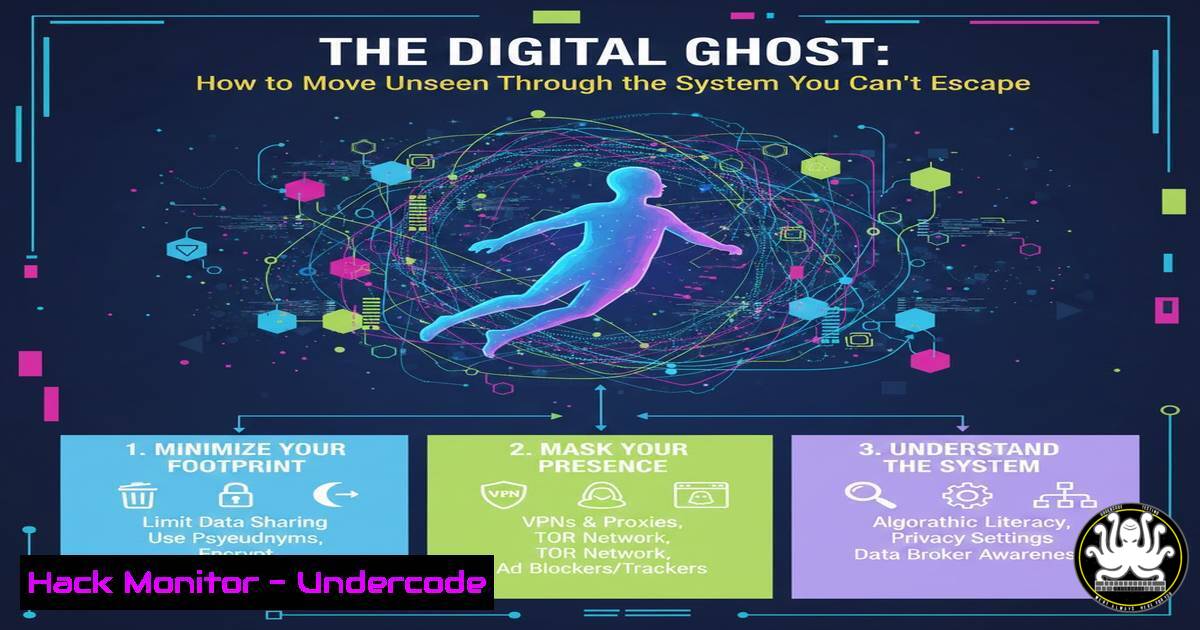
Introduction:
In our hyper-connected era, total disconnection from digital systems is a fantasy of the past. The real power lies not in rebellion, but in mastering the art of operational security (OpSec) and digital anonymity to navigate these systems on your own terms. This article provides a technical roadmap for security professionals and privacy-conscious individuals to reclaim autonomy within the pervasive digital fabric, transforming from a tracked user into a deliberate, unseen operator.
Learning Objectives:
- Understand and implement core OpSec principles to minimize your digital footprint across common platforms and services.
- Deploy and utilize practical tools for anonymity, including VPNs, private browsing sessions, and secure communication channels.
- Harden your personal and professional systems against tracking and unauthorized access through configuration and monitoring.
You Should Know:
1. Mastering the Basics of Operational Security (OpSec)
Operational Security is the foundational process of protecting individual pieces of data that could be grouped together to reveal a larger picture of your activities or identity. It’s about thinking like an adversary to identify and control your own sensitive information.
Step‑by‑step guide explaining what this does and how to use it.
Step 1: Threat Modeling: Define what you’re protecting (e.g., personal identity, client data, research), from whom (e.g., corporations, threat actors, automated scanners), and the consequences of failure.
Step 2: Segmentation: Avoid using the same identity across different services. Use unique email aliases for different accounts (e.g., using services like SimpleLogin or AnonAddy). Never use social media credentials to log into unrelated professional or financial services.
Step 3: Least Privilege: On your own systems, especially Linux, never run as root. Use a standard user account and employ `sudo` for commands requiring elevated privileges. This limits the damage from a mistaken command or a malware infection.
Example: Create a new user: `sudo adduser newusername`
Add user to sudo group: `sudo usermod -aG sudo newusername`
Switch to that user: `su – newusername`
- Becoming a Network Ghost with VPNs and Proxies
Your IP address is a unique identifier that links your online activity directly to your physical location and Internet Service Provider. Using a Virtual Private Network (VPN) or a proxy chain obscures your real IP, routing your traffic through an intermediary server.
Step‑by‑step guide explaining what this does and how to use it.
Step 1: Choose a Reputable VPN Provider: Select a provider with a verified no-logs policy, strong encryption (e.g., WireGuard or OpenVPN), and independent security audits.
Step 2: Install and Configure: Use the provider’s client or configure the connection manually. On Linux, you can often use the command line for a more lightweight setup.
Example for connecting to a WireGuard VPN via command line (after configuring the `.conf` file):
`sudo wg-quick up /path/to/your/config.conf`
Step 3: Verify Your Anonymity: Always test for DNS and WebRTC leaks after connecting. Websites like `ipleak.net` will show you if your real IP is still exposed.
3. Locking Down Communication with Encryption
Unencrypted communication is like sending a postcard—anyone handling it can read the contents. End-to-end encryption (E2EE) ensures only the intended recipient can decrypt and read the message.
Step‑by‑step guide explaining what this does and how to use it.
Step 1: Encrypted Messaging: Use applications like Signal or WhatsApp (when E2EE is enabled for chats) for personal and sensitive professional communication.
Step 2: Encrypted Email: For email, use PGP (Pretty Good Privacy). Tools like GPG (GNU Privacy Guard) allow you to generate keys and encrypt/sign messages.
Generate a PGP key pair: `gpg –full-generate-key`
Export your public key: `gpg –armor –export [email protected] > mypubkey.asc`
Encrypt a file for a recipient: `gpg –encrypt –recipient [email protected] secret_document.txt`
Step 3: Encrypted Storage: Use full-disk encryption on your devices (e.g., BitLocker on Windows, FileVault on macOS, or LUKS on Linux).
4. Hardening Your Web Browser Against Tracking
The browser is your primary window to the digital world and the biggest source of tracking via cookies, fingerprints, and scripts. Hardening it is critical.
Step‑by‑step guide explaining what this does and how to use it.
Step 1: Use a Privacy-Focused Browser: Brave or Firefox with heavy customization are strong choices.
Step 2: Install Essential Extensions:
uBlock Origin: An efficient ad-blocker that also blocks many trackers.
Privacy Badger: From the EFF, it learns and blocks invisible trackers.
HTTPS Everywhere: Forces websites to use a secure HTTPS connection.
Step 3: Harden Firefox Configurations: Access `about:config` and tweak key settings to resist fingerprinting and enhance privacy (e.g., `privacy.resistFingerprinting` set to true).
5. System Hardening for Windows and Linux
A default installation of any OS is often permissive for usability. Hardening involves tightening security configurations to reduce the attack surface.
Step‑by‑step guide explaining what this does and how to use it.
For Windows (Using Command Line/PowerShell):
Disable SMBv1 (an old, vulnerable protocol): `Disable-WindowsOptionalFeature -Online -FeatureName SMB1Protocol`
Enable Windows Defender Firewall: `Set-NetFirewallProfile -Profile Domain,Public,Private -Enabled True`
Check for open ports: `netstat -an | findstr LISTENING`
For Linux:
Configure the Uncomplicated Firewall (UFW): `sudo ufw enable` then `sudo ufw default deny incoming` and sudo ufw default allow outgoing.
Check for listening ports: `ss -tulpn`
Disable unused services: `sudo systemctl disable servicename` & `sudo systemctl stop servicename`
6. Proactive Monitoring and Auditing
You cannot defend what you cannot see. Actively monitoring your systems for unauthorized access or changes is the final piece of active defense.
Step‑by‑step guide explaining what this does and how to use it.
Step 1: Audit Logins (Linux): Regularly check authentication logs.
View recent logins: `last`
Check for failed login attempts: `sudo grep “Failed password” /var/log/auth.log`
Step 2: File Integrity Monitoring: Use tools like AIDE (Advanced Intrusion Detection Environment) to take a snapshot of your system files and alert you to changes.
Initialize the database: `sudo aideinit`
Run a check: `sudo aide –check`
Step 3: Monitor Network Connections: Use a tool like Wireshark for deep packet inspection or simpler command-line tools for a quick overview.
List all network connections: `netstat -tulpn` (Linux) or `Get-NetTCPConnection` (PowerShell)
What Undercode Say:
- True digital autonomy is not achieved by a single tool but by a layered, disciplined practice of OpSec that becomes second nature. The goal is to blend in, not to stand out as a “paranoid” user.
- The knowledge gap is the new class divide. Those who understand and can manipulate the underlying protocols of our digital world hold immense power over those who only know how to consume the interface. Continuous, self-directed learning in IT and cybersecurity is no longer a hobby; it is a core life skill for maintaining sovereignty.
Prediction:
The tension between convenience and autonomy will intensify, leading to a stratified digital society. The “masses” will increasingly rely on AI-curated digital experiences that are seamless but utterly opaque and controlling. In response, a counter-culture of “digital craftspeople” will emerge, leveraging open-source tools, decentralized protocols (like the Fediverse), and advanced adversarial AI to audit, bypass, and exist independently within these systems. The next major frontier of hacking will not be just breaking into systems, but systematically deconstructing and subverting the pervasive AI-driven behavioral control systems that are being built today.
🎯Let’s Practice For Free:
IT/Security Reporter URL:
Reported By: Theonejvo There – Hackers Feeds
Extra Hub: Undercode MoN
Basic Verification: Pass ✅


