Listen to this Post
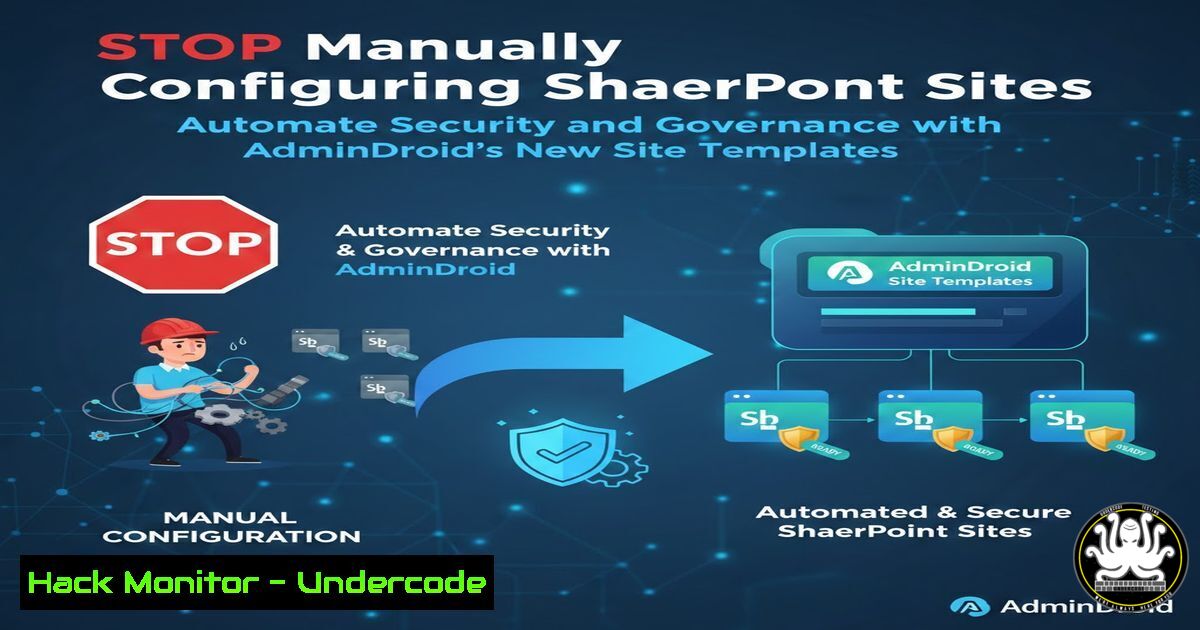
Introduction:
For 25 years, SharePoint has been the backbone of enterprise collaboration, but its administrative complexity has often led to security gaps. Every new site traditionally requires manual configuration of external sharing, privacy, and permissions—a repetitive process prone to human error. With the introduction of governance-focused Site Templates in AdminDroid, organizations can now automate these settings, ensuring consistent security policies from day one.
Learning Objectives:
- Understand the security risks associated with manual SharePoint site provisioning.
- Learn how to implement AdminDroid Site Templates to enforce governance automatically.
- Explore PowerShell commands and best practices for hardening SharePoint Online environments.
You Should Know:
- The Governance Gap in Manual SharePoint Site Creation
When an admin creates a new SharePoint site, they must manually toggle dozens of settings: external sharing policies (Anyone, Existing Guests, or Only People in Your Organization), privacy (Public or Private), default link permissions (View or Edit), and resharing controls. This manual process is not only time-consuming but also dangerous—one misclick can expose sensitive data to external users. For example, a site intended for internal collaboration might accidentally be set to “Anyone with the link” if the admin rushes through the configuration. Such misconfigurations are a leading cause of data leaks in Microsoft 365 environments. The lack of standardization also creates audit nightmares, as each site may have a unique security posture.
2. Introducing AdminDroid Site Templates: A Governance-First Approach
AdminDroid’s new Site Templates eliminate this risk by embedding governance into the site creation workflow. Three pre-built templates address common use cases:
– Client Collaboration Site: Enables external sharing but restricts it to authenticated users (not “Anyone”), sets default links to “View only,” and applies strict resharing controls.
– Re-sharing Restricted Site: Allows internal collaboration but blocks users from sharing content externally—ideal for projects with intellectual property.
– Confidential Site: Locks down everything: no external sharing, private group membership only, and default links set to “Specific people.”
Step‑by‑step guide to using AdminDroid templates:
- Log into AdminDroid and navigate to the SharePoint Site Templates section.
- Select a template based on your site’s risk level.
- Enter the site name and description.
- Click Create—AdminDroid automatically applies all governance settings (privacy, sharing permissions, link types) during site provisioning.
- Verify the site’s configuration via the AdminDroid dashboard or native SharePoint admin center.
3. Automating SharePoint Security with PowerShell
For organizations that prefer scripting, PowerShell can replicate similar governance controls. Below are commands to configure a site with enterprise-grade security:
 Connect to SharePoint Online
Connect-SPOService -Url https://yourtenant-admin.sharepoint.com

Create a new site collection with specific settings
New-SPOSite -Url "https://yourtenant.sharepoint.com/sites/ConfidentialProject" -Owner "[email protected]" -StorageQuota 5000 -Template "STS3" - "Confidential Project"

Apply governance settings
Set-SPOSite -Identity "https://yourtenant.sharepoint.com/sites/ConfidentialProject" -SharingCapability Disabled -DefaultSharingLinkType Internal -DefaultLinkPermission View -DisableCompanyWideSharingLinks

Restrict resharing
Set-SPOSite -Identity "https://yourtenant.sharepoint.com/sites/ConfidentialProject" -DisableSharingForNonOwners $true
These commands ensure the site cannot be shared externally, links default to internal view-only, and only owners can share. This approach can be wrapped into a function to create reusable templates.
4. Comparing Manual vs. Automated Security Benefits
| Aspect | Manual Configuration | Automated Templates/PowerShell |
|–|-|–|
| Time per site | 10–15 minutes | 30 seconds |
| Error rate | High (human oversight) | Near zero |
| Audit consistency | Varies per admin | Uniform across all sites |
| Compliance | Difficult to enforce | Guaranteed by policy |
Automation not only saves hours each week but also ensures that every new site aligns with your organization’s security baseline.
5. Best Practices for SharePoint Online Security
- External Sharing: Use “Existing Guests” rather than “Anyone” links. Require guests to sign in and set link expiration.
- Default Link Permissions: Always default to “View” and “Specific people” to prevent oversharing.
- Conditional Access: Integrate with Azure AD to require MFA for accessing sensitive sites.
- Sensitivity Labels: Apply labels via PowerShell to enforce encryption or watermarking on documents. Example:
Set-SPOSite -Identity <SiteURL> -SensitivityLabel <LabelGUID>
- Regular Audits: Use AdminDroid’s reporting to monitor external sharing activities and identify anomalies.
- Integrating with Microsoft 365 Compliance and Sensitivity Labels
Sensitivity labels can further harden SharePoint sites. For instance, a “Highly Confidential” label can automatically encrypt documents and restrict access to specific users. To assign a label via PowerShell:Set-SPOSite -Identity "https://yourtenant.sharepoint.com/sites/Confidential" -SensitivityLabel "9f1d3c6a-8b7e-4d2a-9f0c-3e5a8b1c2d7e"
AdminDroid templates can also incorporate label assignments, ensuring that sites are not only governed by sharing settings but also protected by Microsoft Information Protection.
7. Monitoring and Auditing SharePoint Activity
After deploying automated governance, continuous monitoring is essential. Use AdminDroid’s detailed reports to track:
– External sharing invitations and their status.
– Changes to site permissions.
– Sites with “Anyone” links.
For custom auditing, query the Unified Audit Log via PowerShell:
Search-UnifiedAuditLog -StartDate (Get-Date).AddDays(-30) -EndDate (Get-Date) -RecordType SharePointSharingOperation -ResultSize 5000
This helps detect if any site deviates from the defined governance model.
What Undercode Say:
- Key Takeaway 1: Automating site provisioning with governance templates eliminates configuration drift and reduces the attack surface by ensuring every new site adheres to security policies from inception.
- Key Takeaway 2: Tools like AdminDroid bridge the gap between Microsoft’s native capabilities and practical administrative needs, enabling consistent security posture without requiring custom scripting.
The shift from manual to automated governance is not just a convenience—it’s a security imperative. As SharePoint evolves into a hub for external collaboration, misconfigurations become the primary vector for data leaks. By leveraging AdminDroid’s templates or PowerShell automation, organizations can enforce least privilege, reduce human error, and maintain compliance. The future of SharePoint administration lies in policy-as-code, where security settings are defined, deployed, and audited automatically, freeing admins to focus on strategic initiatives rather than repetitive clicks.
Prediction:
As SharePoint continues to mature, we’ll see deeper integration of AI-driven governance recommendations—such as Microsoft’s Purview suggesting sensitivity labels based on content analysis. Tools like AdminDroid will likely evolve to offer predictive analytics, flagging sites at risk of oversharing before incidents occur. The next frontier is automated remediation: when an anomaly is detected (e.g., a confidential site suddenly allowing external sharing), the system could automatically revert the change and notify the admin. This proactive, self-healing approach will define the next generation of SharePoint security.
▶️ Related Video (80% Match):
🎯Let’s Practice For Free:
IT/Security Reporter URL:
Reported By: Pavithra Pavee – Hackers Feeds
Extra Hub: Undercode MoN
Basic Verification: Pass ✅


