
Listen to this Post
Introduction:
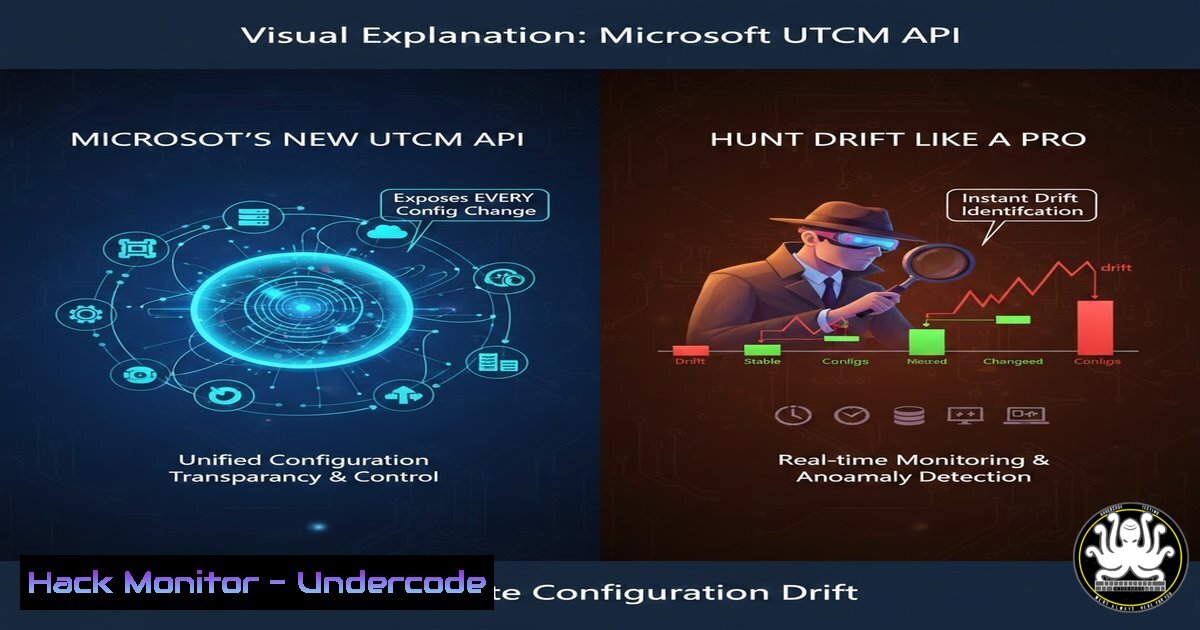
Microsoft’s introduction of the Unified Tenant Configuration Management (UTCM) APIs in Microsoft Graph Beta marks a paradigm shift in cloud tenant governance. This suite enables security teams and administrators to programmatically capture, baseline, and monitor configuration state across 114 resource types spanning Entra ID, Exchange Online, Teams, Intune, and Security & Compliance. Moving beyond manual checks and siloed tools, this API provides a single pane of glass for detecting malicious or accidental configuration drift that could lead to security breaches or compliance failures.
Learning Objectives:
- Understand the architecture and security implications of Microsoft’s UTCM API for tenant governance.
- Learn to authenticate and use the Microsoft Graph Beta endpoints to capture a full tenant configuration snapshot.
- Build a automated drift detection pipeline using PowerShell and the UTCM API to alert on unauthorized changes.
You Should Know:
1. The UTCM API: Your New Configuration Authority
The Unified Tenant Configuration Management API is a beta endpoint in Microsoft Graph (`https://graph.microsoft.com/beta/tenantManagement/tenantConfigurations`) that aggregates configuration data from core M365 workloads. It effectively replaces or supplements legacy, workload-specific monitoring and tools like M365DSC with a unified, cloud-native method. Its primary function is to create a configuration snapshot—a JSON document representing the desired state of your tenant—which can then be used as a baseline for comparison.
Step‑by‑step guide explaining what this does and how to use it.
Concept: Think of it as taking a forensic image of your tenant’s settings. You first establish a known-good baseline (snapshot). Subsequent snapshots are compared to this baseline, with differences flagged as “drift.”
Step 1: Authentication & App Registration. You must grant an Entra ID application the necessary permissions (TenantManagement.ReadWrite.All is likely required for beta). Use PowerShell with the MSAL.PS module for robust authentication.
 Install Required Module
Install-Module -Name MSAL.PS -Force
 Authenticate and Get Graph Token
$tokenResponse = Get-MsalToken -TenantId "your-tenant.onmicrosoft.com" -ClientId "your-app-client-id" -ClientSecret ("your-app-client-secret" | ConvertTo-SecureString -AsPlainText -Force) -Scopes "https://graph.microsoft.com/.default"
$headers = @{Authorization = "Bearer $($tokenResponse.AccessToken)" }
Step 2: Trigger a Snapshot. Initiate a snapshot creation job via the Graph API. This is an asynchronous operation.
 Initiate a new snapshot
$snapshotUri = "https://graph.microsoft.com/beta/tenantManagement/tenantConfigurations"
$body = @{displayName="Baseline_Snapshot_20240515"} | ConvertTo-Json
$snapshotJob = Invoke-RestMethod -Uri $snapshotUri -Headers $headers -Method Post -Body $body -ContentType "application/json"
 Note the job ID for status polling
$jobId = $snapshotJob.id
2. Polling for Completion and Exporting the Baseline
Snapshotting an entire tenant is a heavy operation—as noted in the post, it can take over 10 minutes for 114 resource types. You must poll the API to check the job’s status before retrieving the data.
Step‑by‑step guide explaining what this does and how to use it.
Concept: The API returns a job ID. You periodically check this job until it reports completion, then download the resulting configuration JSON file.
Step 1: Poll the Job Status.
$statusUri = "https://graph.microsoft.com/beta/tenantManagement/tenantConfigurations/$jobId"
do {
Start-Sleep -Seconds 30
$jobStatus = Invoke-RestMethod -Uri $statusUri -Headers $headers -Method Get
Write-Host "Job Status: $($jobStatus.status)"
} until ($jobStatus.status -eq "completed")
Step 2: Download the Configuration File. Upon completion, the job response will contain a download URL for the snapshot JSON.
if ($jobStatus.status -eq "completed") {
$downloadUrl = $jobStatus.downloadUrl
$baselineConfig = Invoke-RestMethod -Uri $downloadUrl -Headers $headers -Method Get
 Save this baseline locally
$baselineConfig | ConvertTo-Json -Depth 20 | Out-File ".\tenant_baseline_$((Get-Date).ToString('yyyyMMdd')).json"
}
3. Configuring Automated Drift Detection & Alerting
The true power of UTCM lies in continuous monitoring. By scheduling regular snapshots and comparing them to the baseline, you can detect changes in near real-time.
Step‑by‑step guide explaining what this does and how to use it.
Concept: Implement a scheduled task (e.g., via Azure Automation, a Logic App, or a cron job) that takes a new snapshot, performs a diff against the baseline, and sends alerts if unauthorized changes are found.
Step 1: Take a New Snapshot for Comparison. Repeat the snapshot process to get a current configuration file.
Step 2: Perform a Deep Comparison. Use a tool like `jq` on Linux or custom PowerShell logic to find meaningful differences.
 Linux/macOS example using jq to find differences in a specific section
jq -n --argfile baseline baseline.json --argfile current current.json 'def post_recurse(f): def r: (f | select(. != null) | r), .; r; def post_recurse: post_recurse(.[]?); ($baseline | post_recurse) as $b | ($current | post_recurse) as $c | if $b != $c then [$b, $c] else empty end' > differences.txt
 PowerShell simplified property comparison
$baseline = Get-Content .\tenant_baseline.json | ConvertFrom-Json -Depth 20
$current = Get-Content .\tenant_snapshot_new.json | ConvertFrom-Json -Depth 20
 Example: Compare a simple count of policies
if ($baseline.conditionalAccessPolicies.count -ne $current.conditionalAccessPolicies.count) {
Write-Warning "Drift Detected: Conditional Access Policy count changed!"
 Trigger alert via webhook (e.g., to Microsoft Teams, Slack, or SIEM)
Invoke-RestMethod -Uri "YOUR_WEBHOOK_URI" -Method Post -Body (@{text="CA Policy count drift detected!"} | ConvertTo-Json) -ContentType "application/json"
}
- Prioritizing High-Risk Drift: Conditional Access & Transport Rules
Not all drift is equal. A change to a Conditional Access policy or an Exchange transport rule is critically more important than a minor Teams setting update. Your detection logic must prioritize.
Step‑by‑step guide explaining what this does and how to use it.
Concept: After identifying drift, parse the differences to pinpoint changes to high-security-impact resources. Focus on identity and email security first.
Step 1: Extract High-Value Configuration Sections. Target specific parts of the JSON snapshot.
 Extract CA policies for detailed comparison
$baselineCAPolicies = $baseline.conditionalAccessPolicies | Select-Object displayName, state, conditions
$currentCAPolicies = $current.conditionalAccessPolicies | Select-Object displayName, state, conditions
Compare-Object -ReferenceObject $baselineCAPolicies -DifferenceObject $currentCAPolicies -Property displayName
Step 2: Implement Logic to Validate Change Tickets. Integrate with your IT Service Management (ITSM) tool’s API (like ServiceNow or Jira) to check if a detected change has an associated, approved change request ID. If not, escalate the alert severity.
5. Building a Resilience Loop: Automated Remediation Scripts
For known, repetitive unauthorized changes, you can create automated remediation workflows that revert settings to their baseline state.
Step‑by‑step guide explaining what this does and how to use it.
Concept: This is an advanced guardrail. When specific, high-fidelity drift is detected (e.g., a critical policy is disabled), a separate, tightly scoped PowerShell script or Azure Function can be triggered to restore the baseline setting.
Warning: Fully automated remediation is risky. Implement a manual approval step or use it only for a curated list of “never-change” settings.
Step 1: Create Remediation Scripts. For each critical resource type, have a pre-written restoration script.
 Example Pseudo-Code for restoring a Conditional Access policy state
param($policyId, $correctState)
$restoreBody = @{state = $correctState} | ConvertTo-Json
Invoke-RestMethod -Uri "https://graph.microsoft.com/v1.0/identity/conditionalAccess/policies/$policyId" -Headers $headers -Method Patch -Body $restoreBody -ContentType "application/json"
Step 2: Integrate with Alerting Pipeline. Your drift detection script can call these remediation functions after passing through a logic app approval step or for pre-defined emergency scenarios.
What Undercode Say:
- Proactive Governance Over Reactive Firefighting: UTCM moves the needle from hoping your configuration stays secure to knowing it has not changed unexpectedly. This is foundational for Zero Trust architecture.
- The API is the Product: Microsoft is steering advanced management towards Graph API-centric workflows. Mastery of Graph authentication and automation is no longer a niche skill but a core requirement for cloud security professionals.
The analysis reveals a strategic shift by Microsoft to consolidate tenant governance into a single, auditable API layer. While currently in beta, UTCM’s potential to replace or integrate with existing Infrastructure as Code (IaC) and monitoring tools is enormous. It directly addresses the “2am change” problem—unauthorized modifications that often lead to breaches or outages. The community tooling being built around it, as hinted in the post and comments, will rapidly mature this from an API into an essential security control. The key challenge will be managing the volume of data and tuning alerting to reduce noise, focusing on changes that truly impact security posture.
Prediction:
Within 18-24 months, UTCM-based configuration drift detection will become a standard compliance control for M365 environments, referenced in frameworks like CIS Microsoft 365 Foundations. It will spawn an ecosystem of commercial and open-source tools that specialize in visualization, change workflow integration, and predictive analysis, potentially using AI to correlate configuration changes with threat intelligence feeds. This will make stealthy, persistence-establishing changes by adversaries far more difficult to execute without detection, raising the attack cost significantly.
▶️ Related Video (76% Match):
🎯Let’s Practice For Free:
IT/Security Reporter URL:
Reported By: Harrijaakkonen M365 – Hackers Feeds
Extra Hub: Undercode MoN
Basic Verification: Pass ✅


