
Listen to this Post
Introduction:
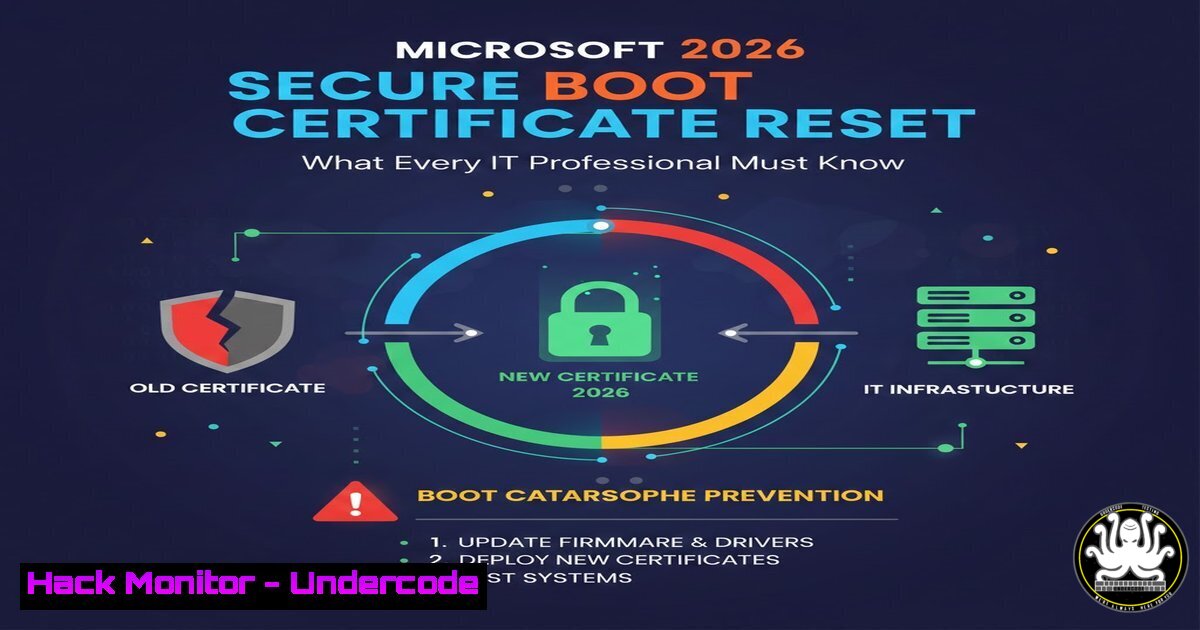
Microsoft has officially confirmed that the 15-year-old Secure Boot certificates—used by UEFI firmware to verify bootloader integrity—will expire starting March 2026. This expiration will affect Windows 11 and Windows 10 Extended Security Update (ESU) users. Without intervention, systems will enter a “degraded security state” and, in worst-case scenarios, may refuse to boot entirely. This transition involves revoking the old Microsoft Root Certificate Authority 2010 and 2011 keys, replacing them with new certificates. However, given the delicate interplay between UEFI firmware, OS versions, and hardware compatibility layers, this is not a silent background update—it is a phased, high-stakes operation requiring proactive IT administration.
Learning Objectives:
- Understand the architecture of Secure Boot, including certificate chains and UEFI authenticated variables.
- Identify vulnerable Windows versions and hardware generations requiring manual intervention.
- Execute validation and remediation commands using PowerShell, Windows PE, and Linux-based UEFI tools.
- Mitigate “no-boot” scenarios through firmware rollback protections and secure recovery workflows.
- Understanding Secure Boot Certificate Chains and Expiration Logic
Secure Boot relies on certificates stored in the UEFI non-volatile RAM (NVRAM). The current certificates—Microsoft Corporation KEK CA 2011 and Microsoft Windows Production PCA 2011—expire in 2026. These are used to sign bootloaders, UEFI drivers, and option ROMs. When a certificate expires, UEFI firmware may reject binaries signed with that key, treating them as untrusted. This can cause boot failures or force the system into recovery mode.
Step‑by‑step: Inspect Secure Boot Status on Windows
1. Open PowerShell as Administrator.
- Run: `Confirm-SecureBootUEFI` – This returns True if Secure Boot is enabled.
- View current Secure Boot variables: `Get-SecureBootUEFI -Name PK` (Platform Key),
KEK,db,dbx.
4. To check certificate expiry details, use:
[System.DateTime]::Parse((Get-SecureBootUEFI -Name db).Signature.Owner).ToString()
(Note: This requires interpreting the signature timestamp; full expiry is viewable via OEM firmware menus.)
Linux Equivalent Command:
Boot into a UEFI shell or use `efibootmgr`:
sudo efibootmgr -v
sudo cat /sys/firmware/efi/efivars/SecureBoot-
Alternatively, install `efitools` and run:
sudo sbverify --list /boot/efi/EFI/BOOT/BOOTX64.EFI
2. Identifying Affected Systems and Phased Rollout Mechanics
Microsoft will push the certificate update via Windows Update as a UEFI capsule update. This modifies the `dbx` (Forbidden Signatures Database) to revoke old certs and adds new certs to the `db` (Allowed Signatures Database). The rollout is phased because UEFI implementations vary wildly. Some OEMs locked their firmware, preventing writes to NVRAM without signed updates. IT admins must pre-identify endpoints that may fail the update.
Step‑by‑step: Audit Systems for Secure Boot Update Readiness
1. Deploy a PowerShell script across the domain:
$SecureBootState = Confirm-SecureBootUEFI
$UEFIVersion = (Get-WmiObject -Namespace root\wmi -Class MS_UEFI_Firmware).UEFIVersion
$CertStatus = Get-SecureBootUEFI -Name dbx
Write-Host "Secure Boot: $SecureBootState, UEFI FW: $UEFIVersion, dbx entries: $($CertStatus.Signature.Count)"
2. Cross-reference UEFI firmware dates: Systems with firmware dated before 2015 often have incomplete UEFI 2.3.1c implementations and may reject capsule updates.
3. Flag devices running Windows 10 22H2 without TPM 2.0—these may lack the necessary firmware update interface.
- Manual Deployment and Staging of Secure Boot Updates
For enterprise environments not using Windows Update for business, Microsoft will likely offer a standalone .cab file or an MSI package containing the UEFI update. Admins must stage this via SCCM, Intune, or Group Policy.
Step‑by‑step: Apply Secure Boot Update via PXE or Windows PE
1. Boot target machine into Windows PE.
- Mount the system partition: `diskpart → select vol c → assign letter=S`
3. Apply the UEFI update:
dism /image:S:\ /Add-Package /PackagePath:"SecureBootUpdate.cab"
4. Commit the firmware variable update:
bcdedit /set {fwbootmgr} displayorder {current} /addlast
5. Reboot and monitor POST for “New Secure Boot certificates installed”.
Windows Command Line Alternative:
Use `UefiCapsuleUpdate.exe` (if provided) with administrative privileges:
UefiCapsuleUpdate.exe -p SecureBootUpdate.bin -r
4. Linux-Based Recovery for Dual-Boot Systems
Dual-boot systems running Linux alongside Windows may have their own shim bootloaders signed by Microsoft’s now-expiring certificate. If the UEFI firmware rejects the old signature, the machine may refuse to boot Linux as well.
Step‑by‑step: Re-sign Shim with New Certificate (Manual Workaround)
1. Boot from a live Linux USB.
2. Install `efitools` and `sbsigntool`.
- Extract the new Microsoft UEFI CA certificate from the Windows update payload.
4. Re-sign the shim binary:
sbattach --attach shimx64.efi
sbsign --key newMSKey.key --cert newMSCert.pem --output shimx64.signed.efi shimx64.efi
5. Replace the EFI binary in the ESP partition:
mount /dev/sda1 /boot/efi
cp shimx64.signed.efi /boot/efi/EFI/ubuntu/shimx64.efi
- Mitigating “No-Boot” Scenarios: Recovery Key and BitLocker Implications
Certificate revocation modifies the `dbx` entry, which can trigger BitLocker recovery mode because the platform configuration register (PCR) values change. If BitLocker is enabled without a suspend cycle, the drive will lock.
Step‑by‑step: Suspend BitLocker Before UEFI Update
1. On each target machine, run:
Manage-bde -protectors -disable C:
2. Apply the Secure Boot update.
3. Re-enable BitLocker:
Manage-bde -protectors -enable C:
4. Backup recovery key to AD DS or Azure AD:
Manage-bde -protectors -adbackup C: -id {GUID}
Check BitLocker Recovery Key Escrow:
Get-BitLockerVolume -MountPoint C: | fl
6. Testing Compatibility in Virtualized Environments
Admins should test the Secure Boot update in Hyper-V or VMware before wide deployment. Hyper-V supports UEFI and Secure Boot for Generation 2 VMs.
Step‑by‑step: Simulate Secure Boot Update on Hyper-V
1. Create a Gen2 VM running Windows 11.
- Enable Secure Boot: VM Settings → Security → Enable Secure Boot → Template: Microsoft UEFI Certificate Authority.
3. Take a checkpoint.
- Apply the Secure Boot update via Windows Update or manual CAB.
- Confirm the `dbx` variable has the new revocation list:
powershell -Command "Get-SecureBootUEFI -Name dbx"
6. Roll back checkpoint to test recovery workflows.
7. Future-Proofing: Firmware Inventory and Vendor Coordination
Microsoft is coordinating with OEMs, but many older devices lack firmware update support entirely. IT departments must inventory UEFI versions and establish vendor relationships.
Step‑by‑step: Inventory UEFI Firmware Versions Using WMI
Get-WmiObject -Class Win32_BIOS | Select Manufacturer, Name, SMBIOSBIOSVersion
wmic path Win32_ComputerSystem get PCSystemType
Cross-reference with OEM support lists. For Dell:
Get-WmiObject -Namespace root\dcim\sysman -Class DCIM_BIOSEnumeration
For HP:
gwmi -Namespace root\hp\InstrumentedBIOS -Class HP_BIOSSetting
What Undercode Say:
- Key Takeaway 1: The Secure Boot certificate expiration is not theoretical—it is a hard deadline. Systems not receiving the new certificate before the old one expires will fail verification checks at POST, leading to widespread boot failures across enterprise fleets if left unmanaged.
- Key Takeaway 2: This is fundamentally a firmware supply chain and asset management issue. Organizations cannot rely solely on automatic updates; they must inventory UEFI capabilities, test capsule update compatibility, and prepare BitLocker recovery contingencies now, not in March 2026.
The transition from the 2011-era PKI to Microsoft’s updated Secure Boot roots mirrors the industry-wide shift toward cryptographic agility. However, it exposes a decade of fragmented UEFI implementations and highlights the tension between Microsoft’s centralized certificate authority and the decentralized, often neglected firmware ecosystems of OEMs. Enterprises should treat this as a dry run for future quantum-resistant firmware updates, where cryptographic churn will accelerate. The only effective long-term mitigation is establishing firmware baseline management as a core IT competency, not an afterthought.
Prediction:
We predict a surge in “bricked” legacy enterprise workstations in late March 2026, especially in organizations with poor patch management hygiene. This will trigger a secondary market spike for refurbished TPM 2.0 systems and accelerate Windows 11 adoption in laggard sectors like healthcare and manufacturing. Additionally, we expect UEFI vulnerabilities related to the transitional period—such as rollback attacks using old certs not yet universally revoked—to surface in mid-2026, prompting Microsoft to issue out-of-band `dbx` updates and forcing Microsoft to permanently deprecate firmware-based Secure Boot in favor of virtualization-based security (VBS) and memory integrity features.
▶️ Related Video (74% Match):
https://www.youtube.com/watch?v=4dE59YxuWi4
🎯Let’s Practice For Free:
IT/Security Reporter URL:
Reported By: Theodoreaggelopoulos Microsoft – Hackers Feeds
Extra Hub: Undercode MoN
Basic Verification: Pass ✅


