
Listen to this Post
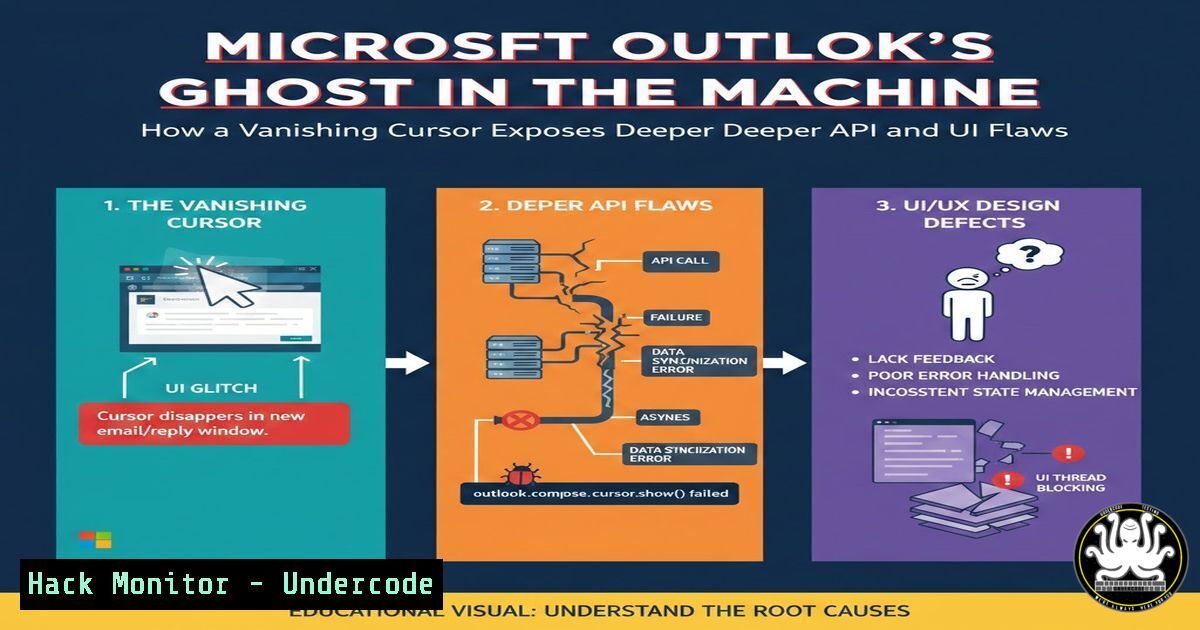
Introduction:
A seemingly trivial bug in Microsoft’s classic Outlook client is causing the mouse cursor to vanish while hovering over the interface, prompting a wave of troubleshooting across enterprise IT departments. While this issue may appear to be a simple user-interface (UI) glitch, it serves as a gateway to understanding deeper systemic vulnerabilities—specifically how rendering APIs, GDI (Graphics Device Interface) handles, and legacy software architecture can lead to unexpected denial-of-service conditions and diagnostic chaos.
Learning Objectives:
- Understand how UI rendering bugs in enterprise software can indicate underlying memory or API mismanagement.
- Learn to use Windows diagnostic tools (Process Monitor, Event Viewer, and PowerShell) to trace application anomalies.
- Explore mitigation strategies for legacy applications in modern enterprise environments.
- Analyze the security implications of UI thread starvation and GPU acceleration failures.
- Implement monitoring scripts to detect similar anomalies in Microsoft 365 applications.
You Should Know:
1. Diagnosing the “Ghost Cursor” with Windows Sysinternals
The disappearing cursor issue in classic Outlook is often caused by a conflict between the application’s UI rendering thread and the Windows Graphics Device Interface (GDI). When Outlook fails to refresh the cursor bitmap due to a stalled message pump, the pointer becomes invisible.
To diagnose this, we can use Process Monitor (ProcMon) to filter for Outlook’s window events:
1. Download Sysinternals Suite from Microsoft.
2. Run `ProcMon.exe` as Administrator.
3. Set a filter: `Process Name` `is` `outlook.exe`.
4. Reproduce the cursor disappearance.
- Look for `WIN32 API` calls related to `DrawCursor` or
SetCursorPos.
Additionally, use Process Explorer to check the GDI handle count:
– Right-click the `outlook.exe` process, select Properties, and view the “Performance” tab.
– A steadily increasing GDI count without release indicates a handle leak, often linked to improper API calls in the UI renderer.
2. Capturing Crash Dumps for Microsoft Engineering
Microsoft has requested diagnostic logs from administrators. To generate a memory dump of Outlook when the bug occurs:
PowerShell (Run as Admin):
$outlookProc = Get-Process -Name outlook
$dumpFile = "C:\dumps\outlook_cursor.dmp"
 Using Sysinternals ProcDump
.\procdump.exe -ma $outlookProc.Id $dumpFile
Alternatively, use Windows Task Manager:
- Right-click Outlook process > Create dump file.
- Compress and submit via Microsoft’s Feedback Hub or to your IT team.
These dumps help analyze whether the UI thread is stuck waiting for a response from the Windows `user32.dll` or `dwm.exe` (Desktop Window Manager).
3. Investigating GPU and DWM Interaction
Modern UI elements rely on the Desktop Window Manager (DWM) for compositing. If DWM crashes or fails to update the cursor layer, the cursor vanishes.
Check DWM health:
1. Open Event Viewer (`eventvwr.msc`).
- Navigate to
Applications and Services Logs > Microsoft > Windows > Desktop Window Manager. - Look for Operational logs indicating DWM failures around the time of the bug.
To reset DWM without rebooting:
Stop-Process -Name dwm -Force
(Note: This will briefly flash the screen as DWM restarts.)
4. API Security and UI Thread Starvation
From a cybersecurity perspective, UI thread starvation can be weaponized. A malicious macro or add-in could deliberately block the UI thread to hide actions (e.g., exfiltrating data while the user believes the system is unresponsive).
Audit Outlook add-ins via Registry:
Get-ChildItem "HKCU:\Software\Microsoft\Office\16.0\Outlook\Addins"
Get-ChildItem "HKLM:\Software\Microsoft\Office\16.0\Outlook\Addins"
Disable suspicious add-ins by setting the `LoadBehavior` value to 0.
5. Mitigation with PowerShell and Registry Tweaks
Until Microsoft releases a permanent fix, IT admins can apply temporary workarounds:
Disable Hardware Graphics Acceleration in Outlook:
- Open Outlook > File > Options > Advanced.
2. Under Display, check “Disable hardware graphics acceleration”.
3. Restart Outlook.
Or via Registry:
New-ItemProperty -Path "HKCU:\Software\Microsoft\Office\16.0\Common\Graphics" -Name "DisableHardwareAcceleration" -Value 1 -PropertyType DWORD -Force
6. Linux Cross-Platform Perspective: X11 and Cursor Themes
While this is a Windows-specific issue, Linux systems using X11 have historically faced similar cursor disappearance bugs due to theme mismatches or X server crashes. To reset the cursor in a Linux environment (e.g., if you’re running Outlook via Wine or Remote Desktop):
xsetroot -cursor_name left_ptr
Or restart the window manager:
systemctl --user restart i3 or gnome-shell --replace &
7. Enterprise Monitoring with PowerShell Scripts
Create a proactive monitor that alerts when Outlook’s UI becomes unresponsive:
$outlook = Get-Process outlook -ErrorAction SilentlyContinue
if ($outlook) {
$responds = $outlook.MainWindowTitle -ne ""
if (-not $responds) {
Write-Host "Outlook UI may be frozen. Investigate."
 Send alert via email or Slack API
}
}
Combine with scheduled tasks to run every 5 minutes.
What Undercode Say:
- Key Takeaway 1: A cursor disappearing is not merely a nuisance—it is a symptom of potential API mismanagement or GDI resource exhaustion that could be exploited to mask malicious activity.
- Key Takeaway 2: Enterprise IT must leverage diagnostic tooling (ProcMon, Process Explorer, Event Viewer) to differentiate between cosmetic bugs and systemic security weaknesses.
This incident highlights how legacy code in Microsoft 365 apps interacts unpredictably with modern GPU compositing, creating attack surfaces for UI redressing or denial-of-service via resource leaks. Organizations should enforce strict add-in policies and monitor GDI handle counts for critical applications. While Microsoft works on a patch, administrators must balance user productivity with forensic readiness, treating every UI glitch as a potential indicator of compromise until proven otherwise.
Prediction:
In the next 12–18 months, we will see an increase in “UI-based denial-of-service” exploits targeting enterprise applications. Attackers will leverage subtle UI rendering bugs to hide ransomware encryption processes or data exfiltration, forcing security vendors to develop heuristics for abnormal UI thread behavior. Microsoft will likely accelerate the deprecation of classic Outlook in favor of the web-based or new Outlook client, which relies on a more resilient, sandboxed rendering architecture.
▶️ Related Video (76% Match):
🎯Let’s Practice For Free:
IT/Security Reporter URL:
Reported By: Charlescrampton The – Hackers Feeds
Extra Hub: Undercode MoN
Basic Verification: Pass ✅


