
Listen to this Post
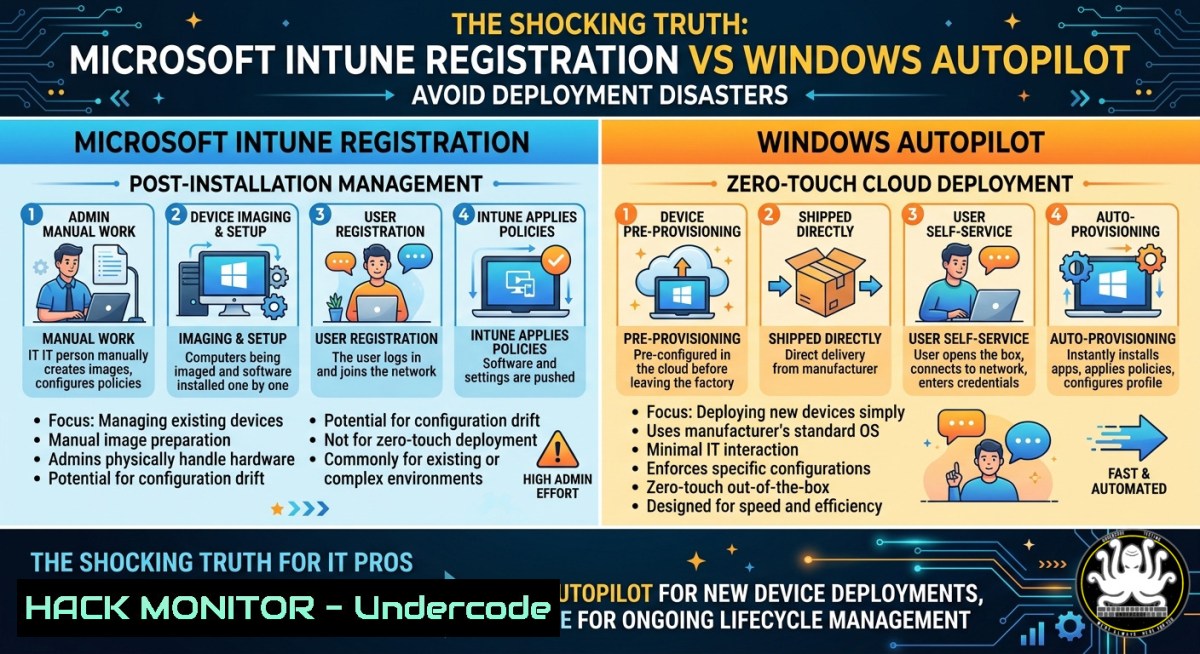
Introduction:
Modern endpoint management has split into two critical but often confused processes: device registration for ongoing policy enforcement and automated deployment for zero-touch provisioning. Understanding the difference between Microsoft Intune Device Registration and Windows Autopilot is essential for IT professionals who want to eliminate manual setup errors, enforce security baselines from day one, and scale remote workforce onboarding without friction.
Learning Objectives:
- Differentiate between Intune device registration (post-enrollment management) and Windows Autopilot (pre-user deployment automation)
- Execute PowerShell and Graph API commands to register, profile, and troubleshoot Windows devices in Microsoft Entra ID/Intune
- Implement a combined Autopilot + Intune workflow that reduces IT touch time by 90% while enforcing zero-trust security
You Should Know:
- Deep Dive: Intune Device Registration – From BYOD to Corporate Management
Step‑by‑step guide explaining what this does and how to use it.
Device registration is the act of attaching an existing Windows, iOS, Android, or macOS device to Microsoft Intune so that compliance policies, application deployments, and conditional access rules can be applied. Unlike Autopilot, registration assumes the device already has an OS and a user identity.
How to manually trigger Intune enrollment on a Windows 10/11 device:
- Verify Entra ID (Azure AD) connectivity – The device must be joined to or registered with Entra ID.
- Open Settings → Accounts → Access Work or School → Connect.
- Sign in with your company credentials – The device will automatically enroll into Intune if MDM scope is configured.
4. Check enrollment status via PowerShell:
Get-MgDeviceManagementManagedDevice -All
 Or legacy: Get-WmiObject -Namespace root\cimv2\mdm\dmmap -Class MDM_DeviceDetail
5. Force policy sync:
Get-ScheduledTask | Where-Object {$_.TaskName -like "Intune"} | Start-ScheduledTask
 Alternative: Open Company Portal > Settings > Sync
For bulk registration (Windows Configuration Designer):
- Download Windows Configuration Designer from Microsoft Store.
- Create a provisioning package (
.ppkg) with bulk enrollment token. - Apply the package via USB or network share during OOBE or running OS.
Linux alternative (for cross‑platform MDM) – using Microsoft Edge management + Intune:
While Intune natively supports Linux via partner solutions, you can use the `intune-portal` package on Ubuntu:
 Add Microsoft repository
curl https://packages.microsoft.com/keys/microsoft.asc | gpg --dearmor > microsoft.gpg
sudo install -o root -g root -m 644 microsoft.gpg /etc/apt/trusted.gpg.d/
sudo sh -c 'echo "deb [arch=amd64] https://packages.microsoft.com/repos/azurecore/ stable main" > /etc/apt/sources.list.d/azurecore.list'
sudo apt update && sudo apt install intune-portal
- Windows Autopilot – Zero‑Touch Deployment from Factory to User
Step‑by‑step guide explaining what this does and how to use it.
Autopilot automates the device setup phase (Out‑of‑Box Experience) by pre‑registering hardware hashes (SMBIOS GUID, MAC addresses, etc.) in the cloud. When a new or reset device connects to the internet, Autopilot overrides standard OOBE and delivers a tailored, corporate‑ready environment.
Step‑by‑step implementation:
- Collect hardware hashes from existing devices or ask your OEM (Dell, HP, Lenovo, etc.) to upload them directly.
Run on a reference Windows device (as admin)
Install-Script -Name Get-WindowsAutoPilotInfo
Get-WindowsAutoPilotInfo.ps1 -OutputFile C:\Temp\device_hash.csv
2. Upload CSV to Intune:
- Portal: `https://intune.microsoft.com` → Devices → Windows → Windows Autopilot → Import.
- Using Graph API:
Connect-MgGraph -Scopes "DeviceManagementServiceConfig.ReadWrite.All"
$csvContent = [System.IO.File]::ReadAllBytes("C:\Temp\device_hash.csv")
New-MgDeviceManagementWindowsAutopilotDeviceIdentity -CsvContent $csvContent -CsvHeader "Serial Number,Windows Product ID,Hardware Hash"
3. Create Autopilot deployment profile:
- Deployment mode: User‑driven (for company‑owned) or Self‑deploying (for kiosks).
- Join type: Entra ID join (recommended) or Hybrid (if on‑prem AD required).
- Skip keyboard layout, privacy settings, and local admin account.
- Assign profile to a device group – devices will be reprovisioned upon next reset.
- Test – wipe a test device (Settings → Update & Security → Recovery → Reset this PC). After reboot and internet connection, Autopilot OOBE appears automatically.
Troubleshooting Autopilot failures:
Check logs under `C:\Windows\CCM\Logs\Autopilot` (especially `AutopilotManager.log` and `TpmHii.log`).
Force re‑registration:
cscript %windir%\system32\syncappvpprinter.vbs
- Combining Intune Registration + Autopilot – The Complete Cloud Management Pipeline
Organizations achieve true zero‑touch by using Autopilot to deploy the OS and Intune to manage the post‑setup lifecycle. Here is a production‑grade workflow:
Step‑by‑step integration:
1. Pre‑stage hardware hashes in Autopilot (as above).
- Configure dynamic device groups in Entra ID based on Autopilot attributes (e.g.,
(device.devicePhysicalIds -any (_ -eq ""))</code>).</li> </ol> <h2 style="color: yellow;">3. Assign Intune configuration profiles to those groups:</h2> <ul> <li>Security baselines (Microsoft Defender, BitLocker, Firewall)</li> <li>Application deployments (Win32 apps, Microsoft Store, Office 365)</li> <li>Compliance policies (require BitLocker, minimum OS version)</li> </ul> <ol> <li>Enable Enrollment Status Page (ESP) – blocks user access until all required apps and policies are applied.</li> <li>When a remote employee receives the laptop – they simply power on, connect Wi‑Fi, and enter their Entra ID credentials. Autopilot delivers the pre‑configured OS, Intune pulls policies and apps, and ESP ensures compliance before desktop appears.</li> </ol> <h2 style="color: yellow;">PowerShell to monitor combined deployment status:</h2> [bash] Get-MgDeviceManagementManagedDevice -Filter "contains(operatingSystem,'Windows')" | Select-Object DeviceName, ComplianceState, EnrollmentProfileName
- Security Hardening and API Protection for Intune-Managed Devices
Because Intune enforces conditional access, misconfigured device registration can expose corporate data. Implement these API security and cloud hardening measures:
Block legacy authentication via Conditional Access policy (PowerShell with Microsoft Graph):
$caPolicy = @{ displayName = "Block legacy auth for Intune enrolled devices" state = "enabled" conditions = @{ clientAppTypes = @("exchangeActiveSync", "other") applications = @{ includeApplications = @("All") } users = @{ includeUsers = @("All") } } grantControls = @{ operator = "OR"; builtInControls = @("block") } } New-MgIdentityConditionalAccessPolicy -BodyParameter $caPolicyEnforce BitLocker via Intune configuration profile:
- Portal: Endpoint security → Disk encryption → Create policy (Windows 10/11) → enable "Require device encryption" and "Silently enable BitLocker on new devices".
Windows registry hardening for Intune enrollment (avoid MDM drift):
reg add "HKLM\SOFTWARE\Microsoft\Enrollments" /v EnrollOnInternet /t REG_DWORD /d 1 /f reg add "HKLM\SOFTWARE\Policies\Microsoft\Windows\CurrentVersion\MDM" /v AutoEnrollMDM /t REG_DWORD /d 1 /f
5. Step‑by‑Step Remote Wipe and Retirement (Incident Response)
When a device is lost or an employee leaves, Intune allows selective wipe (remove corporate data) or full factory reset.
Using Graph API:
Get managed device ID $device = Get-MgDeviceManagementManagedDevice -Filter "deviceName eq 'LOST-LAPTOP-01'" Initiate wipe New-MgDeviceManagementManagedDeviceWipe -ManagedDeviceId $device.Id -KeepEnrollmentData:$false -KeepUserData:$false
Using Company Portal (user‑initiated):
Open Company Portal → Devices → select device → Remove (removes from Intune and deletes corporate data).
Automate offboarding with Azure Automation runbook:
param([bash]$UserPrincipalName) $devices = Get-MgUserRegisteredDevice -UserId $UserPrincipalName foreach ($device in $devices) { Remove-MgDeviceManagementManagedDevice -ManagedDeviceId $device.DeviceId Write-Output "Retired $($device.DeviceName)" }- Verifying Autopilot and Intune Status from Linux (Cross‑Platform Admin)
IT administrators on Linux can query Intune and Autopilot status using `curl` with Microsoft Graph API.
Obtain access token via device code flow:
Install jq and curl tenant_id="your-tenant-id" client_id="your-app-id" Use device code curl -X POST https://login.microsoftonline.com/$tenant_id/oauth2/v2.0/devicecode \ -H "Content-Type: application/x-www-form-urlencoded" \ -d "client_id=$client_id&scope=https://graph.microsoft.com/.default" Then poll token endpoint and call Graph curl -X GET "https://graph.microsoft.com/v1.0/deviceManagement/windowsAutopilotDeviceIdentities" \ -H "Authorization: Bearer $token"
What Undercode Say:
Key Takeaway 1
Intune Registration is about lifecycle management of an already-running device, while Windows Autopilot is about zero‑touch provisioning at the moment of first boot or reset. Confusing the two leads to duplicate policies, broken enrollment flows, and frustrated users who see both “workplace join” and “Autopilot” prompts.
Key Takeaway 2
The real power emerges when you chain Autopilot → Intune → Conditional Access. This stack not only reduces IT manual work but also enforces security posture before the user ever launches an app – a game changer for remote and hybrid workforces.
Analysis (10 lines):
Most IT professionals believe that registering a device in Intune is enough for enterprise readiness, but without Autopilot, they miss the opportunity to standardize the OS configuration, language, and drivers before the user logs in. Autopilot’s hardware hash registration ensures that even a device bought from a retail store can be transformed into a corporate asset within minutes. However, Autopilot does not manage the device after setup – that’s where Intune registration takes over. Many organizations fail to set up the Enrollment Status Page (ESP), causing users to bypass critical security apps. Additionally, hybrid Entra ID join (Autopilot + on‑prem AD) introduces line‑of‑sight requirements that break remote deployments unless VPN is pre‑configured. The future is cloud‑native: Entra ID join only, combined with Windows Hello for Business and seamless SSO. From a cybersecurity perspective, Autopilot eliminates the risk of users running unpatched local admin accounts because the deployment profile can enforce standard user rights. Intune’s compliance policies then block access to Exchange Online or SharePoint if the device drifts out of compliance (e.g., disabled antivirus). Together, they form the backbone of a zero‑trust endpoint strategy.
Expected Output:
Prediction:
By 2026, Windows Autopilot will absorb most Intune device registration workflows through “unified device onboarding” – a single Graph API call that registers the hardware hash, assigns deployment profile, and triggers compliance evaluation without separate enrollment steps. However, legacy on‑premises Active Directory environments will struggle to adapt, forcing a two‑tier security model. Microsoft will also introduce AI‑driven Autopilot profiles that automatically select the correct policy group based on job title and department, reducing administrative overhead. Meanwhile, attackers will increasingly target the hardware hash upload process (CSV injection, hash replacement) as a supply chain vector, prompting Microsoft to require TPM attestation during Autopilot registration. IT teams that do not separate device registration from deployment today will face audit failures and ransomware incidents due to unmanaged “ghost” devices that bypass policy. The winners will be those who script every step – from hash collection to wipe – using Graph API and Infrastructure as Code.
▶️ Related Video (72% Match):
🎯Let’s Practice For Free:
IT/Security Reporter URL:
Reported By: Shamseersiddiqui Microsoft - Hackers Feeds
Extra Hub: Undercode MoN
Basic Verification: Pass ✅🔐JOIN OUR CYBER WORLD [ CVE News • HackMonitor • UndercodeNews ]
📢 Follow UndercodeTesting & Stay Tuned:


