Listen to this Post
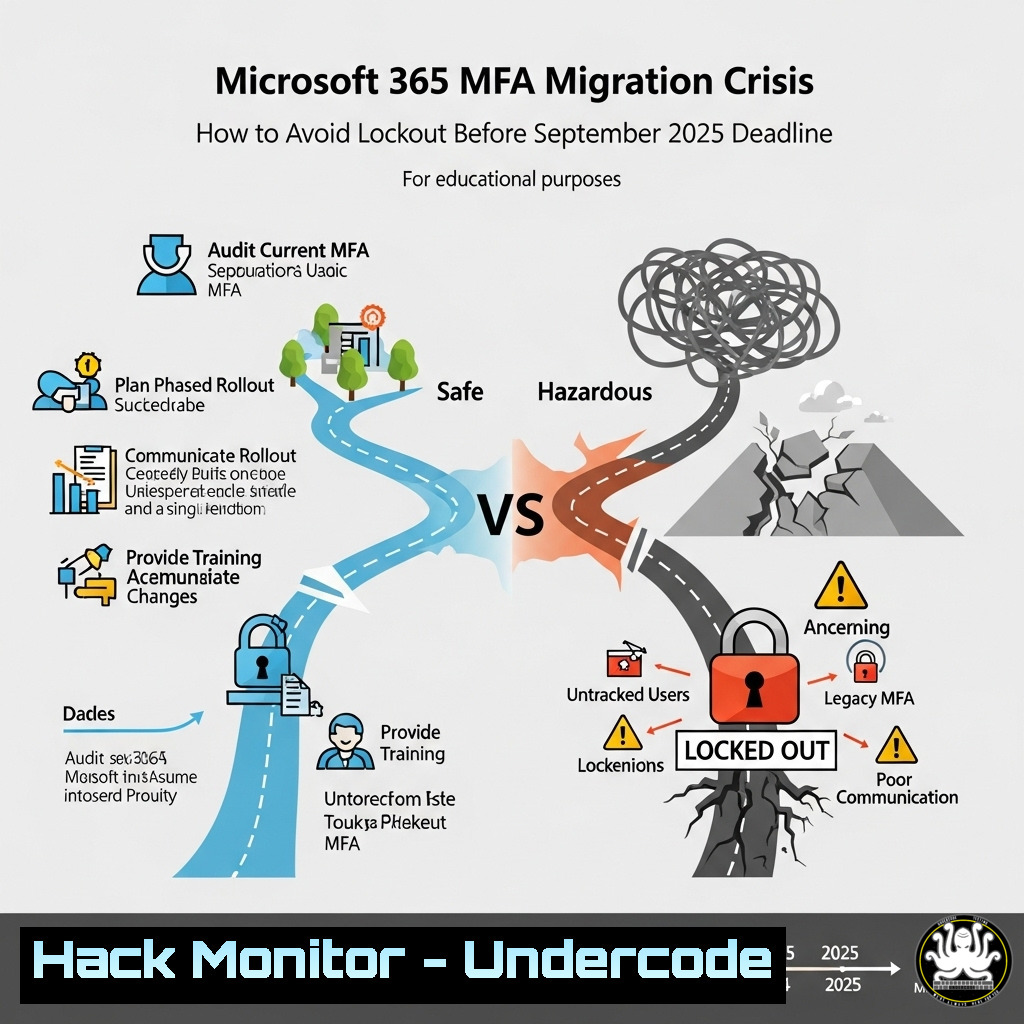
Introduction:
Microsoft is retiring its legacy Multi-Factor Authentication (MFA) portal on September 30, 2025, forcing organizations to migrate to the modern Authentication Methods portal. Failure to act could result in users being locked out of Microsoft 365. This guide provides critical steps, PowerShell commands, and security best practices to ensure a seamless transition.
Learning Objectives:
- Understand the risks of delaying MFA migration.
- Learn how to verify and migrate MFA methods using PowerShell and Microsoft Entra.
- Implement best practices for identity protection in Microsoft 365.
1. Check Your Tenant’s MFA Migration Status
PowerShell Command:
Get-MgIdentityConditionalAccessPolicy -All | Where-Object { $_.State -eq "Enabled" } | Select-Object DisplayName, State
Step-by-Step Guide:
1. Open PowerShell as Administrator.
2. Connect to Microsoft Graph using:
Connect-MgGraph -Scopes "Policy.Read.All"
3. Run the command above to check active MFA policies.
4. If the migration status is “Not started”, proceed immediately.
2. Migrate MFA Methods to the Modern Portal
PowerShell Command:
Invoke-MgGraphRequest -Method GET -Uri "https://graph.microsoft.com/v1.0/reports/authenticationMethods/userRegistrationDetails"
Step-by-Step Guide:
- Use the command above to list all users and their MFA methods.
- Navigate to the new Authentication Methods portal.
- Manually reassign MFA methods if automatic migration fails.
3. Enforce Conditional Access Policies for Secure MFA
PowerShell Command:
New-MgIdentityConditionalAccessPolicy -DisplayName "Enforce MFA for All Users" -State "Enabled" -Conditions @{
Applications = @{ IncludeApplications = "All" }
Users = @{ IncludeUsers = "All" }
} -GrantControls @{
Operator = "OR"
BuiltInControls = @("mfa")
}
Step-by-Step Guide:
- Run the command to enforce MFA for all users.
2. Test the policy in Report-only mode first.
3. Monitor sign-ins via Azure AD Sign-In Logs.
4. Disable Legacy MFA Methods via PowerShell
PowerShell Command:
Set-MsolDomainFederationSettings -DomainName "yourdomain.com" -PreferredAuthenticationProtocol "WsFed" -SupportsMfa $false
Step-by-Step Guide:
1. Disable legacy MFA to prevent conflicts.
2. Verify changes using:
Get-MsolDomainFederationSettings -DomainName "yourdomain.com"
5. Audit MFA Registration Compliance
PowerShell Command:
Get-MgReportAuthenticationMethodUserRegistrationDetail | Export-Csv -Path "MFA_Status_Report.csv" -NoTypeInformation
Step-by-Step Guide:
1. Export MFA registration details for compliance tracking.
2. Identify users without MFA and enforce registration.
What Undercode Say:
- Key Takeaway 1: Organizations that delay migration risk disruptive lockouts post-September 2025.
- Key Takeaway 2: Automated PowerShell checks and conditional access policies are critical for a smooth transition.
Analysis:
Microsoft’s shift to modern MFA aligns with Zero Trust security models, but many enterprises still rely on legacy setups. Proactive migration prevents identity-based attacks, particularly phishing and credential stuffing. Companies should also consider phishing-resistant MFA (FIDO2/Windows Hello) for enhanced security.
Prediction:
Post-deadline, unprepared organizations will face increased helpdesk tickets and security breaches due to MFA failures. Microsoft may enforce stricter compliance, leading to temporary service suspensions for non-compliant tenants. Early adopters will benefit from seamless authentication workflows and stronger security postures.
🔗 Additional Resources:
Microsoft365 MFA CyberSecurity IdentityProtection MicrosoftEntra
🎯Let’s Practice For Free:
IT/Security Reporter URL:
Reported By: Iampankajschandel Microsoft365 – Hackers Feeds
Extra Hub: Undercode MoN
Basic Verification: Pass ✅


