Listen to this Post
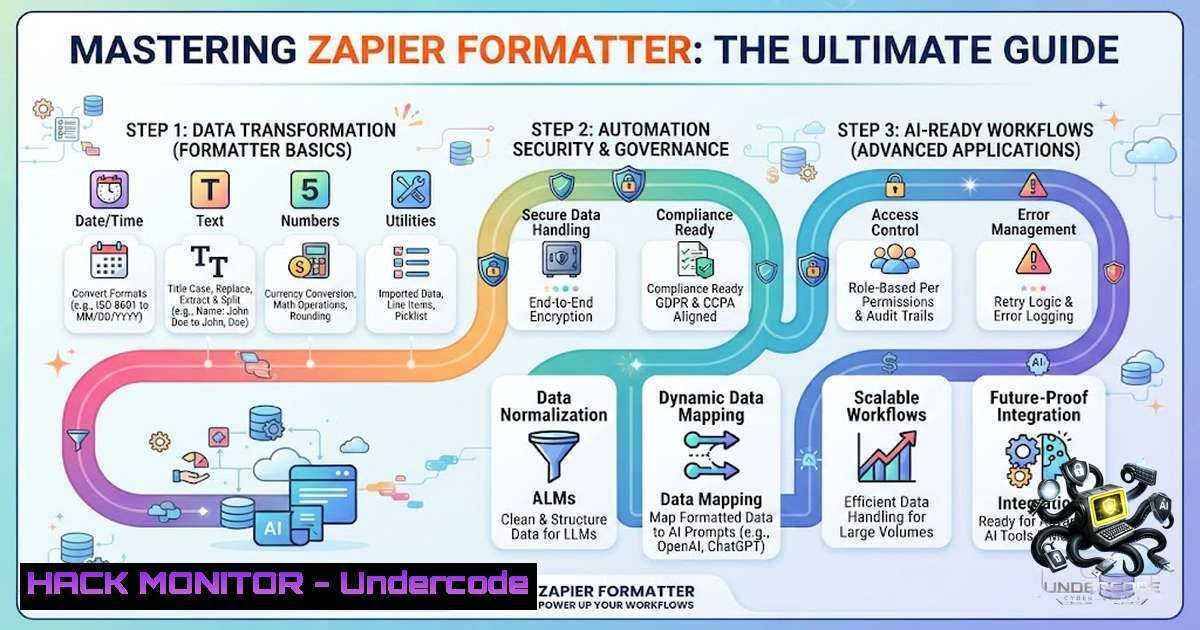
Introduction:
In the age of AI agents and self-driving business ecosystems, the old adage “garbage in, garbage out” has never been more dangerous. Bad data no longer just means a bounced email or a duplicate CRM entry—it triggers AI hallucinations, breaks automations, and can cost organizations thousands in lost revenue. Zapier Formatter is your first line of defense, a built-in utility tool that transforms chaotic human input into structured, machine-readable logic. This article explores the four main categories of Zapier Formatter—Text, Numbers, Date/Time, and Utilities—while diving deep into advanced techniques, security best practices, and AI integration strategies that separate novice automators from workflow architects.
Learning Objectives:
- Understand the four core Formatter categories and their real-world applications
- Master regex pattern extraction and advanced text manipulation techniques
- Implement data hygiene best practices to prevent automation failures
- Apply security controls for PII masking and compliance-ready workflows
- Optimize AI-powered automations with chunking and data preparation strategies
You Should Know:
1. Text Transformations: The Art of Data Sanitization
Text is the most common and messiest data type you will encounter. Humans make typos, use inconsistent capitalization, and submit data in unpredictable formats. The Text action in Zapier provides over a dozen transforms to clean, split, extract, and reformat text data.
Step-by-Step Guide: Splitting Full Names into First and Last
Forms often collect a single “Full Name” field, but CRMs and email tools like Mailchimp require separate first and last names for personalization.
- In your Zap editor, click the + icon to add a new action step
2. Search for and select Formatter by Zapier
- Click the Action Event dropdown and select Text
- Click Continue to proceed to the Configure tab
- Click the Transform dropdown and select Split Text
- In the Input field, map the full name field from your trigger step
- In the Separator field, enter `[:space:]` (a space character)
- For Segment Index, select First to extract the first name
- Add another Formatter step, repeat steps 1-7, and select Last for the last name
- Map the outputs to your destination app’s first and last name fields
Pro Tips for Advanced Text Manipulation:
- Capitalization: Use Case for names (“john smith” → “John Smith”) and Lowercase for email addresses to prevent CRM duplicate detection issues
- Replace Function: Remove unwanted characters like “$” and “USD” from price strings to enable mathematical operations. Leave the replacement field empty to delete text entirely
- Extract Pattern with Regex: For complex extractions, use Python regex patterns. For example, to extract a domain name from a URL without the TLD, use the Extract Pattern transform with the appropriate regex pattern
- Truncate: Shorten text to meet character limits for social media posts or SMS notifications
Linux/Windows Command Equivalents:
While Zapier Formatter is no-code, understanding the underlying operations helps conceptualize what’s happening:
| Operation | Zapier Formatter | Linux Command | Windows PowerShell |
|–|||-|
| Split text | Split Text | `cut -d’ ‘ -f1` | `-split ‘ ‘ | Select-Object -First 1` |
| Replace text | Replace | `sed ‘s/old/new/g’` | `-replace ‘old’,’new’` |
| Extract pattern | Extract Pattern (regex) | `grep -oP ‘pattern’` | `Select-String -Pattern ‘pattern’` |
| Change case | Case / Lowercase | `sed ‘s/./\L&/’` | `ToLower()` / `ToTitleCase()` |
- Number Transformations: Precision in Financial and Operational Data
Precision is non-1egotiable in business process automation. A decimal error in an AI proposal or financial calculation could cost thousands. Zapier Formatter’s Number actions handle calculations, currency formatting, and spreadsheet-style formulas.
Step-by-Step Guide: Formatting Phone Numbers for CRM Compatibility
Your source app may send a phone number as “623-234-9012,” but your CRM requires E.164 format (+16232349012).
1. Add a Formatter step to your Zap
2. Select the Numbers action event
3. Choose the Format Phone Number transform
- Map the phone number field from a previous step
- The transform automatically standardizes the number to E.164 format
- Map the formatted output to your CRM’s phone field
Common Number Transformations:
- Format Number: Convert strings like “26.24” to numeric values that apps like Notion and Zoho can accept
- Perform Math Operations: Use spreadsheet-style formulas to calculate discounts, taxes, or totals
- Round Values: Round numbers to specific decimal places for financial reporting
- Convert Currencies: While not native, combine with lookup tables or API steps for currency conversion
Data Quality Alert:
Recent analysis shows organizations abandon nearly 60% of AI projects because their data isn’t ready. Number formatting failures are a leading cause—automation breaks when a phone number format doesn’t match CRM requirements or when a decimal point confuses invoicing software. Always test your number transformations with sample data before deploying to production.
3. Date/Time Transformations: Mastering Time Zones and Formats
Different apps require different date formats. One app sends “11/05/2025” (DD/MM/YYYY), but another expects “2025-05-11” (YYYY-MM-DD). Time zone differences can cause missed deadlines, incorrect billing, and scheduling disasters.
Step-by-Step Guide: Converting Date Formats Between Apps
1. Add a Formatter step after your trigger
2. Select the Date/Time action event
3. Choose the Format transform
- In the Input field, map the date from your trigger
- Set the From Format field to match your source date format (e.g., DD-MM-YYYY)
- Set the Output Format to your destination app’s required format
- Optionally, adjust the Timezone setting to convert between time zones
Critical Best Practices:
- Always set the From Format field when converting dates to avoid incorrect conversions
- Zapier uses the ISO 8601 standard for formatting dates, but some apps use different defaults
- Check your account timezone settings—Zapier uses your profile timezone unless you override it in individual Zap settings
- For date fields, you can add modifiers like “+2h” to add two hours or “+1w” to postdate an invoice by one week
Use Case: Global Team Coordination
If your team operates across multiple time zones, use Date/Time transforms to convert UTC timestamps to local time zones before sending notifications or creating calendar events. This ensures everyone receives information in their local time, preventing confusion and missed meetings.
- Utilities: The Swiss Army Knife of Data Transformation
The Utilities category handles everything that doesn’t fit neatly into text, numbers, or dates—generating unique IDs, creating line items, building lookup tables, and importing CSV data.
Step-by-Step Guide: Creating Line Items from Comma-Separated Text
Line items are collections of separate data gathered into a single field—essentially arrays of objects in programming terms. Many commerce apps require information formatted as line items to work properly.
- Add a Formatter step and select the Utilities action event
2. Choose the Text to Line-item transform
- In the Input field, map comma-separated values (e.g., “apples,bananas,oranges”)
- The transform creates individual line items for each value
- Use the line items in subsequent actions like spreadsheets, CRMs, or invoicing tools
For Multiple Sets of Line Items (Line Itemizer):
1. Select the Line Itemizer (Create/Append/Prepend) transform
- Enter a Group Name for your line item group
- In the Line-item Properties section, add each property with its comma-separated values
4. Repeat for each set of line items
Lookup Tables: Mapping Values Between Apps
Lookup tables act as reference dictionaries—ideal for mapping status codes to labels, product IDs to names, or country abbreviations to full names.
1. Add a Formatter Utilities step
2. Select the Lookup Table transform
- In the Lookup Key field, map the value you want to translate
- Create your table with source values on the left and destination values on the right
- Map the Formatter step’s Output field in your later actions—not the original trigger field
Pro Tip: Use a UNIX Timestamp to generate a unique ID for use in following Zap Storage steps. This is invaluable for tracking, deduplication, and reference purposes.
5. Advanced Techniques: Regex, AI Integration, and Security
Regular Expressions (Regex) for Precision Extraction
Formatter’s Extract Pattern transform uses Python regex to find and extract specific text patterns. This is an advanced feature but incredibly powerful for extracting emails, URLs, phone numbers, or custom patterns from unstructured text.
Step-by-Step: Extracting Text Between Delimiters
To extract text between two underscores (_), use the pattern (?<=_) (.?)(?=_):
1. Add a Formatter Text step
2. Select Extract Pattern as the transform
- In the Input field, map the text containing your target data
- In the Pattern field, enter your regex pattern
- Optional: Set Match All to Yes to return all occurrences as line items
6. Optional: Use IGNORECASE to ignore case differences
7. Test the step to verify extraction
Regex Options Available:
- MULTILINE: Allows ^ and $ to match start/end of each line
- DOTALL: Allows dot (.) to match newline characters
- IGNORECASE: Ignores case differences when searching
AI Integration: Formatter with AI
Zapier now allows you to describe what you need in plain language, and it will draft the relevant Formatter step for you. Click the AI-powered formatter icon next to any field, describe your formatting needs, and Zapier generates the configuration automatically.
Split Text into Chunks for AI Prompts (Beta)
When working with large datasets like documents or website pages, this new transform intelligently breaks input into chunks based on data, model type, prompt, and response size—preventing token limit errors when using AI LLMs.
Security and PII Masking
Data security is paramount in automated workflows. Zapier provides several layers of protection:
- AI Guardrails by Zapier: Detects 30+ types of PII (SSNs, credit cards, bank info, emails, addresses) and can automatically block a Zap if sensitive data is detected
- Moderation API Integration: Automatically mask emails, phone numbers, and other personal data—even if users try to bypass detection
- Enterprise-Grade Security: Zapier is SOC 2 and GDPR compliant with full audit trails and controls
Best Practices for Secure Automations:
- Audit your Zaps regularly and check what data fields are included in each workflow
- Limit PII to what’s strictly necessary for your workflow
- Use masking transforms to redact sensitive information before passing to downstream apps
- Enable Multi-Factor Authentication (MFA) on your Zapier account
What Undercode Say:
- Key Takeaway 1: Data Quality Determines Automation Success – The quality of your workflow depends entirely on the quality of your data. Formatter isn’t just a “nice to have”—it’s the critical layer that transforms messy, human-generated input into clean, machine-readable data that AI agents and business systems can actually use. Organizations that master data preparation see their automation success rates skyrocket.
-
Key Takeaway 2: Formatter Is Your First Line of Defense Against AI Hallucinations – In the age of AI, bad data doesn’t just cause errors—it causes hallucinations. An AI that misreads a date or misinterprets a phone number can insult a prospect, schedule meetings at wrong times, or generate nonsensical responses. Formatter prevents these failures by ensuring data is structured and validated before it ever reaches an AI model.
Analysis:
The Zapier Formatter ecosystem represents a paradigm shift in how businesses approach data transformation. What was once the domain of developers writing complex Python scripts or sed commands is now accessible to anyone who can click a few buttons. However, with great power comes great responsibility—the most common automation failures occur at the transformation stage, not the trigger or action stages.
The four Formatter categories—Text, Numbers, Date/Time, and Utilities—cover approximately 90% of common data transformation needs. The remaining 10% can be handled through regex patterns, AI-powered formatting, or custom code steps. Organizations should invest in training their teams on Formatter best practices, as the return on investment is immediate: fewer failed Zaps, cleaner data entering CRMs, and more reliable AI-powered automations.
Security considerations cannot be overstated. With data privacy regulations like GDPR imposing heavy fines for data breaches, the ability to automatically detect and mask PII before it reaches downstream systems is no longer optional—it’s a compliance requirement. Zapier’s built-in security features, combined with proper workflow design, create a defense-in-depth approach to data protection.
Prediction:
- +1 The democratization of data transformation tools like Zapier Formatter will accelerate the adoption of AI-powered automation across SMBs and enterprises, leveling the playing field between companies with large engineering teams and those without.
-
+1 As AI models become more sophisticated, the demand for clean, structured training data will increase exponentially. Formatter-style tools will become the standard preprocessing layer for all AI workflows, not just automation pipelines.
-
-1 Organizations that fail to implement proper data hygiene and transformation practices will see their AI initiatives fail at alarming rates—the 60% failure rate for AI projects is likely to increase as AI adoption accelerates and data quality issues become more apparent.
-
-1 The growing complexity of automation workflows, combined with the proliferation of AI agents, will create new security vulnerabilities. Organizations must invest in PII detection, masking, and compliance monitoring to prevent data leaks and regulatory violations.
-
+1 The integration of natural language AI into Formatter will lower the barrier to entry even further, enabling business users to describe transformations in plain English rather than learning complex regex patterns or transformation logic.
-
+1 Line item transformation capabilities will become increasingly critical as e-commerce, inventory management, and multi-product billing systems become more interconnected. The ability to seamlessly convert between data formats will be a competitive advantage.
-
-1 Organizations that treat Formatter as an afterthought rather than a core component of their automation strategy will continue to struggle with data quality issues, leading to customer dissatisfaction, lost revenue, and operational inefficiencies.
-
+1 The emergence of chunking strategies for AI prompts signals a broader trend toward intelligent data preparation that considers the limitations and requirements of downstream AI models, not just the immediate formatting needs of the next step.
-
+1 As Zapier continues to expand Formatter’s capabilities—including AI-assisted formatting and regex support—the tool will evolve from a utility to a comprehensive data transformation platform, potentially competing with dedicated ETL (Extract, Transform, Load) tools for certain use cases.
-
-1 The “no-code” nature of Formatter may lead to a false sense of security—users who don’t understand the underlying data transformations may inadvertently introduce errors or security vulnerabilities. Ongoing training and auditing will be essential to prevent these issues.
▶️ Related Video (80% Match):
https://www.youtube.com/watch?v=avQMU1yJkyY
🎯Let’s Practice For Free:
🎓 Live Courses & Certifications:
Join Undercode Academy for Verified Certifications
🚀 Request a Custom Project:
Secure, high-velocity infrastructure and disruptive technological engineering. Contact our engineering team for high-tier development and proprietary systems:
[email protected]
💎 Smart Architecture | 🛡️ Secure by Design | ⭐ Trusted by Thousands
IT/Security Reporter URL:
Reported By: Gloryeno1234 30daychallenge – Hackers Feeds
Extra Hub: Undercode MoN
Basic Verification: Pass ✅


