Listen to this Post
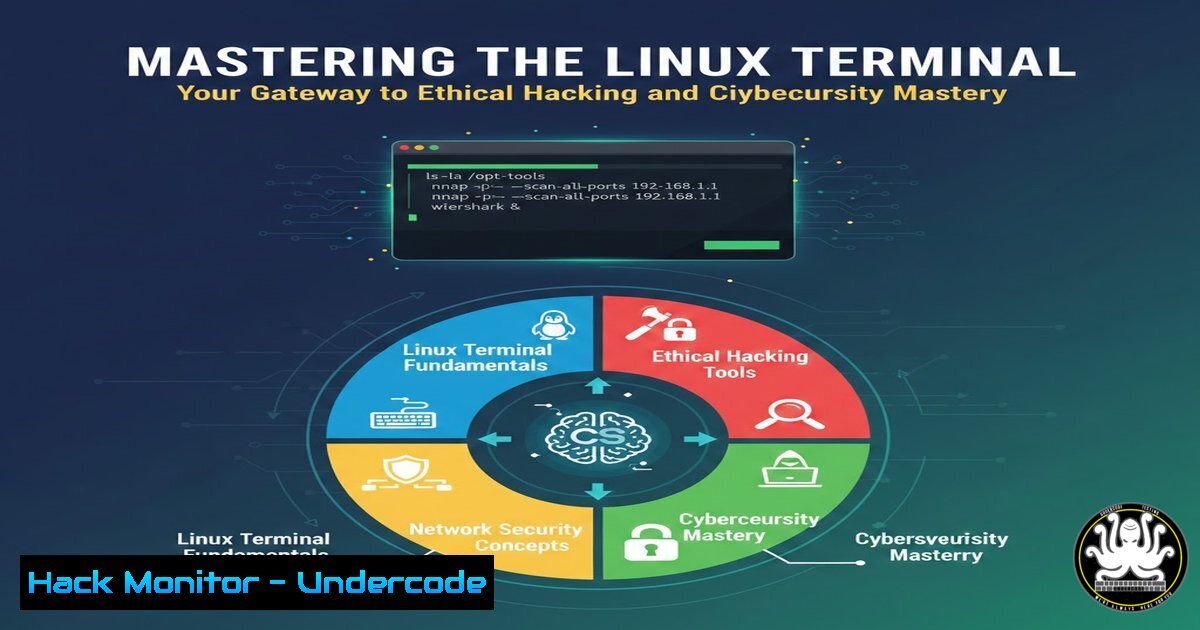
Introduction
For aspiring cybersecurity professionals, the command line is not just a tool—it is the battlefield. The Linux terminal prompt, often seen in distributions like Kali Linux, provides critical real-time intelligence about your user身份, system location, and privilege level. Misinterpreting this simple line can lead to catastrophic errors, such as deleting system files or running dangerous commands with root access. Understanding this prompt is the first, non-negotiable step toward using advanced security tools like Metasploit, Nmap, and Wireshark effectively.
Learning Objectives
- Objective 1: Decode the structure of the Linux terminal prompt (user@hostname:directory$).
- Objective 2: Differentiate between standard user ($) and root () privileges to prevent accidental system damage.
- Objective 3: Navigate the Linux filesystem confidently using basic command-line instructions essential for penetration testing.
You Should Know:
1. Anatomy of the `(kali@kali)-[~] └─$`
The default Kali Linux prompt is a rich source of information. It follows a standard structure that, once understood, tells you exactly who you are and where you are in the system.
– `(kali@kali)` (Username@Hostname): The first part before the `@` symbol indicates the currently logged-in user. The second part is the system’s hostname. For example, in (kali@kali), the user `kali` is operating on a machine also named kali.
– `[~]` (Current Directory): This shows your present working directory within the filesystem. The tilde `~` is a shorthand symbol representing the user’s home directory (e.g., /home/kali). If you change to the Desktop, it would update to [~/Desktop].
– `$` (Privilege Indicator): This symbol defines your access level.
– `$` : A dollar sign indicates a normal user with restricted permissions. You cannot accidentally modify system-critical files.
– “ : A hash (or pound) sign indicates the root user, who has absolute power over the system.
2. Navigating the Filesystem Like a Pro
Once you understand where you are, you need to know how to move. Here are the essential navigation commands that every SOC analyst and penetration tester uses daily.
Step‑by‑step guide:
1. `pwd` (Print Working Directory): Always run this first if you are unsure of your location. It will output the full absolute path (e.g., /home/kali/Downloads).
2. `ls` (List): Use this to see the contents of your current directory. Enhance it with switches for more detail:
– ls -la: Lists all files (including hidden ones) with permissions, ownership, size, and date.
3. `cd` (Change Directory): This is how you move.
– cd /etc: Moves to the `/etc` directory.
– cd ..: Moves you up one level to the parent directory.
– `cd ~` or just cd: Instantly returns you to your home directory, no matter where you are.
3. Understanding Privilege Escalation: `$` vs. “
In cybersecurity, knowing your privilege level is paramount. Running a tool like Nmap as a normal user might give limited results, while running it as root allows for advanced SYN scans. However, with great power comes great responsibility.
Step‑by‑step guide to checking and switching users:
1. Check your current user:
whoami
2. Check your privilege level: Look at the prompt. If it ends with $, you are a standard user. If it ends with , you are root.
3. Switching to root (when you have the password):
sudo su -
After entering the password, your prompt should change from `$` to.
4. The Danger Zone: As root (“), the system will not ask for confirmation before executing destructive commands. For example, running `rm -rf /` as a standard user will fail due to permission denied; running it as root will begin wiping your entire hard drive immediately.
4. Essential Commands for Daily Cybersecurity Tasks
The terminal is the launchpad for all major security tools. Before running complex exploits, you must master these foundational commands.
- Clearing the Screen: `clear` (or
Ctrl+L). Keeps your workspace tidy. - Finding Files:
find / -name ".conf" 2>/dev/null. This searches the entire system for configuration files while suppressing permission denied errors. - Viewing Logs:
sudo tail -f /var/log/syslog. This allows you to monitor system logs in real-time, a critical skill for threat hunting. - Network Diagnostics: `ip a` (Linux) or `ipconfig` (Windows). Check your IP addresses and network interfaces.
5. Windows Command Line Counterpart
While Linux dominates server-side security, Windows endpoints are a primary target. Understanding the command line on both OSes is vital.
Step‑by‑step guide to checking system info on Windows (PowerShell):
1. Open Command Prompt or PowerShell.
- Check user: `whoami` (works here too, but shows domain\username).
- Check privilege: By default, Command Prompt opens without admin rights. You can tell by the title bar or try to run a command that requires elevation, like
net session. If it fails, you are a standard user. - Navigate:
cd, `dir` (instead ofls), `cd ..` work similarly.
What Undercode Say:
- Key Takeaway 1: The terminal prompt is your heads-up display (HUD). It constantly provides critical status information—identity, location, and authority—that prevents fatal operational errors.
- Key Takeaway 2: Command-line literacy is the bedrock of cybersecurity. Whether you are automating log analysis, configuring a firewall, or exploiting a vulnerability, the GUI will fail you, but the shell will always provide a path forward.
- Analysis: The journey from a novice to a security expert is paved with thousands of commands typed into a terminal. The prompt shown in the original post is a microcosm of this journey. It represents the shift from clicking icons to thinking in terms of system architecture. For a penetration tester, misreading `$` for “ could mean the difference between a clean exploit and crashing the client’s production server. For a SOC analyst, understanding `[~]` versus `/var/log` dictates whether you are looking at user data or critical security audit trails. Mastering this nuance builds the muscle memory required to operate under the pressure of a live incident or a complex bug bounty hunt.
Prediction:
As Security Automation and AI-driven operations (SOAR) become more prevalent, the command line will not diminish in importance—it will evolve. Future analysts will use terminals to interact with AI agents, query massive security datasets via CLI tools, and orchestrate complex cloud defenses through Infrastructure as Code (IaC). The fundamental syntax of the Linux terminal will remain the universal language of cybersecurity, serving as the interface between human intent and machine execution for the foreseeable future.
▶️ Related Video (84% Match):
🎯Let’s Practice For Free:
IT/Security Reporter URL:
Reported By: Suvamdebnath Linux – Hackers Feeds
Extra Hub: Undercode MoN
Basic Verification: Pass ✅


