
Listen to this Post
Introduction:
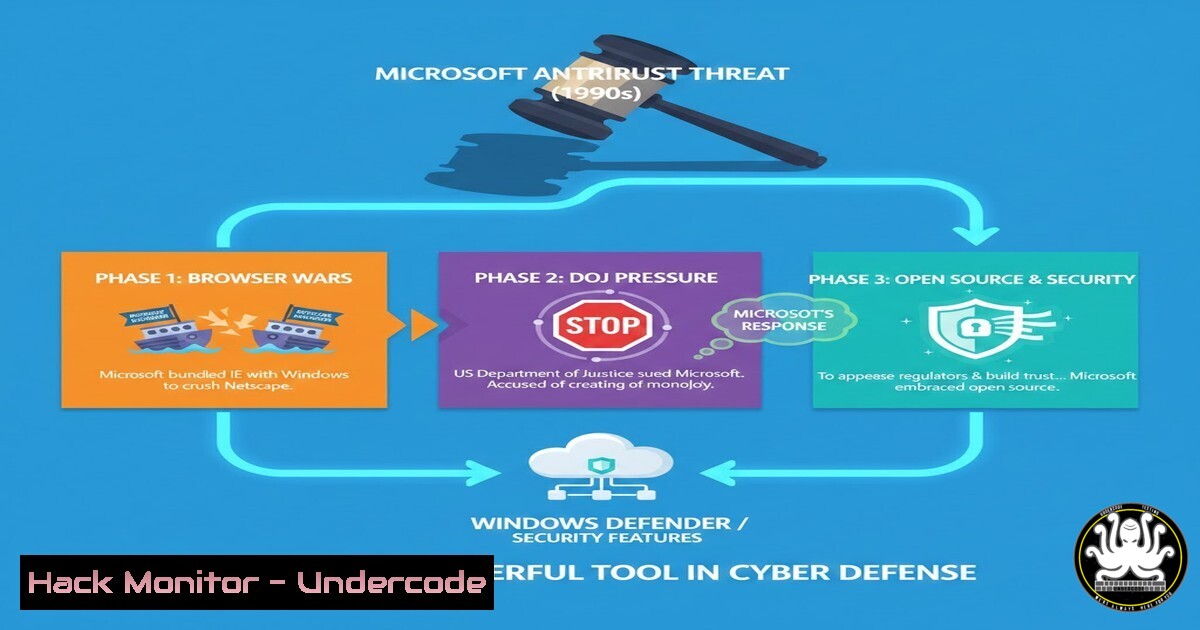
The creation of PowerShell was not merely a technological evolution; it was a corporate battleground where Microsoft faced down antitrust threats from established vendors to democratize system management. This move, while controversial at the time, fundamentally reshaped IT operations and cybersecurity. By breaking proprietary strangleholds and embracing an open, scriptable framework, PowerShell became the double-edged sword that defenders and attackers alike wield today—making its security configuration a critical pillar of modern enterprise defense.
Learning Objectives:
- Understand the historical context of PowerShell’s creation and its impact on the IT ecosystem.
- Master the security features of PowerShell to prevent exploitation by malicious actors.
- Implement logging, constrained language modes, and Just Enough Administration (JEA) to harden Windows environments.
- The PowerShell Paradigm Shift: From GUI to Code
The core of Jeffrey Snover’s vision, as highlighted in his recent recollection, was to make Windows management accessible to everyone, breaking the dependency on specialized, expensive vendor tools. This “leveling of the playing field” introduced the concept of managing infrastructure as code. For a security professional, this means understanding that every action previously done via a graphical interface can now be automated, logged, and audited via the command line.
To see the power and risk, one must first understand the execution policies. While not a security boundary, they prevent simple accidents.
Step‑by‑step guide: Understanding and Configuring Execution Policy
1. Open PowerShell as Administrator.
2. Check current policy: `Get-ExecutionPolicy`
- Set a secure policy for workstations: `Set-ExecutionPolicy RemoteSigned`
– What this does: Allows local scripts to run but requires that scripts downloaded from the internet be signed by a trusted publisher. - Bypass for a single session (useful for testing but dangerous in production):
`powershell -ExecutionPolicy Bypass -File .\malicious_script.ps1`
2. Deep Dive: PowerShell Logging for Forensic Analysis
Because PowerShell can execute arbitrary code in memory without touching the disk (a technique known as “fileless malware”), robust logging is non-negotiable. Attackers love PowerShell because it is living-off-the-land. Defenders must enable transcription and script block logging to capture these activities.
Step‑by‑step guide: Enabling Enhanced PowerShell Logging via Group Policy
1. Open Group Policy Management Console (GPMC).
2. Navigate to: `Computer Configuration\Administrative Templates\Windows Components\Windows PowerShell`.
3. Enable “Turn on PowerShell Script Block Logging”:
- Set to Enabled.
- Check the box “Log script block invocation start/stop events”. This captures de-obfuscated code.
4. Enable “Turn on PowerShell Transcription”:
- Set to Enabled.
- Specify an output directory (e.g.,
\\central-log-server\PowerShellLogs$). This records all input and output of PowerShell sessions.
- Force update: Run `gpupdate /force` on target machines.
-
Constrained Language Mode: Locking Down the Attack Surface
In response to the very attacks that weaponized its flexibility, Microsoft introduced Constrained Language Mode (CLM). CLM restricts PowerShell to basic types and operations, preventing attackers from calling arbitrary .NET methods or using COM objects. This is essential for systems where users need PowerShell for tasks but shouldn’t have full scripting capabilities.
Step‑by‑step guide: Implementing CLM via System-wide Policy
You can enforce CLM using environment variables or AppLocker rules.
1. System-wide enforcement (Requires restart of PowerShell):
- Set the environment variable: `$env:SystemRoot\System32\WindowsPowerShell\v1.0\powershell.exe -ExecutionPolicy Byphell -Command “& {Set-ItemProperty -Path ‘HKLM:\SYSTEM\CurrentControlSet\Control\Session Manager\Environment’ -Name ‘__PSLockdownPolicy’ -Value ‘4’ -Type String}”`
– Note: A value of ‘4’ forces CLM for all users.
2. Verification:
- Open a new PowerShell window and run: `$ExecutionContext.SessionState.LanguageMode`
– The output should read:ConstrainedLanguage.
- Just Enough Administration (JEA): The Principle of Least Privilege
JEA is a security technology that enables delegated administration for anything managed by PowerShell. It allows specific users to connect to a system and run specific commands or scripts as a privileged account, without them ever having direct administrator access. This directly addresses the “vendor lock-in” narrative by allowing secure delegation without giving away the keys to the kingdom.
Step‑by‑step guide: Creating a Basic JEA Endpoint
- Create a Role Capability File (defines what the user can do):
`New-PSRoleCapabilityFile -Path .\DemoRole.psrc`
- Edit the file to allow specific modules, e.g., `VisibleCmdlets = ‘Restart-Service’, ‘Get-Service’`
2. Create a Session Configuration File (defines who can connect):
`New-PSSessionConfigurationFile -Path .\DemoEndpoint.pssc`
- Edit the file to set `RunAsVirtualAccount = $true` and associate the role: `RoleDefinitions = @{ ‘CONTOSO\JEA_Operators’ = @{ RoleCapabilities = ‘DemoRole’ } }`
3. Register the endpoint:
`Register-PSSessionConfiguration -Name ‘DemoJEA’ -Path .\DemoEndpoint.pssc`
4. Connect as a non-admin user:
`Enter-PSSession -ComputerName localhost -ConfigurationName DemoJEA`
5. Securing PowerShell Remoting (WinRM)
PowerShell Remoting (WinRM) is the backbone of modern Windows administration. If misconfigured, it’s a direct highway for lateral movement. Attackers frequently look for WinRM listening on port 5985/5986.
Step‑by‑step guide: Hardening WinRM with HTTPS and IP Filtering
1. Enable PSRemoting (if not already): `Enable-PSRemoting -Force`
2. Configure HTTPS Listener:
- Create a self-signed certificate (for testing) or request one from your CA: `$cert = New-SelfSignedCertificate -CertStoreLocation Cert:\LocalMachine\My -DnsName “server01.contoso.com” -KeyUsage KeyEncipherment -Type SSLServerAuthentication`
– Create the HTTPS listener: `New-Item -Path WSMan:\LocalHost\Listener -Transport HTTPS -Address -CertificateThumbprint $cert.Thumbprint -Force`
3. Restrict IP Addresses: Use Windows Firewall to limit incoming WinRM connections to specific management subnets.
– `New-NetFirewallRule -DisplayName “WinRM-HTTPS” -Direction Inbound -LocalPort 5986 -Protocol TCP -Action Allow -RemoteAddress “192.168.1.0/24″`
6. Defensive Analysis: Detecting Malicious PowerShell Patterns
Knowing how to enable logging is useless without knowing what to look for. Security Operations Centers (SOCs) must hunt for specific patterns in PowerShell logs (Event ID 4104).
Step‑by‑step guide: Hunting for Suspicious Patterns in Event Viewer
1. Open Event Viewer and navigate to Applications and Services Logs\Microsoft\Windows\PowerShell\Operational.
2. Filter for Event ID 4104 (Script Block Logging).
3. Look for common attacker tradecraft:
- Base64 encoded commands: Search for `-EncodedCommand` or
-e. - Download cradle patterns: Search for `System.Net.WebClient` or `Invoke-WebRequest` combined with
DownloadString. - Reflection/Assembly loading: Search for `System.Reflection.Assembly` or
Load(). - Obfuscation attempts: Search for `char(` or excessive backticks (`) which are used to hide keywords.
What Undercode Say:
- Key Takeaway 1: The antitrust incident surrounding PowerShell’s creation highlights a crucial inflection point where Microsoft chose openness over proprietary vendor lock-in, inadvertently creating a standard tool for attackers that defenders must now meticulously control.
- Key Takeaway 2: Effective PowerShell security is not about disabling it, but about embracing its capabilities through rigorous logging (Script Block Logging), restricting its environment (Constrained Language), and delegating privileges safely (JEA).
The narrative shared by Jeffrey Snover is more than a historical anecdote; it is a reminder that foundational technology decisions have profound security implications decades later. PowerShell’s flexibility, born from a battle against proprietary interests, is its greatest strength and its most significant vulnerability. Enterprises must shift from merely using PowerShell to actively governing it, treating its scripts and modules with the same rigor as compiled code. The “scary Microsoft lawyers” protected the tool’s existence; it is now the responsibility of engineers and security teams to protect its use. By implementing the controls outlined above, organizations can ensure that PowerShell remains a force for automation and efficiency rather than a silent vector for compromise.
Prediction:
As Microsoft continues to integrate AI into security tooling (such as Security Copilot), we will see a shift from static PowerShell logging to real-time, natural language interrogation of script behavior. Future attacks will not just be detected by static strings (like -EncodedCommand), but by behavioral analysis where AI flags anomalous PowerShell execution patterns, effectively creating an “immune system” that understands the intent of a script, not just its syntax. This will force attackers to abandon PowerShell entirely in favor of more esoteric, less-documented living-off-the-land binaries.
▶️ Related Video (82% Match):
🎯Let’s Practice For Free:
IT/Security Reporter URL:
Reported By: Jeffreysnover Another – Hackers Feeds
Extra Hub: Undercode MoN
Basic Verification: Pass ✅


