Listen to this Post
Introduction
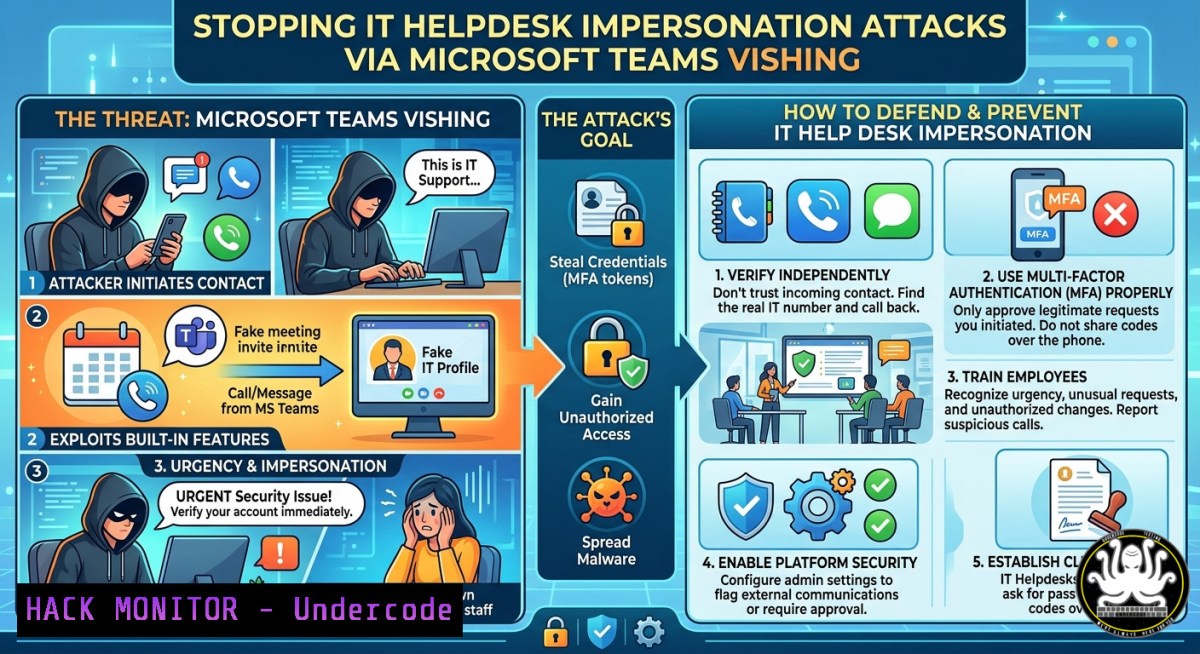
A growing wave of vishing (voice phishing) campaigns is abusing Microsoft Teams’ external collaboration features to impersonate IT helpdesk personnel and investigators. These attacks exploit user trust in enterprise collaboration platforms, bypassing traditional email defenses and highlighting a critical blind spot in how organizations manage cross-tenant communication. Security teams are now turning to the Microsoft 365 Unified Audit Log (UAL) as a crucial forensic data source to reconstruct attack timelines and identify malicious activity.
Learning Objectives
- Understand the technical architecture of Microsoft Teams guest access and how attackers create “protection‑free zones” to deliver malware and steal credentials.
- Learn how to harden Teams external communication settings, disable unnecessary remote support tools, and enforce cross‑tenant access policies.
- Gain hands‑on knowledge of forensic investigation using the Microsoft 365 Unified Audit Log (UAL), including PowerShell queries to hunt for suspicious Teams activity.
You Should Know
- Deep Dive: How Attackers Abuse Teams Guest Access and “Protection‑Free Zones”
The attack begins when a threat actor operating from an external or cross‑tenant Teams account initiates an unsolicited call or message to a targeted employee, pretending to be internal IT support. Using social engineering, the attacker convinces the victim to execute commands, approve remote access sessions, or install remote monitoring and management (RMM) tools such as Quick Assist. Because the interaction occurs within a seemingly trusted collaboration platform rather than email, traditional phishing defenses frequently fail to intercept the intrusion. Microsoft’s Detection and Response Team (DART) documented a campaign built on persistent Teams voice phishing as far back as November 2025, noting that the attack path has been observed across multiple enterprise environments.
A key enabler of this attack is a fundamental architectural gap in Microsoft Teams’ cross‑tenant collaboration model. When a user accepts a guest invitation to an external tenant, they leave their own security perimeter and inherit the security policies of the hosting environment. This means protections like Safe Links, Safe Attachments, URL scanning, and Zero‑hour Auto Purge (ZAP) are enforced solely by the resource tenant. Attackers exploit this by creating inexpensive Microsoft 365 tenants (e.g., using low‑cost licenses such as Teams Essentials or Business Basic) that come without advanced security features enabled by default. Using Microsoft’s “Chat with Anyone” feature—which is enabled by default and automatically allows users to message anyone with an email address—threat actors send Microsoft‑generated guest invitations that pass SPF, DKIM, and DMARC checks, making them appear legitimate.
Once victims accept and enter the attacker’s tenant, threat actors can deliver malicious URLs, weaponized documents, or social engineering lures without any scanning or retroactive removal by the victim’s home organization. Moreover, none of the activity appears in the victim organization’s logs, alerts, or telemetry, creating a stealthy, “protection‑free zone” for attackers.
- Forensic Investigation: Using the Microsoft 365 Unified Audit Log (UAL) to Reconstruct Attack Timelines
The Microsoft 365 Unified Audit Log (UAL) has become a critical forensic data source for reconstructing the timeline of these vishing attacks. Security researcher Maurice Fielenbach highlights the `CallParticipantDetail` operation, logged under the `MicrosoftTeams` workload in the UAL, as a pivotal artifact. This event records participant identity, join and leave timestamps, connection metadata, tenant of origin, and federated or external indicators. Investigators must correlate `CallParticipantDetail` with related events including MessageSent, MessageCreatedHasLink, and endpoint telemetry to reconstruct a complete attack chain. Audit records typically surface within 60 to 90 minutes with no guaranteed service‑level agreement, and default retention is 180 days.
Step‑by‑Step Guide: Hunting for Suspicious Teams Activity Using UAL (PowerShell)
- Connect to Exchange Online PowerShell and the Security & Compliance Center:
Install required modules (run as administrator)
Install-Module -Name ExchangeOnlineManagement
Install-Module -Name MicrosoftTeams

Connect to Exchange Online and Security & Compliance Center
Connect-ExchangeOnline
Connect-IPPSSession
2. Basic UAL Query for Teams Call Details:
 Search Unified Audit Log for CallParticipantDetail events in the last 24 hours
Search-UnifiedAuditLog -StartDate (Get-Date).AddDays(-1) -EndDate (Get-Date) -RecordType MicrosoftTeams -Operations "CallParticipantDetail" -ResultSize 1000 |
Format-Table -AutoSize CreationDate, UserIds, Operations, AuditData
- Parse the JSON AuditData to Extract External Tenant Indicators:
$results = Search-UnifiedAuditLog -StartDate (Get-Date).AddDays(-7) -EndDate (Get-Date) -RecordType MicrosoftTeams -Operations "CallParticipantDetail" -ResultSize 5000 $parsed = @() foreach ($result in $results) { $auditData = $result.AuditData | ConvertFrom-Json $parsed += [bash]@{ TimeStamp = $result.CreationDate User = $auditData.UserId Operation = $result.Operations External = $auditData.IsExternalUser TenantId = $auditData.TenantId CallDetails = $auditData.CallDetails } } $parsed | Where-Object { $_.External -eq $true } | Format-Table -AutoSize -
Detect Rapid External Contact Attempts (Potential Vishing Indicators):
Count external Teams communications per user in the last 48 hours Search-UnifiedAuditLog -StartDate (Get-Date).AddDays(-2) -EndDate (Get-Date) -RecordType MicrosoftTeams -Operations "ChatCreated", "MessageSent", "CallParticipantDetail" -ResultSize 10000 | Group-Object UserIds | Select-Object Name, Count | Where-Object { $_.Count -gt 5 } | Sort-Object Count -Descending -
Investigate Quick Assist and RMM Tool Usage via Endpoint Telemetry:
Monitor for Quick Assist processes (QuickAssist.exe) or other RMM tools executed shortly after a suspicious Teams interaction, as threat actors often direct victims to launch these tools. -
Detection Engineering: Sentinel and SIEM Queries for Teams Impersonation
Organizations can use Microsoft Sentinel or other SIEM platforms to proactively hunt for Teams‑based vishing attempts. The following KQL (Kusto Query Language) query, adapted from eSentire’s Threat Response Unit guidance, helps detect external Teams messages containing keywords typical of IT helpdesk impersonation.
Microsoft Sentinel / KQL Query for Suspicious External Teams Messages:
// Microsoft Teams external message hunt for IT helpdesk impersonation
let ITKeywords = dynamic(["IT Support", "Helpdesk", "System Admin", "security update", "remote access", "Quick Assist", "password reset"]);
UnionAudit
| where Operation in ("MessageSent", "ChatCreated")
| where RecordType = "MicrosoftTeams"
| extend AuditData = parse_json(TenantId)
| extend UserAgent = tostring(AuditData.UserAgent)
| extend IsExternal = tostring(AuditData.CrossTenantAccessType)
| extend MessageBody = tostring(AuditData.MessageBody)
| where IsExternal == "External"
| where MessageBody has_any (ITKeywords)
| project TimeGenerated, UserId, MessageBody, IsExternal, ClientIP, Operation
| order by TimeGenerated desc
Additional Monitoring Signals:
– `TeamsImpersonationDetected` and `SecurityRiskInCallDetected` events, where available, serve as supplementary threat indicators.
– For investigations requiring message body content, standard UAL queries are insufficient; Microsoft eDiscovery and Content Search workflows are required.
- Harden Microsoft Teams Settings to Prevent External Impersonation
Organizations must implement technical controls to limit external Teams communication and prevent attackers from reaching users.
Step‑by‑Step Guide: Restrict External Teams Access
- Limit External Communications to Allowed Domains Only (Teams Admin Center):
– Navigate to Teams Admin Center > Users > External Access.
– Select Only allowed domains and add trusted partner domains to the allowlist.
– Disable Allow External Users to Start Conversations if your business does not require cold outreach from external vendors.
- Disable the “Chat with Anyone via Email” Feature Using PowerShell:
The new “Chat with Anyone” feature (MC1182004) is enabled by default. To prevent users from sending unsolicited guest invitations, run:Connect to Microsoft Teams PowerShell Connect-MicrosoftTeams Block users from sending B2B guest invitations Set-CsTeamsMessagingPolicy -Identity Global -UseB2BInvitesToAddExternalUsers $false
Note: This setting only prevents outbound invitations; it does not block inbound invitations from malicious external tenants.
-
Enforce Cross‑Tenant Access Policies Using Microsoft Entra ID:
– Go to Microsoft Entra Admin Center > External Identities > Cross‑tenant access settings.
– Create a policy to block inbound guest access by default and explicitly allow only trusted organizations.
– Apply Conditional Access policies requiring Multi‑Factor Authentication (MFA) for all external or guest interactions.
4. Disable or Harden Quick Assist:
If Quick Assist is not required in your environment, remove or disable it using Group Policy Object (GPO), block network traffic to the Quick Assist domain, or uninstall the Quick Assist package:
 Uninstall Quick Assist via PowerShell (Windows 10/11)
Get-AppxPackage MicrosoftCorporationII.QuickAssist | Remove-AppxPackage
Alternatively, block the Quick Assist executable via GPO: set “Don’t run specified Windows applications” and add quickassist.exe.
5. User Awareness and Out‑of‑Band Verification
Technical controls alone are insufficient. Users must be trained to recognize Teams‑based vishing attempts and follow out‑of‑band verification procedures.
Step‑by‑Step Guide: Train Users to Spot Teams Vishing
- Look for the “External” Tag: Real internal IT support will never have an (external) tag next to their name. Remind users to verify this before engaging in any sensitive actions.
- Never Trust Unsolicited Requests: Establish a policy that IT will never initiate a support session via a cold‑call Teams chat without a pre‑existing ticket number. Users should always verify through a known internal channel (e.g., phone call to the official IT helpdesk number) before granting remote access.
- Conduct Regular Phishing Simulations: Use tools like Microsoft Attack Simulator or KnowBe4 to simulate realistic Teams phishing scenarios. Include screenshots of real phishing messages with annotated red flags in monthly awareness campaigns.
- Report Suspicious Activity Immediately: Implement a simple reporting process (e.g., a “Report Phishing” button in Teams or a dedicated email alias) and ensure that all reports are investigated promptly.
What Undercode Says
- Key Takeaway 1: The architectural flaw in Microsoft Teams’ guest access model—where users inherit the security policies of an external tenant—creates a dangerous “protection‑free zone” that attackers are actively exploiting. Organizations cannot rely solely on Microsoft Defender for Office 365 to protect users once they accept a guest invitation.
- Key Takeaway 2: The Microsoft 365 Unified Audit Log (UAL) is an underutilized forensic goldmine. By querying `CallParticipantDetail` and correlating with other Teams audit events, security teams can reconstruct the full timeline of a vishing attack, even though message body content requires eDiscovery workflows.
This threat is particularly dangerous because it targets the human element of trust in an enterprise collaboration platform that many organizations have under‑monitored. Most security teams have robust email security gateways but have not extended the same level of inspection to Teams. The shift from email to collaboration‑based phishing represents a strategic evolution in social engineering: attackers are going where defenses are weakest and where users are conditioned to lower their guard. The use of Microsoft’s own infrastructure to send legitimate‑looking guest invitations that bypass SPF, DKIM, and DMARC checks means that traditional email security solutions are blind to the initial contact vector.
Prediction
-
- Adoption of cross‑tenant access policies (Entra ID) will become a mandatory compliance requirement for regulated industries, driving demand for automated cloud security posture management (CSPM) tools.
-
- The rise of Teams‑based vishing will accelerate investment in integrated collaboration security platforms that provide real‑time detection, user alerts, and automated incident response.
- – Without immediate hardening, the attack surface will expand further as Microsoft’s “Chat with Anyone” feature rolls out globally, allowing threat actors to target any email address, including those outside the Microsoft ecosystem.
- – Attackers will increasingly combine Teams vishing with deepfake audio and video, making impersonation nearly indistinguishable from legitimate IT support calls.
- – Many organizations will face costly ransomware incidents over the next 12–18 months because they fail to disable default external access settings and do not train users to recognize unsolicited Teams messages.
▶️ Related Video (76% Match):
🎯Let’s Practice For Free:
IT/Security Reporter URL:
Reported By: Cybersecuritynews Share – Hackers Feeds
Extra Hub: Undercode MoN
Basic Verification: Pass ✅
🎓 Live Courses & Certifications:
Join Undercode Academy for Verified Certifications
🚀 Request a Custom Project:
Secure, high-velocity infrastructure and disruptive technological engineering. Contact our engineering team for high-tier development and proprietary systems:
[email protected]


