
Listen to this Post
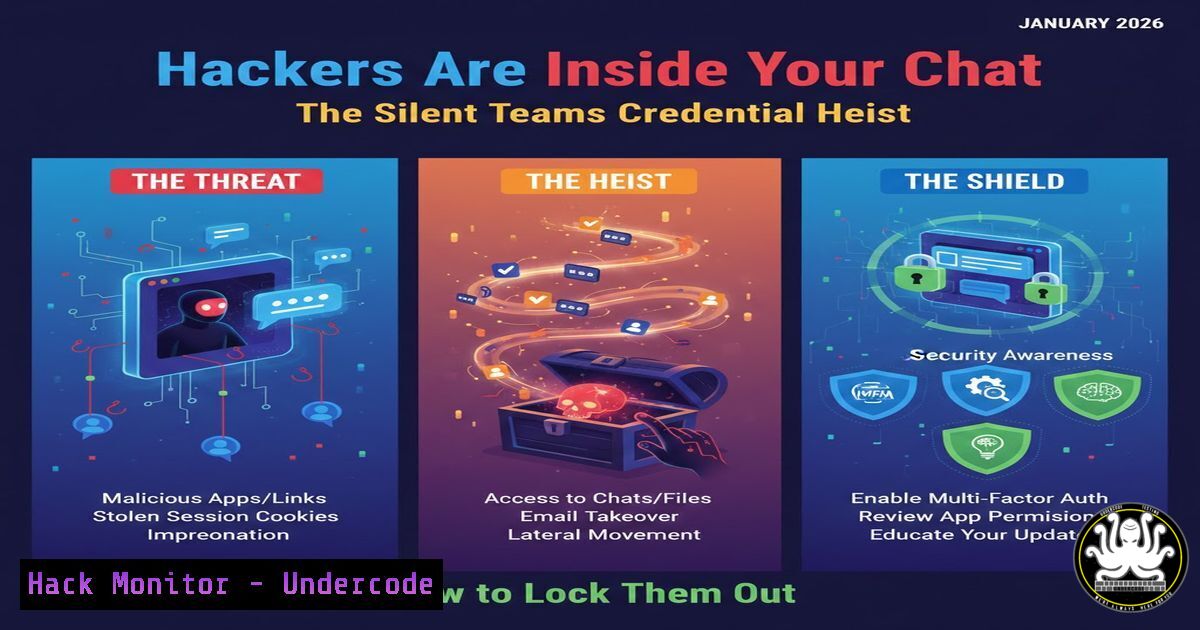
Introduction:
A classic yet persistently effective attack vector has resurfaced, targeting organizations globally through Microsoft Teams. Threat actors are exploiting the platform’s external collaboration features to impersonate trusted services and steal employee credentials. This social engineering attack bypasses traditional email filters, landing directly in a trusted communication channel, posing a severe risk to identity and access management security.
Learning Objectives:
- Understand the mechanics of the Microsoft Teams credential phishing attack.
- Learn to implement and maintain a strict external access whitelist for collaboration tools.
- Master the audit and hardening of Identity Provider (IdP) and guest accounts across Entra ID (Azure AD), Keycloak, and SharePoint.
You Should Know:
- The Attack Vector: Exploiting Trust in Collaboration Platforms
This attack hinges on psychological trust and platform misuse. Hackers create domains visually similar to Microsoft’s (e.g.,microsoft-security.com) and use them to send contact requests or initiate chats within Teams to employees of a target organization. The message, often posing as a “IT Security Alert” or “Required Update,” contains a link that leads to a sophisticated phishing page designed to harvest Microsoft 365 credentials.
Step-by-step guide explaining what this does and how to use it.
How it Works: The attacker leverages Teams’ default configuration, which often allows communication from external tenants. The victim sees a contact request or message from “Microsoft Support” or a trusted vendor name.
Mitigation Step 1 – Restrict External Access: The primary defense is moving from an allow-all to a deny-all, whitelist-based model for external Teams and SharePoint access.
In Microsoft 365 Admin Center: Navigate to Teams admin center > Org-wide settings > External access. Choose `Allow only specific domains` and input the domains of verified partners.
PowerShell Command (Connect to Microsoft Teams Module):
Set-CsExternalAccessPolicy -Identity Global -EnableFederationAccess $false -EnablePublicCloudAccess $false
 Then define specific allowed domains via the admin center or finer-grained policies.
2. Building and Maintaining a Dynamic Allow List
A static whitelist is insufficient. This list must be a living document, regularly reviewed and updated in alignment with business contracts.
Step-by-step guide explaining what this does and how to use it.
What it Does: This process ensures only current, legitimate partners can initiate contact.
Implementation Guide:
- Inventory: Extract all current external domains with access. Use Microsoft 365 Audit Log or PowerShell to find external collaborations.
- Governance: Establish a process where only domains from vetted, active contracts are added. This request must come from a business owner and be approved by IT/Security.
- Automation (Conceptual): Use a Power Automate flow or API script that triggers when a new vendor contract is approved in your procurement system, prompting the security team to add the domain.
- Quarterly Review: Schedule mandatory reviews to remove domains associated with lapsed partnerships.
-
Hardening Your Identity Perimeter: Auditing IdP & Guest Accounts
As highlighted, managing identities in Entra ID, Keycloak, and guest accounts is critical. These are prime targets post-initial breach.
Step-by-step guide explaining what this does and how to use it.
What it Does: Identifies stale, over-privileged, and malicious guest/user accounts that could be used for lateral movement.
Implementation Commands:
Audit Microsoft Entra ID (Azure AD) Guest Users:
 Connect to Azure AD module (Microsoft.Graph)
Connect-MgGraph -Scopes "User.Read.All", "Directory.Read.All"
 Get all guest users and their last sign-in activity
Get-MgUser -Filter "userType eq 'Guest'" -All | Select-Object DisplayName, UserPrincipalName, @{N="LastSignIn";E={Get-MgUserSignInActivity -UserId $<em>.Id | Select-Object -ExpandProperty LastSignInDateTime}}
Audit SharePoint Online Guest Users: Use the SharePoint Online Management Shell:
Get-SPOSite | ForEach-Object {Get-SPOUser -Site $</em>.Url | Where-Object {$_.IsGuestUser -eq $true}} | Select-Object DisplayName, LoginName, Site
Keycloak Audit: Use the Admin REST API or console to list users and sessions:
 Example using KC Admin REST API (requires token)
curl -X GET "http://<keycloak-server>/auth/admin/realms/<realm>/users" -H "Authorization: bearer <admin-token>" | jq '.[] | select(.attributes.isGuest)'
4. Implementing Conditional Access & Multi-Factor Authentication (MFA)
A stolen password alone should not grant access. Conditional Access (CA) policies are your strongest technical control.
Step-by-step guide explaining what this does and how to use it.
What it Does: CA policies enforce sign-in requirements based on conditions like user, location, device state, and application sensitivity.
Critical Policy to Create:
- In the Microsoft Entra admin center, go to
Protection > Conditional Access. - Create a new policy named [bash] Require MFA for External & Guest Users.
3. Assignments:
Users: Select “All guest and external users”.
Cloud apps: Select “All cloud apps”.
- Access controls: Grant access but Require multifactor authentication.
- Enable the policy and set to Report-only for 1-2 weeks to monitor impact, then enable.
5. Simulating the Attack: Internal Phishing Campaigns
The best way to understand the threat is to test your own defenses and user awareness.
Step-by-step guide explaining what this does and how to use it.
What it Does: A controlled simulation measures both the technical controls’ effectiveness and employee vigilance.
Implementation Guide:
- Use a platform like Microsoft’s Attack Simulation Training or an external tool like GoPhish.
- Craft a message mimicking the Teams phishing lure.
3. Target a small, controlled group of users.
- Key Metric: Track the “click rate” (who clicked the link) and “credential submit rate” (who entered fake credentials).
- Automatically deliver tailored security training to users who fail the simulation.
What Undercode Say:
- Discipline Over Silver Bullets: The core mitigation—meticulous allow-listing and identity hygiene—is administrative and repetitive. No advanced AI can replace the disciplined, ongoing review of partner domains and guest accounts. This is the unglamorous bedrock of security.
- The Identity Fabric is Your New Perimeter: The attack exploits the seamless identity fabric between organizations. Security strategies must pivot from solely defending the network edge to rigorously governing inter-organizational identity threads in Entra ID, SharePoint, and collaboration platforms.
Prediction:
This Teams phishing tactic is a precursor to more automated, AI-driven social engineering within collaboration ecosystems. We will see attackers use generative AI to create hyper-personalized lures based on scraped public data (e.g., from LinkedIn) and automate malicious guest account creation in target tenants. The future battleground will be the “trust and identity layer” of platforms like Teams, Slack, and Google Workspace, where AI-powered defense will be necessary to analyze communication patterns and identity relationships in real-time to flag anomalous trust requests before they reach the human user.
▶️ Related Video (76% Match):
🎯Let’s Practice For Free:
IT/Security Reporter URL:
Reported By: Blasdo Httpslnkdinejdg9u7e – Hackers Feeds
Extra Hub: Undercode MoN
Basic Verification: Pass ✅


