Listen to this Post
Introduction:
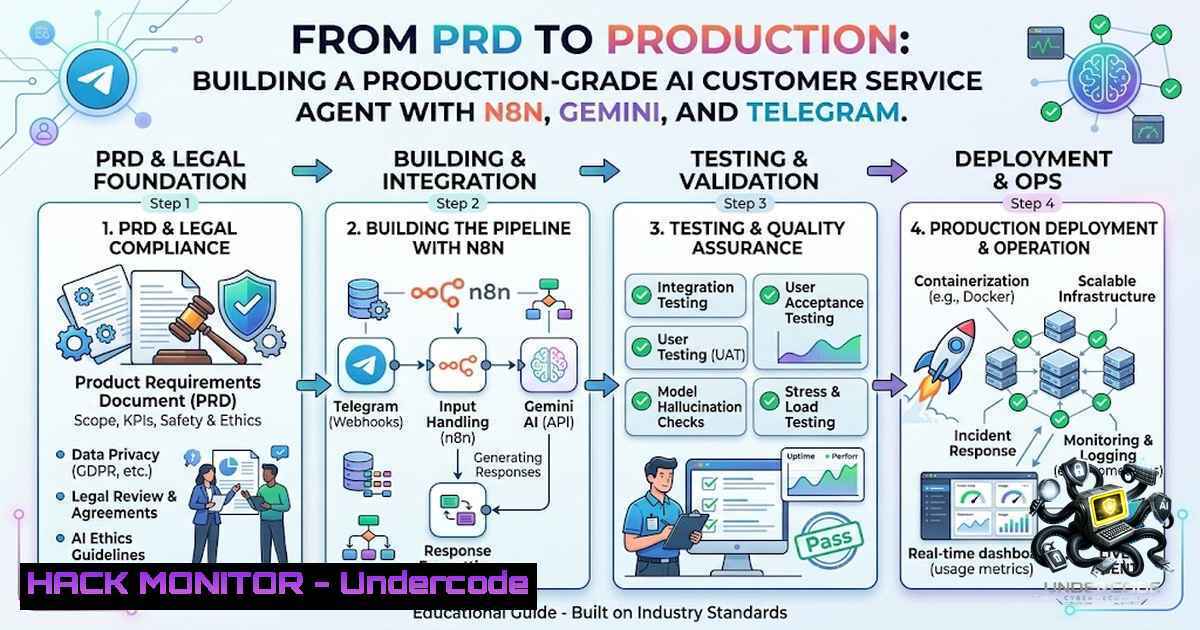
The gap between describing an AI agent in a Product Requirements Document (PRD) and actually wiring one together is where the real engineering begins. As Rishabh Chauhan recently demonstrated while building a customer service bot on Telegram—powered by n8n orchestration, a Gemini AI agent with memory, and live Google Sheets integrations—the “happy path” is straightforward, but production readiness lives in the debugging trenches. This article breaks down the technical architecture, step-by-step implementation, and critical debugging patterns for building an end-to-end AI agent workflow that doesn’t just work in theory, but survives the friction of triggers, tool calls, API quotas, and memory management in practice.
Learning Objectives:
- Understand the complete architecture of an n8n-based AI agent workflow with Telegram as the interface, Gemini as the orchestrator, and Google Sheets as the data source
- Master the configuration of Telegram webhooks, Google Sheets API credentials, and Gemini API keys within n8n
- Implement conversation memory (short-term session context) using n8n’s Window Buffer Memory
- Debug common production issues: deprecated model references, silent tool connection failures, and API quota errors
- Learn to extend and customize the workflow for different LLMs, data sources, and business logic
1. Architecture Overview: The Four-Layer Stack
Before diving into configuration, understand the four layers that comprise this production-ready AI agent:
Layer 1 – Interface (Telegram): The Telegram bot acts as the frontend, receiving user messages via webhooks and delivering responses. Telegram requires a public HTTPS endpoint, which n8n provides through its Telegram Trigger node.
Layer 2 – Orchestration (n8n): n8n serves as the workflow automation backbone. The AI Agent node (LangChain-based) coordinates the entire flow—receiving input, managing memory, deciding which tools to call, and generating responses. As of n8n version 1.82.0, the AI Agent node functions exclusively as a Tools Agent, which is the recommended approach.
Layer 3 – AI Reasoning (Gemini): The Google Gemini Chat Model node provides the language model capabilities. Gemini processes natural language, understands intent, and determines when to call external tools.
Layer 4 – Data Source (Google Sheets): Google Sheets acts as a lightweight database—storing order information, customer records, or FAQ data. The AI Agent accesses this via Google Sheets tool nodes configured with OAuth2 credentials.
2. Step-by-Step Setup: From Zero to Functional Workflow
Prerequisites:
- n8n instance (self-hosted or cloud)
- Telegram bot token (obtain via @BotFather)
- Google Gemini API key (obtain from Google AI Studio)
- Google account with Sheets API enabled
Step 1: Create the Telegram Bot
Message @BotFather on Telegram and run the `/newbot` command. Copy your bot token and add it as a Telegram credential in n8n under Credentials → New → Telegram Bot API.
Step 2: Configure the Telegram Webhook
The Telegram Trigger node in n8n provides a webhook URL. Register this URL with Telegram using the following `curl` command:
curl -X POST "https://api.telegram.org/bot{TOKEN}/setWebhook?url={WEBHOOK_URL}"
Replace `{TOKEN}` with your bot token and `{WEBHOOK_URL}` with the URL from the Telegram Trigger node. If running n8n locally, use ngrok to expose your instance over HTTPS:
ngrok http 5678
Then register the webhook with your ngrok URL:
curl -X POST "https://api.telegram.org/bot{TOKEN}/setWebhook?url=https://{YOUR_NGROK_URL}/webhook/telegram-ecom-bot"
Step 3: Enable Google Sheets API and Create OAuth Credentials
- Go to Google Cloud Console
- Create a new project or select an existing one
- Navigate to APIs & Services → Library and enable Google Sheets API
4. Go to APIs & Services → Credentials
- Create OAuth 2.0 Client ID credentials (Desktop application type)
6. Download the JSON credentials file
- In n8n, go to Credentials → New → Google Sheets OAuth2 and paste the credentials
Step 4: Add Gemini API Key in n8n
- Go to Credentials → New → Google PaLM API (this is the credential type for Gemini)
- Paste your Gemini API key from Google AI Studio
3. Save the credential
Step 5: Prepare Your Google Sheets Data Source
Create a Google Sheet with columns relevant to your use case. For an e-commerce support bot, structure it as:
| order_id | customer_name | email | product | status | date |
|-||-||–||
For a CRM contact capture bot, use:
| Full name | Email | Phone | Company | Job title | Meeting notes |
|–|-|-||–||
Share the spreadsheet with the Google account linked to your OAuth credential.
Step 6: Build the n8n Workflow
The core workflow consists of these nodes:
1. Telegram Trigger – Receives incoming messages
- Window Buffer Memory – Maintains short-term conversation context per user
- AI Agent – Orchestrates the reasoning and tool calling
- Google Gemini Chat Model – Provides the LLM capabilities
- Google Sheets Tool Nodes – Read, update, or create records
- Telegram node – Sends responses back to the user
Connect the Window Buffer Memory node to the `ai_memory` input of the AI Agent node to enable session memory.
3. Implementing Conversation Memory: Keeping Context Across Turns
Memory is what transforms a stateless chatbot into a conversational agent. n8n provides Window Buffer Memory—a simple memory type that stores a customizable length of chat history for the current session.
How to configure Window Buffer Memory:
- Add a Memory (BufferWindow) node to your workflow
- Connect it to the `ai_memory` input of the AI Agent node
- Configure the Session Key—typically use `{{ $json.message.chat.id }}` to key memory per Telegram chat
- Set the Window Size (number of messages to retain). For most use cases, 10-20 messages is sufficient
For long-term memory persistence across sessions, you can extend this pattern using Google Docs as a storage backend—retrieving stored memories before each AI call and persisting new ones via tool calls.
- Tool Calling: Wiring the AI to Google Sheets
The AI Agent decides which tools to call based on the user’s intent. For a customer support bot, you typically need three tools:
Tool 1: Read Orders – Look up order details by Order ID or email
Tool 2: Update Order Status – Cancel an order after confirmation
Tool 3: Create Support Ticket – Append a new ticket row to the support sheet
Configuring a Google Sheets Tool Node:
- Add a Google Sheets node to your workflow
- Set the Operation to `Read` or `Update` or `Append`
3. Select your Google Sheets OAuth2 credential
- Enter the Document ID (found in the Sheet’s URL: `https://docs.google.com/spreadsheets/d/{DOCUMENT_ID}/edit`)
5. Specify the Sheet Name (e.g., “Sheet1”)
- For read operations, define filter criteria (e.g., `order_id` equals the user’s input)
Important: The AI Agent must have at least one tool connected. Without a tool, the agent cannot perform any actions.
- Debugging the Friction: Common Production Issues and Fixes
Issue 1: Deprecated Model References
AI models are frequently updated, and older model strings become deprecated. If your Gemini node references a deprecated model, you’ll see errors. Fix: Update the model parameter in the Google Gemini Chat Model node to a currently supported model (e.g., `gemini-1.5-pro` or gemini-2.0-flash). Additionally, the AI Agent node’s agent type setting was deprecated in [email protected]—all agents now function as Tools Agents.
Issue 2: Silent Tool Connection Failures
Sometimes connections between nodes appear valid in the UI but data doesn’t flow—downstream nodes fail silently. Fix:
– Verify all nodes are correctly wired with `main` connection types
– Use the Stop and Error node to capture and log failures
– Test workflows in manual mode before activating—test runs often provide detailed error logs that production runs suppress
Issue 3: API Quota Errors (429 Too Many Requests)
Gemini’s free tier has rate limits. When exceeded, you’ll see [429 Too Many Requests] You exceeded your current quota. Solutions:
– Enable Retry On Fail in the Gemini node settings under Settings → Retry On Fail
– Configure Wait Between Tries (ms) to exceed the API’s rate limit window (e.g., 60,000ms for per-minute limits)
– Generate a new API key in Google AI Studio to reset the free tier quota
– Consider upgrading to a paid tier for production workloads
Issue 4: Webhook Registration Failures
If Telegram isn’t sending updates to your n8n instance:
– Verify the webhook URL is HTTPS (Telegram requires HTTPS)
– Check the currently registered webhook: `https://api.telegram.org/bot{TOKEN}/getWebhookInfo`
– If using Cloudflare, ensure proxy settings aren’t blocking Telegram’s requests
– For self-hosted instances behind a reverse proxy, configure the `WEBHOOK_URL` environment variable
Issue 5: Item Linking Errors
When n8n can’t link items between nodes, you’ll see “Multiple matching items for expression” errors. Fix: Use .first(), .last(), or `.all()[bash]` instead of `.item` in expressions.
6. Customization and Extension
Swap the LLM: Replace the Google Gemini Chat Model node with any n8n-supported model—OpenAI GPT-4o, Anthropic Claude, or DeepSeek via OpenAI-compatible API.
Add Menu Buttons: Extend the `/start` welcome message with inline keyboard buttons. While n8n’s native Telegram node has limitations with dynamic keyboards, you can use HTTP nodes or community nodes like `n8n-1odes-telegram-advanced` for JSON-based inline keyboard support.
Replace Google Sheets with a Database: For higher-volume production use, swap Google Sheets tool nodes with PostgreSQL or MySQL nodes.
Add Notifications: Connect a Telegram or email node after the “Create Support Ticket” tool to notify your team when a new ticket is raised.
What Undercode Say:
- Key Takeaway 1: The real learning in AI agent development isn’t the happy path—it’s debugging the friction. Trigger type mismatches, deprecated model references, silent tool failures, and API quota errors are the production realities that turn a demo into a reliable workflow.
-
Key Takeaway 2: Orchestration, memory, and tool-calling must be wired together holistically. A PRD describing “the agent just calls a tool” obscures the complexity of how these components actually integrate in a real system.
Analysis: Rishabh’s experience highlights a critical shift in AI product management—the move from conceptual design to hands-on implementation. As AI agents become production tools, product managers who understand the mechanics of orchestration (n8n), reasoning (Gemini), memory (window buffers), and data integration (Google Sheets) will be better equipped to bridge the gap between PRD and production. The debugging process itself—swapping triggers, fixing deprecated models, diagnosing silent failures—is where the deepest understanding emerges. This hands-on competency is becoming table stakes for AI product leaders.
Prediction:
- +1 The democratization of AI agent development through tools like n8n will accelerate as no-code/low-code platforms continue to abstract away infrastructure complexity, enabling product managers and business analysts to build production-grade agents without deep engineering backgrounds.
-
+1 Memory management—both short-term session context and long-term cross-session persistence—will emerge as the primary differentiator between basic chatbots and truly useful AI assistants, driving innovation in memory storage and retrieval patterns.
-
-1 API quota and rate limit challenges will remain a significant barrier to scaling AI agents, particularly for organizations relying on free tiers. Production deployments will increasingly require paid API plans and sophisticated retry/backoff strategies.
-
-1 The rapid deprecation of model versions and agent types (as seen with n8n’s removal of non-Tools Agent types) will continue to create maintenance overhead, requiring workflows to be regularly updated to keep pace with platform changes.
▶️ Related Video (76% Match):
https://www.youtube.com/watch?v=-iMnk14Hrdc
🎯Let’s Practice For Free:
🎓 Live Courses & Certifications:
Join Undercode Academy for Verified Certifications
🚀 Request a Custom Project:
Secure, high-velocity infrastructure and disruptive technological engineering. Contact our engineering team for high-tier development and proprietary systems:
[email protected]
💎 Smart Architecture | 🛡️ Secure by Design | ⭐ Trusted by Thousands
IT/Security Reporter URL:
Reported By: Chauhannrishabhh Ai – Hackers Feeds
Extra Hub: Undercode MoN
Basic Verification: Pass ✅


