
Listen to this Post
Introduction:
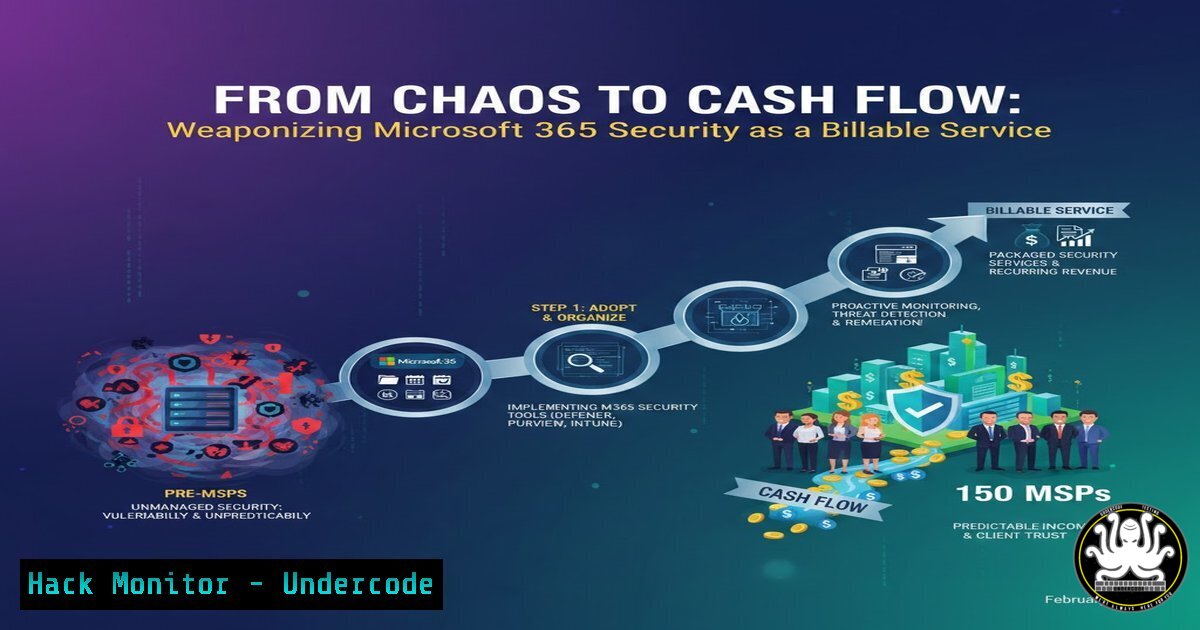
For Managed Service Providers (MSPs), Microsoft 365 represents both a colossal opportunity and a sprawling attack surface. The platform’s depth—spanning Entra ID, Intune, Defender, and Compliance—often leads to inconsistent configurations, security gaps, and missed revenue. A new structured implementation programme promises to transform this complexity into a standardized, defensible, and repeatable billable service, moving beyond theoretical training to enforceable security baselines.
Learning Objectives:
- Architect a standardized security posture across all client Microsoft 365 Business Premium tenants.
- Implement and verify critical hardening steps in Entra ID, Conditional Access, Intune, and Defender for Endpoint.
- Transform M365 security management from an ad-hoc task into a documented, auditable, and profit-generating service line.
You Should Know:
1. The Foundation: Entra ID (Azure AD) Hardening
The identity plane is the new primary security perimeter. A compromised admin account can bypass even the most sophisticated controls. The programme enforces a “zero-standing privilege” model in Entra ID.
Step‑by‑step guide explaining what this does and how to use it.
Step 1: Break Glass Account Isolation: Create dedicated, cloud-only emergency access accounts excluded from all Conditional Access and multifactor authentication (MFA) policies. Store their credentials in a secure, offline vault.
PowerShell Command (Microsoft Graph):
 Connect to Microsoft Graph with appropriate scope
Connect-MgGraph -Scopes "User.ReadWrite.All", "RoleManagement.ReadWrite.Directory"
 Create the new user
$PasswordProfile = @{
Password = "VeryStrongTemporaryPassword1!"
ForceChangePasswordNextSignIn = $false
}
New-MgUser -DisplayName "BRKGLASS-Admin" -UserPrincipalName "[email protected]" -PasswordProfile $PasswordProfile -AccountEnabled $true -MailNickName "BRKGLASSAdmin"
 Assign the Global Administrator role
$roleDefinition = Get-MgRoleManagementDirectoryRoleDefinition -Filter "displayName eq 'Global Administrator'"
$params = @{
"@odata.type" = "microsoft.graph.unifiedRoleAssignment"
principalId = (Get-MgUser -UserId "[email protected]").Id
roleDefinitionId = $roleDefinition.Id
directoryScopeId = "/"
}
New-MgRoleManagementDirectoryRoleAssignment -BodyParameter $params
Step 2: Secure Service Principals & Audit Legacy Auth: Use Microsoft Graph to identify and disable legacy authentication protocols (like IMAP, POP3, SMTP) which bypass MFA, and review high-permission service principals.
PowerShell Command:
 Report on authentication methods in use
Get-MgReportAuthenticationMethodUserRegistrationDetail | Export-Csv "AuthMethodsReport.csv"
 Use Conditional Access to block legacy auth (Admin Portal path: Entra ID > Security > Conditional Access > New Policy)
2. The Gatekeeper: Architecting Unbreakable Conditional Access
Conditional Access (CA) is the policy engine that enforces your security logic. The goal is moving from “if-then” policies to a unified, named baseline.
Step‑by‑step guide explaining what this does and how to use it.
Step 1: Establish a Naming Convention & Require MFA: Adopt a convention like `CA-
-[bash]-[Apps/Targets]` (e.g., <code>CA-01-Require MFA-All Users-All Apps</code>). Create a policy that requires MFA for all users and all cloud apps, excluding only your break-glass accounts.
 Step 2: Implement Device Compliance & Location Blocks: Create a policy that grants access only from Intune-compliant devices (<code>Grant control: Require device to be marked as compliant</code>). Create a separate, high-priority policy to block access from high-risk countries.

<h2 style="color: yellow;"> Policy Configuration (Conceptual):</h2>

<h2 style="color: yellow;">1. Name: `CA-10-Block High-Risk Countries-All Apps`</h2>

<h2 style="color: yellow;">2. Users: All Users</h2>

<h2 style="color: yellow;">3. Cloud Apps: All</h2>

<ol>
<li>Conditions: Locations > Include > Any location > Exclude > Selected countries (your trusted list)</li>
</ol>

<h2 style="color: yellow;">5. Grant: Block access</h2>

<h2 style="color: yellow;">3. The Endpoint: Intune Compliance & Configuration Baselines</h2>

An identity is only as strong as the device accessing it. Intune compliance policies define the health standard for devices.

Step‑by‑step guide explaining what this does and how to use it.
 Step 1: Deploy a Windows Security Baseline: In the Microsoft Intune admin center, navigate to Endpoint security > Security baselines. Deploy the "Microsoft Defender for Endpoint baseline" and "Windows 11 Security baseline" to all devices. Customize only where necessary to avoid conflicts.
 Step 2: Create a Custom Compliance Policy for BitLocker: A standard baseline may not check for disk encryption. Create a custom compliance policy using PowerShell detection.

<h2 style="color: yellow;"> PowerShell Detection Script (for Intune):</h2>

[bash]
 Check if BitLocker is on and protected
$BitLockerVolumes = Get-BitLockerVolume
foreach ($volume in $BitLockerVolumes) {
if ($volume.VolumeStatus -ne "FullyEncrypted" -or $volume.KeyProtector.KeyProtectorType -notcontains "TpmPin") {
Write-Host "BitLocker not compliant on $($volume.MountPoint)"
exit 1
}
}
Write-Host "Compliant"
exit 0
Apply this as a compliance policy. Non-compliant devices are then blocked by your Conditional Access policy.
4. The Sentinel: Microsoft Defender XDR Configuration
Defender for Endpoint (MDE) must be actively tuned to reduce noise and highlight true threats.
Step‑by‑step guide explaining what this does and how to use it.
Step 1: Configure Automated Investigation and Remediation: In the Microsoft Defender portal, go to Settings > Endpoints > Advanced features. Enable Automated investigation. Under Settings > Endpoints > Automation level, set it to “Full – remediate threats automatically” for a hardened environment.
Step 2: Integrate with Threat Intelligence (TI) Indicators: Proactively block known malicious IPs, URLs, and file hashes.
PowerShell Command (via Microsoft Graph Security API):
 Connect to Graph with TI permissions
Connect-MgGraph -Scopes "ThreatIndicators.ReadWrite.OwnedBy"
 Create an indicator to block a malicious URL
$params = @{
action = "block"
description = "Malicious C2 server from TI feed"
expirationDateTime = (Get-Date).AddDays(30).ToUniversalTime()
targetProduct = "Microsoft Defender ATP"
threatType = "Url"
url = "http://malicious-download[.]com/bad.exe"
}
New-MgSecurityTiIndicator -BodyParameter $params
5. The Proof: Audit Logging and Proactive Hunting
Security is meaningless if you cannot prove it. The programme emphasizes centralized logging and proactive querying.
Step‑by‑step guide explaining what this does and how to use it.
Step 1: Enable Unified Audit Log and Sentinel Integration: Ensure the Unified Audit Log is enabled for all tenants. For advanced MSPs, ingest logs into Microsoft Sentinel using the M365 and MDE data connectors.
Step 2: Proactive Hunting with KQL: Regularly run hunting queries to find anomalies.
Kusto Query Language (KQL) Example in Sentinel/MDE Advanced Hunting:
// Hunt for impossible travel scenarios
IdentityLogonEvents
| where Timestamp > ago(1d)
| summarize CountryCount = dcount(Country), FirstCity = arg_min(Timestamp, City), LastCity = arg_max(Timestamp, City), FirstTime = min(Timestamp), LastTime = max(Timestamp) by AccountUpn, bin(Timestamp, 1h)
| where CountryCount > 1
| extend TimeDiff = LastTime - FirstTime
| where TimeDiff < 1h // Adjust threshold based on geography
| project AccountUpn, FirstCity, LastCity, FirstTime, LastTime, TimeDiff
What Undercode Say:
- Standardization is the Keystone of MSP Security. The true value isn’t in any single policy, but in the enforced consistency across every engineer and every tenant, eliminating configuration drift and human error.
- Security as a Service Requires Proof of Execution. The integration of engineer assessments, per-module certification, and documented baselines transforms security from an opaque “trust us” offering into a transparent, evidence-based service that justifies recurring billing.
Prediction:
The MSP landscape is rapidly bifurcating. Generalists providing basic M365 admin will face existential price compression and liability risks from rampant security breaches. Conversely, MSPs that adopt this productized, security-first approach will dominate the market. They will command premium margins, demonstrate clear compliance adherence (e.g., for cyber insurance), and unlock scalable managed detection and response (MDR) offerings built on their standardized foundation. By 2027, a documented, auditable M365 security baseline will become the non-negotiable table-stakes requirement for any MSP serving the mid-market, turning ad-hoc hardening into the industry’s most critical profit center.
▶️ Related Video (74% Match):
🎯Let’s Practice For Free:
IT/Security Reporter URL:
Reported By: Jonathanjedwards I – Hackers Feeds
Extra Hub: Undercode MoN
Basic Verification: Pass ✅


