Listen to this Post
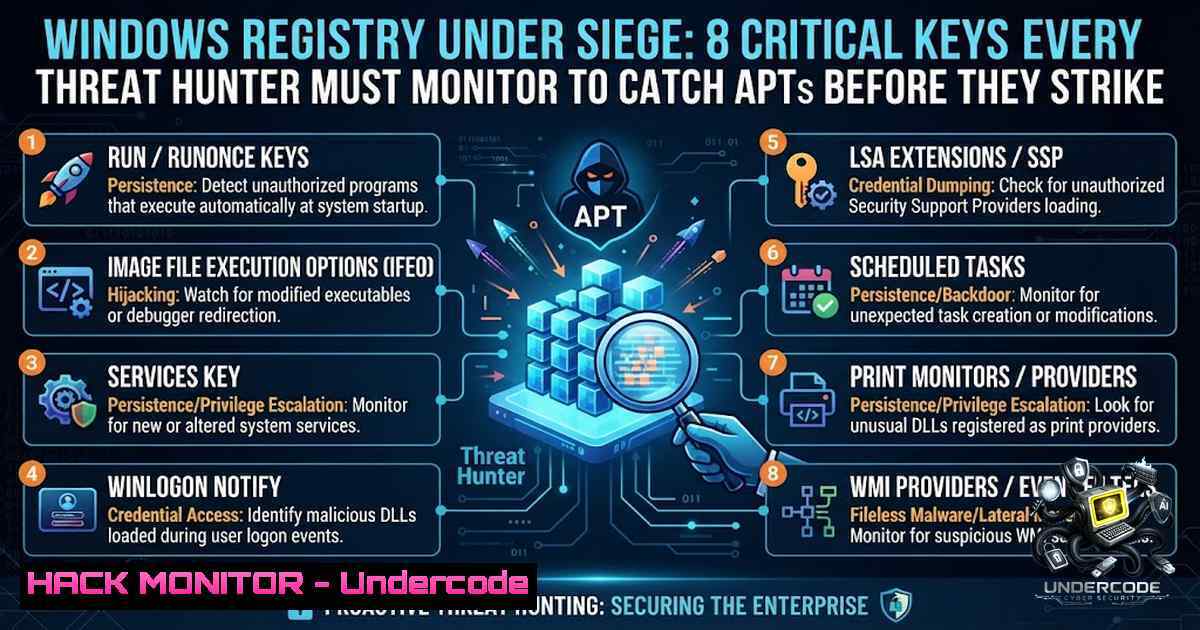
Introduction:
The Windows Registry is the operating system’s central configuration database, storing settings for the OS, applications, users, services, drivers, and security policies. Because of its flexibility and persistence, it is one of the first places attackers modify after gaining access—from commodity malware to advanced persistent threats (APTs). In 2025, 82% of intrusions left no traditional malware file on disk, and the Windows registry is central to why: ransomware establishes persistence there, credential theft tools manipulate its authentication keys, and fileless payloads are stored entirely within registry values.
Learning Objectives:
- Master the identification and monitoring of eight critical registry locations frequently abused for persistence, privilege escalation, and credential theft.
- Implement real-time registry auditing using Sysmon (Event IDs 12, 13, and 14) and integrate with SIEM/EDR platforms for proactive threat detection.
- Develop hands-on skills to hunt for malicious registry modifications using PowerShell, command-line tools, and forensic techniques.
1. Autostart Locations: The Attackers’ Front Door
Autostart locations are the most commonly abused registry keys for establishing persistence. The most targeted location is HKLM\SOFTWARE\Microsoft\Windows\CurrentVersion\Run, which executes any registered value at system startup for all users. `HKCU\SOFTWARE\Microsoft\Windows\CurrentVersion\Run` provides the same mechanism scoped to the current user and requires no administrative privileges to write.
Step‑by‑Step Guide:
- Enumerate autoruns using Sysinternals Autoruns: Download Autoruns from Microsoft Sysinternals and run it with administrative privileges to view all auto-starting entries.
- Query specific run keys manually: Use PowerShell to check for suspicious entries:
Get-ItemProperty -Path "HKLM:\SOFTWARE\Microsoft\Windows\CurrentVersion\Run"
Get-ItemProperty -Path "HKCU:\SOFTWARE\Microsoft\Windows\CurrentVersion\Run"
- Monitor for changes with Sysmon: Configure Sysmon to log registry modifications to these keys using Event ID 13.
- Establish a baseline: Document legitimate applications that modify these keys (e.g., antivirus, update services) and alert on any new or unexpected entries.
- Investigate anomalies: Correlate registry modifications with process creation events (Sysmon Event ID 1) to identify the executable responsible for the change.
2. Scheduled Tasks and Services: Stealthy Persistence Mechanisms
Attackers frequently use scheduled tasks and services to maintain persistence, often modifying registry keys under `HKLM\SYSTEM\CurrentControlSet\Services` and HKLM\SOFTWARE\Microsoft\Windows NT\CurrentVersion\Schedule\TaskCache.
Step‑by‑Step Guide:
- List all services and scheduled tasks: Use the following commands to enumerate services and scheduled tasks:
sc query state= all
schtasks /query /fo LIST /v
- Audit registry-based service configurations: Check for suspicious service image paths or start types:
Get-ChildItem -Path "HKLM:\SYSTEM\CurrentControlSet\Services" | ForEach-Object { Get-ItemProperty $_.PSPath } - Enable Sysmon registry monitoring: Ensure Sysmon Event ID 13 captures modifications to service and scheduled task registry keys.
- Analyze new service creations: Use Windows Event Logs (Event ID 4697 for new service creation) to detect unauthorized services.
- Correlate with network connections: Link suspicious service creations to outbound network connections (Sysmon Event ID 3) to identify potential C2 beaconing.
-
Shell and Explorer Registry Keys: Hijacking User Experience
Attackers can modify shell and Explorer registry keys to execute malicious code when users interact with the desktop or file explorer. Key locations include `HKLM\SOFTWARE\Microsoft\Windows NT\CurrentVersion\Winlogon\Shell` and HKCU\Software\Microsoft\Windows\CurrentVersion\Explorer\Shell Folders.
Step‑by‑Step Guide:
- Verify Winlogon shell entries: Check the Winlogon shell value to ensure it points to
explorer.exe:Get-ItemProperty -Path "HKLM:\SOFTWARE\Microsoft\Windows NT\CurrentVersion\Winlogon" | Select-Object Shell
- Inspect Explorer shell folders: Review shell folder paths for unexpected executables:
Get-ItemProperty -Path "HKCU:\Software\Microsoft\Windows\CurrentVersion\Explorer\Shell Folders"
- Monitor for changes using Sysmon: Configure Sysmon to alert on modifications to these keys.
- Analyze process trees: When a shell modification is detected, investigate the parent-child process relationships to identify the source (Sysmon Event ID 1).
- Use Autoruns for comprehensive scanning: Run Autoruns with the “Explorer” tab to view all shell extensions and context menu handlers.
4. Internet and Browser Configuration: Hijacking Web Traffic
Attackers often modify browser and internet settings to redirect traffic, disable security features, or install malicious extensions. Key locations include `HKCU\Software\Microsoft\Windows\CurrentVersion\Internet Settings` and browser-specific keys like HKCU\Software\Microsoft\Internet Explorer\Main.
Step‑by‑Step Guide:
- Check proxy settings: Verify that no unauthorized proxy servers are configured:
Get-ItemProperty -Path "HKCU:\Software\Microsoft\Windows\CurrentVersion\Internet Settings" | Select-Object ProxyEnable, ProxyServer
- Audit browser extensions: Review installed browser extensions and their registry entries for suspicious add-ons.
- Monitor for changes: Use Sysmon to log modifications to internet settings and browser configuration keys.
- Correlate with network traffic: When a proxy or browser setting is modified, investigate outbound connections (Sysmon Event ID 3) to identify potential data exfiltration.
- Implement Group Policy restrictions: Use Group Policy to enforce secure browser and internet settings across the enterprise.
5. WMI and COM-Based Persistence: The Silent Foothold
Windows Management Instrumentation (WMI) and Component Object Model (COM) provide attackers with powerful persistence mechanisms that are difficult to detect. WMI can trigger events based on nearly any conceivable system event, making it a prime target for stealthy persistence. Attackers may abuse the `StdRegProv` WMI class to modify registry keys.
Step‑by‑Step Guide:
- Enumerate WMI event filters and consumers: Use PowerShell to list all WMI event filters and their associated consumers:
Get-WmiObject -1amespace root\subscription -Class __EventFilter
Get-WmiObject -1amespace root\subscription -Class CommandLineEventConsumer
- Check COM registration: Review COM class registrations under `HKCR\CLSID` for suspicious entries.
- Monitor WMI registry modifications: Configure Sysmon to alert on changes to WMI-related registry keys (e.g.,
HKLM\SOFTWARE\Microsoft\WMI). - Correlate with process creation: When a WMI event triggers, investigate the resulting process (Sysmon Event ID 1) to identify malicious activity.
- Use Atomic Red Team tests: Simulate WMI persistence attacks using Atomic Red Team test T1546.003 to validate your detection capabilities.
-
LSA Secrets and Credential Storage: The Crown Jewels
Local Security Authority (LSA) Secrets are stored in the registry at `HKEY_LOCAL_MACHINE\SECURITY\Policy\Secrets` and can contain sensitive credential materials, including service account passwords. Attackers with SYSTEM access can dump these secrets using tools like Mimikatz or reg.exe.
Step‑by‑Step Guide:
- Detect LSA Secrets dumping: Monitor for registry access to `HKLM\SECURITY\Policy\Secrets` using Windows Security Event ID 4663 (File Modification).
- Audit process creation: Alert on processes like `reg.exe` or `mimikatz.exe` attempting to access LSA Secrets (Sysmon Event ID 1).
- Enable Sysmon registry monitoring: Configure Sysmon Event ID 13 to capture modifications to LSA Secrets registry keys.
- Correlate with module loads: When suspicious processes access LSA Secrets, investigate loaded modules like `lsasrv.dll` or `sechost.dll` (Sysmon Event ID 7).
- Implement privileged access management: Restrict SYSTEM-level access and enforce least privilege principles to mitigate LSA Secrets exposure.
7. Driver and Kernel Persistence: Rootkit-Level Stealth
Attackers can load malicious drivers or modify kernel-related registry keys to achieve deep system-level persistence. Key locations include `HKLM\SYSTEM\CurrentControlSet\Services` (for drivers) and HKLM\SYSTEM\CurrentControlSet\Control\Session Manager\Memory Management.
Step‑by‑Step Guide:
- List all kernel drivers: Use the following command to enumerate loaded drivers:
driverquery /v
- Audit driver registry entries: Check for unsigned or suspicious driver entries:
Get-ChildItem -Path "HKLM:\SYSTEM\CurrentControlSet\Services" | Where-Object { $_.PSChildName -match ".sys" } - Monitor driver loading: Use Sysmon Event ID 6 (Driver Load) to detect new driver installations.
- Enable Code Integrity: Configure Windows Defender Application Control (WDAC) or Device Guard to block unsigned drivers.
- Correlate with registry modifications: When a new driver is loaded, investigate the corresponding registry key modifications (Sysmon Event ID 13).
-
AppInit_DLLs and Image File Execution Options (IFEO): The Debugger Trap
AppInit_DLLs and IFEO are powerful mechanisms that attackers abuse to inject malicious code into processes and hijack legitimate applications. AppInit_DLLs are loaded by `user32.dll` into every process that loads that library. IFEO allows developers to debug applications by specifying an alternative executable, which attackers can redirect to malware.
Step‑by‑Step Guide:
- Check AppInit_DLLs: Verify the `AppInit_DLLs` value under
HKLM\SOFTWARE\Microsoft\Windows NT\CurrentVersion\Windows:Get-ItemProperty -Path "HKLM:\SOFTWARE\Microsoft\Windows NT\CurrentVersion\Windows" | Select-Object AppInit_DLLs
- Audit IFEO entries: Review IFEO subkeys for unexpected debugger values:
Get-ChildItem -Path "HKLM:\SOFTWARE\Microsoft\Windows NT\CurrentVersion\Image File Execution Options"
- Monitor for modifications: Use Sysmon Event ID 13 to detect changes to AppInit_DLLs and IFEO registry keys.
- Correlate with DLL loading: When AppInit_DLLs is modified, investigate subsequent DLL loads (Sysmon Event ID 7) for unsigned or uncommon DLLs.
- Implement detection rules: Use Sigma or Elastic detection rules to alert on IFEO modifications for security-related binaries (e.g.,
explorer.exe,winlogon.exe).
What Undercode Say:
- Key Takeaway 1: The Windows Registry is not just a configuration database—it is a primary battleground for attackers and defenders. Monitoring high-risk registry keys is essential for detecting persistence, privilege escalation, and credential theft early in the attack lifecycle.
-
Key Takeaway 2: Effective registry monitoring requires a multi-layered approach combining Sysmon, EDR, SIEM, and manual threat hunting. Relying solely on periodic manual reviews is insufficient; real-time auditing and correlation with other telemetry (process creation, network connections, PowerShell activity) are critical.
Analysis: The Windows Registry remains a highly effective attack vector because it is deeply integrated into the operating system and often overlooked by security teams. Attackers exploit this blind spot to establish persistence, hide payloads, and steal credentials without touching the disk. Defenders must treat the registry as a first-class security domain, implementing continuous monitoring, baselining, and threat hunting. The 8 registry categories outlined above represent the most critical areas to monitor, but threat hunters should also stay informed about emerging techniques and adapt their detection strategies accordingly.
Prediction:
- -1 As fileless malware and living-off-the-land techniques continue to rise, the Windows Registry will become an even more attractive target for attackers. Security teams that fail to prioritize registry monitoring will face increased dwell times and more severe breaches.
-
+1 Advancements in EDR and SIEM platforms, combined with community-driven threat intelligence (e.g., Sigma rules, Atomic Red Team), will enable defenders to detect registry-based attacks more effectively. Automated baselining and anomaly detection will reduce false positives and accelerate incident response.
-
-1 The proliferation of ransomware-as-a-service (RaaS) and commodity malware will lead to more frequent and automated registry modifications, overwhelming security teams with alerts. Organizations must invest in automation and threat hunting to keep pace.
-
+1 Increased awareness and training on registry-based threats will empower SOC analysts and DFIR professionals to proactively hunt for malicious activity. The development of open-source tools and detection frameworks will democratize registry threat hunting across organizations of all sizes.
▶️ Related Video (70% Match):
https://www.youtube.com/watch?v=5cfL51tGHAs
🎯Let’s Practice For Free:
🎓 Live Courses & Certifications:
Join Undercode Academy for Verified Certifications
🚀 Request a Custom Project:
Secure, high-velocity infrastructure and disruptive technological engineering. Contact our engineering team for high-tier development and proprietary systems:
[email protected]
💎 Smart Architecture | 🛡️ Secure by Design | ⭐ Trusted by Thousands
IT/Security Reporter URL:
Reported By: Important Windows – Hackers Feeds
Extra Hub: Undercode MoN
Basic Verification: Pass ✅


