Listen to this Post
Introduction:
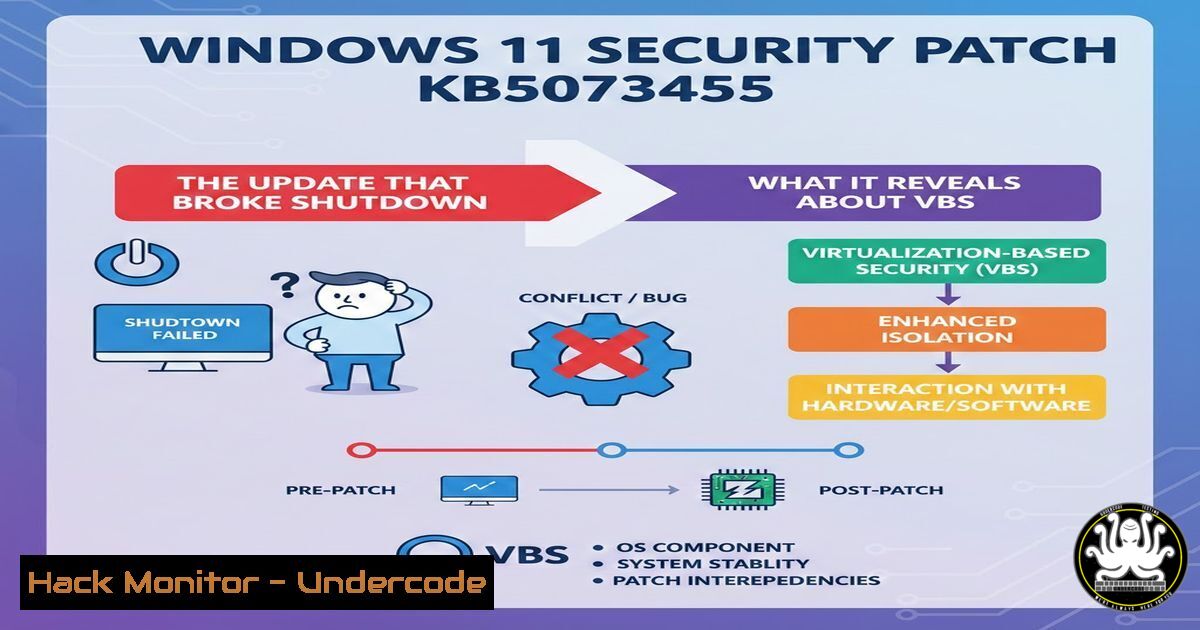
A critical January 2026 security update for Windows 11, designed to fortify the system against firmware-level attacks, has backfired spectacularly. Patch KB5073455 is causing widespread systems to ignore shutdown and hibernate commands, forcing an unintended restart instead. This incident highlights the delicate and often precarious balance between implementing cutting-edge security features like Virtualization-Based Security (VBS) and maintaining core system stability for end-users and enterprises alike.
Learning Objectives:
- Understand the role of Virtualization-Based Security (VBS) and Secure Launch in modern Windows defense.
- Diagnose and identify systems affected by the KB5073455 shutdown bug.
- Apply immediate workarounds and official mitigations to restore proper system power management.
- Learn command-line and PowerShell techniques for managing Windows updates and features.
- Analyze the broader implications of security updates on system stability and patch management strategies.
You Should Know:
1. The Core Culprit: VBS and Secure Launch
Microsoft’s Virtualization-Based Security (VBS) uses hardware virtualization to create an isolated, hypervisor-protected region of memory. A key component is “Secure Launch” (formerly Configurable Code Integrity), which ensures that the Windows kernel launches from a trusted, measured state at boot, defending against sophisticated rootkits. The KB5073455 update introduced a conflict where a process related to Secure Launch fails to terminate gracefully during shutdown, causing the system to default to a restart.
Step-by-Step Guide to Check VBS Status:
To determine if your system is utilizing VBS (a prerequisite for being affected by this specific bug), use the following commands:
Via System Information:
- Press
Windows Key + R, typemsinfo32, and hit Enter. - In the System Information window, look for the line item “Virtualization-based Security.”
3. If it says “Running,” VBS is active.
Via PowerShell (Admin):
Get-ComputerInfo -Property "DeviceGuard"
Or, more specifically:
Get-CimInstance -ClassName Win32_DeviceGuard -Namespace root\Microsoft\Windows\DeviceGuard
Look for `VirtualizationBasedSecurityStatus` with a value of `2` (Running) or `1` (Enabled).
2. Diagnosing the KB5073455 Update Installation
Confirm if the problematic update is installed on your Windows 11 23H2 (OS Build 22621.6491) system.
Step-by-Step Guide Using Command Line:
1. Open Command Prompt as Administrator.
2. To list all installed updates, run:
wmic qfe list brief | find "KB5073455"
3. Alternatively, in PowerShell (Admin), use:
Get-HotFix | Where-Object {$_.HotFixID -eq "KB5073455"}
If the command returns information, the update is installed. You can also verify via Settings > Windows Update > Update History.
3. Immediate Workaround: The Manual Shutdown Commands
While the GUI shutdown fails, you can often force a proper shutdown using the command line, bypassing the buggy routine.
Step-by-Step Guide for Command-Line Shutdown:
- Open Command Prompt or PowerShell (no admin rights needed for this).
2. To shut down immediately:
shutdown /s /f /t 0
– `/s` = Shutdown
– `/f` = Force running applications to close
– `/t 0` = Zero-second delay
3. To hibernate (if enabled):
shutdown /h
These commands often work because they invoke a different shutdown path that may not be entangled with the faulty Secure Launch process cleanup.
4. Official Mitigation: Uninstalling the Problematic Update
The most direct fix is to remove the update until Microsoft issues a patch-for-the-patch.
Step-by-Step Uninstallation Guide:
- Open Settings > Windows Update > Update History.
2. Click “Uninstall updates” (link at the top).
- In the pop-up Control Panel window, locate “Security Update for Microsoft Windows (KB5073455)”.
- Select it and click Uninstall. Confirm any prompts and restart when required.
Via PowerShell (Admin):
wusa /uninstall /kb:5073455 /quiet /norestart
Note: The `/quiet` flag performs a silent uninstall. Remove it to see the GUI wizard. You will need to restart manually.
5. The Nuclear Option: Temporarily Disabling VBS/Secure Launch
If you must keep the update installed or the issue persists, disabling VBS will resolve the shutdown bug but at a significant security cost. This is recommended only for testing or as a last resort.
Step-by-Step Guide to Disable VBS:
1. Open PowerShell as Administrator.
2. Disable Hypervisor (required for VBS):
bcdedit /set hypervisorlaunchtype off
3. Disable Device Guard and Credential Guard (core VBS features):
reg add "HKLM\SYSTEM\CurrentControlSet\Control\DeviceGuard" /v "EnableVirtualizationBasedSecurity" /t REG_DWORD /d 0 /f
4. Reboot the system. VBS will now be disabled, and the shutdown function should return to normal.
5. To re-enable VBS later: Reverse the commands:
bcdedit /set hypervisorlaunchtype auto
reg add "HKLM\SYSTEM\CurrentControlSet\Control\DeviceGuard" /v "EnableVirtualizationBasedSecurity" /t REG_DWORD /d 1 /f
Warning: Re-enabling may require additional platform-specific configuration and a reboot.
6. Proactive Defense: Configuring Update Deployment Rings
This incident underscores the need for controlled update rollouts in enterprise and even advanced user environments.
Step-by-Step Guide to Delay Updates Using Local Group Policy (Windows Pro/Enterprise):
1. Press Win + R, type gpedit.msc, and hit Enter.
2. Navigate to Computer Configuration > Administrative Templates > Windows Components > Windows Update > Windows Update for Business.
3. Double-click “Select when Quality Updates are received.”
- Enable the policy and set a “Deferral period (days)” (e.g., 7-14 days). This gives time for community reporting on bugs.
- Click OK. Your system will now delay non-security or optional updates, though critical security updates like KB5073455 may still deploy immediately unless you configure additional policies.
What Undercode Say:
- Security vs. Stability is a Zero-Sum Game in Modern OSes. This bug is a canonical example of the “Friday Night Phenomenon,” where a fix in one deeply integrated subsystem (Secure Launch) creates a catastrophic failure in another (Power Management). It reveals that the most secure state of a system is often one patch behind, waiting for the inevitable hotfix.
- The Command Line Remains the Ultimate Bypass. While the graphical shell was crippled, low-level command-line utilities (
shutdown.exe,bcdedit,wusa) provided immediate workarounds and fixes. This reinforces the principle that true system control resides not in the GUI, but in the scripting and shell environment—a core tenet of robust system administration.
This incident is not merely a bug; it’s a stress test of Microsoft’s “security-first” push. Forcing VBS and related features on compatible hardware has expanded the attack surface for stability. The patch management lifecycle is broken when a mandatory security update introduces a denial-of-service condition against a fundamental function like shutting down. IT departments are now forced to choose between a published vulnerability and a guaranteed operational disruption.
Prediction:
The KB5073455 debacle will accelerate three trends in the next 12-18 months. First, we will see a rise in “observability” tools for security features, allowing admins to monitor the health and conflict points of VBS, HVCI, and Secure Launch in real-time. Second, enterprise patch management suites will increasingly incorporate AI-driven risk scoring that weighs a CVE’s severity against the historical “break rate” of patches from the issuing vendor, potentially auto-delaying patches with high predicted instability. Finally, this will fuel further adoption of immutable infrastructure and containerized workloads in enterprise environments, where a flawed host OS update can be sidestepped by rapidly redeploying workloads to a known-good image, reducing the dependency on the stability of any single host’s update state.
▶️ Related Video (76% Match):
🎯Let’s Practice For Free:
IT/Security Reporter URL:
Reported By: Kaaviya Balaji – Hackers Feeds
Extra Hub: Undercode MoN
Basic Verification: Pass ✅


